

Google Workspace MacBook Setup
Step 1
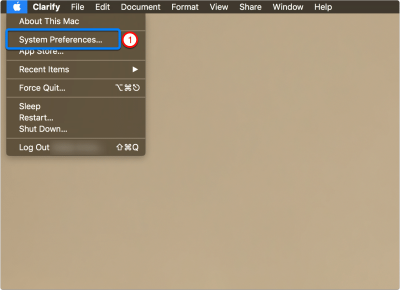
- Go to Apple main menu, click on Apple icon, and then select “System Preferences” as shown in the screenshot.
- You can also search for “System Preferences’ in the spotlight search and then click on it.
-
Step 2
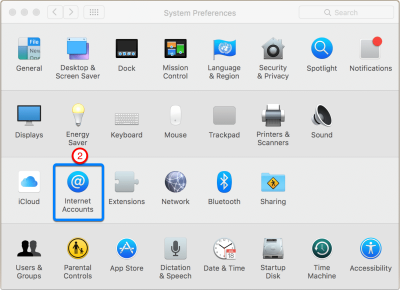
- As you will be adding a new Google Workspace account on your Macbook, Click on “Internet Accounts”
Step 3
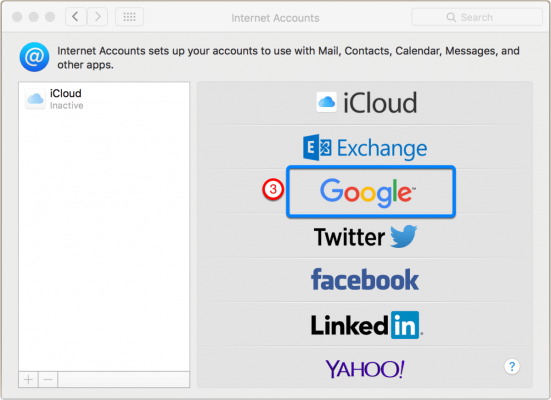
- As Google Workspace is Google’s service, simply click on “Google” to setup new Google Workspace account on your Apple Macbook.
Step 4
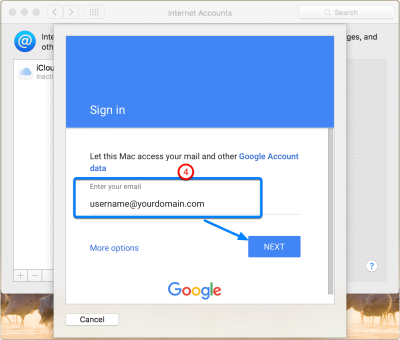
- Enter your full Google Workspace Email Address as shown in the screenshot
- It should look like yourusername@yourcompanydomain.com
- Click Next
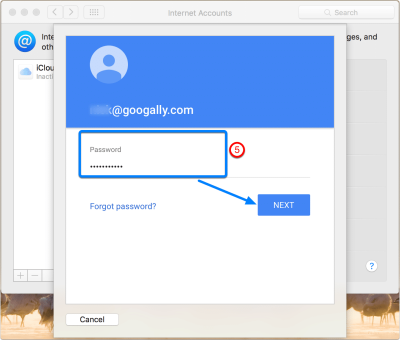
Step 5
- Enter your Google Workspace Account Password
- Click Next
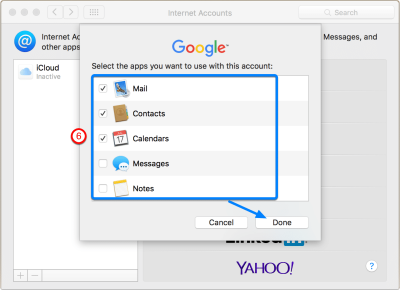
Step 6
- Select the applications you want to access and sync with your Apple Macbook
- Such as Email, Calendar and Contact
- Click Done
Related Posts
Explore Tips and Guides! Discover expert insights and practical guides for optimizing your Google Workspace experience with our informative resources.
















.png)
.png)
.png)
.png)
.png)
.png)
.png)
.png)


.png)
.png)

.png)









.png)
.png)


.png)


