

What Is Google NotebookLM? Your Complete Guide to Google's AI Research Assistant
What is Google NotebookLM? It's Google's AI-powered research assistant that turns your own documents — PDFs, Google Docs, Slides, websites, YouTube videos, and audio files — into an interactive knowledge base you can chat with, summarize, and transform into new formats like podcasts, mind maps, and slide decks.
Unlike general-purpose AI tools that pull answers from the entire internet, NotebookLM only works with the sources you provide, which means every answer is grounded in your actual data — with citations you can verify.
It's included as a core service in Google Workspace business plans, making it a powerful addition to the productivity suite your team may already be using.
Quick Takeaways
- NotebookLM is a source-grounded AI assistant — it only references documents you upload, so answers are always traceable and verifiable.
- It's included in Google Workspace — Business Starter through Enterprise Plus plans all get access, with higher-tier plans unlocking NotebookLM Plus features.
- It goes far beyond note-taking — generate audio overviews (AI podcasts), video overviews, mind maps, slide decks, infographics, flashcards, quizzes, and data tables from your sources.
- It's powered by Google's Gemini AI — currently running on Gemini 3, bringing strong reasoning and multimodal understanding to your research.
- It's available on web, Android, and iOS — so you can access your notebooks and even listen to audio overviews offline.
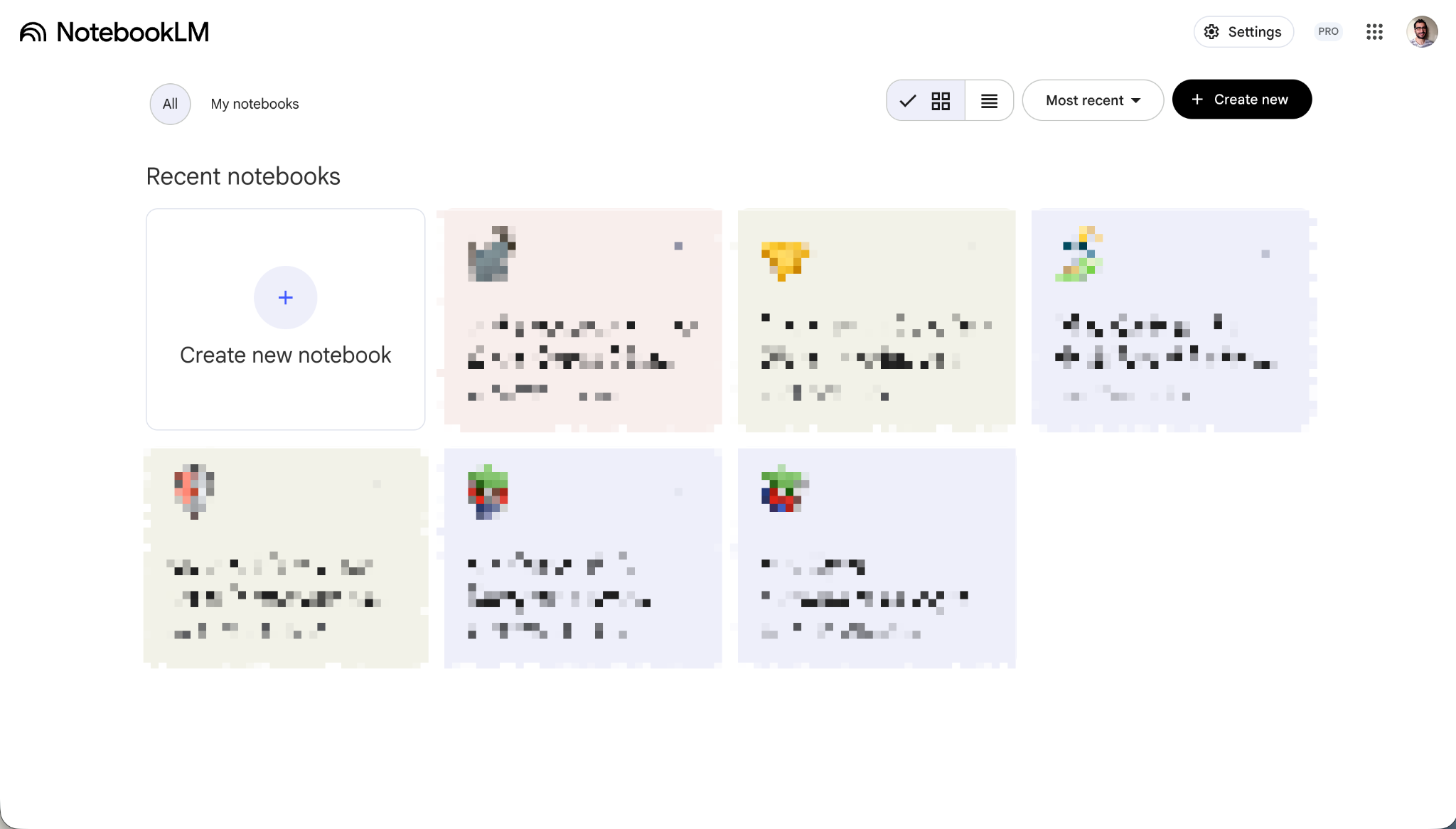
How Does NotebookLM Actually Work?
NotebookLM works by creating a "notebook" — a dedicated workspace where you upload the sources you want the AI to work with. You can add up to 50 sources in the free version (300 with NotebookLM Plus), and each source can contain up to 500,000 words or 200MB for uploaded files.
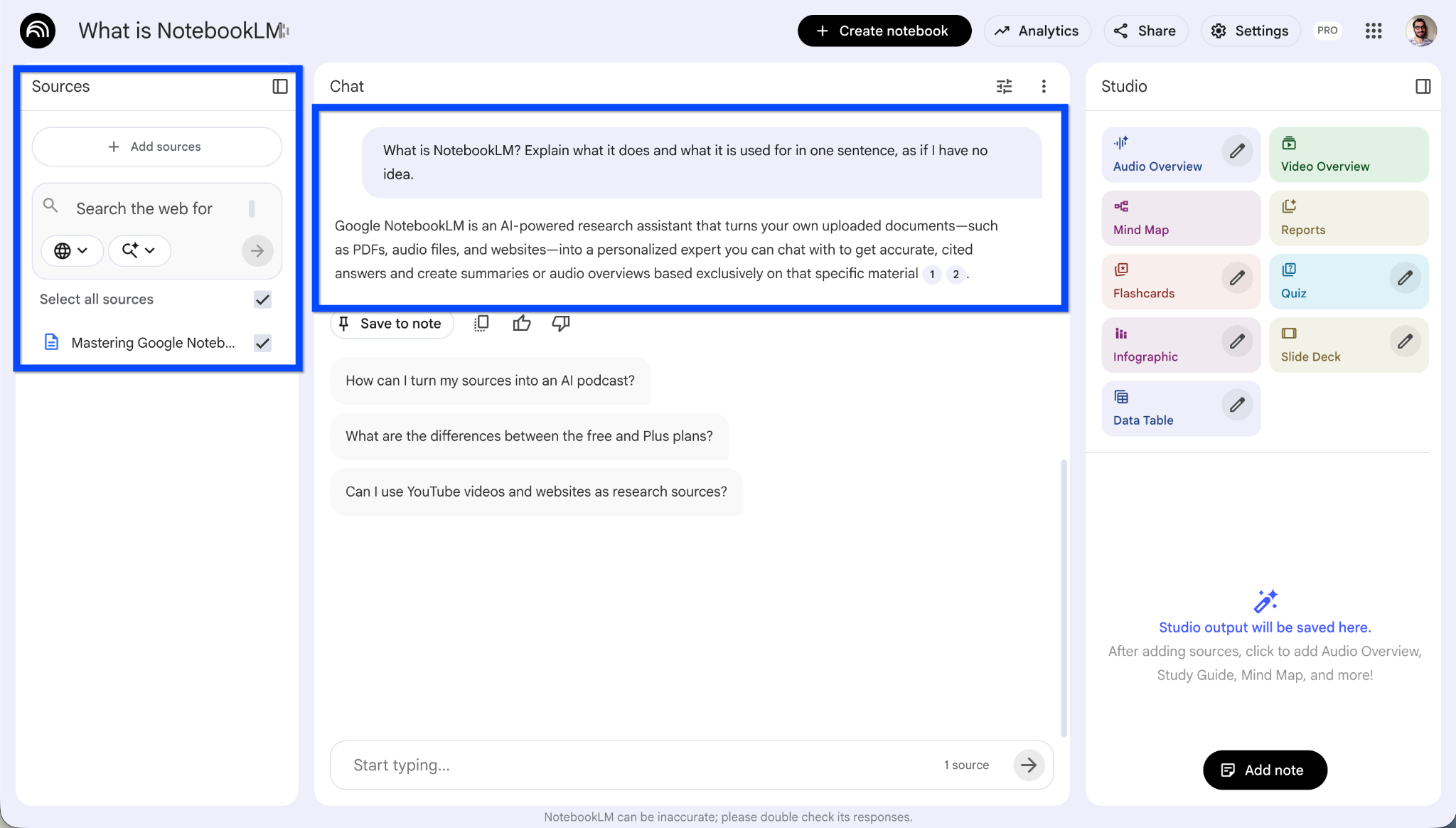
Once your sources are loaded, NotebookLM becomes an instant expert on that specific material. You can ask it questions in plain English, and it will synthesize answers exclusively from your uploaded content, always showing you exactly which source (and which passage) it's pulling from.
Here's a practical example: let's say you're a small business owner evaluating whether to switch your company's email and productivity tools. You could upload comparison articles, vendor proposals, and your current IT documentation into a notebook.
Then simply ask, "What are the benefits of migrating our email to Google Workspace ?" and get a grounded, citation-backed answer drawn from your actual research — not generic internet advice.
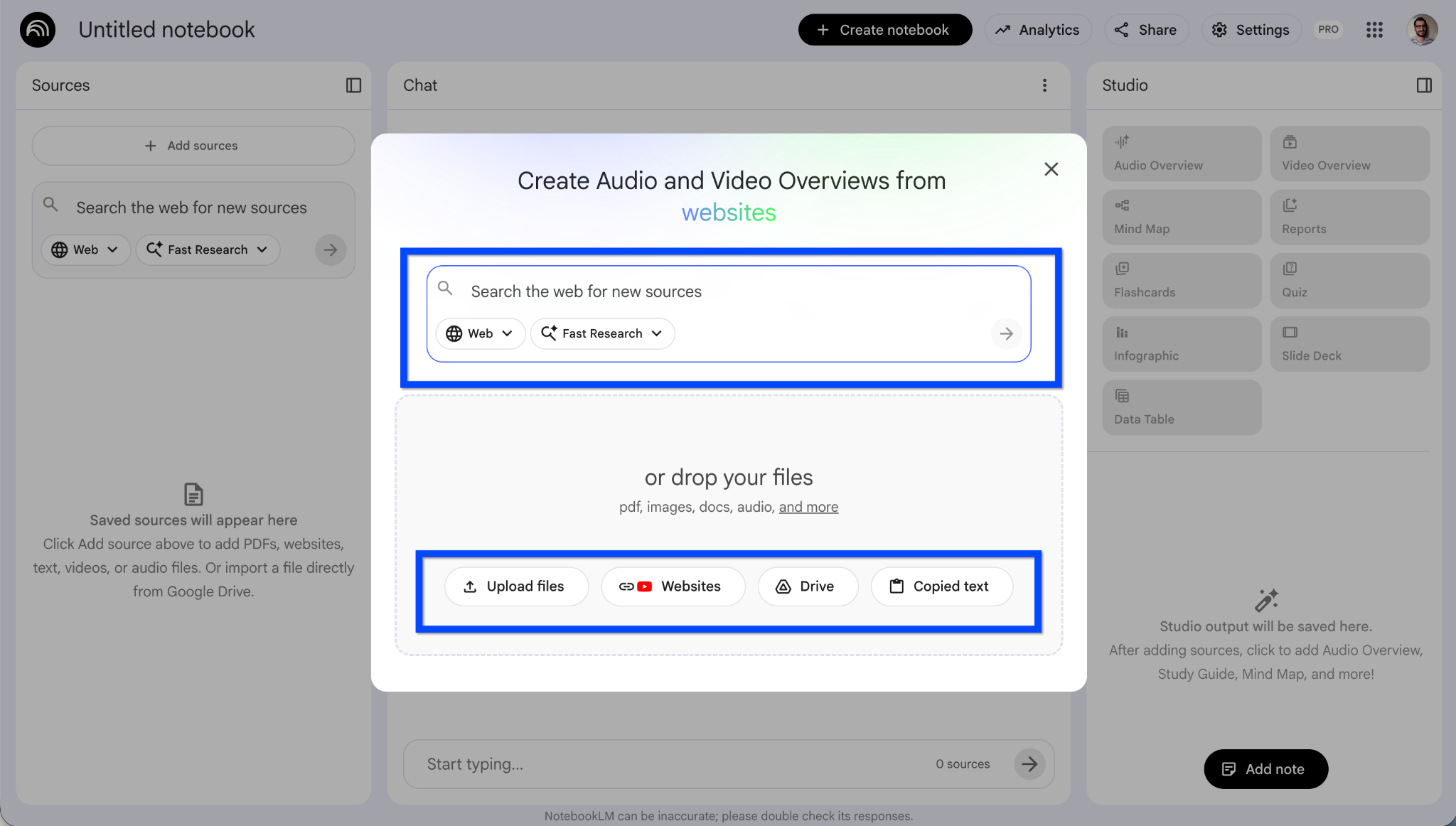
What Types of Sources Can You Upload?
NotebookLM supports a wide range of source types, making it flexible enough for almost any research or business scenario:
- Google Docs and Google Slides — imported directly from Google Drive
- PDFs — including scanned documents
- Text and Markdown files
- Web URLs — it pulls content from public web pages
- YouTube video URLs — it extracts and works with the transcript
- Audio files — for meeting recordings, interviews, and more
- Microsoft Word documents — added in late 2024 for cross-platform compatibility
- Google Sheets — added in November 2025
This wide source support means you're not locked into one format. You can mix a client proposal PDF with a competitor's website, a product demo video, and your internal strategy doc — all in the same notebook.
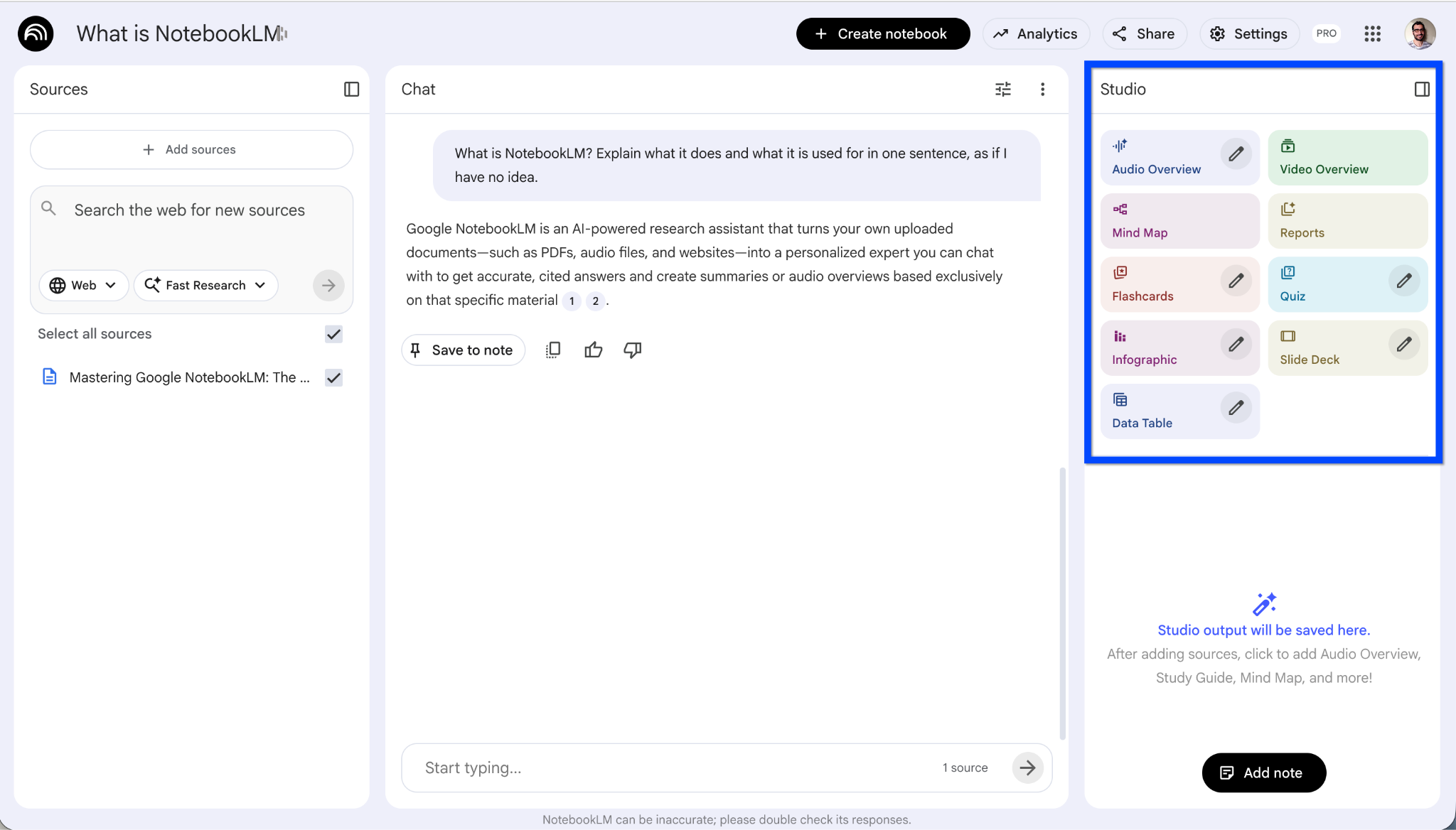
What Can You Create with NotebookLM's Studio Panel?
This is where NotebookLM really separates itself from other AI tools. The Studio panel lets you transform your sources into multiple output formats with a single click. As of late 2025, the available outputs include:
- Audio Overviews — Two AI hosts discuss your content in a podcast-style conversation. This is the feature that originally put NotebookLM on the map. It's surprisingly engaging and a great way to absorb dense material while commuting or multitasking.
- Video Overviews — A visual companion to the audio format, customizable to your preferred style.
- Mind Maps — Interactive visual maps that help you see connections between concepts in your sources.
- Reports — Structured written summaries and briefing documents.
- Slide Decks — Presentation-ready slides generated from your source material.
- Infographics — Visual data summaries powered by Google's Nano Banana Pro model.
- Flashcards and Quizzes — Study tools that test your understanding of the material, exportable as CSV for tools like Anki.
- Data Tables — Extract structured information from scattered sources into clean tables, exportable to Google Sheets.
For business owners, the practical applications are endless. Imagine uploading a stack of vendor proposals and asking NotebookLM to generate a comparison data table, then exporting it to Google Sheets for your team to review. Or taking your company's training manual and turning it into an audio overview that new hires can listen to during their first week.
Is NotebookLM Free? Understanding the Plans
Yes — there's a free version of NotebookLM available to anyone with a Google account. But the feature limits vary significantly depending on your plan. Here's how it breaks down:
Free NotebookLM (personal Google account):
- Up to 100 notebooks
- 50 sources per notebook
- 50 chat queries per day
- 3 Audio Overview generations per day
NotebookLM Plus (included with Google Workspace Business Standard and above, or via Google One AI Premium at $19.99/month):
- Up to 500 notebooks
- 300 sources per notebook
- 500 chat queries per day
- 20 Audio Overview generations per day
- Customizable response style and length
- Chat-only sharing mode
- Usage analytics for shared notebooks
NotebookLM Enterprise (via Google Cloud):
- All Plus features
- Enterprise-grade security (VPC-SC, IAM controls)
- Shared organizational notebooks
- US, EU, and Global data residency options
- Third-party identity provider support (Active Directory, Okta)
- Priced at $9/license/month
Here is the Google Workspace Pricing Plan - https://workspace.google.com/pricing

How Can Small Businesses Use NotebookLM?
In our experience helping hundreds of small businesses migrate to Google Workspace, we've seen NotebookLM become a quiet productivity powerhouse once teams discover it. Here are some of the most practical use cases:
Sales and Client Preparation
Upload your product specs, pricing sheets, competitor analyses, and past client communications into a notebook. Before a big meeting, ask NotebookLM to create a briefing doc or an account plan. Your sales team walks in better prepared — and the AI did the heavy lifting.
Employee Onboarding
Take your employee handbook, HR policies, training guides, and process documents and load them into a shared notebook. New hires can ask questions like "What's our PTO policy?" or "How do I submit an expense report?" and get instant, accurate answers grounded in your actual documentation.
Research and Decision-Making
Evaluating new software vendors? Considering a lease for a new office? Upload all the relevant documents, proposals, and reviews into a notebook and let NotebookLM synthesize the key points, generate comparison tables, and surface details you might have missed.
Content and Marketing
Upload your brand guidelines, past blog posts, customer testimonials, and market research. Use NotebookLM to generate content briefs, draft social media summaries, or create audio overviews you can share with your team.

How Is NotebookLM Different from ChatGPT or Gemini?
This is one of the most common questions we hear, and the distinction matters.
General AI tools like ChatGPT and Gemini draw from their massive training data — essentially, a broad slice of the internet. They're great for open-ended questions, creative writing, and general knowledge. But they can hallucinate (make things up) and you can't always trace where an answer came from.
NotebookLM is source-grounded. It only answers based on the documents you've uploaded. Every response includes citations pointing to specific passages in your sources, so you can verify every claim. It won't make things up because it can't — it's constrained to your material.
Think of it this way: ChatGPT is like asking a very well-read friend for advice. NotebookLM is like handing a stack of specific documents to a brilliant research assistant and saying, "Only use these."
That said, NotebookLM now also integrates with the Gemini app, so you can push your notebooks into Gemini for broader conversations when you need to combine your source-grounded research with general AI capabilities.

What About Privacy and Security?
For business owners, this is a critical question. Google has been clear on several fronts:
Your uploaded sources stay private unless you actively choose to share a notebook. NotebookLM does not train its AI models on your uploaded data — a significant distinction from some other AI tools on the market. And because NotebookLM is now a core Google Workspace service, it's covered under your existing Workspace terms of service with the same enterprise-grade data protections as Gmail, Drive, and Docs.
For organizations with stricter compliance requirements, the Enterprise tier adds data residency controls, VPC-SC integration, and support for third-party identity providers.

What Are the Latest NotebookLM Features in 2025?
NotebookLM has evolved rapidly. Here are some of the biggest additions from 2025:
- Gemini 3 integration (December 2025) — significantly improved reasoning and multimodal understanding.
- Data Tables (December 2025) — synthesize scattered information into structured tables, exportable to Google Sheets.
- Slide Decks and Infographics (November 2025) — create presentation-ready visuals from your sources.
- Google Sheets import (November 2025) — add spreadsheet data as a source.
- Deep Research integration — access Gemini's Deep Research feature within NotebookLM.
- Mobile apps (Android and iOS) — with offline audio overview support and on-the-go chat.
- Custom personas — configure how NotebookLM responds, with up to 5,000 characters of customization.
- Mind Maps (March 2025) — interactive visual topic exploration.
- Output language selector — generate content in 35+ languages.

How Do You Get Started with NotebookLM?
Getting started takes about 30 seconds:
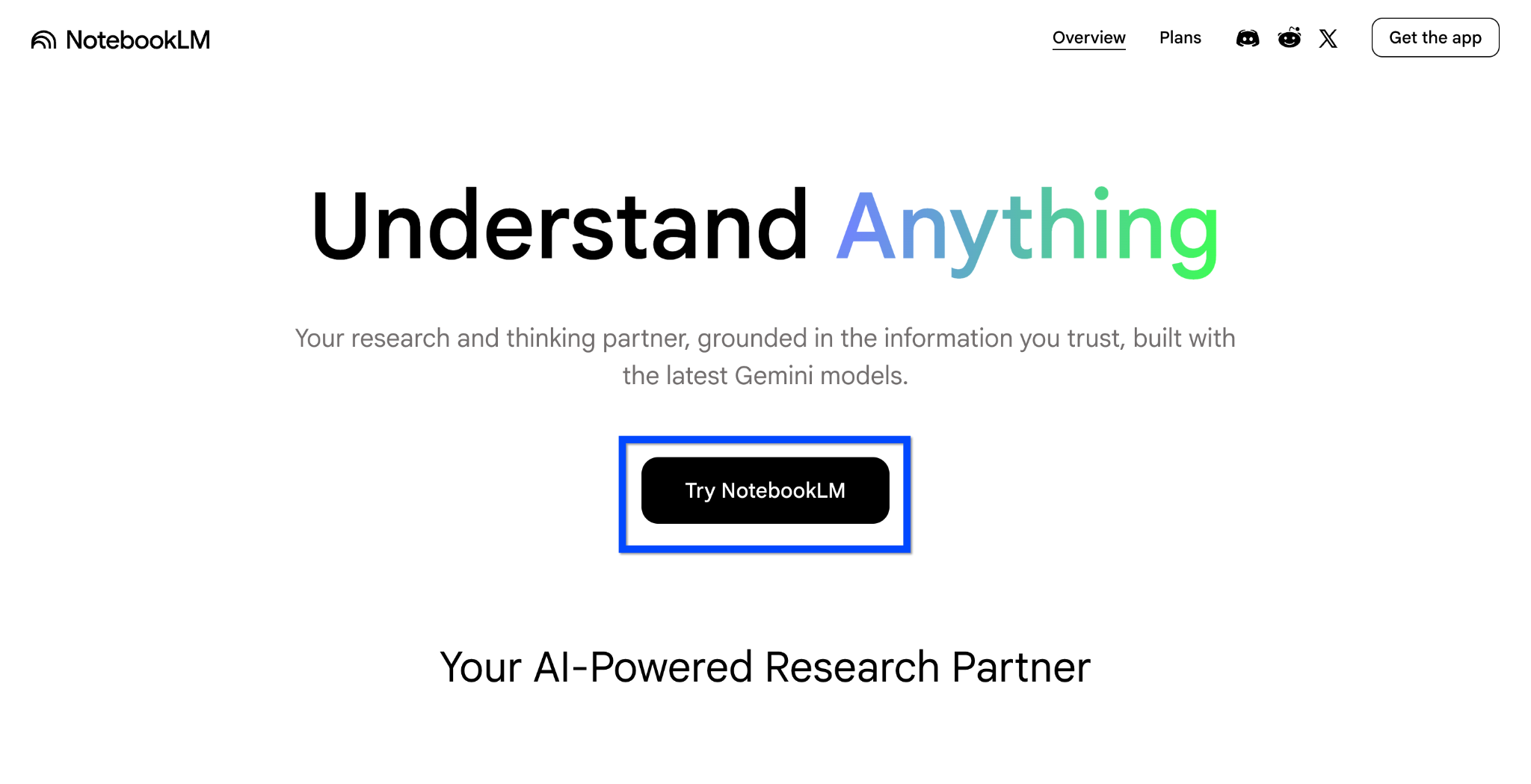
- Go to notebooklm.google and sign in with your Google account (personal or Workspace).
- Click "New Notebook" and give it a name.
- Upload your sources — drag and drop PDFs, paste URLs, or connect Google Drive files.
- Start chatting or explore the Studio panel to generate overviews, mind maps, and more.
Frequently Asked Questions
Is NotebookLM included with Google Workspace?
Yes. As of February 2025, NotebookLM is a core service for all Google Workspace business editions. Business Starter users get standard NotebookLM, while Business Standard, Business Plus, and Enterprise users get access to NotebookLM Plus with higher limits and premium features like customizable response styles and usage analytics.
Can NotebookLM access my Google Drive files?
Yes. You can import Google Docs, Google Slides, and Google Sheets directly from your Drive into a NotebookLM notebook. Drive file URLs also work in the import box, making it easy to pull in existing documents without downloading and re-uploading them.
Does Google train its AI on data I upload to NotebookLM?
No. Google has stated that NotebookLM does not use your uploaded data to train its AI models. Your sources remain private unless you choose to share a notebook, and as a core Workspace service, NotebookLM is covered by your Workspace data protection agreements.
Can I use NotebookLM on my phone?
Yes. Google launched native NotebookLM apps for both Android and iOS. The mobile apps support core features including chat, source browsing, and audio overview playback — with offline listening support so you can access your content without an internet connection.
Ready to get the most out of Google Workspace for your business? NotebookLM is just one of the many powerful tools included in Google Workspace. If you're still on an older email platform or thinking about making the switch, talk to our migration team — we'll get you set up with zero downtime, guaranteed.
Related Posts
Explore Tips and Guides! Discover expert insights and practical guides for optimizing your Google Workspace experience with our informative resources.









.png)
.png)
.png)
.png)
.png)
.png)
.png)
.png)


.png)
.png)
.png)






.png)
.png)


.png)


