

Google Workspace Can Be HIPAA Compliant. Yours Probably Isn't. Here's Why
If you're running a medical practice, dental office, therapy clinic, or any healthcare business, you've probably heard that Google Workspace can be HIPAA compliant. What you might not know is that "can be" and "is" are very different things.
Out of the box, Google Workspace is not HIPAA compliant. It's like buying a building for your practice — the structure might be solid, but you still need to install proper locks, set up access controls, configure the alarm system, and establish protocols for who can enter which rooms.
That's exactly what we do when we configure Google Workspace for HIPAA compliance.
We've helped dozens of healthcare organizations — from solo therapists to multi-location clinics — secure their Google Workspace environments. Along the way, we've learned that most practice owners want to understand what's actually being done to protect their patient data. They don't want to just trust that it's handled; they want to know.
This guide walks you through every setting we review and configure. We've written it in plain language because you went to medical school, not IT school. Where it helps, we've used analogies from your world — because configuring email permissions isn't that different from deciding who gets access to your medication storage.
Here's what we cover across 20 areas of your Google Workspace setup:
1. Business Associate Agreement (BAA) Guidance
Think of this as the legal handshake between your practice and Google
Before a specialist can access your patient's medical records, you need proper referral paperwork and consent in place. The Business Associate Agreement works the same way — it's the legal document that makes Google a trusted partner who's bound by the same privacy rules you follow.
Here's what we review and configure in this section:
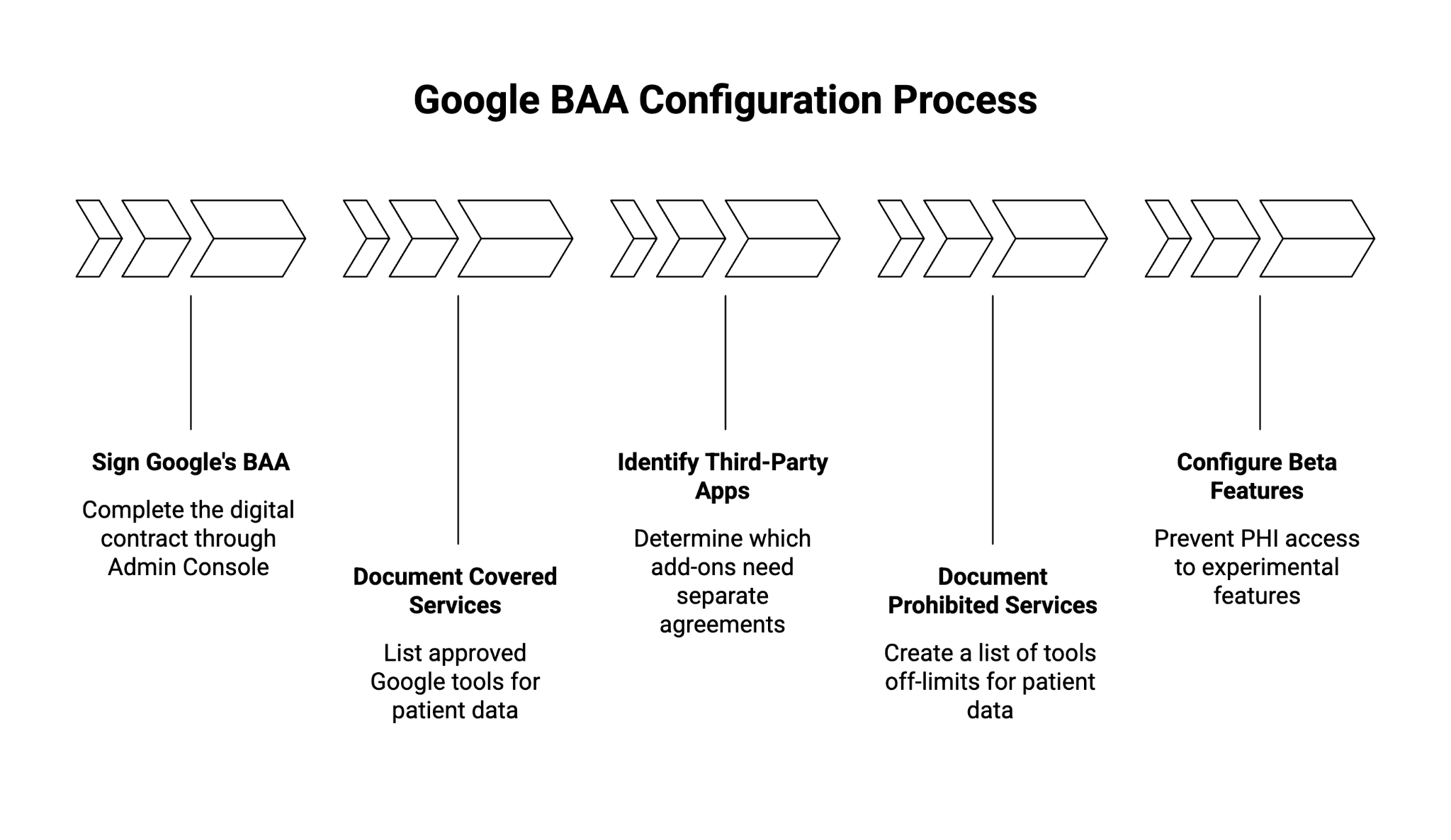
Signing Google's BAA through Admin Console
Just like you wouldn't share patient files with an outside lab without a signed agreement, you can't use Google Workspace with patient data until this digital contract is in place. We guide you through Google's Admin Console to locate, review, and sign this agreement — a step many practices miss or do incorrectly.
Documenting which services are covered under the BAA
Not every Google tool is approved for patient information. Think of it like your formulary — some medications are approved, others aren't. We provide you with a clear list of which Google services (Gmail, Drive, Meet, etc.) are "on formulary" for PHI, so your staff knows exactly what's safe to use.
Identifying third-party apps that need their own BAAs
If you use scheduling software, billing tools, or other apps that connect to Google Workspace, each one is like an outside vendor entering your practice. We help you identify which add-ons and integrations require their own separate agreements, so you don't accidentally create a compliance gap.
Documenting services where PHI is NOT permitted
Some Google tools — like YouTube, Blogger, and Google Photos — are strictly off-limits for anything patient-related. We create a clear "do not use" list for your team, similar to how you'd post allergy alerts. This prevents well-meaning staff from accidentally putting patient information somewhere it doesn't belong.
Guidance on Pre-GA/Beta features
Google sometimes releases new features in "beta" or early access. These are like experimental treatments — not yet fully vetted for safety. We configure your system to keep PHI away from these unproven features until Google formally approves them for healthcare use.
Why this matters for your practice:
Without a signed BAA, using Google Workspace with any patient information — even a simple appointment confirmation email — puts you at risk for HIPAA violations. Fines can range from $100 to $50,000 per incident, and repeated violations can reach $1.5 million per year. This foundational step protects your practice before we configure anything else.
2. Organizational Unit Architecture
Think of this as creating separate wings in your hospital for different types of care
In a hospital, you wouldn't give the cafeteria staff the same building access as your ICU nurses. Organizational Units (OUs) work the same way — they let you group employees based on what kind of data they handle, so you can apply different security rules to different teams.
Here's what we review and configure in this section:
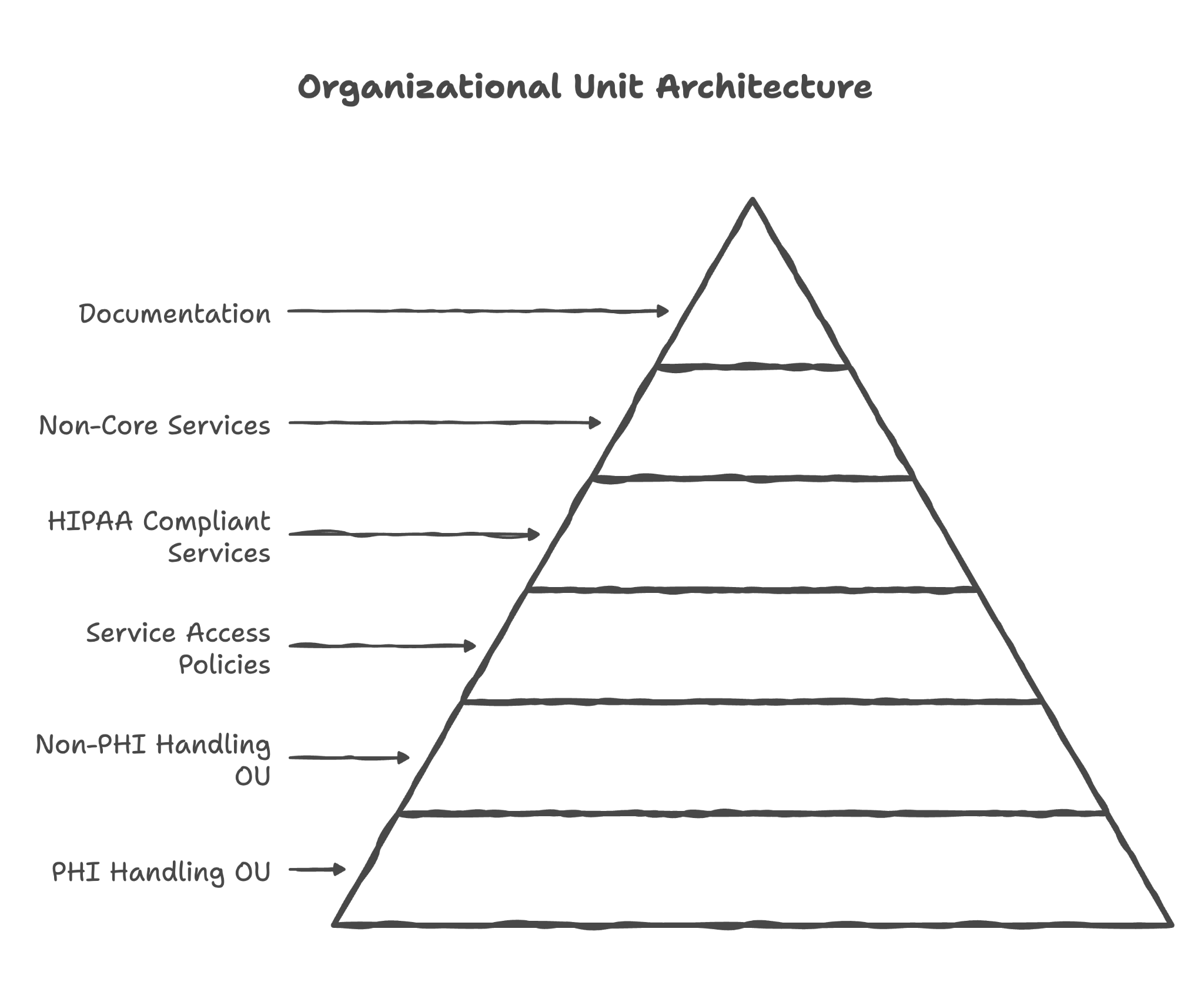
Creating a dedicated OU for employees who handle PHI
We set up a separate "container" for staff members who work with patient information — your clinicians, billing team, medical records staff. This group gets the strictest security settings, like putting them in a secured wing of your building with badge access only.
Creating a dedicated OU for employees who do NOT handle PHI
Your marketing team, general admin staff, or IT support may not need access to patient data. We place them in a separate OU with more relaxed settings, similar to how front desk volunteers don't need access to the pharmacy.
Configuring service access policies per OU
Different staff need different tools. Your billing coordinator might need access to Gmail and Drive, but not Google Meet for telehealth. We configure exactly which Google services each group can access — no more, no less.
Disabling non-HIPAA compliant services for PHI-handling OUs
For staff who work with patient data, we turn off all Google services that aren't covered under the BAA. This is like removing vending machines from the OR — if it doesn't belong there, it shouldn't be accessible there.
Disabling Non-Core Services for PHI-handling users
YouTube, Blogger, Google Photos, and other consumer services get disabled for anyone handling patient information. Even if an employee just wants to watch a training video, they'll need to do it from a personal account — not from the account that touches patient data.
Documenting OU structure and rationale for client records
We provide you with clear documentation of how your organization is structured in Google Workspace and why. If you're ever audited, you'll have written records showing the thought process behind your security decisions.
Why this matters for your practice:
Without proper organizational structure, your default is "everyone has access to everything." That's a HIPAA violation waiting to happen. Proper OU architecture is the foundation that makes all other security settings work correctly.
3. Admin Console Security and Monitoring
Think of this as your practice's security camera and alarm system
Every medical facility has security measures — cameras at entrances, alarm systems, logs of who accessed the building after hours. Your Google Workspace needs the same kind of monitoring. The Admin Console is your security headquarters, and we configure it to keep you informed of anything unusual.
Here's what we review and configure in this section:
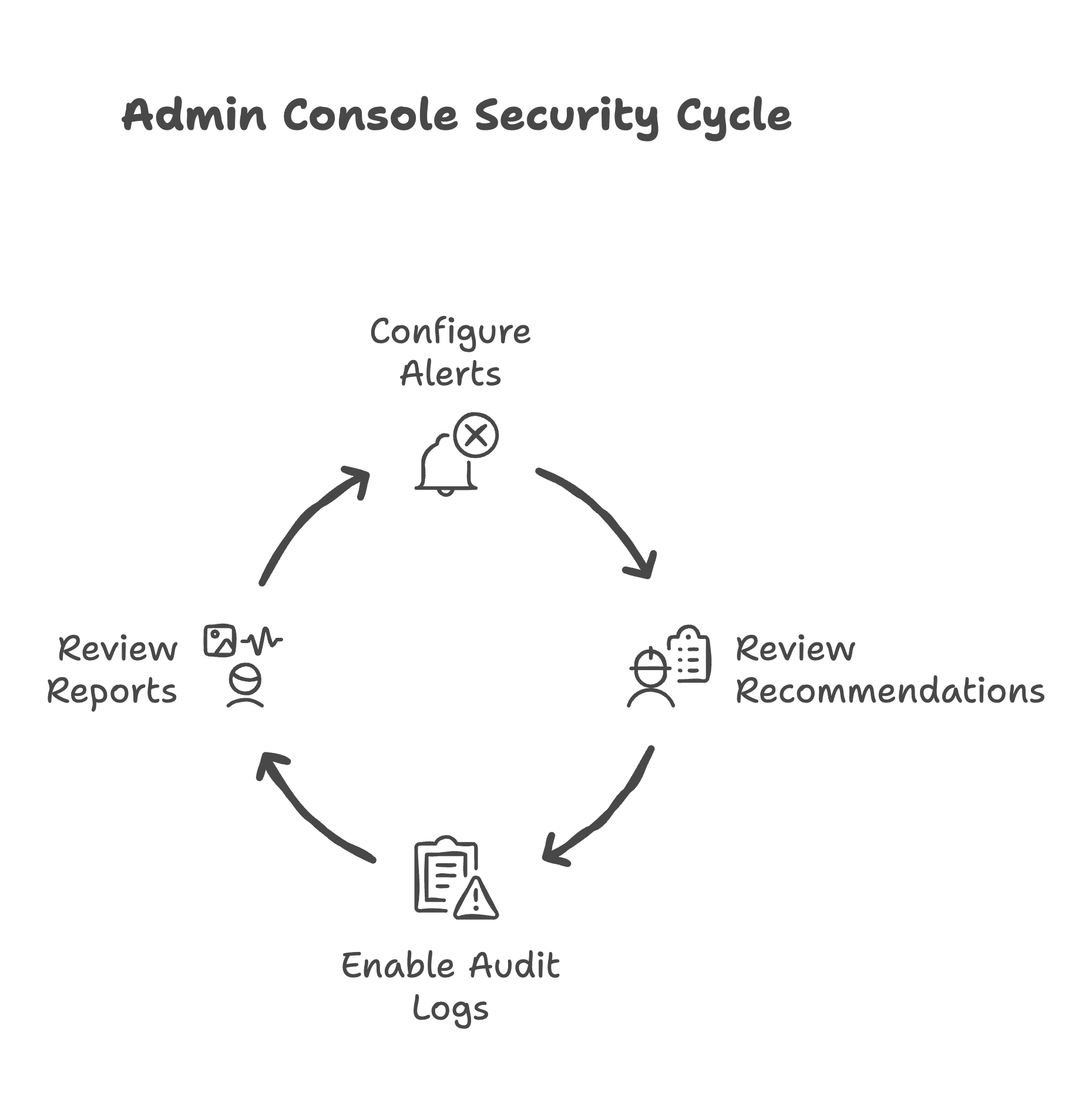
Configuring admin alert for suspicious login attempts
If someone tries to access your system from an unusual location or with wrong passwords, you need to know immediately. We set up alerts that work like a silent alarm — notifying you when something doesn't look right, so you can investigate before it becomes a breach.
Configuring admin alert for user suspended by administrator
When an employee is suspended (intentionally or accidentally), you'll receive notification. This creates an audit trail and helps catch unauthorized administrative actions — like noticing if someone's access was revoked without proper authorization.
Configuring admin alert for new user added
Every time a new account is created in your system, you'll know about it. This prevents unauthorized accounts from being created — the digital equivalent of someone making a copy of your office keys without permission.
Configuring admin alert for suspended user made active
If a suspended account suddenly becomes active again, that's a red flag. Maybe it's legitimate (an employee returning from leave), or maybe someone is trying to resurrect access they shouldn't have. Either way, you'll know.
Configuring admin alert for user deleted
When accounts are deleted, you need a record. This helps with compliance auditing and ensures you know exactly when former employees lost access to your systems.
Configuring admin alert for user password changed by administrator
If an admin resets someone's password, you'll be notified. This is important because password resets are a common way unauthorized users try to gain access. Legitimate resets should be expected; unexpected ones need investigation.
Configuring admin alert for user granted admin privilege
Admin privileges are like giving someone the master key to your entire building. Any time someone receives this level of access, you should know about it and verify it was intentional.
Configuring admin alert for user admin privilege revoked
Similarly, when admin access is removed, you'll be notified. This helps you track who has elevated permissions at any given time.
Reviewing and configuring Security Health recommendations
Google provides security recommendations specific to your setup. We review these suggestions and implement the ones appropriate for healthcare — like a consultant reviewing your facility and recommending safety improvements.
Enabling and configuring Admin audit logs
Every administrative action in your Google Workspace gets logged — who did what, when, and from where. These logs are your paper trail if you ever need to investigate an incident or demonstrate compliance during an audit.
Providing guidance on periodic security report review
We show you which reports to check regularly and what to look for. Think of it as teaching you to read your practice's vital signs — you'll know what's normal and what requires attention.
Why this matters for your practice:
HIPAA requires you to track access to patient information and detect potential breaches. Without proper monitoring, you might not discover a problem until it's too late — and "we didn't know" is not a valid defense in a HIPAA investigation.
4. Domain-Wide Sharing and Access Controls
Think of this as setting the default locks on every door in your building
When you build a medical facility, you decide the default state of doors — should they lock automatically, or stay open? In Google Workspace, sharing settings determine whether your files and data are locked down by default or accidentally exposed. We configure these organization-wide defaults so your staff starts from a secure position.
Here's what we review and configure in this section:
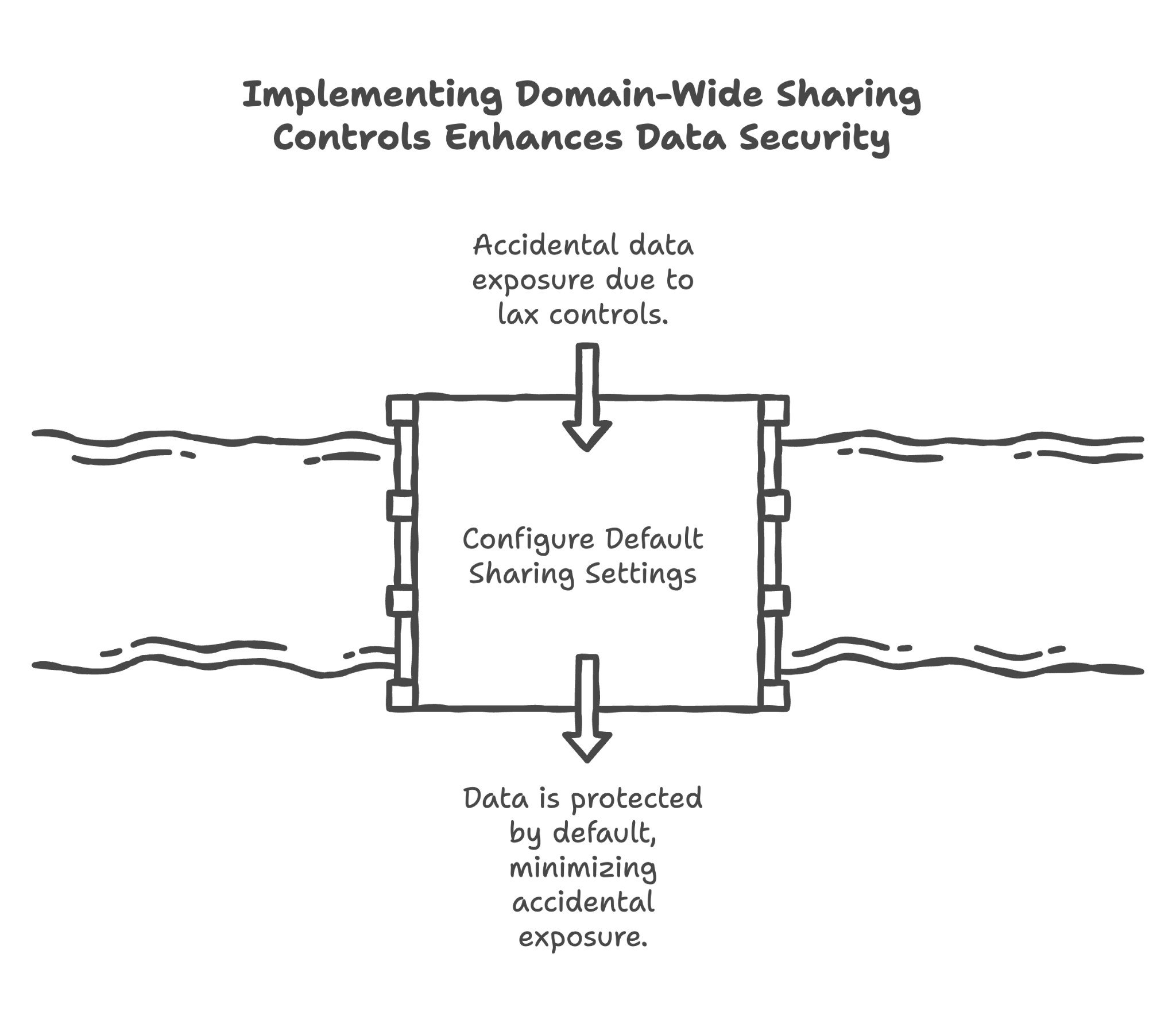
Setting default file visibility to "Private to the owner"
When someone creates a new document, it should be private by default — visible only to them until they explicitly share it. This is like having exam room doors that close automatically rather than staying open.
Configuring whether external sharing is allowed or restricted domain-wide
Should your staff be able to share files with people outside your organization? For some practices, external sharing with referral partners is essential. For others, it's an unnecessary risk. We configure this based on your actual workflow needs.
Configuring Access Checker settings
When employees share files, Google can warn them if they're about to share with someone unexpected. We configure these warnings to catch potential mistakes before they happen — like a pharmacist's double-check before dispensing.
Configuring "Distributing content outside of domain" settings
This determines who can publish content externally. For PHI-handling staff, we typically restrict this to prevent accidental public exposure of sensitive information.
Setting up allowlisted domains for external sharing
If you regularly share files with specific partner organizations (like a hospital system or insurance company), we can allow sharing with those specific domains while blocking everything else. It's like having an approved vendor list.
Configuring warnings for sharing with users outside allowlisted domains
Even when external sharing is needed, we set up warnings that appear when staff try to share with unfamiliar recipients. This moment of pause can prevent accidental data exposure.
Disabling "Anyone with the link" sharing option for PHI-handling OUs
The "anyone with the link" option is convenient but dangerous — it means anyone who gets that link can access the file, even accidentally. For staff handling patient data, we disable this option entirely.
Why this matters for your practice:
Data breaches often happen not through sophisticated hacking, but through simple mistakes — an employee accidentally shares a file publicly, or emails the wrong attachment. Proper sharing defaults prevent these mistakes from happening in the first place.
5. Gmail HIPAA Configuration
Think of this as securing your practice's mail room
Email is probably how you communicate most with patients, insurers, and other providers. It's also one of the easiest ways to accidentally expose patient information. We configure Gmail to minimize these risks while keeping your communication flowing smoothly.
Here's what we review and configure in this section:
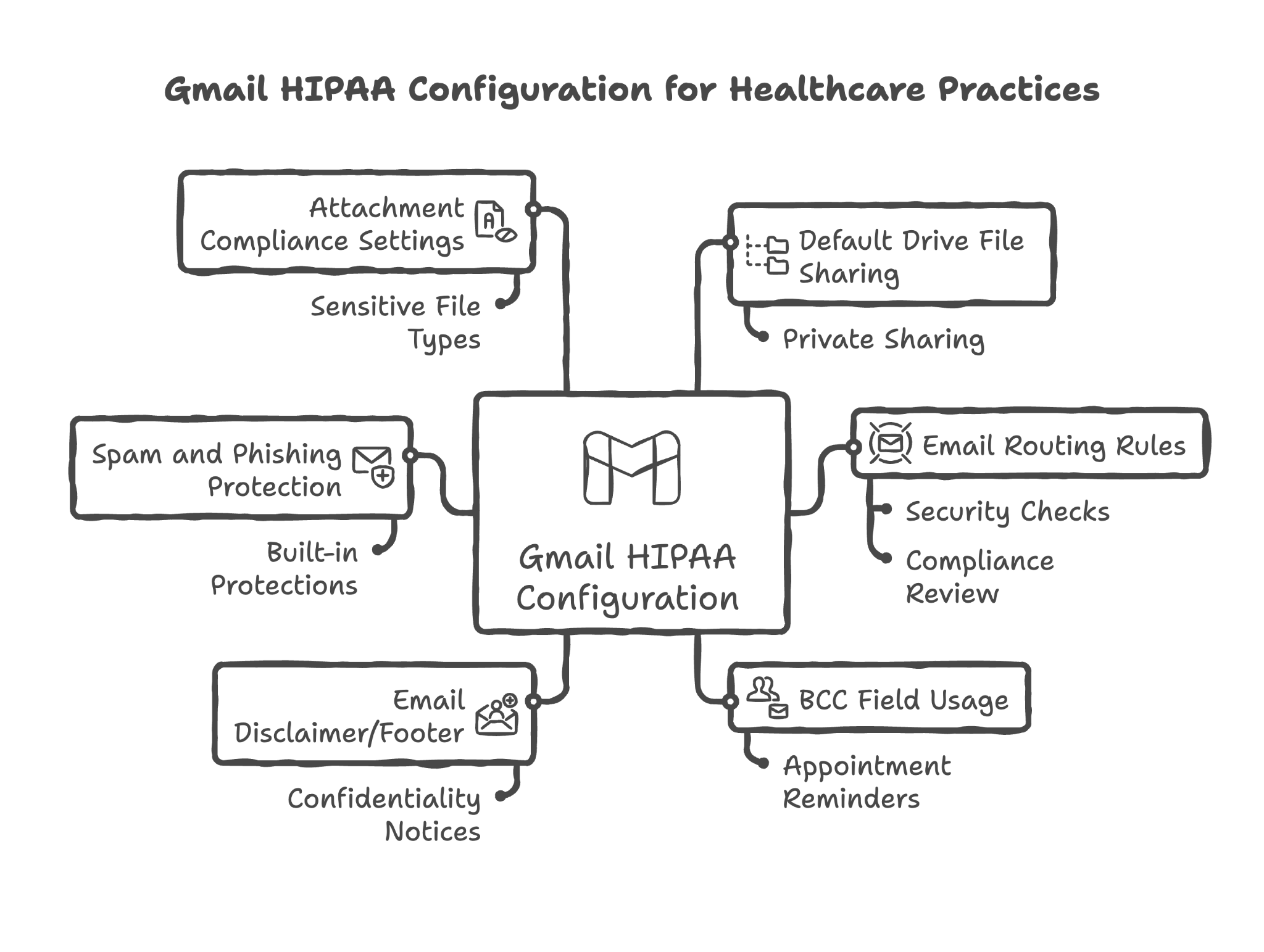
Configuring default Drive file link sharing settings for Gmail attachments to "Private"
When you attach a file from Google Drive to an email, Gmail asks how to share it. We set the default to "Private" so files are only accessible to the specific recipients — not to anyone who might intercept or forward the email.
Configuring email routing rules for PHI-related communications
Depending on your practice's needs, we can set up rules that route certain emails through specific security checks or to specific mailboxes for compliance review.
Providing user guidance on using BCC field for group emails containing PHI
When emailing multiple patients (like appointment reminders for a group session), patient email addresses shouldn't be visible to each other. We provide guidance on using BCC properly — it's like calling patients into the exam room one at a time rather than announcing their names in the waiting room.
Configuring email disclaimer/footer for PHI-related communications
Many practices add confidentiality notices to their emails. We can configure automatic footers that remind recipients about the sensitive nature of the communication and what to do if they received it in error.
Reviewing and configuring spam and phishing protection settings
Phishing emails are a major way hackers try to access healthcare data. We ensure Google's built-in protections are properly configured and as strict as appropriate for your organization.
Configuring attachment compliance settings
We review settings that control what types of files can be attached to emails, helping prevent accidental sharing of sensitive file types or potentially dangerous attachments.
Why this matters for your practice:
Email is involved in a huge percentage of HIPAA breaches — either through misdirected messages, phishing attacks, or improper attachments. Proper Gmail configuration is one of the highest-impact security investments you can make.
6. Google Drive and Docs Ecosystem Configuration
Think of this as organizing and securing your file cabinets
Google Drive is where your digital documents live — the modern equivalent of your file room. Docs, Sheets, Slides, and Forms are the tools you use to create those documents. We configure all of these to keep patient information secure while still letting your team collaborate effectively.
Here's what we review and configure in this section:
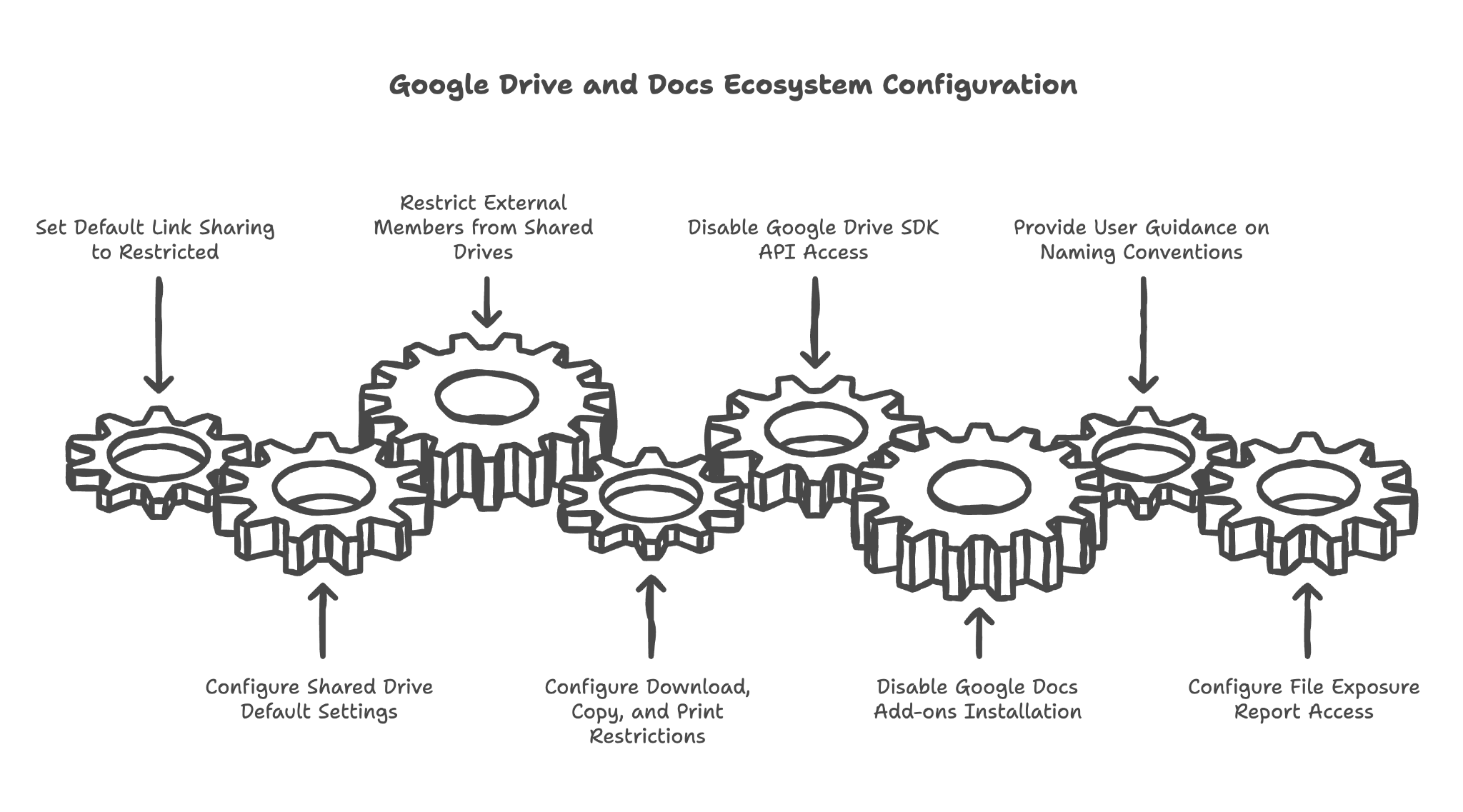
Setting default link sharing to "Restricted" for all new files
When anyone in your organization creates a new document, it starts as private. No one can access it unless explicitly invited. This is your filing cabinet being locked by default.
Configuring Shared Drive default settings for new drives
Shared Drives are like shared filing cabinets for teams. We configure the default settings so new Shared Drives start with appropriate security — preventing accidental over-sharing from day one.
Restricting external members from Shared Drives for PHI-handling OUs
For teams that handle patient data, we prevent outside users from being added to their Shared Drives. This keeps your internal files internal.
Configuring download, copy, and print restrictions for Shared Drives
Even if someone can view a file, should they be able to download it or print it? For sensitive documents, we can restrict these actions — letting people view information on screen without being able to take copies with them.
Disabling Google Drive SDK API access for third-party apps
Third-party apps can request access to your Drive files. We either disable this entirely or configure an allowlist of approved apps — preventing unknown software from accessing your documents.
Disabling Google Docs add-ons installation
Add-ons can be helpful, but each one is a potential security risk. We configure whether users can install add-ons freely or whether this needs administrator approval.
Providing user guidance on avoiding PHI in file/folder/Shared Drive titles
A file named "John Smith Diabetes Treatment Plan" exposes patient information even if the file itself is secure. We provide guidance on naming conventions that keep titles generic while keeping content organized.
Configuring file exposure report access for administrators
Google provides reports showing which files are shared externally. We ensure administrators can access these reports to periodically audit what's being shared and with whom.
Why this matters for your practice:
Your documents contain the details of patient care — treatment plans, test results, billing records. Proper Drive configuration ensures this information stays within appropriate boundaries, even as your team collaborates and shares.
7. Google Calendar HIPAA Configuration
Think of this as managing your appointment book visibility
Your calendar shows when you're meeting with patients, what those meetings are about, and sometimes includes notes or attachments. Without proper configuration, this information might be visible to more people than you realize — including people outside your organization.
Here's what we review and configure in this section:
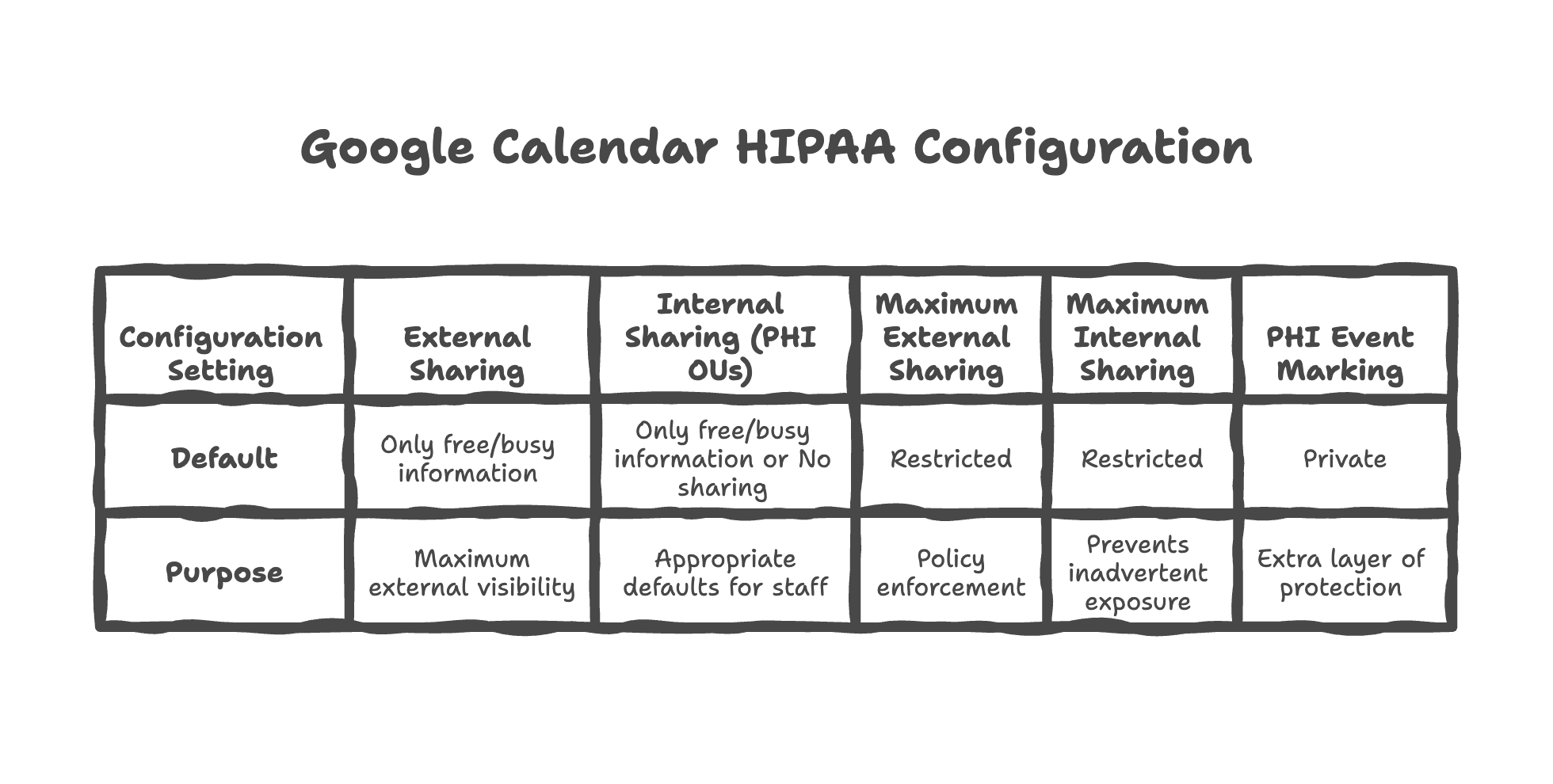
Setting external sharing default to "Only free/busy information (hide event details)"
When people outside your organization look at your availability, they should only see when you're free or busy — not the names of patients you're seeing or the nature of appointments. We configure this as the maximum external visibility.
Setting internal sharing default to "Only free/busy information" or "No sharing" for PHI OUs
Even within your organization, not everyone needs to see appointment details. A receptionist checking your availability doesn't need to know which patient you're seeing or why. We set appropriate defaults for staff handling patient information.
Restricting maximum external sharing level users can configure
Even if an individual user wants to share more calendar detail externally, we can prevent them from doing so. This is like a policy that exam room doors must stay closed — individual preferences don't override organizational security.
Restricting maximum internal sharing level users can configure
Similarly, we can cap how much detail can be shared internally, preventing well-meaning employees from inadvertently exposing patient appointment information to colleagues who don't need it.
Providing user guidance on marking PHI-containing events as "Private"
For appointments that include sensitive information in the title or description, we guide staff on marking these as "Private" — adding an extra layer of protection even within the allowed sharing settings.
Why this matters for your practice:
Calendar information might seem innocuous, but "therapy appointment with Dr. Smith" on someone's calendar tells the world they're in treatment. Proper calendar configuration protects patient privacy in ways most practices never think about.
8. Google Chat and Spaces Configuration
Think of this as securing your internal messaging system
Google Chat is like the instant messaging and group discussion tool for your practice. It's great for quick questions and team coordination, but it can also become a place where PHI gets shared casually. We configure it to enable collaboration while maintaining appropriate boundaries.
Here's what we review and configure in this section:
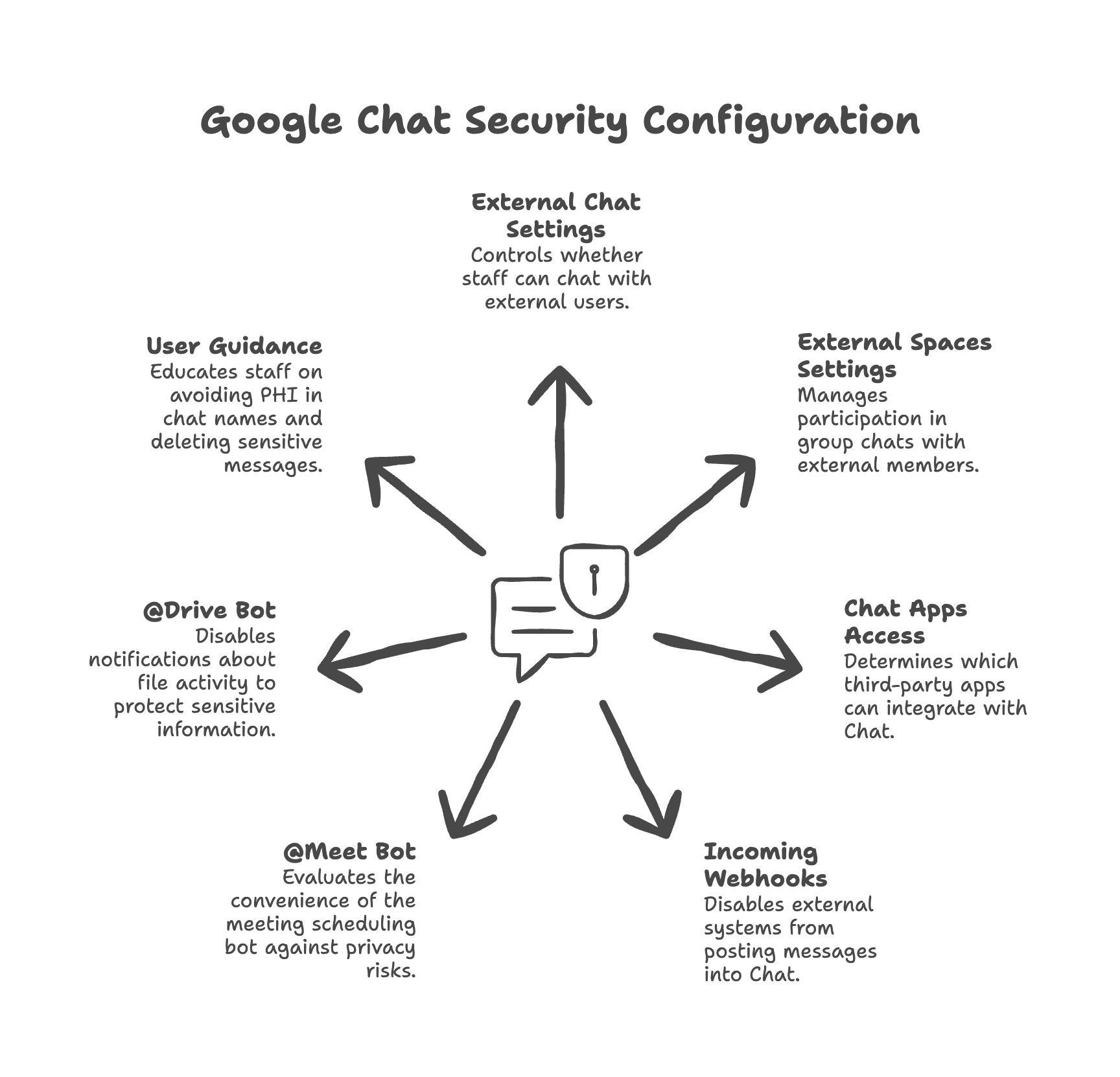
Configuring external chat settings
Should your staff be able to chat with people outside your organization? For most healthcare practices, the answer is no — or at least, it should be limited. We configure whether external chat is allowed and under what circumstances.
Configuring external Spaces settings
Spaces are group chat rooms that can include multiple people. We configure whether your staff can create Spaces that include people from outside your organization — and whether they can join external Spaces.
Configuring Chat apps access settings
Third-party apps can integrate with Google Chat (like bots that schedule meetings or manage tasks). We configure whether these integrations are allowed and which ones can be used.
Disabling incoming webhooks
Webhooks allow external systems to post messages into your Chat. Unless you have a specific business need for this, we disable it to prevent potential security risks.
Disabling @Meet bot
The @Meet bot helps schedule meetings, but it can also expose calendar information. We evaluate whether this convenience is worth the potential privacy implications for your practice.
Disabling @Drive bot
The @Drive bot sends notifications about file activity. For PHI-handling staff, these notifications might expose sensitive file names or activity to chat participants who shouldn't see them.
Providing user guidance on not using PHI in Space/Room names
A Chat Space named "Cancer Patient Support Group" exposes health information about everyone in that Space. We guide staff on using generic names that don't reveal sensitive information.
Providing user guidance on deleting chat messages containing PHI
Sometimes PHI ends up in chat despite best efforts. We provide guidance on properly deleting these messages and understanding chat retention policies.
Why this matters for your practice:
Chat feels casual and temporary, which is exactly why it's dangerous. Staff might share patient information in chat that they'd never put in an email. Proper configuration and guidance helps maintain appropriate caution.
9. Google Meet HIPAA Configuration
Think of this as securing your telehealth examination room
Google Meet is your video conferencing tool — and for many practices, it's become the virtual examination room for telehealth visits. Just like a physical exam room needs privacy, your virtual meetings need proper security configuration.
Here's what we review and configure in this section:
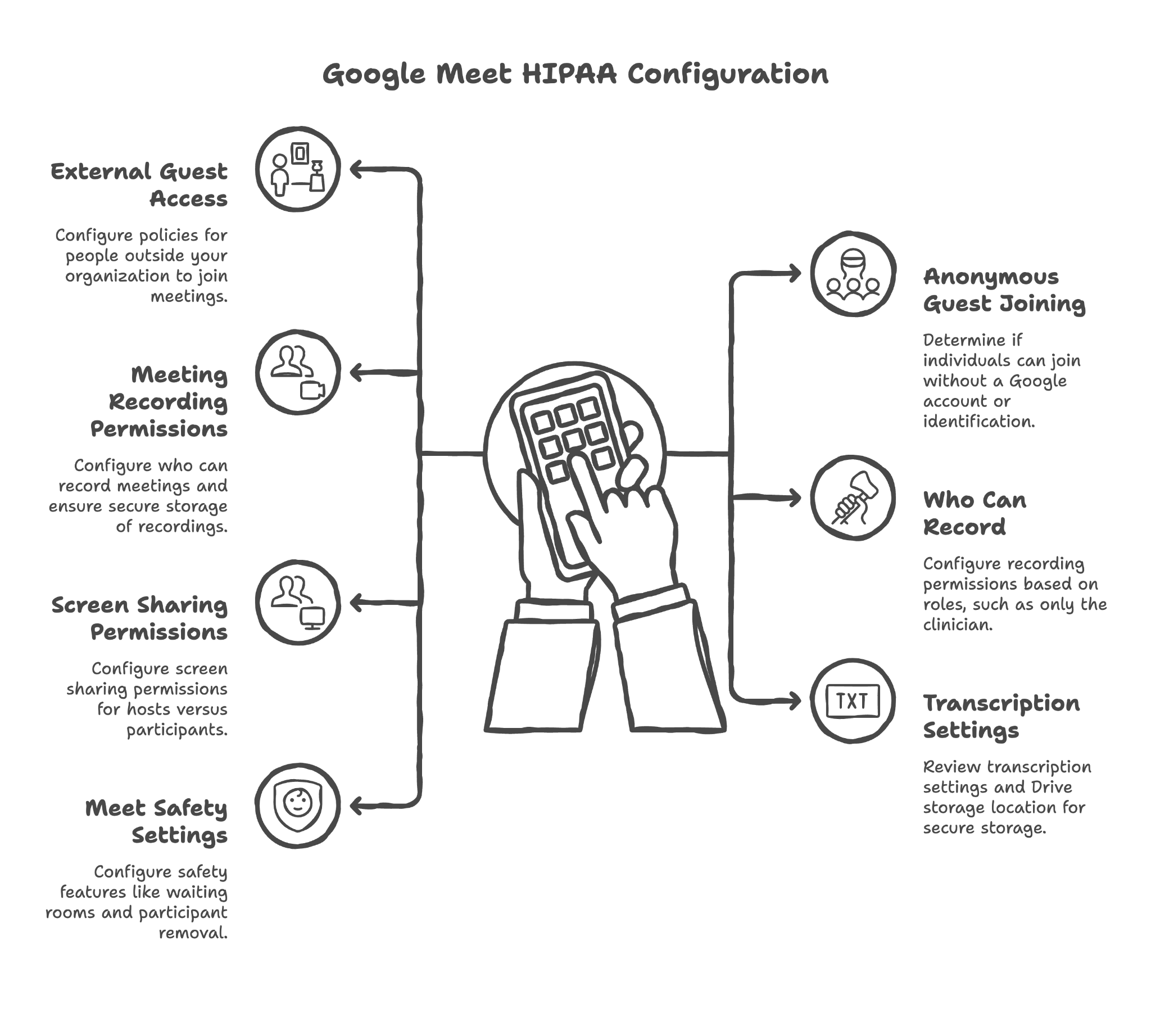
Configuring external guest access policies
Can people from outside your organization join your video meetings? For telehealth, the answer is usually yes (patients need to join). But we configure this carefully so external access is controlled and intentional.
Configuring anonymous guest joining policies
Should someone be able to join your meeting without a Google account or without identifying themselves? For most healthcare scenarios, requiring identification is appropriate — you want to know who's in your virtual exam room.
Configuring meeting recording permissions
Telehealth recordings can be valuable for documentation, but they're also extremely sensitive. We configure who can record meetings and ensure recordings are stored securely.
Configuring who can record meetings
Even if recording is allowed, not everyone should have permission to record. We configure this by role — perhaps only the clinician can record, not administrative staff or patients.
Configuring screen sharing permissions for hosts vs. participants
During a telehealth visit, should the patient be able to share their screen? Should staff? We configure these permissions based on your practice's workflows.
Reviewing Meet transcription settings and Drive storage location
If meeting transcription is enabled, those transcripts contain everything said in the meeting. We ensure transcriptions are stored securely and that you understand where this data goes.
Configuring Meet safety settings
Google Meet has various safety features like waiting rooms, the ability to remove participants, and restrictions on rejoining. We configure these appropriately for healthcare use.
Why this matters for your practice:
Telehealth has become essential for many practices, but a video call is still a medical encounter that deserves the same privacy protections as an in-person visit. Proper Meet configuration ensures your virtual care is as secure as your physical care.
10. Google Groups Configuration
Think of this as managing your internal mailing lists and team inboxes
Google Groups lets you create email lists (like billing@yourpractice.com) and shared inboxes. It's useful for team communication, but without proper configuration, it can expose patient information to the wrong people — or even to the public.
Here's what we review and configure in this section:
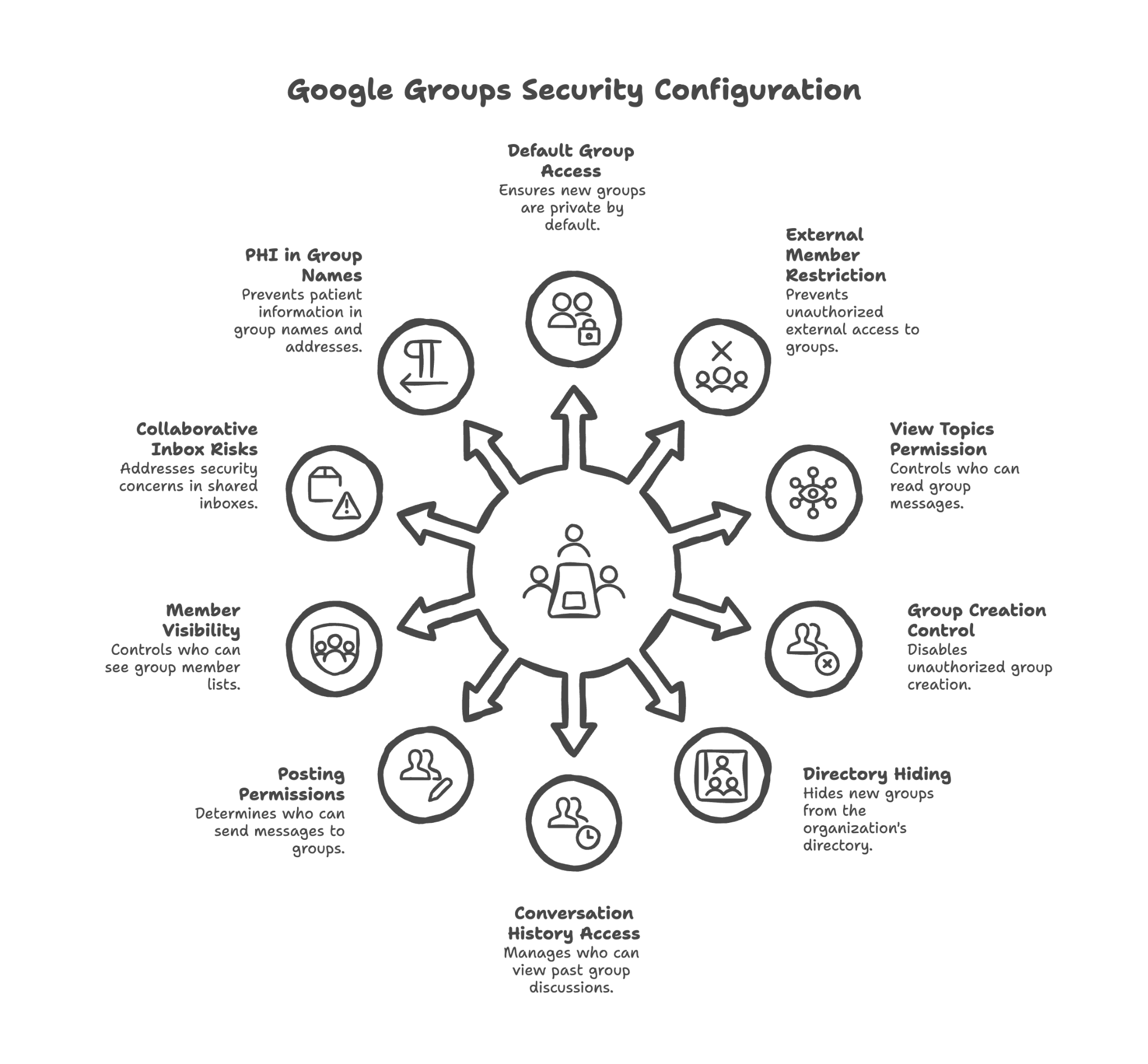
Configuring default group access to "Private"
When someone creates a new Group, it should be private by default — not visible to outsiders or even to everyone in your organization. We set this default so new Groups start secure.
Disabling external members in groups
Unless there's a specific need, people from outside your organization shouldn't be members of your internal Groups. We configure this restriction to prevent accidental external inclusion.
Configuring default "View topics" permission to "All members of the group" or more restrictive
Who can read messages sent to a Group? We configure this so only appropriate people — typically group members — can see the communication history.
Disabling "Anyone on the internet can create groups"
In some Google Workspace setups, anyone can create a Group that appears to be from your organization. We disable this to prevent unauthorized Group creation.
Configuring "Hide newly created groups from the directory"
New Groups can be hidden from your organization's directory by default, preventing information about internal team structure from being visible to everyone.
Configuring default "Who can view conversations" setting
The conversation history in a Group might contain years of discussions. We configure who can access this history when they join a Group.
Configuring default "Who can post" setting
Should anyone be able to send emails to your Group, or only members? For Groups that receive patient communications, this is an important consideration.
Configuring default "Who can view members" setting
The member list of a Group might reveal sensitive information. A Group called "HIV Treatment Team" exposes information about anyone listed as a member. We configure member visibility appropriately.
Providing guidance on collaborative inbox PHI exposure risks
Shared inboxes where multiple staff can view and respond to emails require special consideration. We explain the risks and how to manage them.
Providing guidance on avoiding PHI in group names/email addresses
Just like file names, Group names and email addresses shouldn't contain patient information. support@yourpractice.com is fine; anxietypatients@yourpractice.com is not.
Why this matters for your practice:
Groups seem like simple mailing lists, but they can accumulate years of conversations, including patient information. Proper configuration ensures this accumulated data stays protected.
11. Google Sites HIPAA Configuration
Think of this as managing internal and external websites
Google Sites lets you create simple websites — maybe an internal staff portal or a patient information page. Without proper configuration, these sites might be more visible than intended, or might inadvertently expose patient information.
Here's what we review and configure in this section:
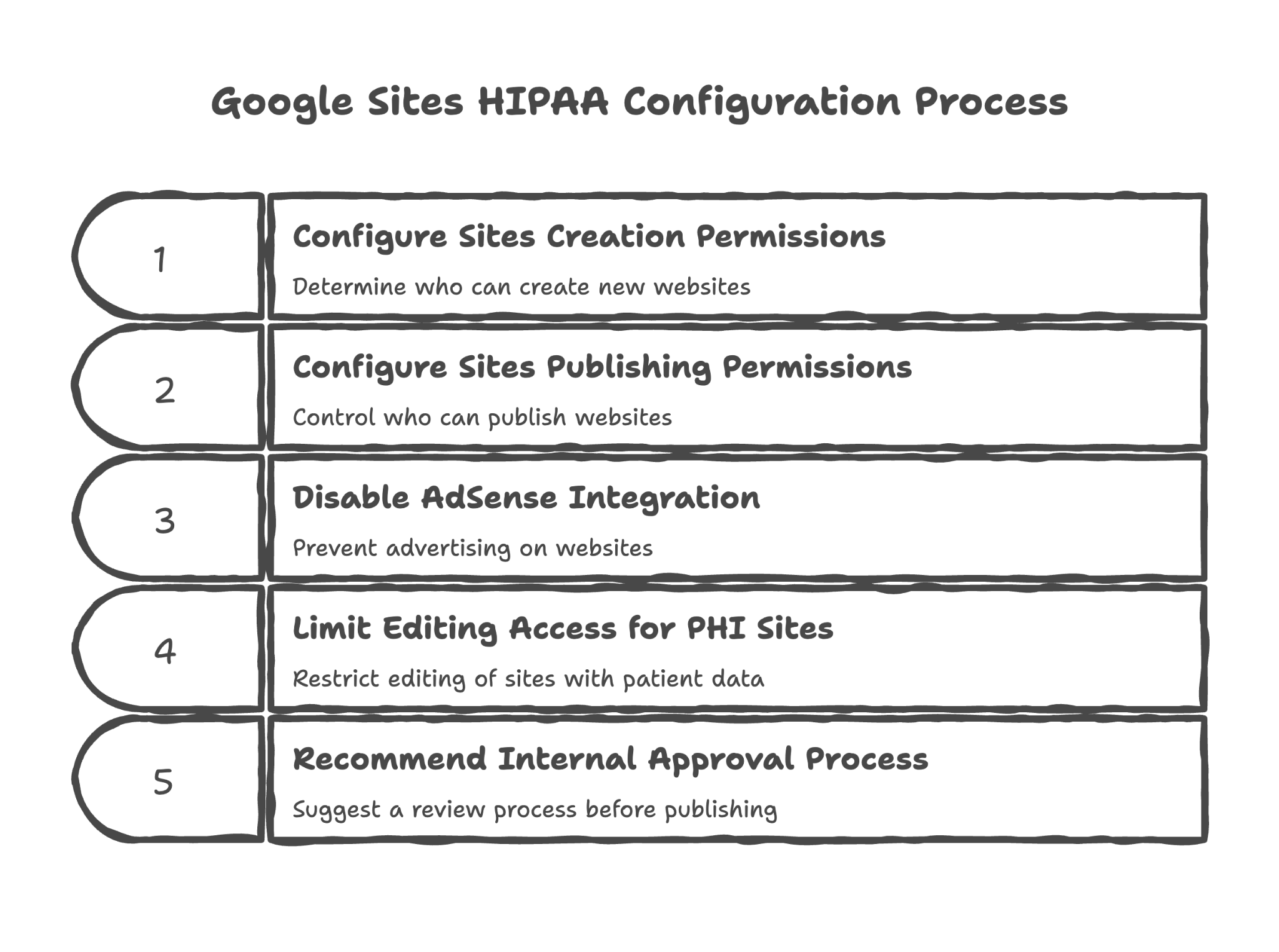
Configuring Sites creation permissions
Should anyone in your organization be able to create a website that appears to represent your practice? We configure who has this ability to prevent unauthorized site creation.
Configuring Sites publishing permissions
There's a difference between creating a site and publishing it for the world to see. We configure separate permissions for these actions, adding a layer of review before content goes public.
Disabling AdSense integration for Sites
Google Sites can display advertising through AdSense. For healthcare organizations, this is inappropriate and potentially non-compliant. We ensure AdSense is disabled.
Providing guidance on limiting editing access for PHI-containing sites
If you create internal sites that contain patient-related information, we guide you on restricting who can edit these sites to prevent unauthorized changes.
Recommending internal approval process before publishing sites with PHI
For sites that might contain patient information, we recommend establishing a review process before anything is published — a digital equivalent of having a compliance officer review materials before distribution.
Why this matters for your practice:
A Site created by a well-meaning employee — maybe a patient education resource — could inadvertently expose patient information or represent your practice in unapproved ways. Proper configuration prevents these issues.
12. Google Keep Configuration
Think of this as securing your digital sticky notes
Google Keep is a note-taking app — like digital sticky notes. Staff might use it to jot down quick reminders, including potentially sensitive information. We ensure these notes stay private.
Here's what we review and configure in this section:
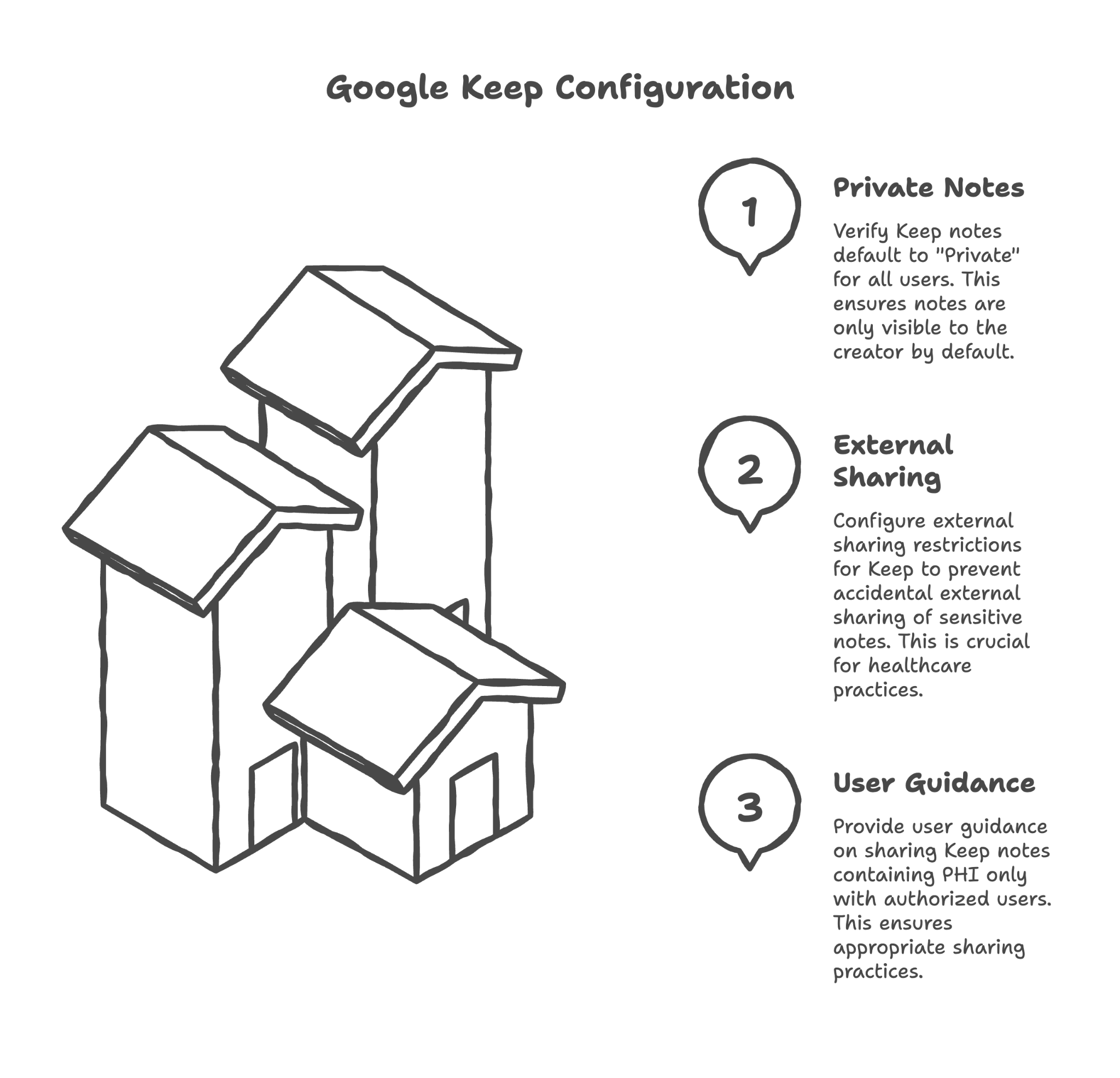
Verifying Keep notes default to "Private"
When someone creates a note, it should be visible only to them by default. We verify this setting is properly configured and hasn't been overridden by other sharing settings.
Configuring external sharing restrictions for Keep
Can Keep notes be shared with people outside your organization? For most healthcare practices, this should be restricted to prevent accidental external sharing of sensitive notes.
Providing user guidance on sharing Keep notes containing PHI only with authorized users
If staff need to share notes with colleagues, we provide guidance on doing so appropriately — only sharing with people who need access and only for legitimate purposes.
Why this matters for your practice:
Keep notes often contain unstructured, informal information — exactly the kind of thing staff might jot down without thinking carefully about security. Ensuring these notes stay private prevents accidental exposure.
13. Google Jamboard Configuration
Think of this as securing your digital whiteboard
Jamboard is a collaborative whiteboard tool — great for brainstorming and visual collaboration. In healthcare settings, whiteboards can end up containing patient information (think of a surgical scheduling board). Digital whiteboards need the same protection.
Here's what we review and configure in this section:
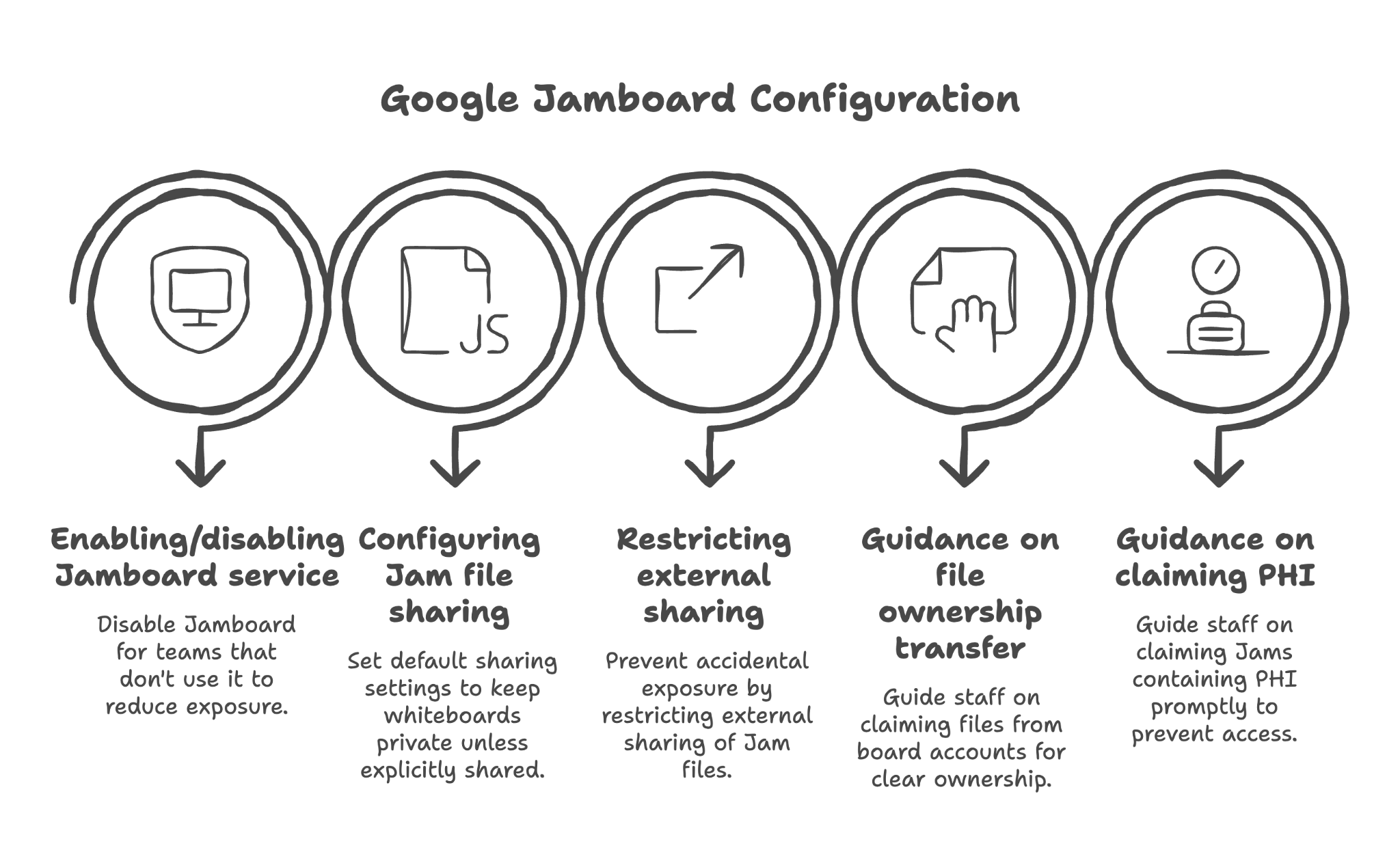
Enabling/disabling Jamboard service by OU
Not every team needs Jamboard. For groups that don't use it, we can disable it entirely — reducing your potential exposure surface.
Configuring Jam file sharing settings
Like other Google files, Jams have sharing settings. We configure these defaults to keep whiteboards private unless explicitly shared.
Restricting external sharing of Jam files
Whiteboards used in team meetings shouldn't be shareable with the outside world. We restrict external sharing to prevent accidental exposure.
Providing guidance on Jam file ownership transfer from board accounts
If you use physical Jamboard hardware, files created on the board start owned by the board account. We guide staff on properly claiming these files so ownership is clear and security settings are appropriate.
Providing user guidance on claiming Jam files containing PHI promptly
Jams left unclaimed on shared board accounts might be accessible to the next person who uses the board. We guide staff on immediately claiming any Jam that contains sensitive information.
Why this matters for your practice:
Whiteboards feel temporary and informal, but digital whiteboards persist until deleted. Without proper configuration, a brainstorming session that included patient information could remain accessible indefinitely.
14. Google Tasks Configuration
Think of this as securing your digital to-do list
Google Tasks is a simple to-do list tool integrated with Gmail and Calendar. Staff might create tasks that reference patient information ("Call John Smith about test results"). We ensure these tasks stay private.
Here's what we review and configure in this section:
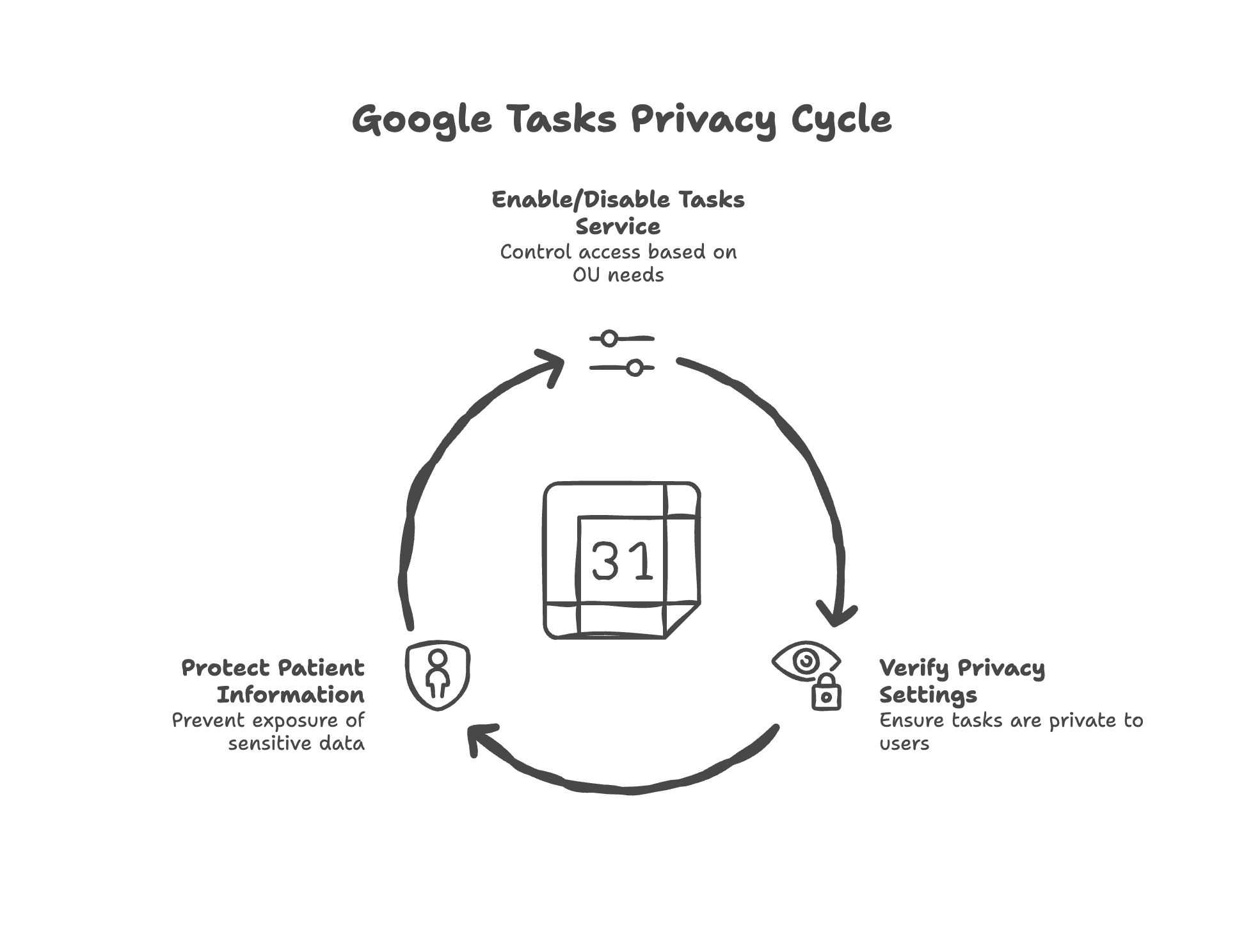
Enabling/disabling Tasks service by OU
For groups that don't need Tasks, we can disable it. Fewer active services means fewer potential points of exposure.
Verifying Tasks data remains private to individual users
Tasks should only be visible to the person who created them. We verify this privacy setting is properly configured and not overridden by other settings.
Why this matters for your practice:
Tasks are inherently personal and private, but it's important to verify this assumption is actually true in your configuration. A task list visible to the wrong people could expose patient information.
15. Google Cloud Search Configuration
Think of this as configuring your organization's search engine
Cloud Search lets staff search across all their Google Workspace content — email, documents, calendar, everything. This is powerful and convenient, but it also means search history and results could expose sensitive information.
Here's what we review and configure in this section:
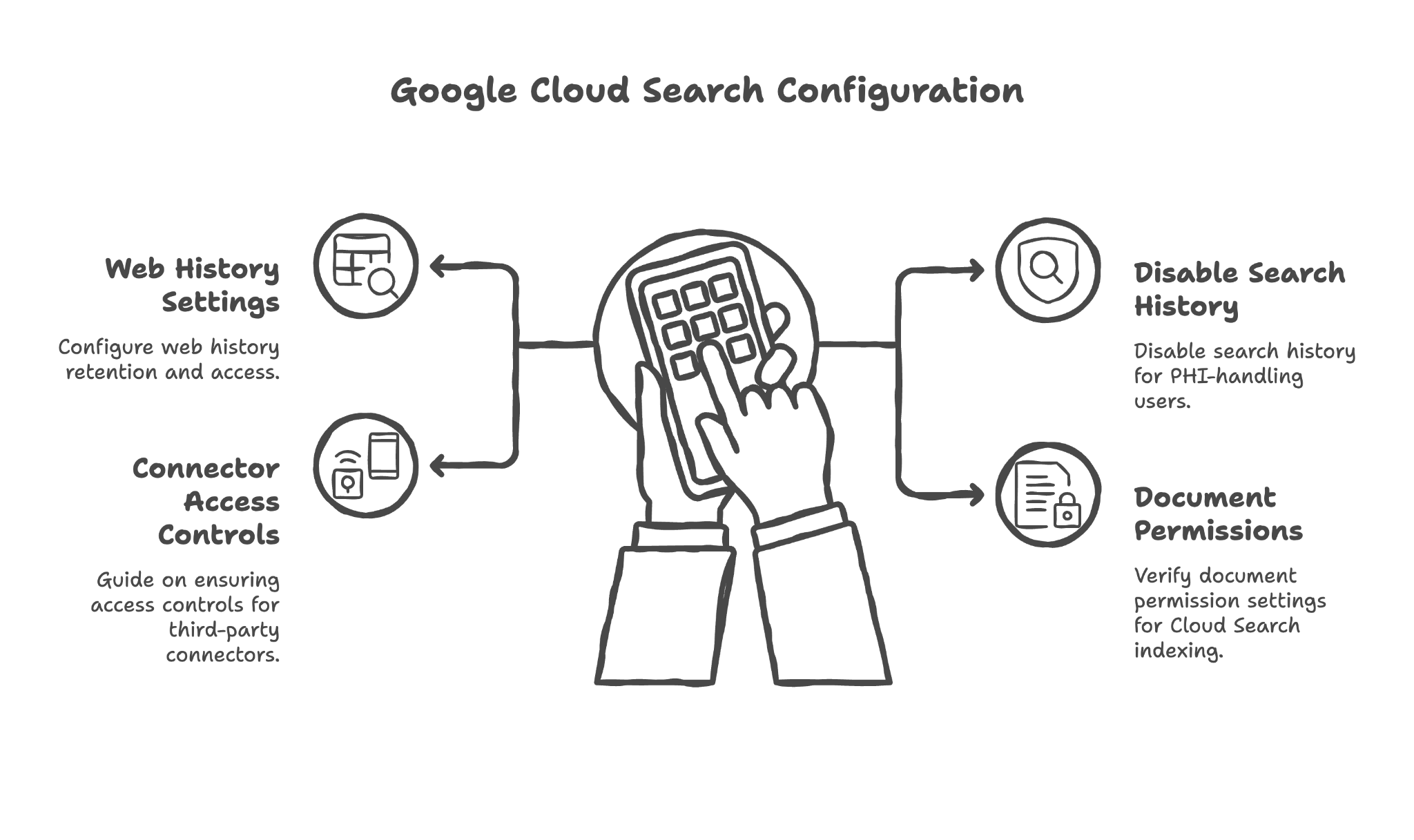
Configuring Web History service settings
Search history can reveal what staff have been looking for — including potentially sensitive patient names or medical terms. We configure whether this history is retained and who can access it.
Disabling search history for PHI-handling users
Following the principle of "collect only what you need," we typically disable search history for staff who handle patient information. This reduces the amount of sensitive data being retained.
Providing guidance on third-party connector access controls
If you connect Cloud Search to other data sources, we guide you on ensuring access controls are properly configured so search doesn't bypass permissions.
Providing guidance on document permission settings for Cloud Search indexing
Cloud Search respects document permissions — you can only search documents you have access to. We verify this is working correctly and explain how it protects patient information.
Why this matters for your practice:
Search is incredibly useful but can also be a path to unintended data exposure. Proper configuration ensures staff can find what they need while respecting access boundaries.
16. Gemini and AI Features Configuration
Think of this as managing your AI assistant's access to patient information
Google's AI assistant, Gemini, is now integrated into Google Workspace. It can help draft emails, summarize documents, and answer questions. But AI tools that process patient information require special consideration under HIPAA.
Here's what we review and configure in this section:
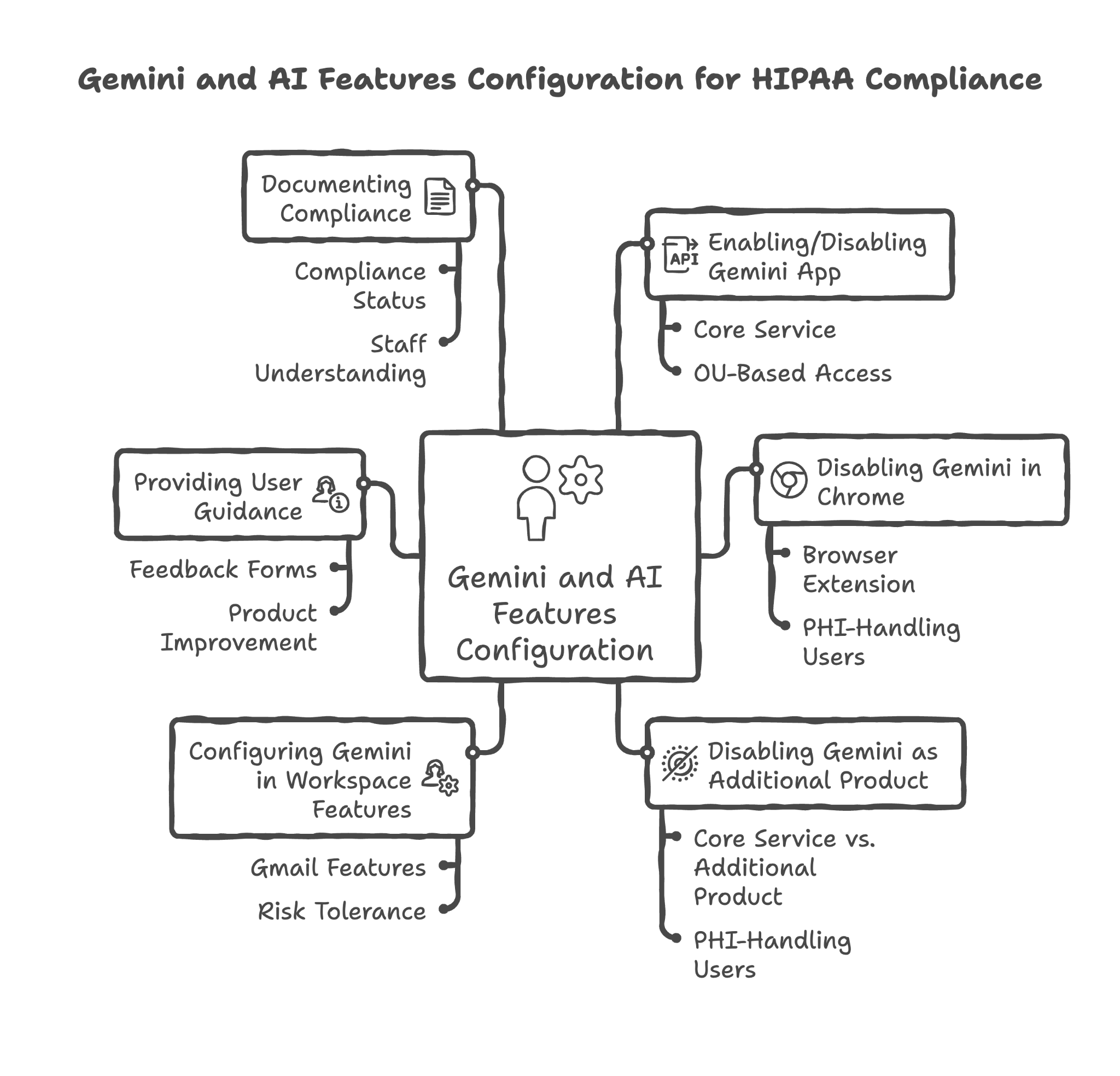
Enabling/disabling Gemini app as a Core Service by OU
Not everyone needs AI assistance, and not everyone should have it. We configure which groups have access to Gemini based on their role and the sensitivity of data they handle.
Disabling Gemini in Chrome for PHI-handling users
Gemini in Chrome (the browser extension) is specifically NOT covered under Google's HIPAA BAA. For anyone handling patient data, this must be disabled to maintain compliance.
Disabling Gemini app as an Additional Product
There's a difference between Gemini as a Core Service (which can be HIPAA compliant) and Gemini as an Additional Product (which cannot). We ensure PHI-handling users only access the compliant version.
Configuring Gemini in Workspace features by OU
Specific Gemini features within Workspace apps (like "Help me write" in Gmail) can be enabled or disabled separately. We configure these based on your practice's needs and risk tolerance.
Providing user guidance on not submitting PHI in feedback forms
When users provide feedback about Gemini, that feedback goes to Google for product improvement. We guide staff to never include patient information in this feedback.
Documenting which Gemini access methods are vs. are not HIPAA compliant
The compliance status of different Gemini features is nuanced. We provide clear documentation so staff understand exactly what they can and cannot use with patient information.
Why this matters for your practice:
AI is becoming ubiquitous in productivity tools, but AI that processes patient information must be handled carefully. Getting this wrong could expose patient data to systems not covered by your BAA.
17. Data Loss Prevention (DLP) Rules
Think of this as an automatic scanner that catches PHI before it leaves your building
Data Loss Prevention rules automatically scan emails, documents, and chats for patterns that look like patient information. When detected, DLP can warn the user, require manager approval, or block the action entirely.
Here's what we review and configure in this section:
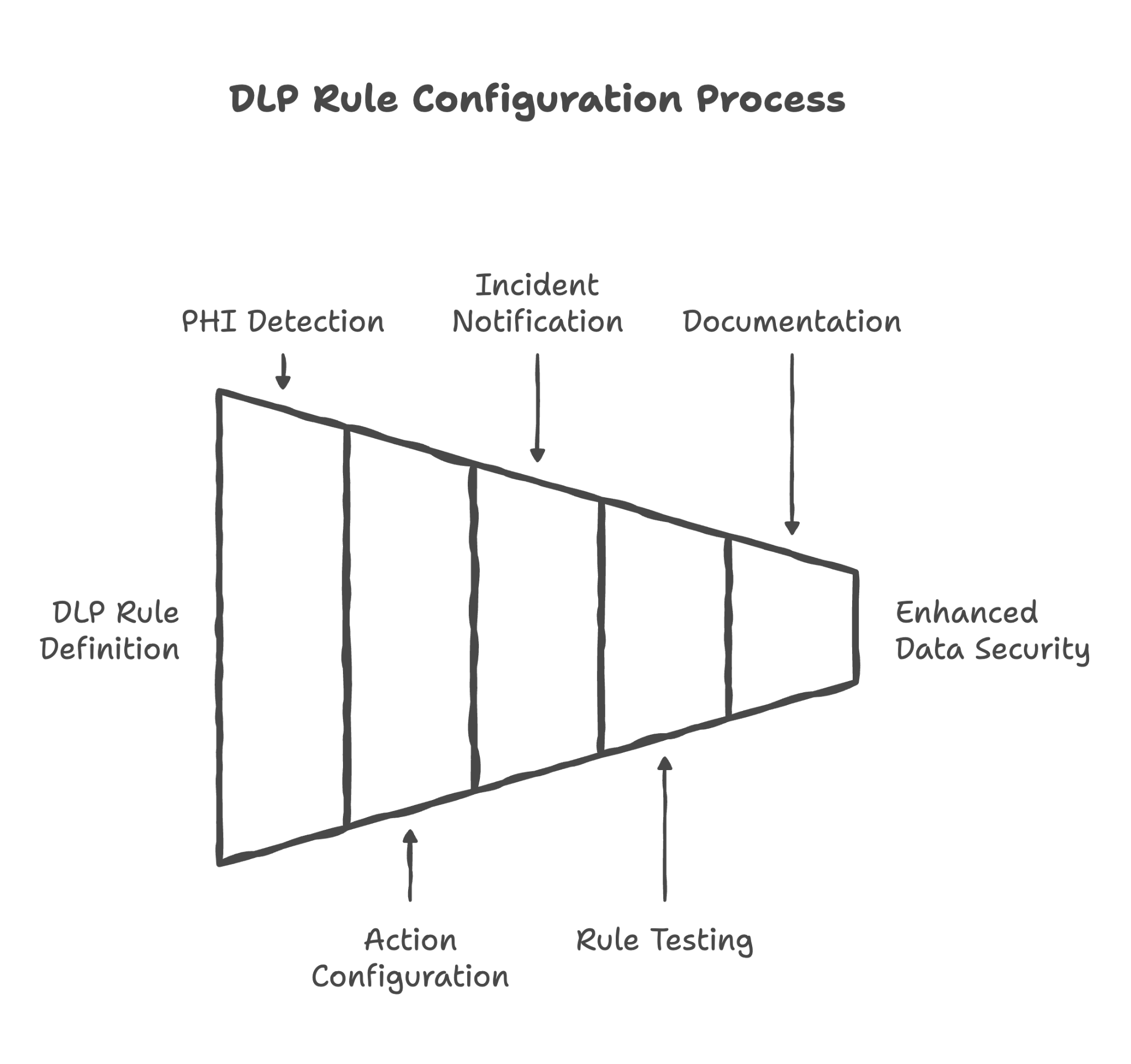
Creating DLP rules to detect common PHI identifiers in Gmail
We configure Gmail to scan outgoing emails for patterns like Social Security numbers, medical record numbers, and other PHI identifiers. This catches accidental data exposure before the email is sent.
Creating DLP rules to detect common PHI identifiers in Drive
Documents containing PHI patterns can be detected when shared externally. We configure Drive to flag or block sharing of documents that appear to contain patient information.
Creating DLP rules for Google Chat
Even informal chat messages can be scanned for PHI. We configure Chat DLP to prevent patient information from being shared in chat conversations.
Configuring DLP actions based on client preference
When DLP detects potential PHI, what should happen? Options include warning the user (educational), requiring approval (controlled), or blocking entirely (strict). We configure the response based on your practice's culture and risk tolerance.
Configuring DLP incident notifications for administrators
When DLP rules are triggered, administrators need to know. We configure notifications so you're aware of potential data exposure attempts, even if they were blocked.
Testing DLP rules with sample PHI patterns
We test the DLP configuration to ensure it's working correctly — catching what it should catch without blocking legitimate communication.
Documenting DLP rules and detection patterns for client records
DLP configuration is documented so you have clear records of what patterns you're scanning for and how your system responds to detections.
Why this matters for your practice:
Human error is the most common cause of data breaches. DLP acts as a safety net, catching mistakes before they become violations. It's like having a pharmacist double-check prescriptions — an extra layer of protection against human error.
18. Third-Party App and Marketplace Controls
Think of this as your approved vendor list for software
Google Workspace integrates with thousands of third-party apps through the Marketplace. Each app that connects to your Workspace gains some level of access to your data. We configure tight controls over which apps can be installed and what data they can access.
Here's what we review and configure in this section:
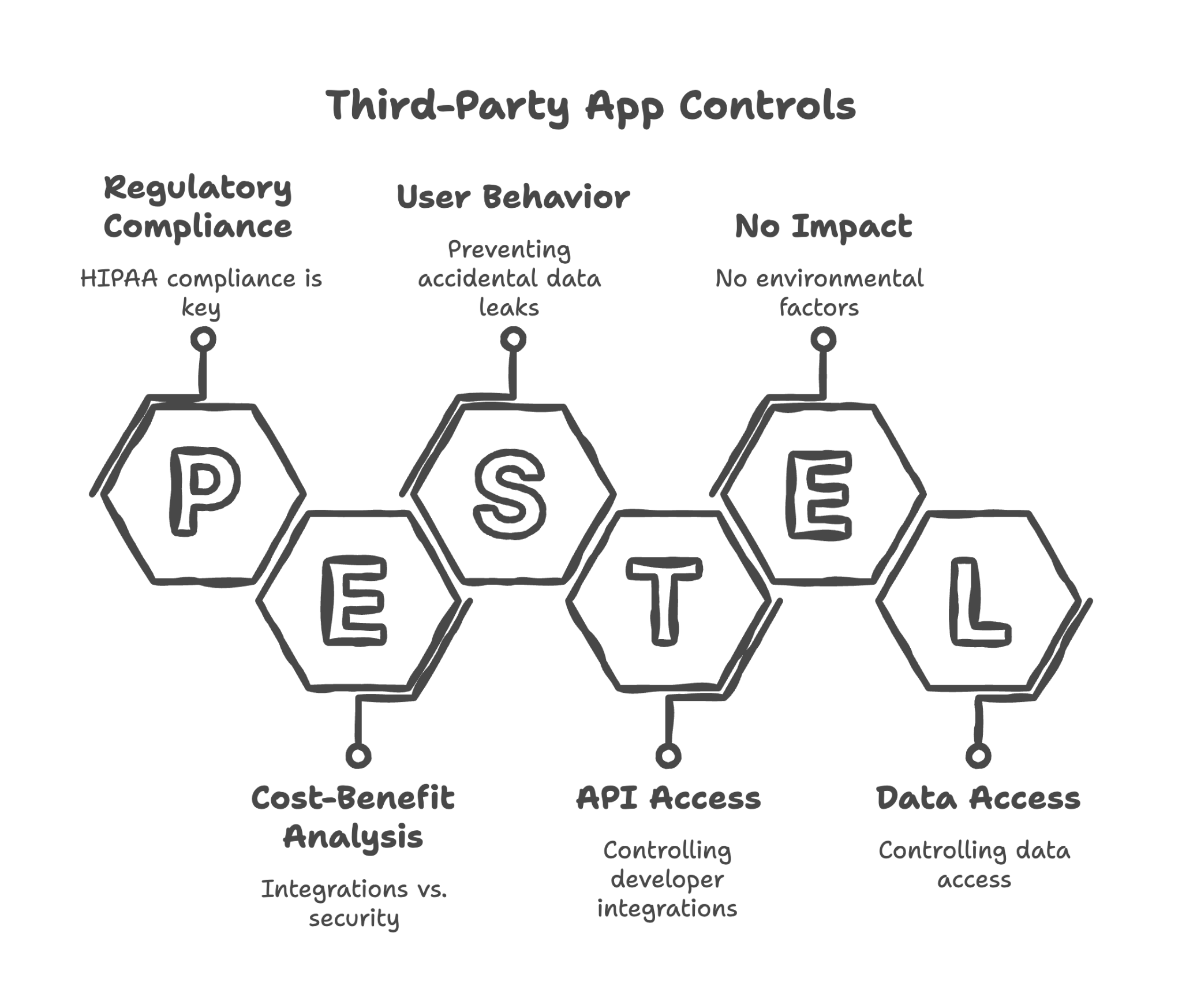
Configuring Google Workspace Marketplace app installation settings
Should users be able to install any app they want, or only apps approved by administrators? For healthcare organizations, we typically require administrative approval for all new apps.
Creating allowlist of approved HIPAA-compliant apps
If there are specific apps your practice needs (like a scheduling tool or EHR integration), we can create an allowlist of approved apps that staff can install — and block everything else.
Blocking all Marketplace apps by default for PHI-handling OUs
For staff who handle patient data, the safest approach is blocking all third-party apps unless specifically approved. This prevents well-intentioned employees from inadvertently granting data access to unapproved apps.
Disabling OAuth app access for unverified apps
Apps request access through OAuth (the "Sign in with Google" prompts you've seen). We configure Workspace to block unverified apps from requesting any access.
Configuring API access controls
Beyond Marketplace apps, developers can build custom integrations using Google's APIs. We configure controls over which API access is permitted.
Reviewing and documenting any existing third-party app integrations
If you already have apps connected to your Workspace, we review what they are and what access they have — identifying any that need to be removed or restricted.
Providing guidance on evaluating third-party apps for HIPAA compliance
When you want to add a new app in the future, we provide criteria for evaluating whether it's appropriate for use with patient data — including whether the vendor will sign a BAA.
Why this matters for your practice:
Third-party apps are one of the most common ways data leaks out of organizations. Each app is a potential security risk. Proper controls ensure you get the integrations you need without opening unnecessary doors.
19. Cloud Identity and User Profile Management
Think of this as managing your staff directory and credentials
Cloud Identity is the system that manages who your users are — their accounts, passwords, and profile information. For some healthcare organizations, user profiles might need to store work-related health information (like for employee health programs). This requires special configuration.
Here's what we review and configure in this section:
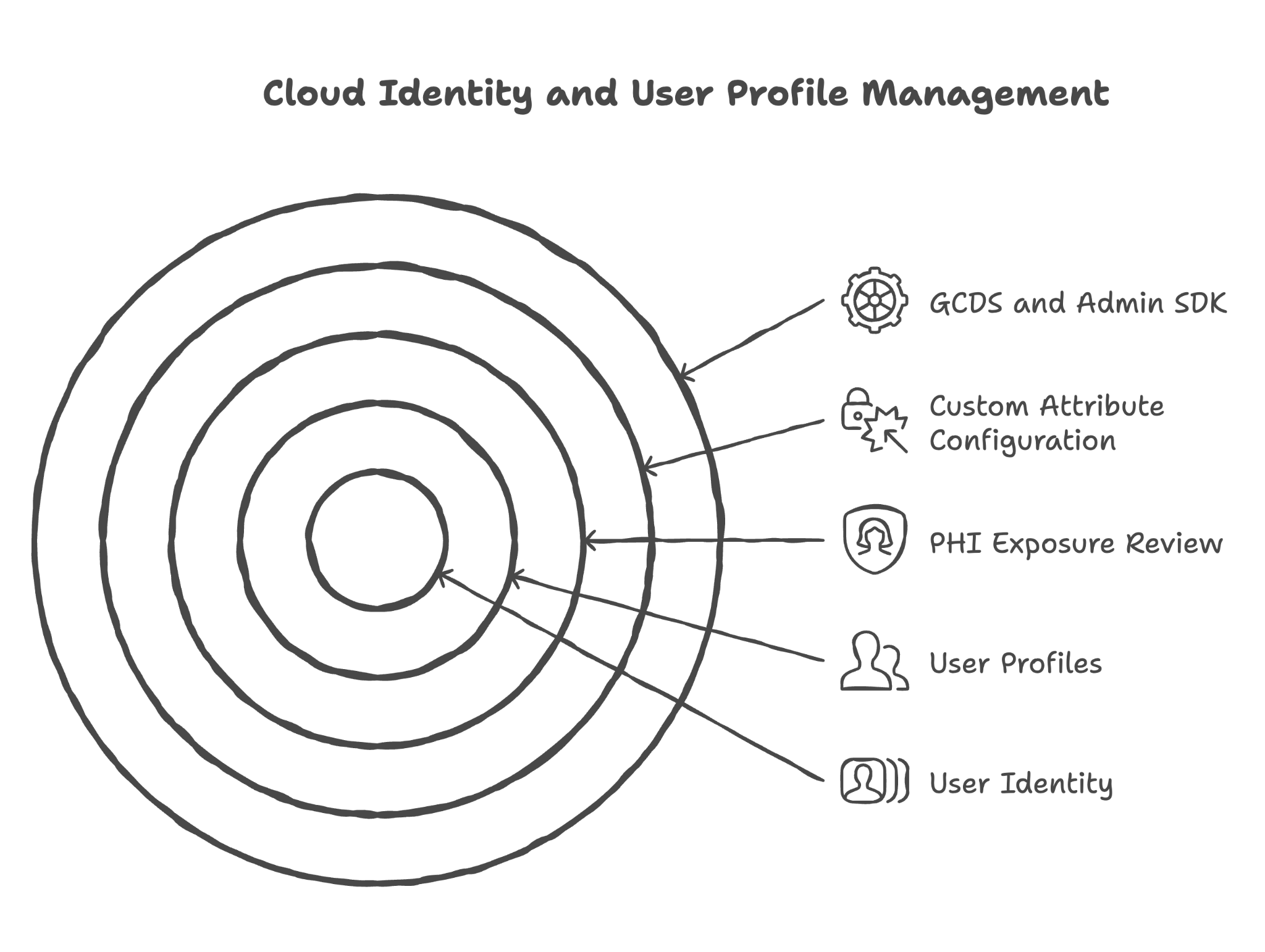
Reviewing predefined user profile attributes for PHI exposure
User profiles contain standard fields like name, email, and phone number. We review these to ensure they're not being used to store patient information inappropriately.
Configuring custom attributes as "Private" if PHI storage is needed
If your organization needs to store sensitive information in user profiles (like for an occupational health program), we configure these custom attributes as "Private" — visible only to the user and administrators.
Providing guidance on what user profile information is safe to store
We provide clear guidance on what belongs in user profiles and what doesn't — helping staff understand appropriate use of these fields.
Reviewing GCDS (Google Cloud Directory Sync) settings if applicable
If your organization syncs user information from another directory (like Active Directory), we review these settings to ensure sensitive information isn't being synced inappropriately.
Configuring Admin SDK custom schema read access types if applicable
For organizations using the Admin SDK for custom integrations, we configure who can read custom user attributes to prevent unauthorized access to sensitive profile information.
Why this matters for your practice:
User identity is the foundation of all access control. Properly configured identity management ensures the right people have access to the right information — and that the identity system itself doesn't become a source of data exposure.
20. HIPAA Compliance Documentation Package
Think of this as your complete compliance file
HIPAA compliance isn't just about technical configuration — it's about being able to demonstrate that you've done the work. We provide comprehensive documentation that proves your due diligence and supports you in case of an audit.
Here's what we deliver in this section:
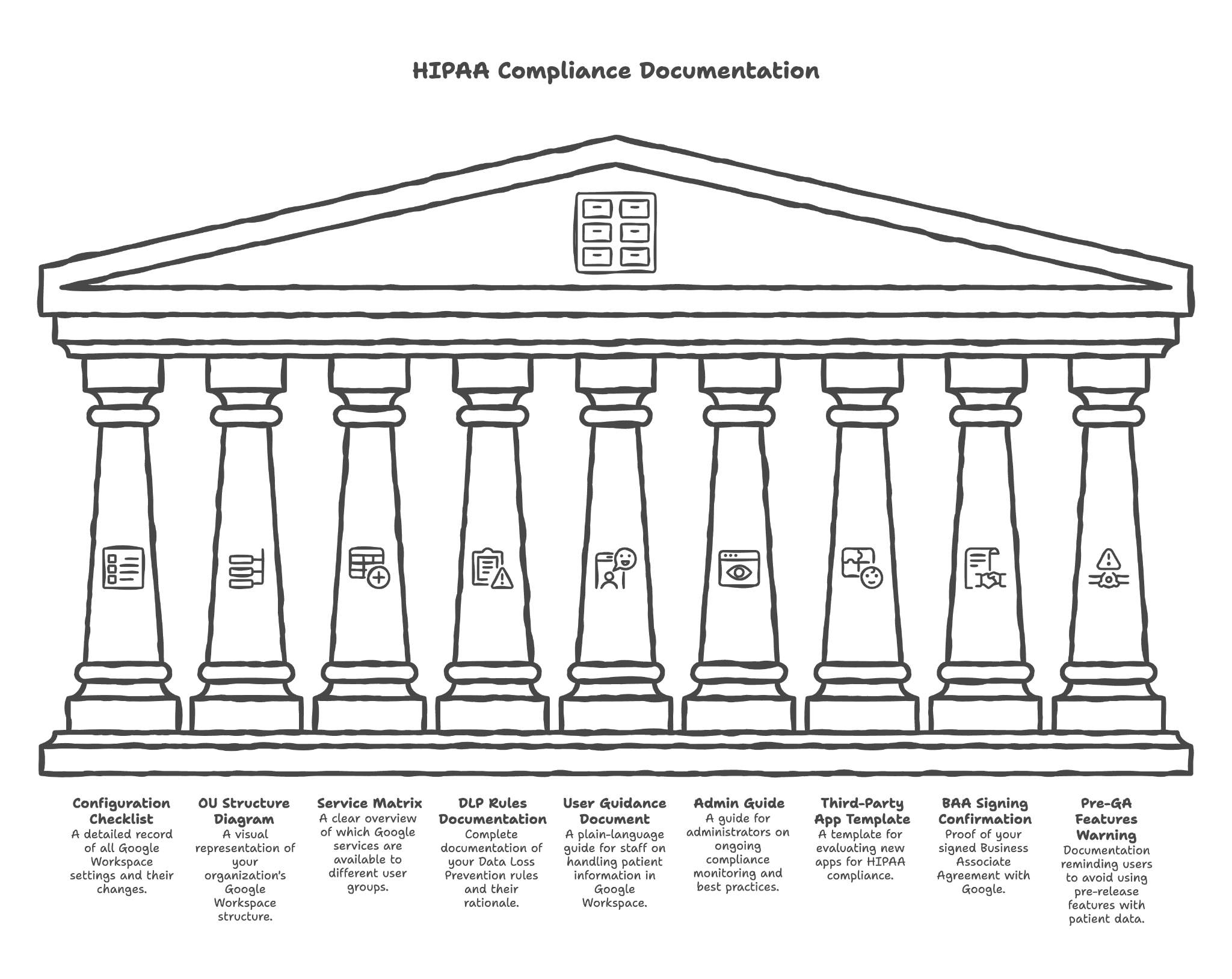
Completed configuration checklist with all settings documented
Every setting we configure is documented, including what it was set to before and after. This creates an audit trail showing exactly what security measures are in place.
OU structure diagram and rationale
A visual diagram showing how your organization is structured in Google Workspace, with explanations of why each unit exists and what access it has.
List of enabled vs. disabled services per OU
A clear matrix showing which Google services are available to which groups of users — so there's no confusion about what tools are appropriate for different roles.
DLP rules documentation
Complete documentation of your Data Loss Prevention rules — what patterns they scan for, what actions they take, and why those decisions were made.
User guidance document (do's and don'ts for PHI handling)
A plain-language guide for your staff explaining how to handle patient information appropriately in Google Workspace. This can be used for training and as an ongoing reference.
Admin guide for ongoing compliance monitoring
A guide for your administrators explaining what to monitor, how often, and what to look for. Compliance isn't a one-time setup — it requires ongoing attention.
Third-party app assessment template
A template you can use when evaluating new apps in the future — ensuring you ask the right questions about HIPAA compliance before connecting any new tool.
BAA signing confirmation documentation
Proof that you've signed Google's Business Associate Agreement, with the date signed and confirmation of what services are covered.
Pre-GA/Beta features warning documentation
Documentation reminding you that pre-release Google features should not be used with patient data, with guidance on how to identify such features.
Why this matters for your practice:
If you're ever audited — by HHS, an insurance company, or as part of a breach investigation — you'll need to demonstrate what security measures you had in place. This documentation package provides that evidence and shows you took compliance seriously.
What's Next?
If you've read this far, you understand that HIPAA compliance in Google Workspace isn't about flipping a few switches — it's about systematically configuring dozens of settings across twenty different areas, testing to make sure they work, and documenting everything for compliance purposes.
Some practices choose to do this themselves using Google's HIPAA Implementation Guide. It's publicly available and technically complete. But it's also 27 pages of technical documentation written for IT professionals, not healthcare providers.
We've configured HIPAA-compliant Google Workspace for medical practices, dental offices, therapy clinics, behavioral health organizations, and specialty practices across the country. We know which settings matter most, which ones practices typically get wrong, and how to configure everything efficiently without disrupting your operations.
Our process takes about one week, requires minimal time from your staff, and includes all the documentation you need for compliance purposes.
If you'd like to discuss your practice's specific situation, we're happy to talk — no pressure, no sales pitch, just an honest conversation about whether our service makes sense for your needs.
Contact Us to Discuss Your Practice's HIPAA Compliance Needs
Googally helps healthcare organizations migrate to and secure Google Workspace.
Related Posts
Explore Tips and Guides! Discover expert insights and practical guides for optimizing your Google Workspace experience with our informative resources.








.png)
.png)
.png)
.png)
.png)
.png)
.png)
.png)


.png)
.png)

.png)



.png)
.png)


.png)


