Google Drive for Desktop
Google Drive for Desktop is a powerful application that allows users to access and manage their Google Drive files directly from their computer.
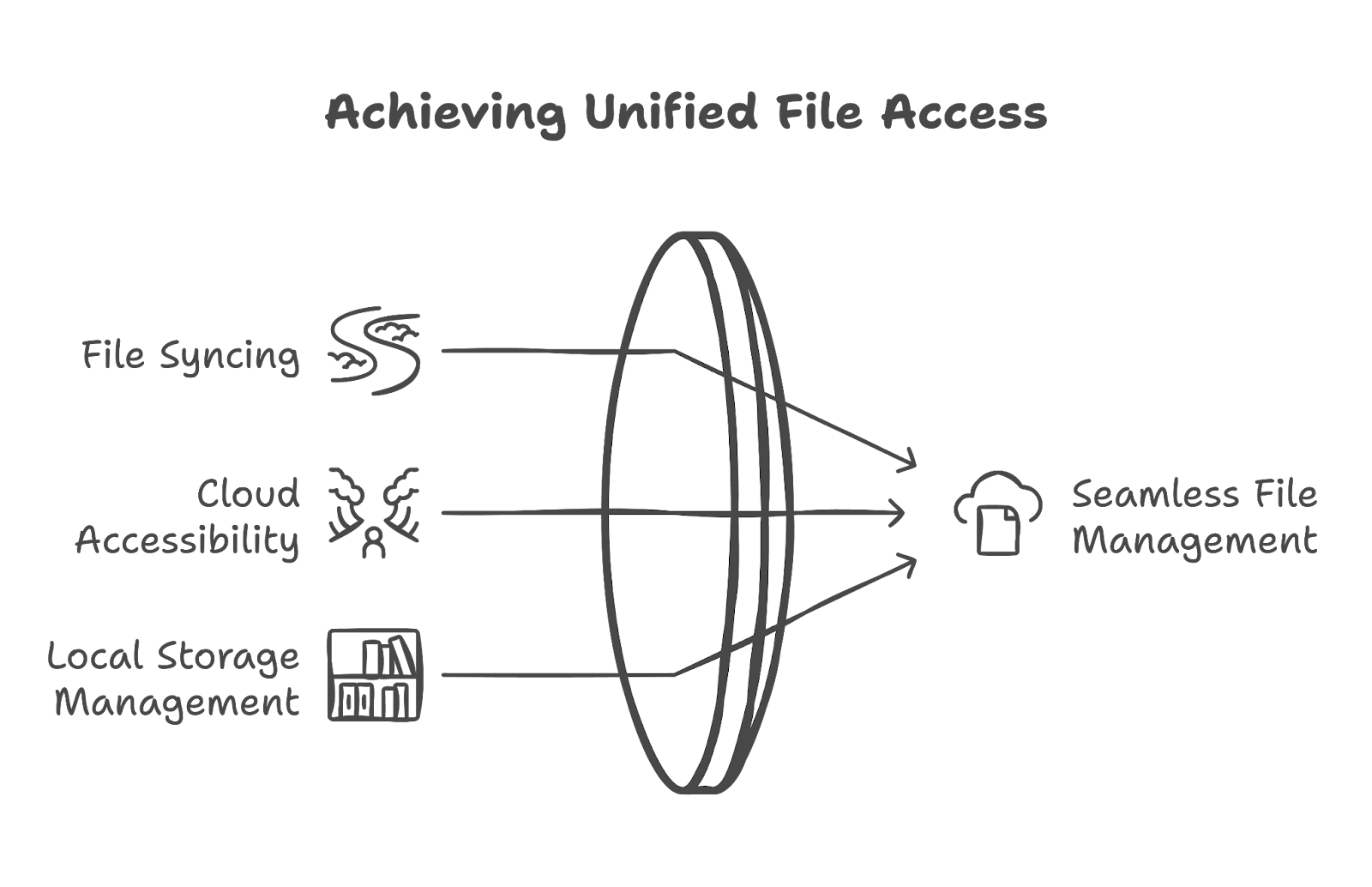
This document provides an overview of its features, installation process, and tips for effective usage. With Google Drive for Desktop, users can seamlessly sync files between their local storage and the cloud, ensuring that their documents are always up-to-date and accessible from anywhere.
Overview of Features
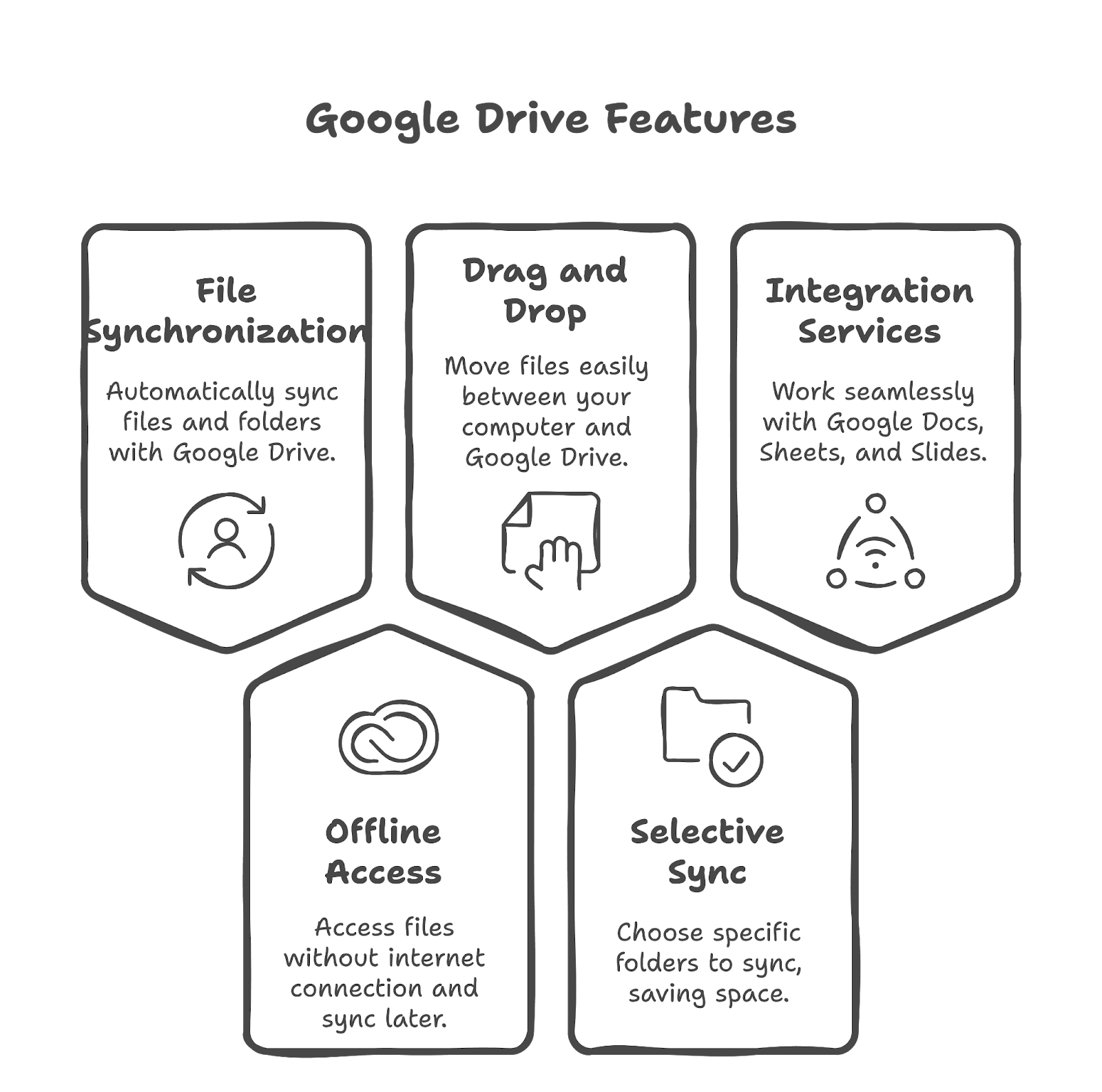
- File Synchronization: Automatically sync files and folders between your computer and Google Drive, ensuring that you always have the latest version.
- Offline Access: Access your files even when you are not connected to the internet. Any changes made offline will sync once you reconnect.
- Drag and Drop Functionality: Easily move files between your computer and Google Drive using simple drag-and-drop actions.
- Selective Sync: Choose which folders to sync to your computer, saving local storage space while keeping essential files accessible.
- Integration with Other Google Services: Seamlessly work with Google Docs, Sheets, and Slides, allowing for real-time collaboration and editing.
Installation Process
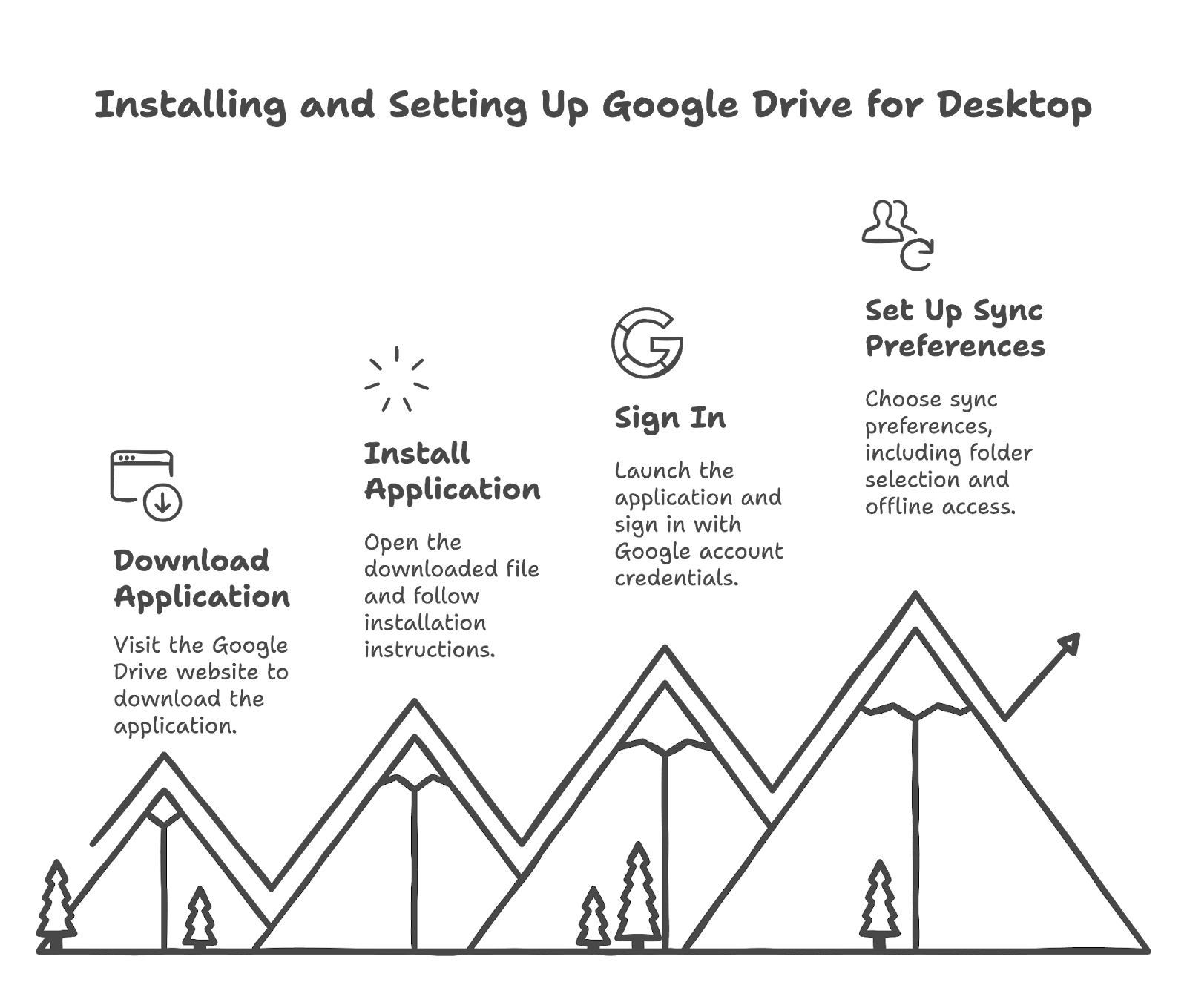
- Download the Application: Visit the [Google Drive website](https://www.google.com/drive/download/) and download the Google Drive for Desktop application for your operating system (Windows or macOS).
- Install the Application: Open the downloaded file and follow the on-screen instructions to install the application on your computer.
- Sign In: Once installed, launch the application and sign in with your Google account credentials.
- Set Up Sync Preferences: Choose your sync preferences, including which folders to sync and whether to enable offline access.
Tips for Effective Usage
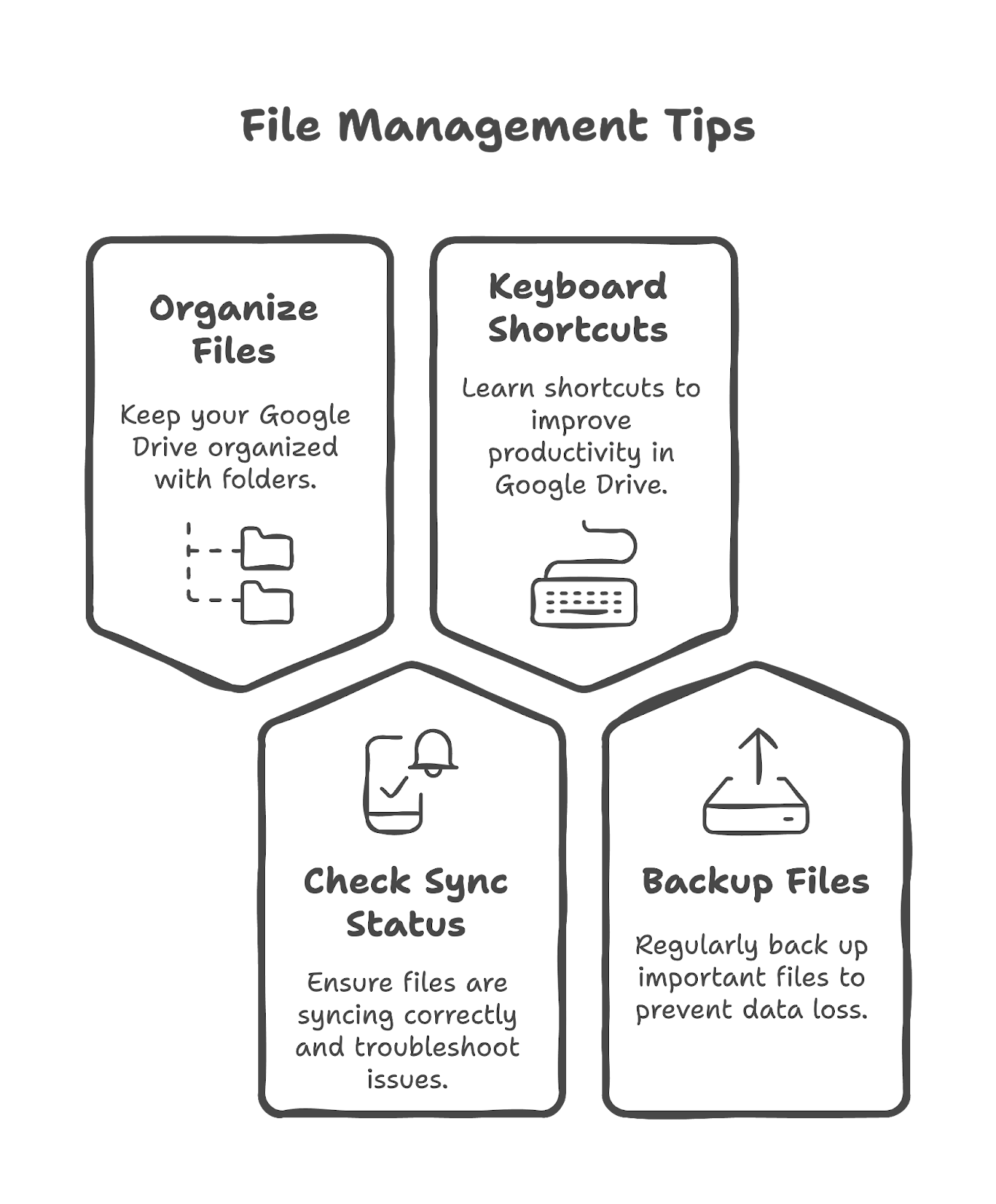
- Organize Your Files: Keep your Google Drive organized by creating folders and subfolders. This will make it easier to find and manage your files.
- Regularly Check Sync Status: Ensure that your files are syncing correctly by checking the sync status in the application. Look for any error messages that may indicate issues.
- Utilize Keyboard Shortcuts: Familiarize yourself with keyboard shortcuts for Google Drive to enhance your productivity.
- Backup Important Files: While Google Drive provides cloud storage, it’s always a good practice to back up important files on an external drive or another cloud service.
Conclusion
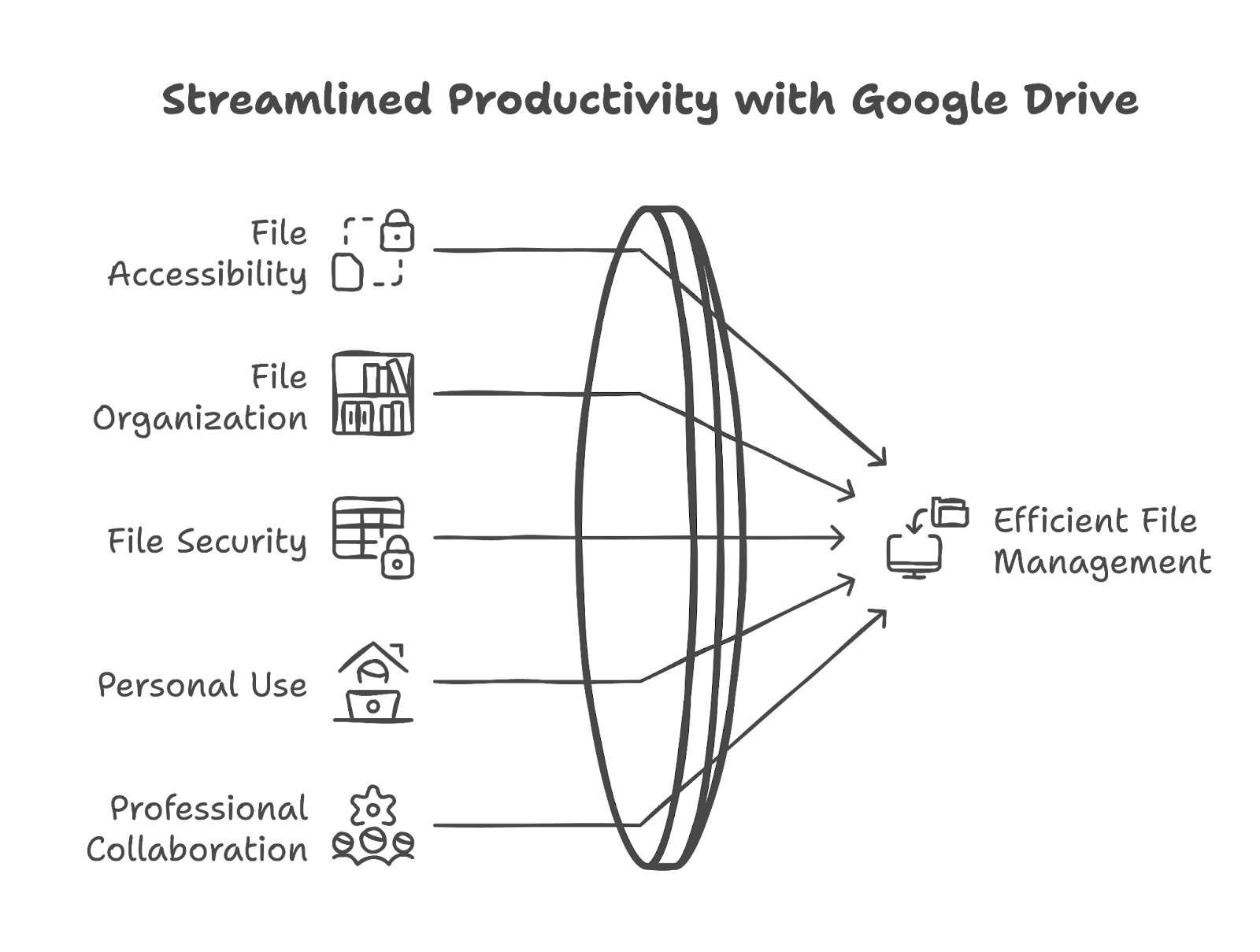
Google Drive for Desktop is an essential tool for anyone looking to streamline their file management and enhance productivity. By utilizing its features and following best practices, users can ensure that their files are always accessible, organized, and secure.
Whether for personal use or professional collaboration, Google Drive for Desktop offers a robust solution for managing files in the cloud.
Related Posts
Explore Tips and Guides! Discover expert insights and practical guides for optimizing your Google Workspace experience with our informative resources.

Gemini Gems: Custom AI Your Team Can Reuse

How to Schedule an Email in Gmail (and Send It Later)

Gemini vs Copilot: Which AI Wins for Business?

Does Google Meet Have a Time Limit?

Does Google Workspace Back Up Your Data?

Personal Gmail vs Google Workspace: Which Do You Need?

Google Workspace for Nonprofits: Free vs Paid
Is Google Workspace Free? The Honest Answer
Google Workspace Free Trial: How It Works in 2026
Google Workspace vs Google One: It Was Never About Storage
Google Workspace Business Plus: Who Actually Needs It
Google Workspace vs Microsoft 365: Price Won't Decide This

How to Record a Google Meet (and Where It Saves)

OneDrive vs Google Drive: Which Wins for Business?
How to Delete a Page in Google Docs (4 Fast Fixes)
NotebookLM Pricing in 2026
How to Archive a Google Classroom (and When to Delete)
The Best Free Invoice Template for Google Docs
How to Create Forms in Google Forms (Step-by-Step)
How to Forward Emails in Gmail
How to Remove Duplicates in Google Sheets (3 Easy Ways)
How to Add a Signature in Gmail (Step-by-Step)
How to Share Your Google Calendar With Your Team
Google Sheets Formulas: A Practical Guide for Small Businesses
Google Sheets Templates (And How to Use Them)

Strikethrough in Google Docs: Shortcuts for Every Device
How to Unsend an Email in Gmail (Before It's Too Late)
Google Docs Dark Mode: How to Enable It on Any Device

What Is Google NotebookLM? Your Complete Guide to Google's AI Research Assistant
.png)
What Is Google Workspace Used For? 10 Ways It Runs Your Business

Google Workspace Can Be HIPAA Compliant. Yours Probably Isn't. Here's Why

Ditch the Landline: Why Small Businesses Are Switching to Google Voice

Google Workspace Studio: No-Code AI Automation for Small Business

How to Find Archived Emails in Gmail: A Guide for Small Businesses

Best Google Workspace Plan for Solopreneurs: My No-Nonsense Guide

What is the cheapest way to get Google Workspace? (A 2026 Guide)

How to Cancel Google Workspace Subscription (2026 Guide)

Gemini for Google Workspace Pricing 2025: Is It Included & Free?

Conflicting Google Accounts? Simple Workspace Solutions, Guaranteed

Migrate your Calendar from Gmail.com to Google Workspace

Migrate Contacts from Gmail.com to Google Workspace

Create App Specific Password in Gmail

How to Add Music to Google Slides: Tips for a Dynamic Presentation

Google Workspace Plan Change Made Easy: Your Ultimate Guide

Google Workspace DNS Records

Google Workspace to Google Workspace Migration Process

How to upload company logo in google workspace

From Paperwork Purgatory to Streamlined Success: My Real Estate Journey with Google Workspace

Rackspace Email Alternatives: Streamline Your Business Communication in 2024

Master Your Time: Gmail Out of Office for the Busy Small Business Owner

Gmail Conversation View

How to Create an Email Aliases in Google Workspace?

Google Workspace to Google Workspace Migration Requirements

Can I Migrate Gmail Account to Google Workspace? Your Complete Guide

Gmail to Google Workspace - Migration Requirements

Zoho Workplace vs Google Workspace: A Comprehensive Comparison

Why are passwords needed for Migration?

What Is Included In Google Workspace?

What is Google Workspace?

Time to Say Goodbye to Microsoft Outlook

What is Google Vault?

User Vs Alias vs Group - How to choose smartly

How Do I Save Money on Google Workspace?

Rackspace Email vs Google Workspace

Transfer Contacts from Rackspace to Google Contacts

Office 365 vs Google Workspace
.png)
Rackspace to Gmail Migration – An Expert’s Advice
.png)
Rackspace Email Outage Solution

Understanding Multiple Domains in Google Workspace

Is Google Workspace HIPAA Compliant?

Is Google Workspace Worth It?

Easily Setup Google Workspace on your iphone

Gmail Canned Responses Setup
.png)
Google Workspace Super Admin Role

How to create Google Workspace SPF records

Google Workspace Sign up (with 15% discount)

Manage Law Firm with Google Workspace

Save 15% flat on your Google Workspace

Google Workspace Promotion Code

Google Workspace Ipad setup

How to create Google Workspace MX Records

Google Workspace MacBook Setup

Google Workspace Domain Verification

Google Workspace GMAIL IMAP Settings: Your Easy, Step-by-Step Guide

Google Workspace for Personal Use

Google Workspace Vs Godaddy – Choose Wisely

How To Contact Google Workspace Support

Google Workspace Business Starter

10 Reasons you should upgrade from Gmail to Google Workspace

Godaddy Office 365 vs Google Workspace

9 Reasons to switch from Godaddy Office 365 to Google Workspace

Setup Gmail on MS Outlook for Windows

Setup Gmail on MS Outlook for Mac

Gmail Auto Responder

Find Your Rackspace Email plan

Google Workspace for Digital Marketing

G Suite vs Google Workspace: Understanding the Key Differences
.png)
Create Rackspace Admin Account

Delegate Godaddy DNS access to Googally