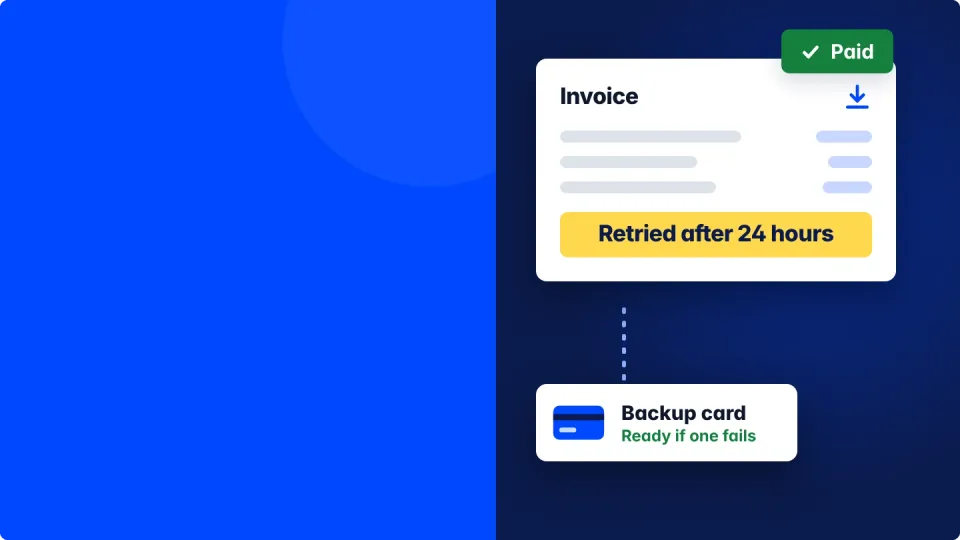
Google Workspace billing lives in the Google Admin console under Menu, Billing, Payment accounts. From there you can download monthly invoices and receipts, change or add a card, set a backup card and make a manual payment. Only a super admin or an admin with the billing privilege can see it. If a payment fails, Google retries after 24 hours, and an unpaid account can be suspended, so a backup card is the cheapest insurance you'll ever buy.
A message I get more often than you'd think goes something like this. "My accountant needs every Google invoice for the year, and I can't find a single one." Close behind it is the panicked version. "Google says my payment was declined and my team might lose email. Where do I even fix that?"
Both fixes take about two minutes once you know where to look. The trouble is that billing sits a few clicks deep in the Admin console, and Google's own wording jumps between subscriptions, payment accounts and billing accounts as if they're all the same thing. They're not quite, and that's what trips people up. Below I'll walk you through every billing screen, in the order you'll actually need them, with a real screenshot of each click.
Quick takeaways
- Billing is at admin.google.com, Menu, Billing, Payment accounts. Your plan details sit next door under Billing, Subscriptions.
- Google emails a PDF invoice at the start of each month for the month before, and every invoice and receipt stays downloadable in the Admin console.
- On the Flexible plan you pay for the users you had each day of last month, charged at the start of the next month.
- A failed charge is retried after 24 hours. Add a backup credit card so one expired card can't take your email down.
- You can't edit an old card's number. Add the new card, make it primary, then remove the old one.
Who can see Google Workspace billing?
Only a super admin, or an admin whose role includes the billing management privilege. Everyone else, other admins included, won't see the Billing menu at all.
Think of it like the company's bank card. You don't hand it to everyone in the office, but you also don't want to be the only person who can use it. If your bookkeeper chases invoices every month, give them a custom admin role with just the billing privilege rather than full super admin rights. I explain the difference in this post on the Google Workspace super admin role.
Step 1. Open billing, then payment accounts
Sign in at admin.google.com with your admin account. In the left menu, click Billing (1), then Payment accounts (2).
Why payment accounts and not subscriptions? A subscription is what you buy, like Business Standard for 8 people. A payment account is the wallet that pays for it, holding your cards, your balance and your invoices. One wallet can pay for several subscriptions, which is why money questions start here.
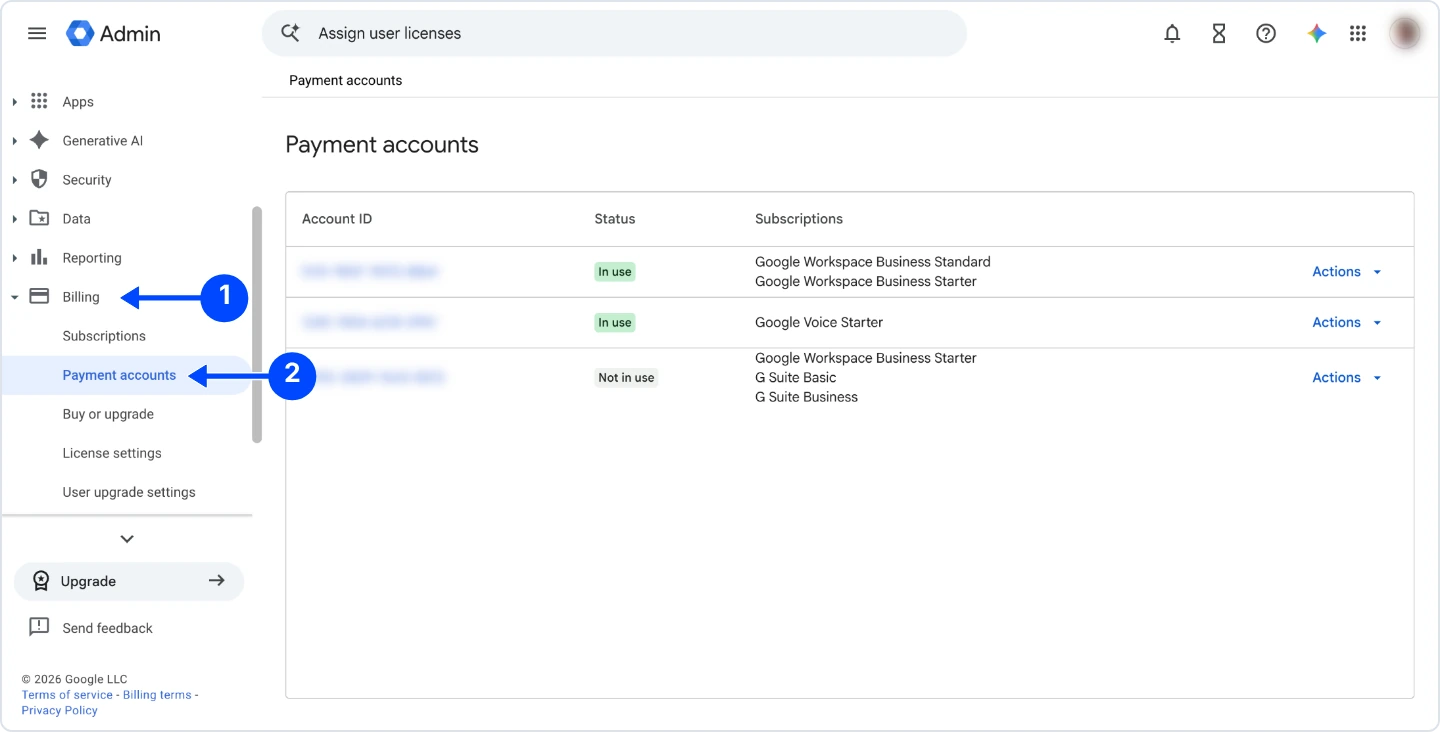
You'll see a table of payment accounts, each with its ID, a status and the subscriptions it pays for. Most small businesses have one account marked In use. Older accounts that once paid for G Suite can show up as Not in use, and you can ignore those.
Step 2. Open your payment account to see your balance
Click the account ID of the account marked In use. This overview page is the one to bookmark, because every money task starts from it.
At the top is your balance, the date and amount of your last payment, and Pay early (1) for making a manual payment. Below that, View transactions and documents (2) leads to your invoices, and the How you pay card shows your primary card with Add a backup (3) right beside it.
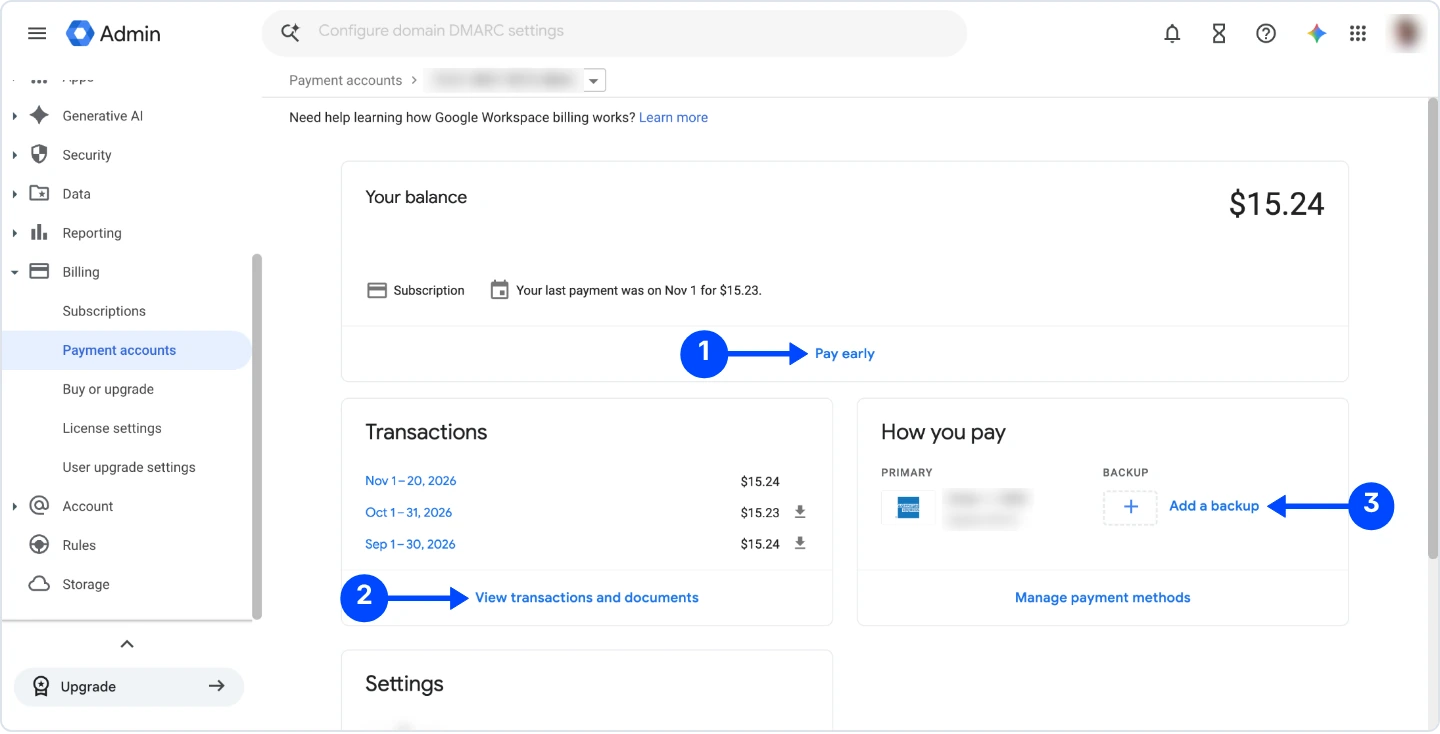
If that Backup box is empty, like the one in my screenshot, fix it today. It's the single most useful thing on this page, and Step 4 shows how.
Step 3. Download your invoices
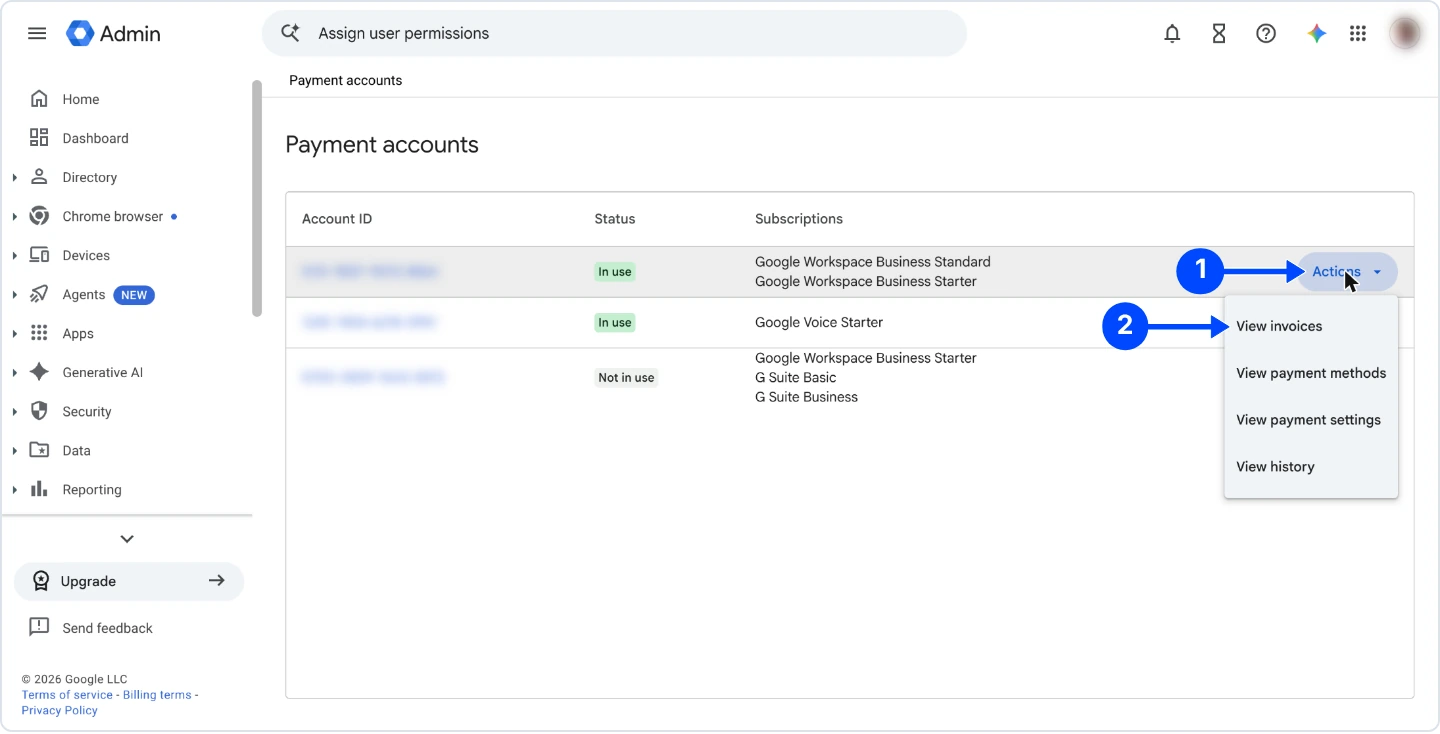
From the Payment accounts list, click Actions (1) next to your account, then View invoices (2). It's the same page as View transactions and documents on the overview, so use whichever is closer.
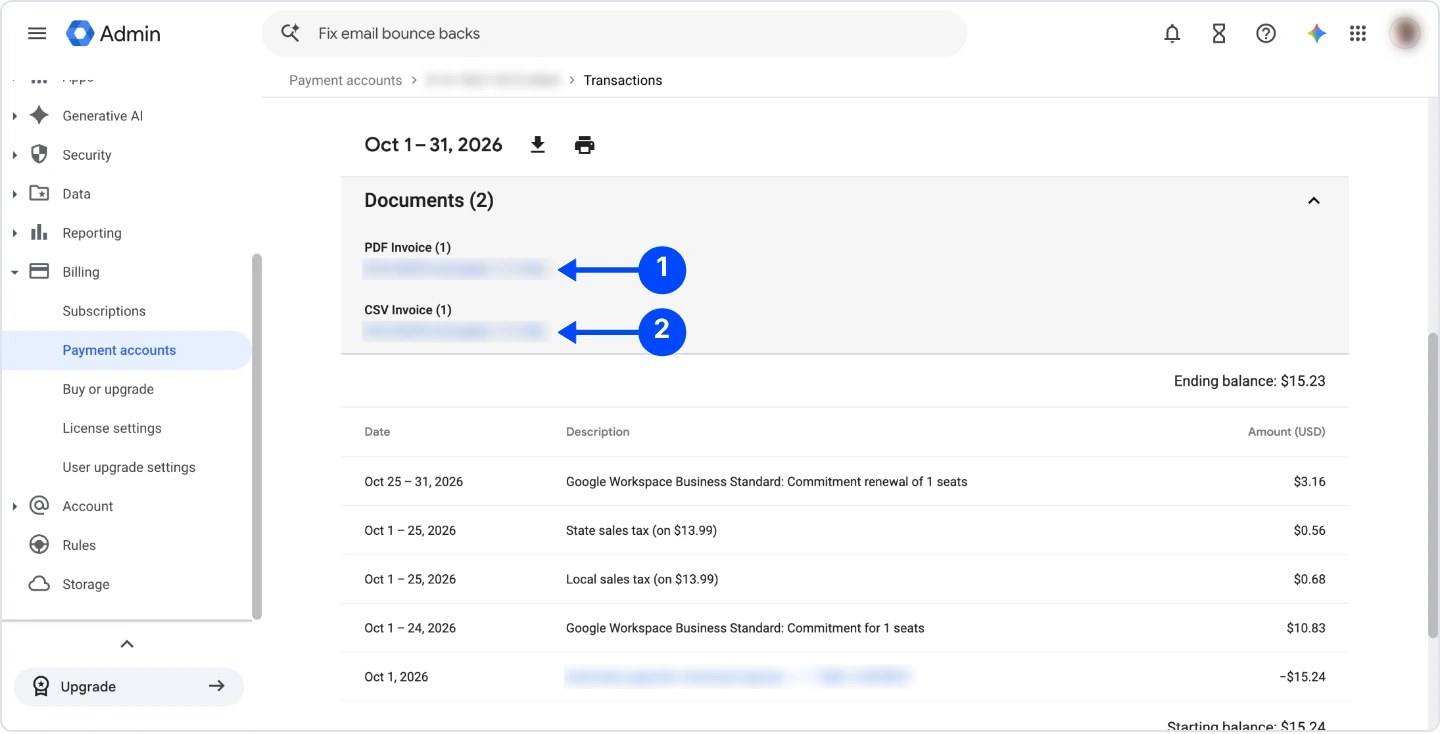
You'll land on Transactions, a month by month statement of every charge, tax line and payment. Each month has a Documents section. Click the PDF invoice number (1) to download the invoice your accountant wants, or the CSV invoice (2) if you'd rather drop the numbers into a spreadsheet. Use the date filter at the top of the page to go back further than the last 3 months.
| Document | What it shows | When you get it |
|---|---|---|
| PDF invoice | What you used last month and the amount Google charges for it | Emailed at the start of each month, and kept under Documents |
| CSV invoice | The same invoice as rows for a spreadsheet | Next to the PDF under Documents |
| Transactions | Every charge, tax line, payment and credit in one running list | Always up to date in the Admin console |
For your accountant, the PDF invoice is usually what they want. If they ask for proof you actually paid, the automatic payment line on the Transactions page shows the date, the card and the amount.
Step 4. Change your card or add a backup
On the overview, click Manage payment methods. To use a new card, click Add payment method (1) and save it. It appears under Other payment methods, where the small menu under the card (2) lets you make it Primary or Backup. Or add a spare straight away with Add a backup payment method (3).
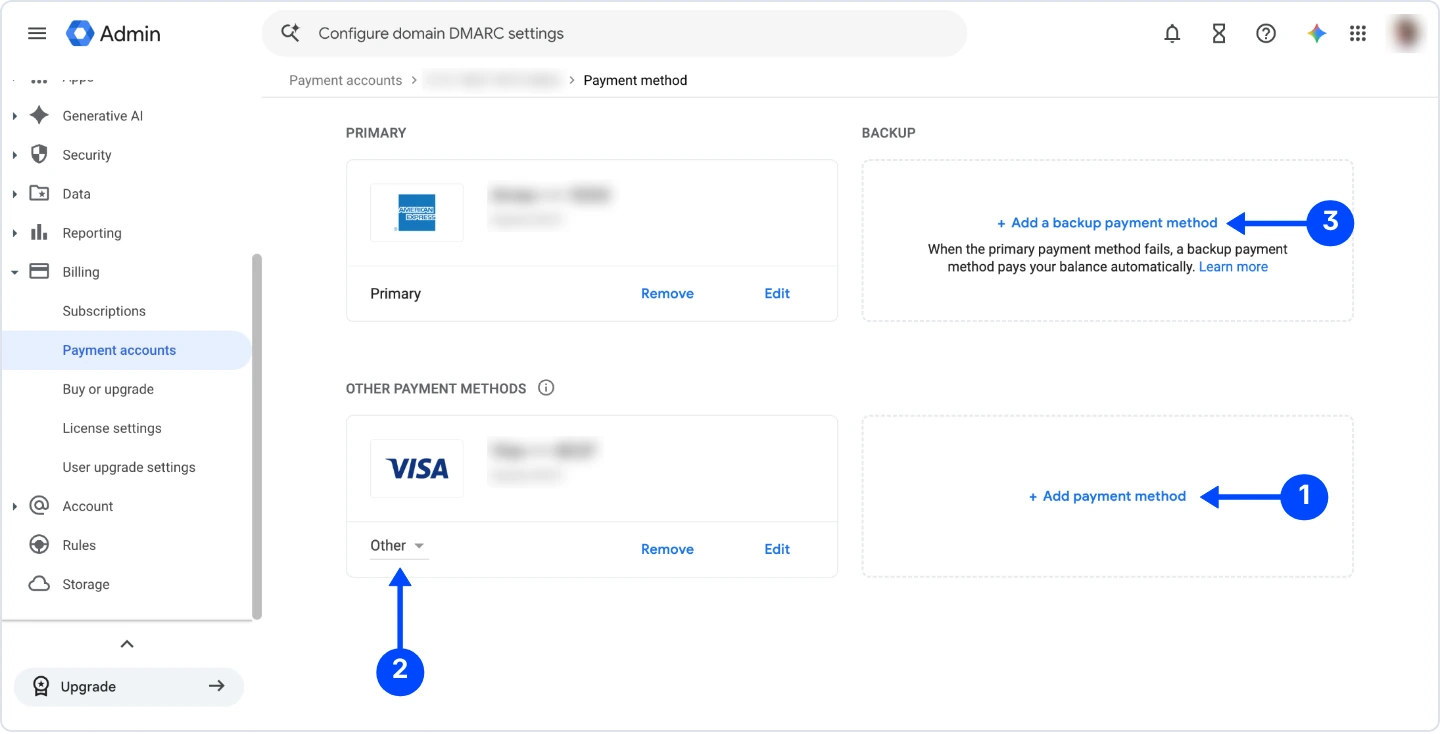
Here's the gotcha. The Edit button only updates details like the expiry date. You can't change a card's number. When your bank sends a replacement card with a new number, add it as a new card, make it primary, and only then remove the old one. Do it in that order and there's never a moment without a working card on file.
Then set a backup. As Google puts it right on that screen, when the primary payment method fails, a backup pays your balance automatically, and your team never notices. Only a credit or debit card can be a backup, not a bank account.
Step 5. Check your plan and what you pay per user
Click Subscriptions (1) under Billing. This lists every Google product on your account, how many licenses each has, and the payment plan (2), such as Flexible plan or Annual plan (monthly payment).
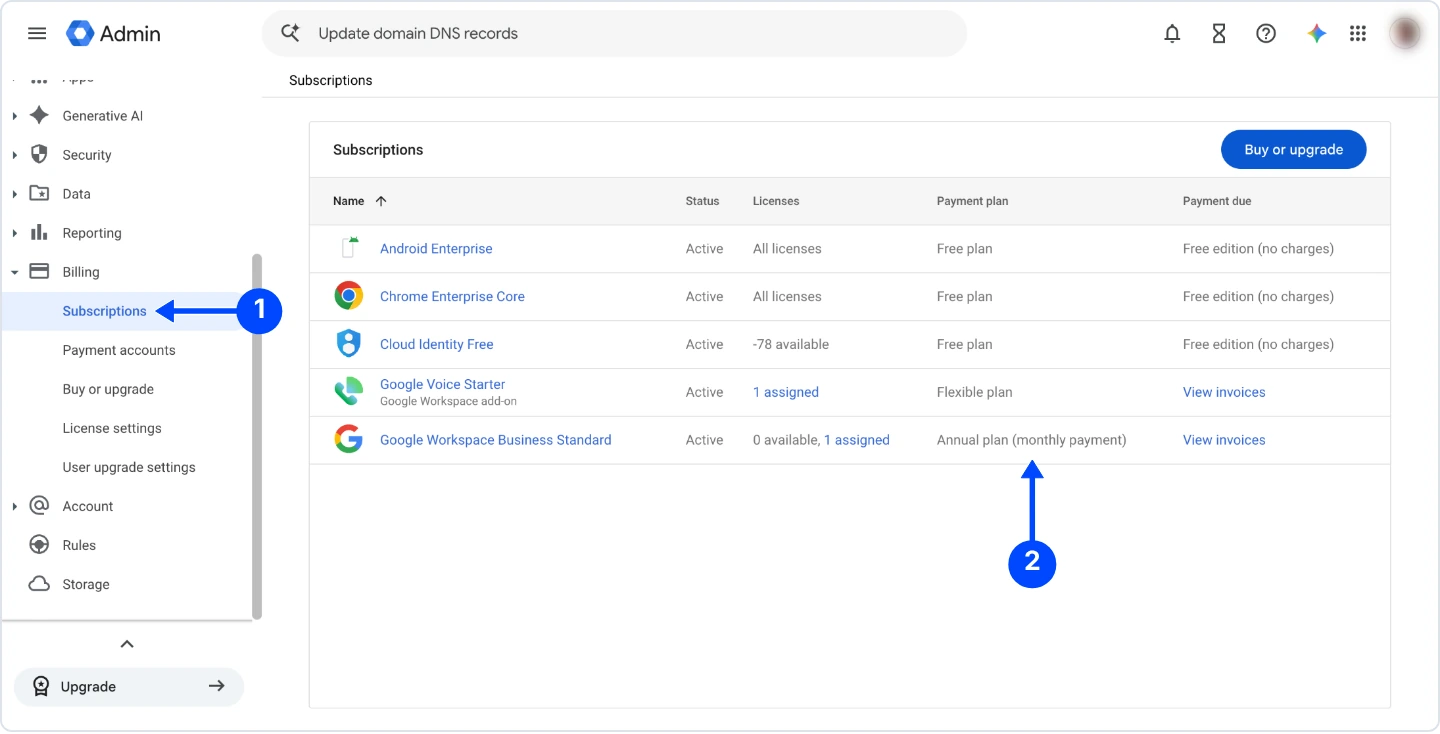
Free items like Chrome Enterprise Core and Cloud Identity Free show up here too, with no charges, so don't panic when the list looks long. If the price looks high, this is the screen that explains why. To move to a different edition, follow this guide to changing your Google Workspace plan.
When does Google Workspace charge you?
On the Flexible plan, Google charges your primary payment method at the start of each month for the month before. On the Annual plan you commit to a set number of licenses for a year, and with monthly payment, which is what most small businesses have, you pay for those licenses each month.
Flexible billing works like a gym that charges by the day. Add someone on the 20th and you pay for their last 11 days, not the whole month. Remove someone and their days stop counting. One surprise for new accounts is threshold billing. If your unpaid usage reaches a set amount before the month ends, Google can charge it right away instead of waiting.
| Plan | Flexible, per user per month | Annual, per user per month |
|---|---|---|
| Business Starter | $8.40 | $7 |
| Business Standard | $16.80 | $14 |
| Business Plus | $26.40 | $22 |
Prices checked November 2026, from Google's US list prices.
If you're signing up fresh, a Google Workspace promo code takes 15% off your first 3 months on these plans.
What happens if a Google Workspace payment fails?
Google tries again after 24 hours. If the retry fails too and there's no working backup card, your account goes into a grace period, and if the balance stays unpaid, Google suspends the subscription.
Suspended means your team can't get into Gmail, Drive or anything else until you pay the full amount due. A partial payment won't lift it. The Admin console shows the exact suspension date, so check it the day you get the declined email. And if a subscription stays suspended for more than 60 days, Google says it might be cancelled and you might lose user data. That's the one billing mistake that can actually cost you your files.
The usual causes are boring. An expired card, a credit limit, a bank blocking online or international charges, or a billing address that doesn't match the card. Fix the card, then pay the balance by hand with Pay early on your payment account overview, which Google may label Make a payment when money is overdue. One tip from experience. Don't make a manual payment and then sit tight hoping the automatic retry fails, because if both go through you've paid twice.
Why can't I see billing in my admin console?
Either your admin role doesn't include billing, or someone else bills you. If you bought Google Workspace through a reseller, your web host or a Google partner, they send the invoices and you'd contact them, not Google.
The same goes for the Android or iOS app. If you signed up inside the app, you pay through Google Play or your iPhone's Settings. And if you're the owner but can't get into the Admin console at all, start with the ways to reach Google Workspace support.
Why is my Google Workspace bill higher than I expected?
Most of the time it's licenses nobody is using. Suspending a former employee keeps their account, and on the Flexible plan it keeps their license on the bill too.
When someone leaves, follow a proper offboarding checklist so their files are safe before the license goes. Then look at add-ons, a recent move to a bigger plan, and whether you're on Flexible pricing when you could commit annually. Not sure which plan fits your team at all? The free Best Workspace Plan tool works it out in about a minute.
Google's own Billing and payments help covers rarer cases like invoiced accounts and country-specific payment methods.
If your bill still doesn't make sense, send me a screenshot of your Subscriptions page with the card details hidden, and I'll tell you where the money is going. And if you're moving your email over from another provider, my team at Googally can handle the whole email migration for you.