Google Workspace Offboarding: Don't Delete That Account Yet
When someone resigns, my first instinct for years was to jump into the admin console and hit "Delete user" to stop paying for the seat. Then a client lost three years of a departed salesperson's email that way, and I learned the hard way. Offboarding in Google Workspace is less about deleting an account and more about getting that person's data out of their account and into safe hands first.
Google Workspace offboarding means securing a departing employee's account, transferring the data they own to someone who stays, then archiving or deleting it to free the license. Order matters: delete the user first and their Gmail is gone after a 20-day grace period.
Below is the exact sequence I follow for small teams, the one setting that saves most of the headaches, and when archiving beats deleting outright.
What offboarding really means (and the costly mistake)
Offboarding is everything that happens to a Google Workspace account after the person behind it walks out the door. It's a security task and a data-protection task at the same time: you're closing off access while making sure nothing the business needs leaves with the employee.
The costly mistake is treating it as a one-click delete. Deleting is the very last step, not the first. When you delete a user, Google saves their Gmail messages and the Drive files they own for 20 days, and after that the data is unrecoverable. Rush the delete and you can lose signed contracts, client threads, and that one spreadsheet nobody else knew existed.
Doing this well is also part of keeping your tenant audit-ready. If you've already put in the work to make Google Workspace HIPAA compliant, a sloppy offboarding undoes it.
Step one: secure the account
Before you move any data, cut off the risk. Reset the password so the person can no longer sign in, then sign out all their active sessions and revoke access on their devices.
Google recommends handling the device and security cleanup — wiping the user's mobile devices, resetting their sign-in cookies, and revoking their security keys — as part of removing them. For a departing employee this is also the moment to turn off any app passwords and check that they aren't the sole admin on anything critical.
Only a super admin can do the data transfer later, so confirm you're signed in with the right account before you go further.
Step two: transfer the data they own
This is the step people skip, and it's the one that saves the business. You need to move the data the employee owns to someone who's staying — their manager, usually.
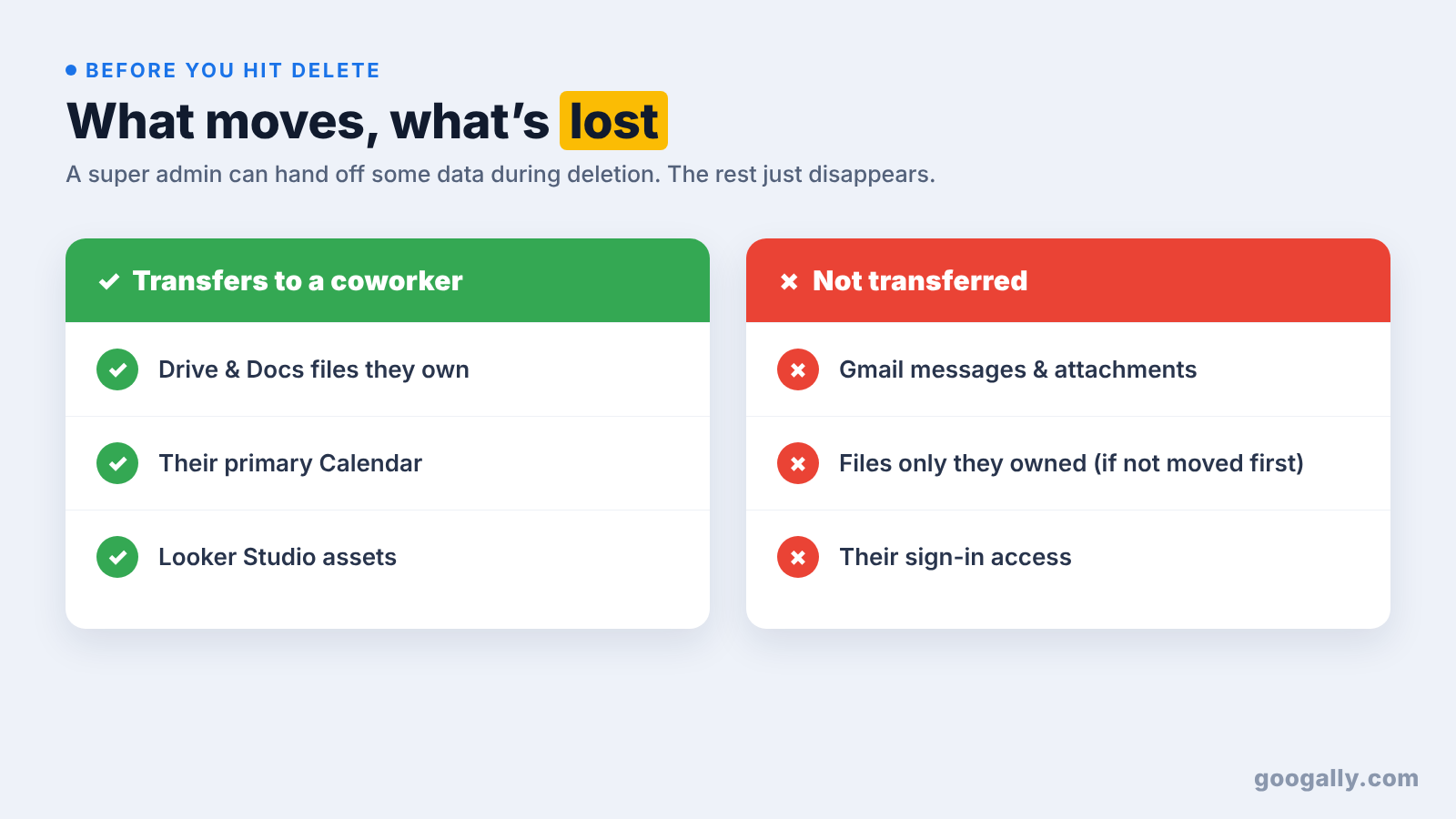
Super admins can transfer some data during the deletion process itself: the user's Drive and Docs files, their primary Calendar data, and their Looker Studio assets, including files that aren't shared with anyone. If you're not a super admin, you have to transfer the data before you delete the user, not during — Google lays out the exact flow in its guide to removing a user.
A few things are not handled by that transfer and need their own attention:
- Files owned by other people that the employee could see aren't theirs to lose — those stay put. But files the departing person owns move to the new owner's My Drive.
- Shared calendars the user owns aren't deleted, though it's worth reassigning ownership before they leave.
- Groups they created stay in place even if they were the only member.
If any of this data is sensitive enough that you want a clean copy before you touch the account, take a full backup of the account first. It takes minutes and gives you a safety net.
What happens to their Gmail
Here's the part that trips everyone up: Gmail is not included in that deletion-time transfer. You can't simply hand one person's mailbox to another the way you hand over their Drive files.
So you have three realistic options for the departing mailbox:
- Keep the account for a while (or archive it — more on that below) so the mailbox stays searchable.
- Forward incoming mail to a manager so nothing from clients bounces. Setting up email forwarding takes a minute and buys you breathing room.
- Turn the address into an alias on a current employee's account, so messages to sarah@yourcompany.com land in the right inbox going forward. Our guide to creating an email alias walks through it.
Whichever you choose, do it before you delete anything. Once the 20-day clock runs out, the Gmail content and the email address itself are both gone.

The smarter move for most small teams: archive instead of delete
For most small businesses, the cleanest answer isn't deleting at all — it's archiving the account.
When you archive a former employee's account, Google keeps all of their Workspace data safe (Gmail, Drive, and more), but the person can't sign in, can't receive new email, and no longer shows up in your company directory. Crucially, archiving frees their active license to reassign to someone else within 24 hours, so you stop paying for an active seat while keeping the data intact.
Archiving is supported on Business Starter, Business Standard, and Business Plus, as well as the Enterprise and Education editions — so you don't need to be on a high-end plan to use it. On Business plans you reach it by clicking Delete user and then Archive user; you may be prompted to buy a low-cost Archived User subscription, which costs far less than a full seat.
One caveat worth knowing: an archived user's data counts toward your pooled storage, and the ability to search or export that archived mailbox depends on having Google Vault. If you're not sure whether you have it, our explainer on what Google Vault is clears it up.
Archive vs delete vs suspend: which to pick
These three actions get mixed up constantly, so here's how they actually differ.
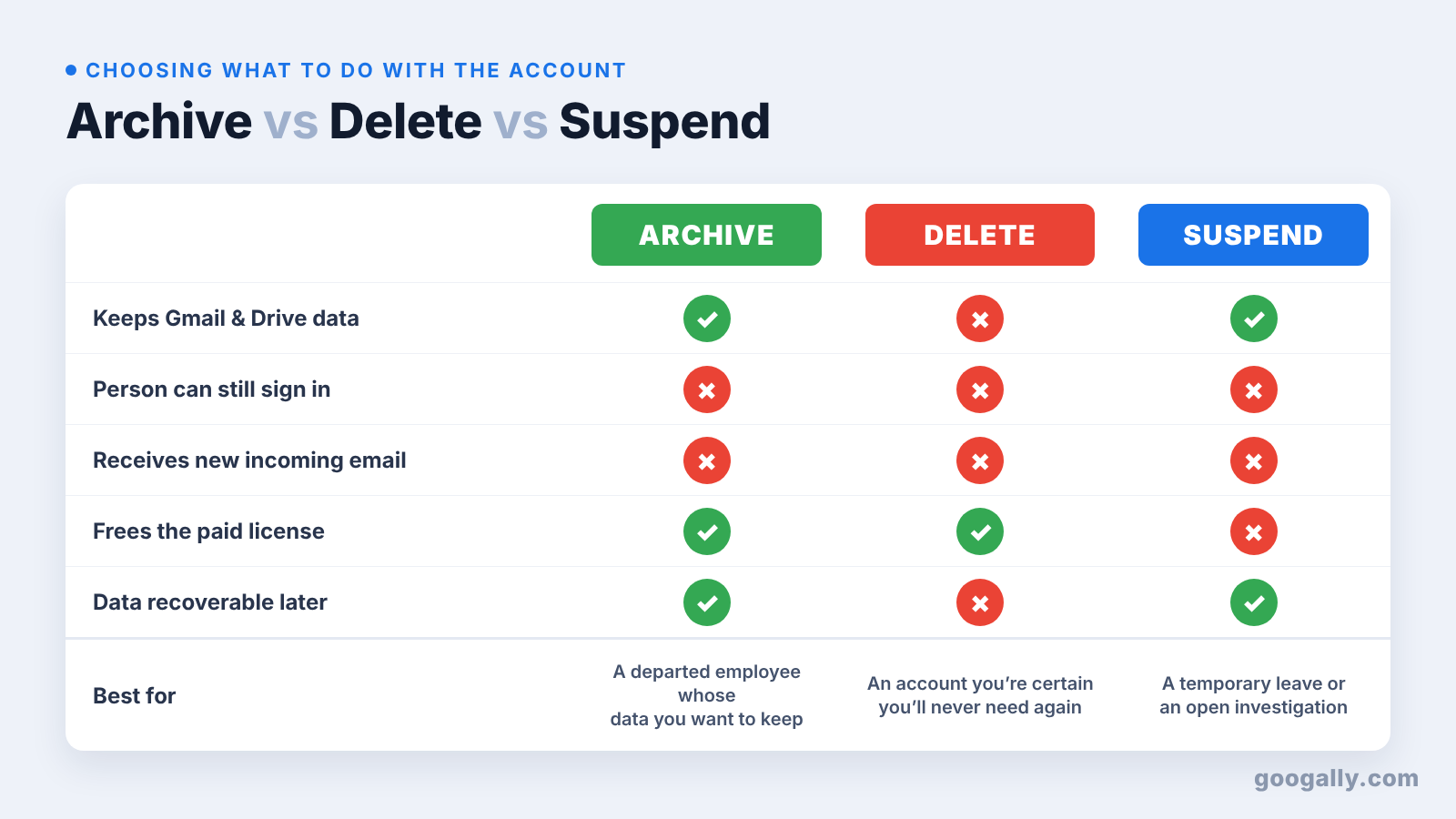
Suspend is temporary. The account and all its data stay fully intact, the person just can't sign in. You keep paying for the license. It's right for a leave of absence or an investigation, not for someone who's gone.
Archive keeps the data, blocks sign-in and new mail, and frees the license. It's the sweet spot for a departed employee whose history you want to keep but whose seat you don't want to pay for.
Delete removes the account entirely. Use it only once the data is transferred and you're certain you don't need the mailbox, because after 20 days there's no getting it back.
For a growing team, archiving departed staff and reassigning their freed-up seats is also how you keep your license count honest — the same discipline that matters when you're bumping up against your user and license limits.
Keep team files from walking out the door
The best offboarding is the one you set up months earlier. If every important document lives in one person's personal My Drive, every departure becomes a scramble.
The fix is shared drives. Files in a shared drive are owned by the team, not the individual, so when someone leaves, nothing moves and nothing is at risk — their access is simply removed. Moving your core project folders into shared drives now turns a future offboarding from a data-recovery project into a two-minute access change.
Stop paying for the empty seat
Once the data is safe and the account is archived or deleted, deal with the billing so you're not paying for a ghost.
On a Flexible plan, your monthly rate is prorated the moment you remove a user, so costs drop automatically. On an Annual/Fixed-Term plan, deleting an account doesn't lower your license count — it just frees that license to reassign to a new hire. If the departure shrinks your team for good, you may want to change your plan or license count at your next renewal.
When you do hire a replacement, you can reassign the freed seat or spin up a fresh account in minutes — and new accounts are a good moment to use a Google Workspace promo code. As an official Google partner, we offer 15% off the first 3 months for new customers.
Your offboarding checklist
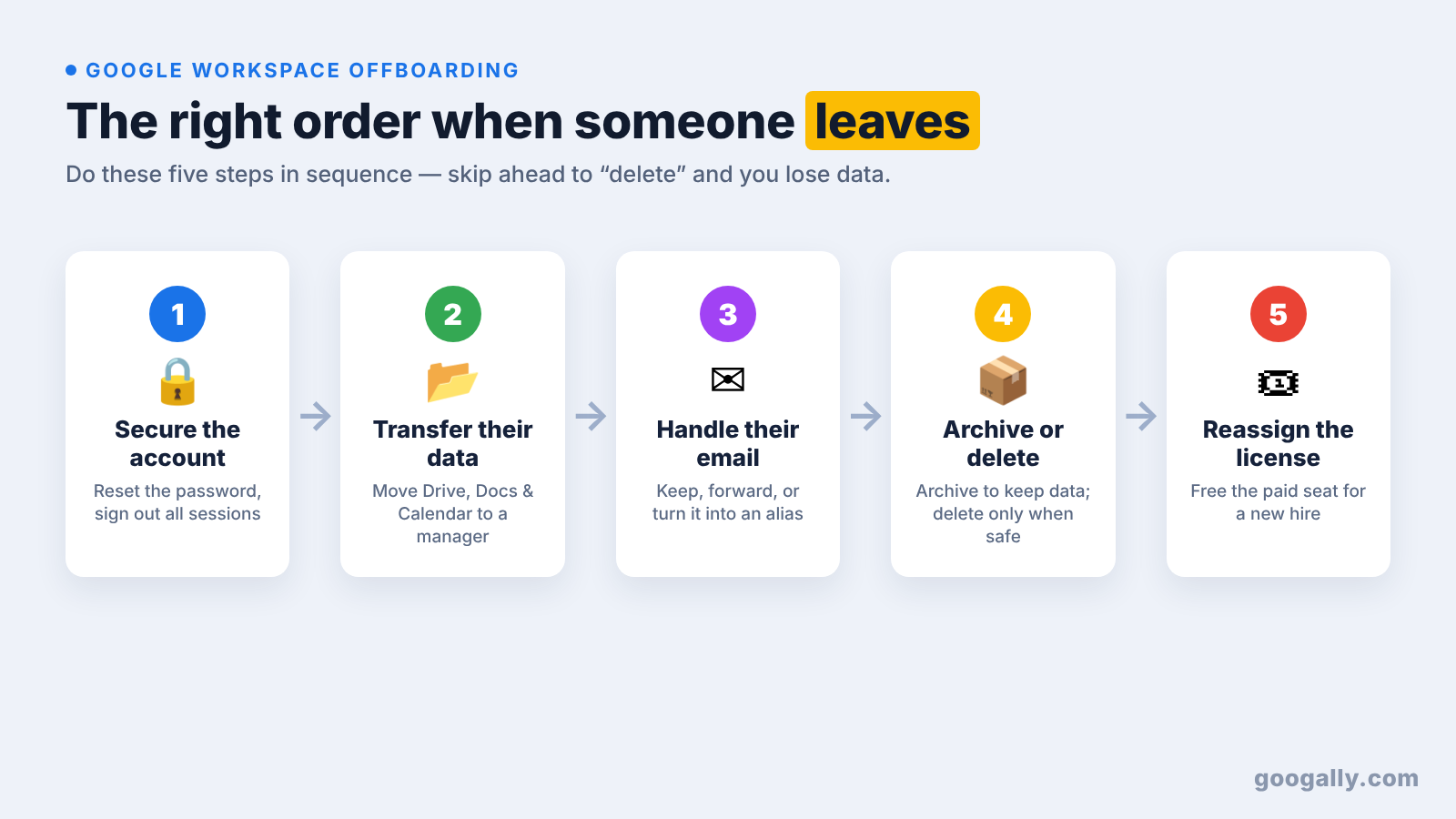
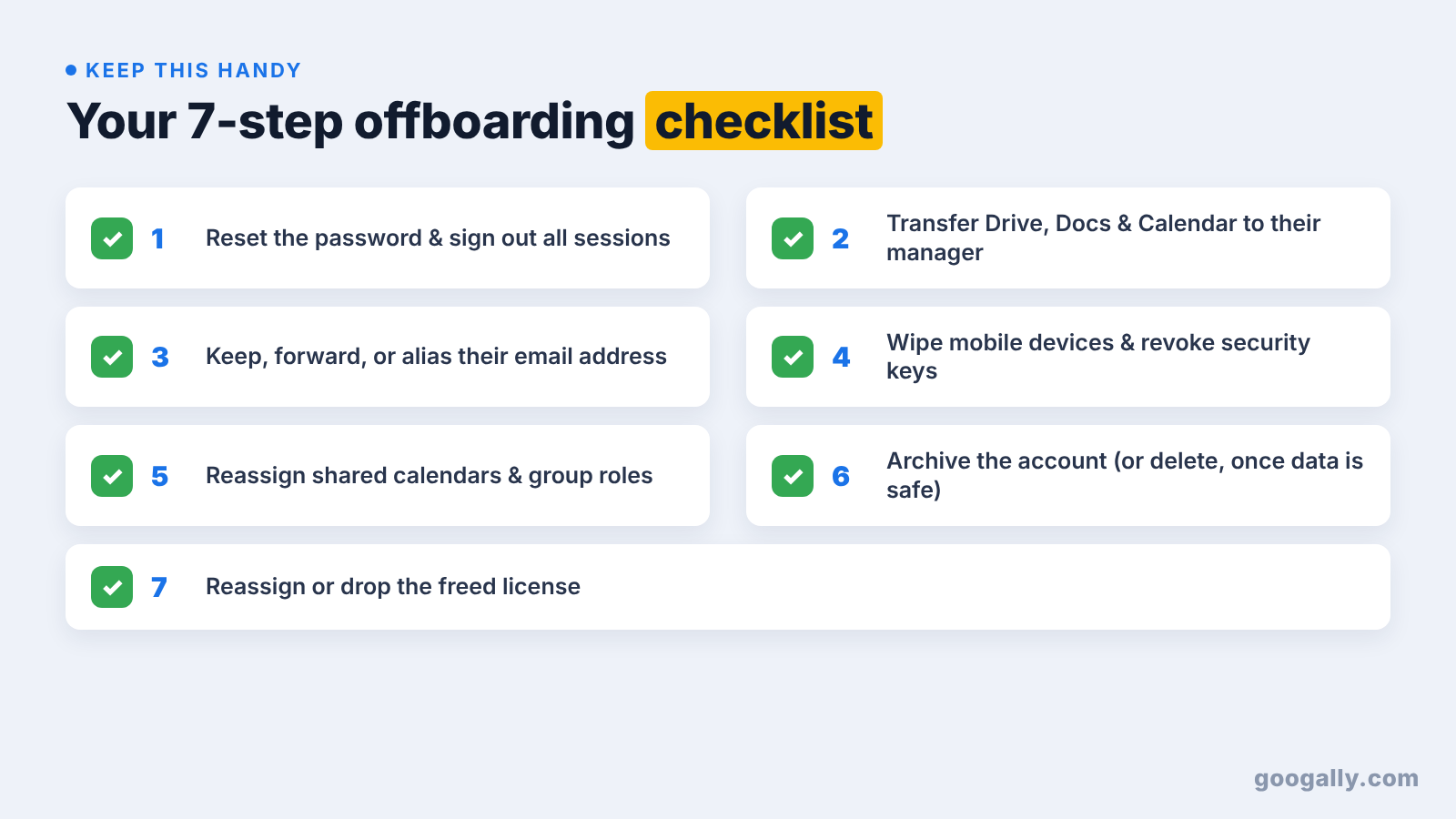
Here's the whole sequence in order, the way I run it:
- Reset the password and sign the user out of all sessions.
- Transfer their Drive, Docs, and Calendar data to their manager.
- Decide what happens to their email — keep, forward, or alias it.
- Wipe their mobile devices and revoke security keys.
- Reassign ownership of any shared calendars or group roles.
- Archive the account (or delete it, once you're sure the data is safe).
- Reassign or drop the freed license so you stop paying for the seat.
Follow it in that order and no data leaves with the employee, your costs come back down, and your tenant stays clean and audit-ready.
Frequently asked questions
Can I read a former employee's emails after they leave?
Yes, if you archive the account and have a Google Vault license, an admin can search and export that mailbox. If you delete the account instead, the Gmail content is only recoverable within the 20-day restore window.
How long do I have to recover a deleted Google Workspace user?
You can restore a deleted account for up to 20 days, which brings back their Gmail, any Drive files that weren't already transferred, and their primary calendar. After 20 days the data is gone permanently.
Can I reuse the email address of someone who left?
Yes. You can reassign the address to another user before the 20-day window closes; reassigning can take up to 24 hours to take effect. After 20 days the address is removed from Workspace and becomes available again.
What if the employee is the only owner of important files?
Transfer ownership before you delete them. Super admins can move the user's owned Drive and Docs files to another person during deletion, but it's safer to confirm the handoff while the account is still active.
Do I still pay for an archived user?
You stop paying for their full active license once you archive them — it frees up within 24 hours to reassign. On Business plans you may need a low-cost Archived User subscription, which is far cheaper than a standard seat.
Do I need a third-party offboarding tool?
For most small businesses, no. Google Workspace's built-in data-transfer tool, archiving, and email forwarding cover a standard offboarding without extra software. Third-party tools mainly add bulk automation for large teams removing many accounts at once.
Related Posts
Explore Tips and Guides! Discover expert insights and practical guides for optimizing your Google Workspace experience with our informative resources.