
Does Google Workspace Back Up Your Data?
Here's the short, slightly uncomfortable answer: Google Workspace does not back up your data the way most business owners assume. Google keeps its own infrastructure highly redundant, so the servers won't lose your email or files. But if an employee deletes a folder, a departing team member wipes their Drive, or ransomware encrypts your documents, recovering that data is your responsibility — not Google's. That gap is exactly why "google workspace backup" is one of the most searched (and most misunderstood) topics for Workspace admins. In this guide, I'll walk through what Google actually protects, what it doesn't, the native tools you already have, and when a real third-party backup is worth paying for.
Quick Takeaways
- Google Workspace uses a shared-responsibility model: Google protects the platform; you're responsible for recovering your own deleted or corrupted data.
- Native tools are limited: Google Takeout, Vault, and the admin restore give partial coverage — but each has short retention windows and real gaps.
- Takeout is an export, not a backup: it's a one-time snapshot with no automation, no versioning, and no easy restore.
- A true cloud backup for Google Workspace runs automatically, keeps historical versions, and restores data directly back into a user's account.
- Regulated businesses (HIPAA, finance, legal) almost always need a dedicated backup to meet retention and recovery requirements.
Does Google Workspace Back Up Your Data Automatically?
No — Google Workspace does not automatically back up your data in the way a dedicated backup service would. Google replicates your data across its own data centers so it survives a hardware failure, but that is availability, not backup. There is no built-in feature that lets you roll your entire account back to how it looked last Tuesday.
This surprises almost every business we onboard. People assume that because everything lives "in the cloud," it's automatically safe forever. In reality, Google's own documentation is explicit that customers are responsible for protecting against user error, malicious deletion, and sync-related data loss. If a bookkeeper permanently deletes the wrong Sheet, Google's redundancy won't bring it back once the retention window closes.
The distinction matters because the most common data-loss events aren't Google outages — they're human. Accidental deletion, a disgruntled employee, a compromised password, or a rogue third-party app can all destroy data that Google will happily replicate in its already-deleted state.
What Google Actually Protects (and What It Doesn't)
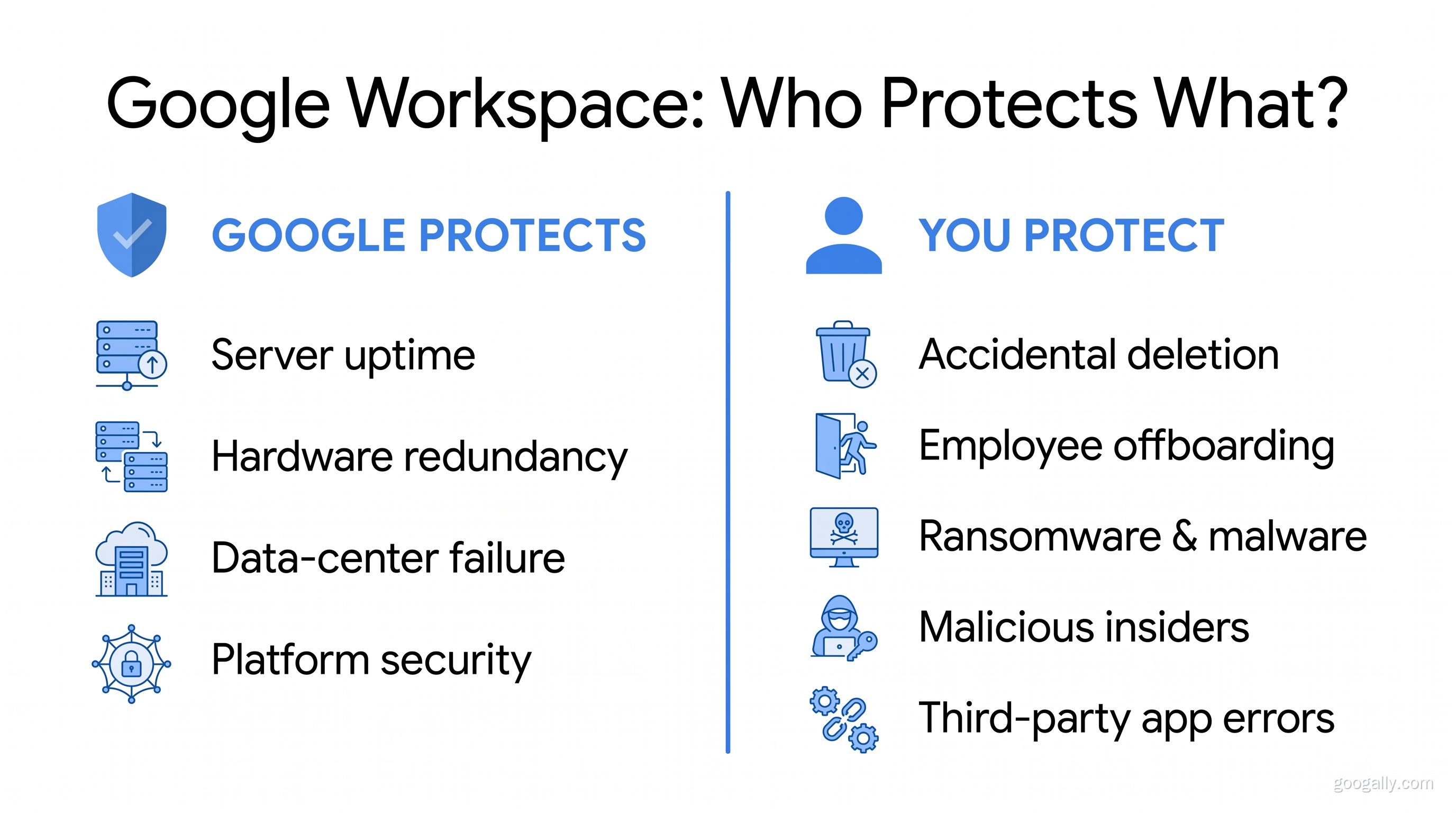
Google protects the system; you protect the content. Google guarantees uptime, physical security, and infrastructure redundancy. It does not guarantee that a file you (or your team) deleted can be recovered after its short grace period expires.
Here's the split in plain terms:
Google handles: server uptime, hardware redundancy, protection against Google-side data-center failure, and basic security infrastructure.
You handle: recovering data lost to accidental deletion, employee offboarding, ransomware or malware, malicious insiders, third-party app errors, and anything deleted past Google's retention window.
How Long Does Google Keep Deleted Data?
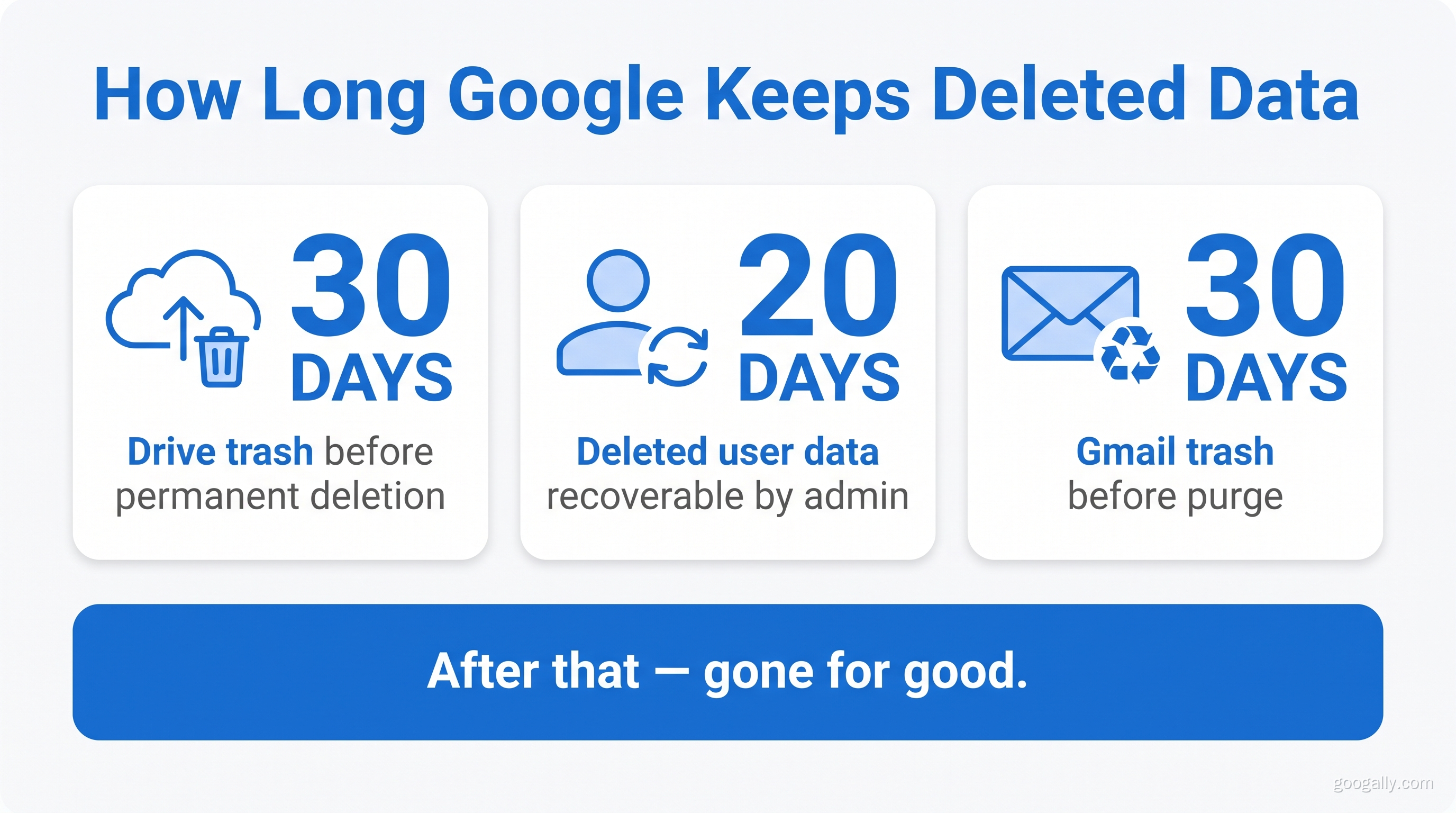
Not long — and that's the trap. Items in the Google Drive trash are permanently purged after 30 days. A deleted user's data is recoverable by an admin for only about 20 days before it's gone. Gmail messages a user deletes leave the trash after 30 days. These windows are short enough that a mistake discovered a month later is often unrecoverable, which is precisely the scenario a real backup exists to solve.
How Do I Back Up My Google Workspace Data?
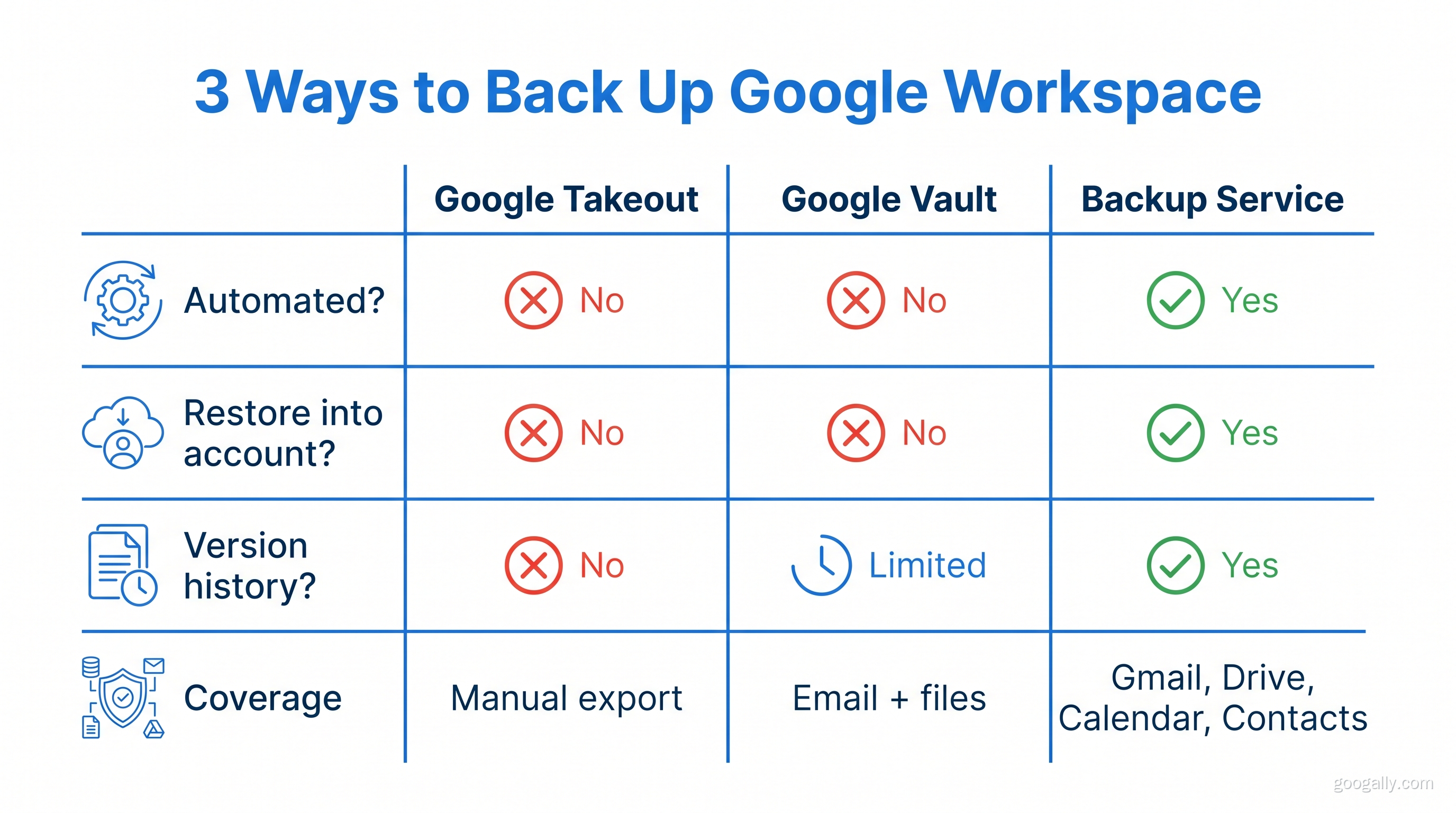
You have three broad options to back up Google Workspace: Google's native export tools, the admin console's limited restore features, and a dedicated third-party backup service. The first two are free but manual and limited; the third is paid but automated and comprehensive. Most small businesses start with native tools and graduate to a backup service once they realize how gappy the free options are.
Option 1: Google Takeout
Google Takeout lets any user export their Gmail, Drive, Calendar, and Contacts into downloadable archive files. It's useful, but it is an export, not a backup. Takeout is a manual, one-time snapshot — there's no scheduling, no version history, and no way to restore data back into the account. You get a pile of MBOX and file archives sitting on someone's hard drive, which helps for a single departing employee but falls apart as an ongoing data-protection strategy.
Option 2: Google Vault
Google Vault (included on Business Plus and higher) is a retention and eDiscovery tool — and it's frequently mistaken for a backup. Vault can preserve and search email and files for legal holds, but it is not designed to restore lost data into a working account, it doesn't cover everything (no Contacts, limited Drive coverage), and it only helps if you configured retention rules before the data was lost. It's a compliance tool that happens to retain data, not a backup-and-recovery system.
Option 3: A Dedicated Google Workspace Backup Service
A third-party cloud backup for Google Workspace is the only option that runs automatically, keeps daily historical versions, and restores data directly back to the original user with a few clicks. Services in this category back up Gmail, Drive (including Shared Drives), Calendar, and Contacts on a schedule, so recovering a folder someone deleted three months ago is a non-event. This is what "google workspace backup and recovery" actually means in practice — and it's the layer Google deliberately leaves to the ecosystem.
Do You Need a Third-Party Backup for Google Workspace?
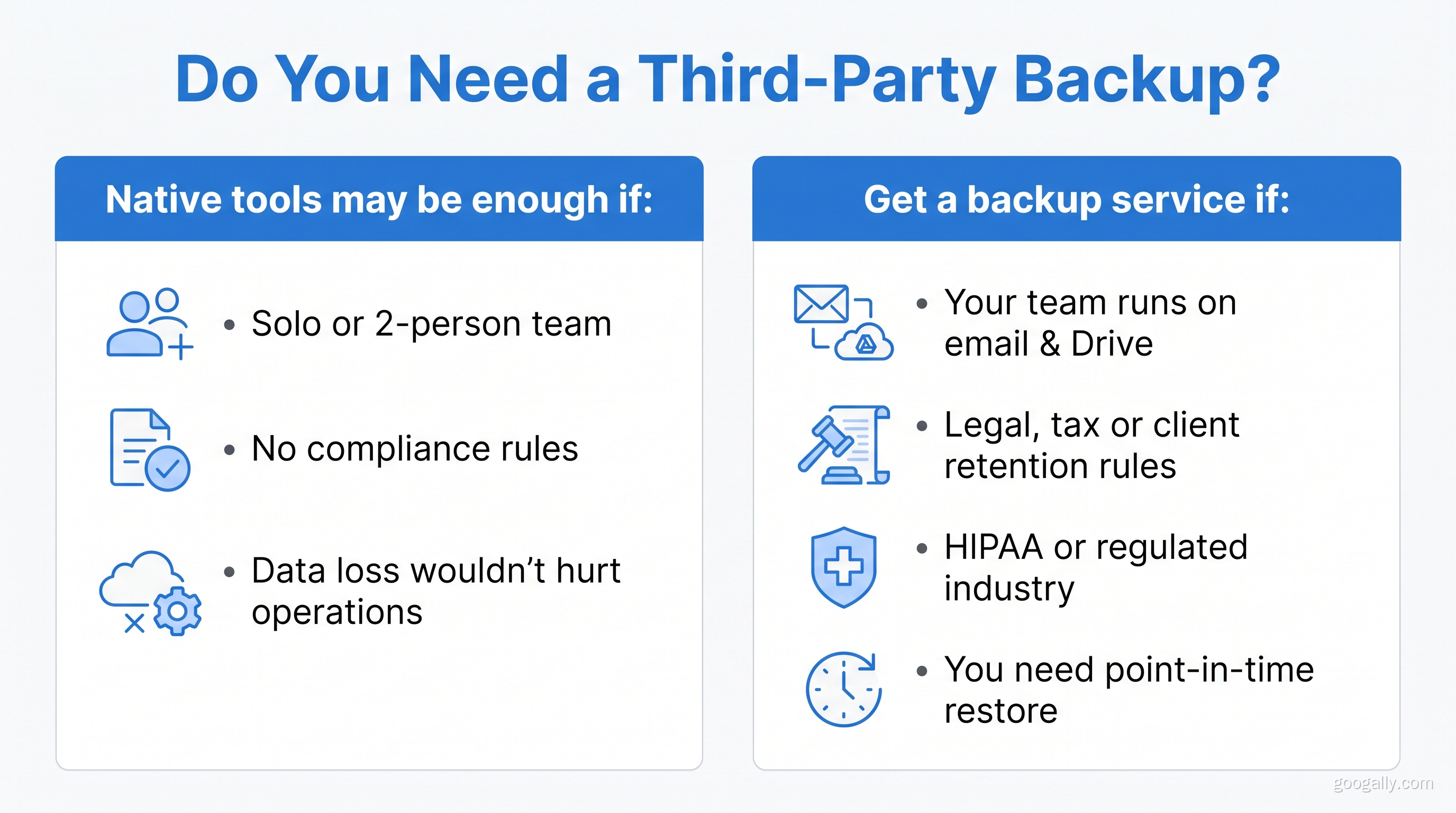
If your business would genuinely hurt from losing email, documents, or shared files, then yes — you need a real backup layer beyond Google's native tools. For a two-person side project, Takeout every few months might be enough. For any team that runs on its email and Drive, a dedicated google workspace data backup is cheap insurance against a very expensive bad day.
Ask yourself three questions: Would losing a key employee's mailbox disrupt operations? Do you have any legal, tax, or client-record retention obligations? Would you be able to prove what a document looked like six months ago? If any answer is "yes," native tools alone leave you exposed. The best google workspace backup for you is simply the one that covers the data you can't afford to lose, restores it painlessly, and runs without anyone remembering to click "export."
Backup for HIPAA and Regulated Businesses
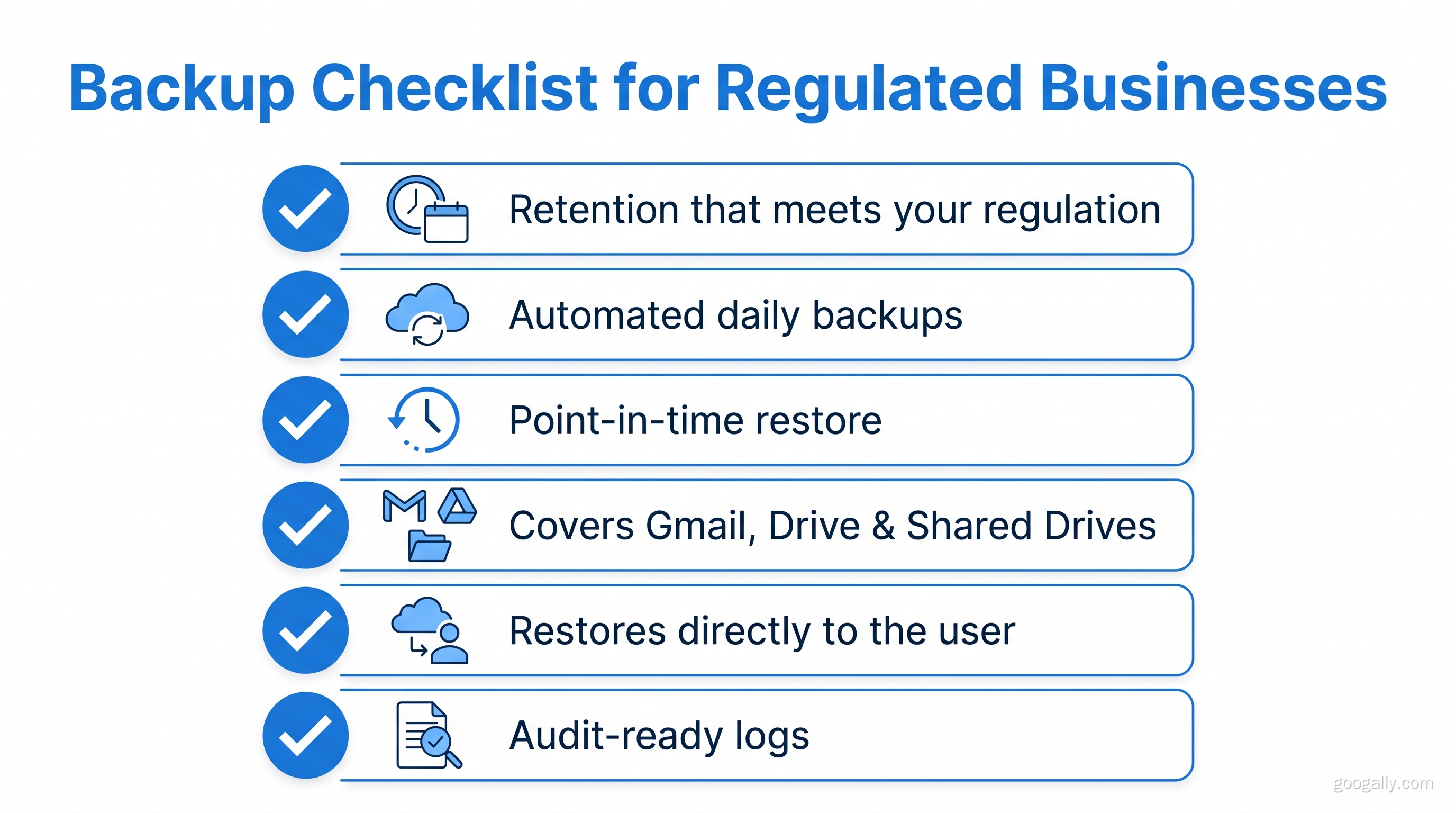
If you're in healthcare, finance, or legal, a Google Workspace backup usually stops being optional. Regulations like HIPAA expect you to be able to recover records and demonstrate retention — obligations Google's 20-to-30-day deletion windows simply don't satisfy. A compliant setup pairs Workspace's security controls with a dedicated backup that retains data for the required period and can restore it on demand.
This is the part we handle for clients every week at Googally. Getting Workspace genuinely audit-ready means configuring security settings and layering in proper backup and retention — it's not something a single toggle in the admin console turns on. If HIPAA is on your radar, treat backup as part of the compliance project, not an afterthought.
how to make Google Workspace HIPAA compliant
Setting Up Workspace the Right Way From Day One
The best time to think about backup is before you're relying on Workspace, not after a scare. When we migrate a business to Google Workspace, we build in the security posture, admin settings, and backup strategy as part of the move — so there's no gap between "we switched" and "we're protected." If you're still evaluating the platform or just getting started, it's worth confirming your plan even supports the retention and security features you'll need.
New to Google Workspace? As an authorized Google partner, we can get you 15% off the first 3 months for new customers on Business Starter, Standard, and Plus — grab a Google Workspace promo code before you sign up. Still weighing whether Workspace is worth it or comparing the Business plans? Confirm the tier you pick includes the retention and security features your business actually needs.
Frequently Asked Questions
Is Google Takeout a real backup?
No. Google Takeout is a manual, one-time export of your data into downloadable files — it has no scheduling, no version history, and no way to restore data back into your account. It's helpful for grabbing a snapshot of one user's data, but it isn't a substitute for an automated backup-and-recovery service.
What is the difference between Google Vault and a backup?
Google Vault is a retention and eDiscovery tool built for legal holds and compliance searches, not for restoring lost data. A backup is designed to recover deleted or corrupted files and put them back into a working account. Vault preserves data you told it to keep; a backup lets you undo data loss.
How long does Google keep deleted Workspace data?
Google keeps items in the Drive trash for about 30 days and a deleted user's data for roughly 20 days before permanent removal. After those windows close, the data is generally unrecoverable through Google — which is the core reason businesses add a dedicated backup.
Does a cloud backup for Google Workspace cover Shared Drives and email?
Yes. A dedicated cloud backup for Google Workspace typically covers Gmail, Drive, Shared Drives, Calendar, and Contacts on an automated schedule. It keeps historical versions so you can restore data as it existed on a specific past date, directly back to the original user.
Not sure whether your Workspace is actually protected — or whether your current plan even supports the retention you need? We set up backup, security, and compliance as part of every migration, with zero downtime. See how our migration process works and let's make sure nothing important is one accidental deletion away from gone.
Related Posts
Explore Tips and Guides! Discover expert insights and practical guides for optimizing your Google Workspace experience with our informative resources.












.png)
.png)
.png)
.png)
.png)
.png)
.png)
.png)



.png)
.png)

.png)








.png)
.png)


.png)


