Google Workspace MDM: The One You Already Pay For
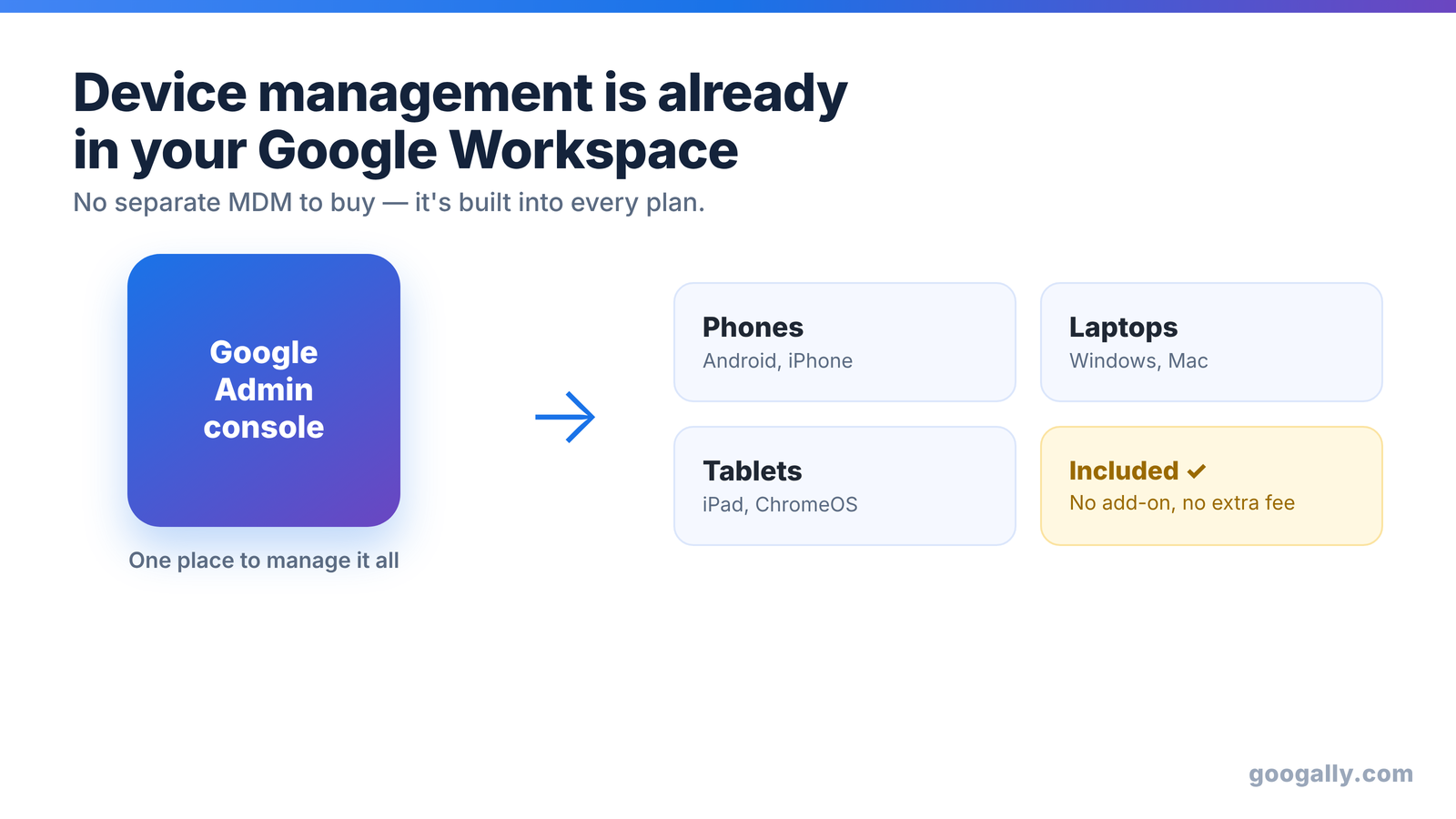
I set up device security for small teams at Googally all the time, and the first question is almost always the same: "Which mobile device management tool should we buy?" Most of the time, my answer surprises people — you probably don't need to buy one at all. Google Workspace already ships with device management built in.
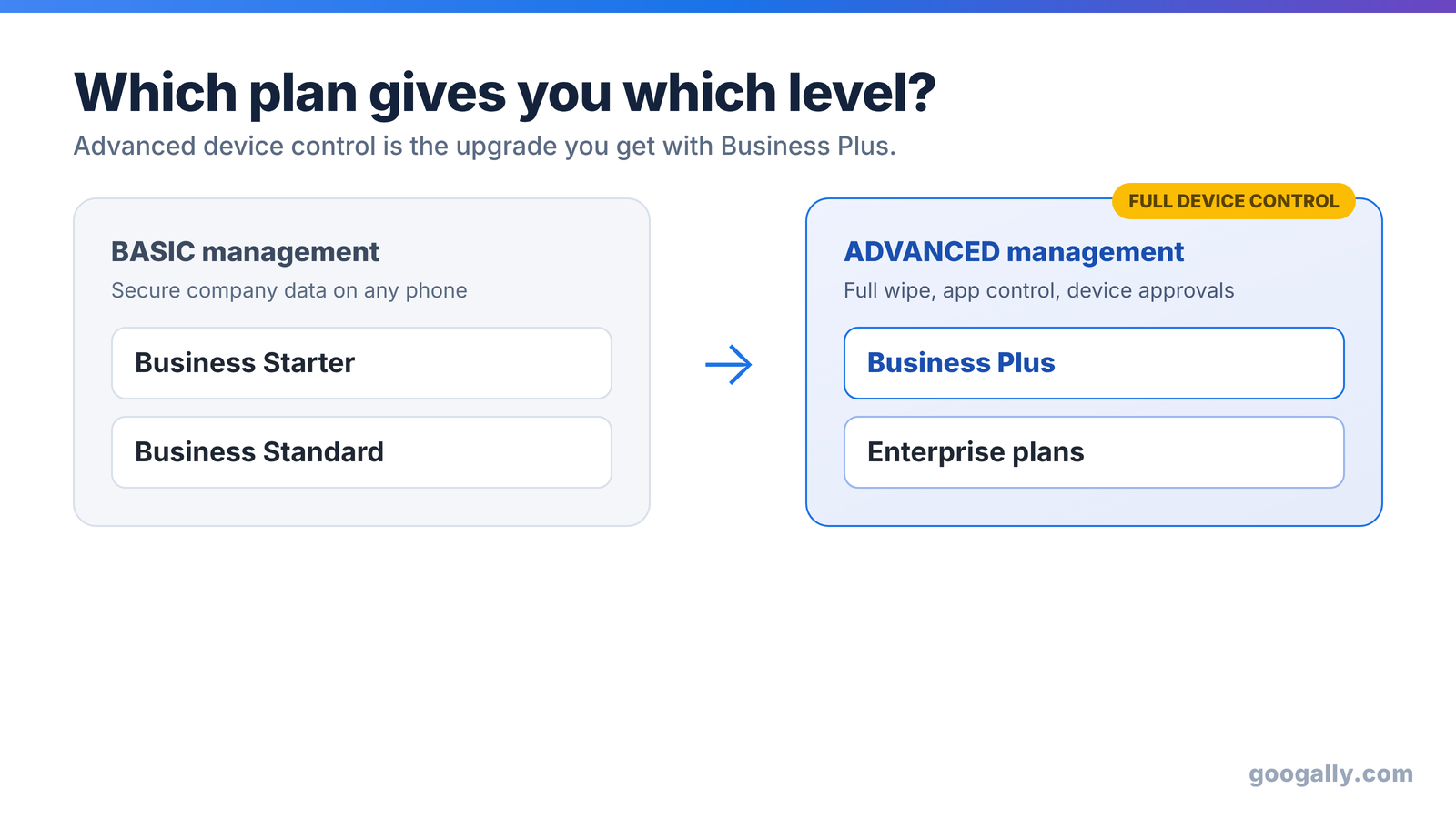
Yes. Every Google Workspace plan includes device management at no extra cost. Business Starter and Standard get basic controls (passcode lock, remote account wipe); Business Plus and Enterprise add full device wipe, app management, and stronger policies.
So before you price out a separate MDM subscription, it's worth knowing exactly what you already own, which tier your plan gives you, and where the built-in tools stop. Here's the practitioner's rundown.
Does Google Workspace have built-in device management?
It does. Google calls it endpoint management, and it's part of every Workspace subscription — there's no add-on to buy and no separate console to log into. You manage it right from the Google Admin console you already use for users and billing.
The basic layer is also agentless. That means you can enforce a screen lock and remotely wipe the company account from a phone without asking anyone to install a management app first. For a lot of small teams, that alone covers the real risk: a lost or stolen phone with company email on it.
Where people get tripped up is assuming "built in" means "basic and useless." It isn't. Google splits endpoint management into two tiers, and the gap between them is where the planning happens.
Basic vs. advanced mobile management: what's the difference?
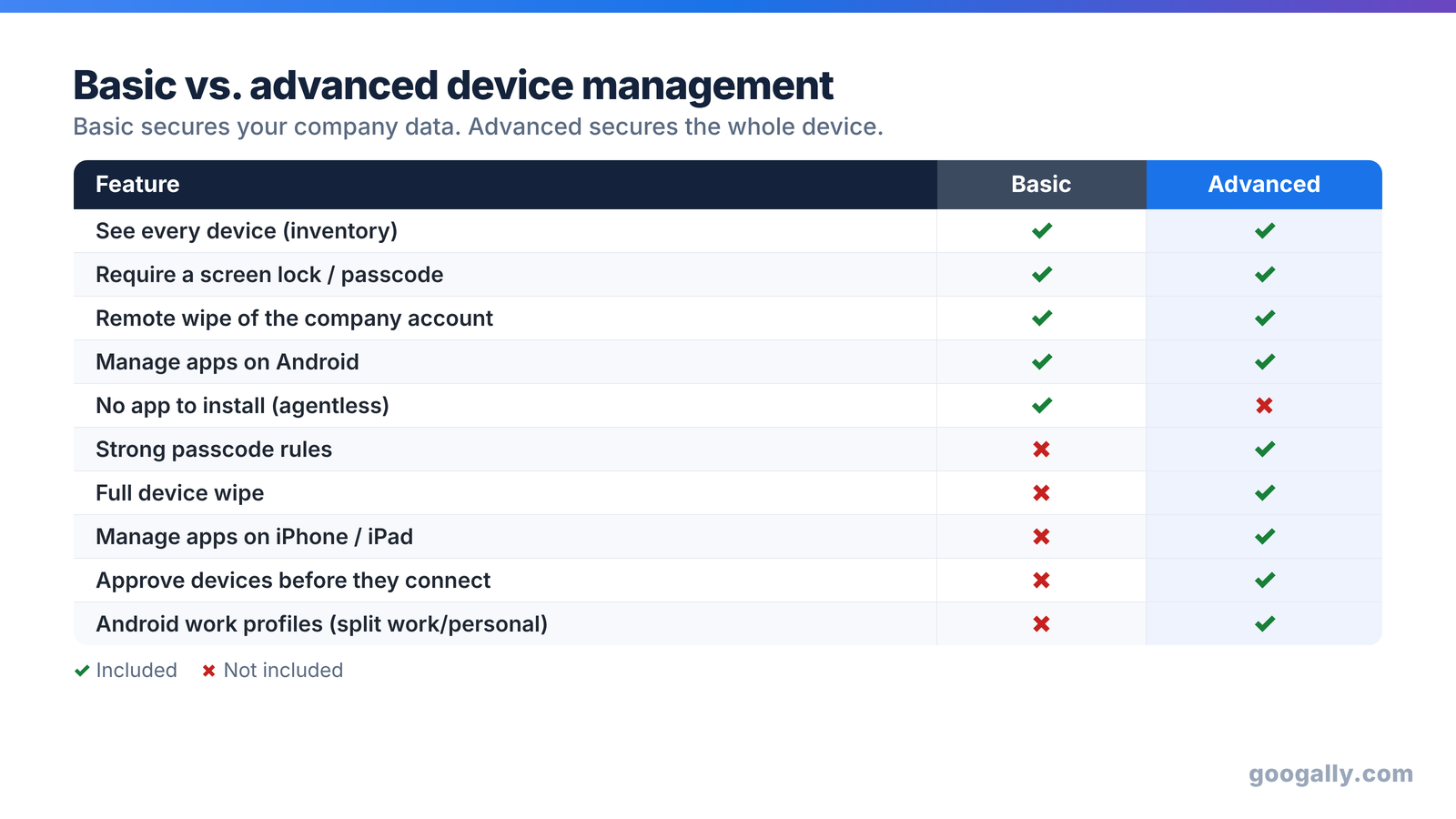
Think of it as two levels of control. Basic management secures the company account on a device. Advanced management secures the whole device.
With basic management you get device inventory, passcode enforcement, remote wipe of the corporate account, Android app management, mobile reports, and the ability to block a device — all without installing anything on the phone. If someone leaves or loses a phone, you remove your company's email and files and move on.
Advanced management adds the heavier controls: a full device wipe (not just the account), stronger passcode rules, device approvals so only trusted phones connect, app management on Apple iOS as well as Android, Android work profiles that separate work from personal, and more detailed security reporting. Advanced isn't agentless — the device has to be enrolled so Google can enforce those deeper policies.
Here's the honest trade-off I give clients: basic protects your data, advanced protects the device. If your biggest fear is "company email on a phone we no longer control," basic is enough. If you're handing out company-owned phones or meeting a compliance standard, you'll want advanced.
Which Google Workspace plans include advanced device management?
This is the part that actually drives a buying decision, so I'll be specific. Business Starter and Business Standard include basic mobile management only. Business Plus unlocks advanced management, and so do the Enterprise plans (Enterprise Standard and Plus), plus Education Standard/Plus, Frontline Standard/Plus, and Cloud Identity Premium.
In plain terms: if you're on Starter or Standard and you need full device wipe, device approvals, iOS app control, or work profiles, the upgrade you're looking for is Business Plus. It's the tier where Google folds the serious device controls in alongside its bigger storage and security features.
That makes device management a real factor when you choose a plan rather than an afterthought. If advanced device control matters to you, it's one more reason Business Plus earns its price — I break down who actually needs Business Plus separately. And if you're starting small, you can always begin on Business Starter and move up to Business Plus when your device needs grow.
New to Workspace? You can start any plan and apply a Google Workspace promo code for 15% off the first 3 months for new customers, so getting onto the tier that fits your device needs costs less out of the gate.
What can you actually do with it?
Features only matter when they map to a real Monday-morning problem. Here's what endpoint management handles for the small businesses I work with.
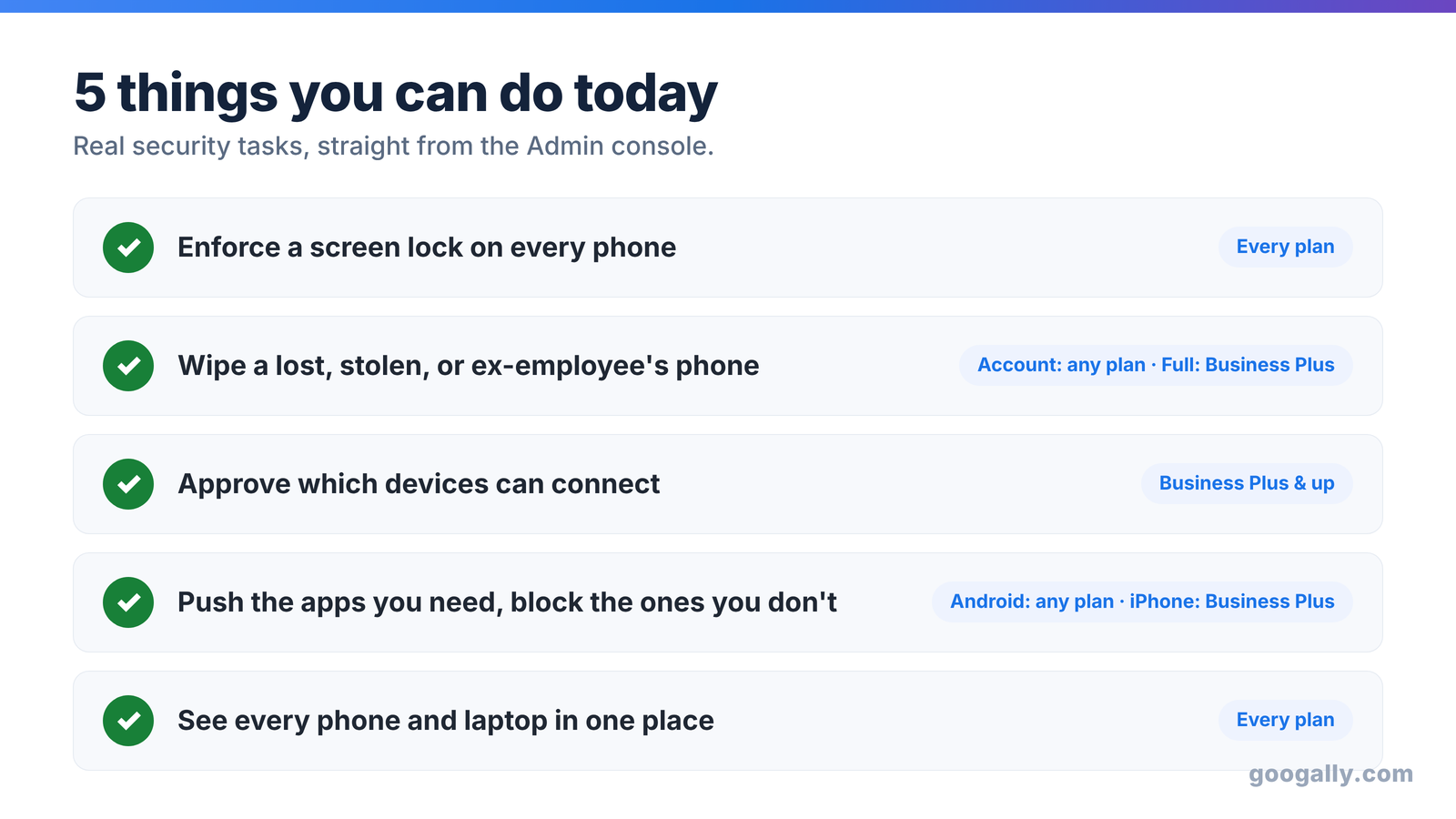
Enforce a screen lock. You can require every phone with company email to use a passcode or screen lock. It's the single highest-impact setting, and it's available on every plan.
Wipe a lost or stolen phone. If a device goes missing, you can remotely remove the company account (basic) or erase the whole device (advanced on Business Plus and up). This is also your offboarding tool — pull company data off a leaver's phone in seconds.
Approve which devices connect. On advanced management, new devices don't automatically sync company data; an admin approves them first. That stops an ex-employee's or a stranger's phone from quietly pulling your mail.
Manage apps. Push the apps your team needs and block the ones you don't — on Android with any plan, and on iOS with advanced management.
See every device at a glance. The admin console lists every phone and computer touching your data, so you're never guessing who's connected on what.
Which devices does it cover?
Endpoint management isn't just phones. Google supports Android, iOS (iPhone and iPad), Windows, macOS, ChromeOS, and Linux. So the same console that locks down a sales rep's iPhone can also log and, if needed, block access from an unmanaged Windows laptop.
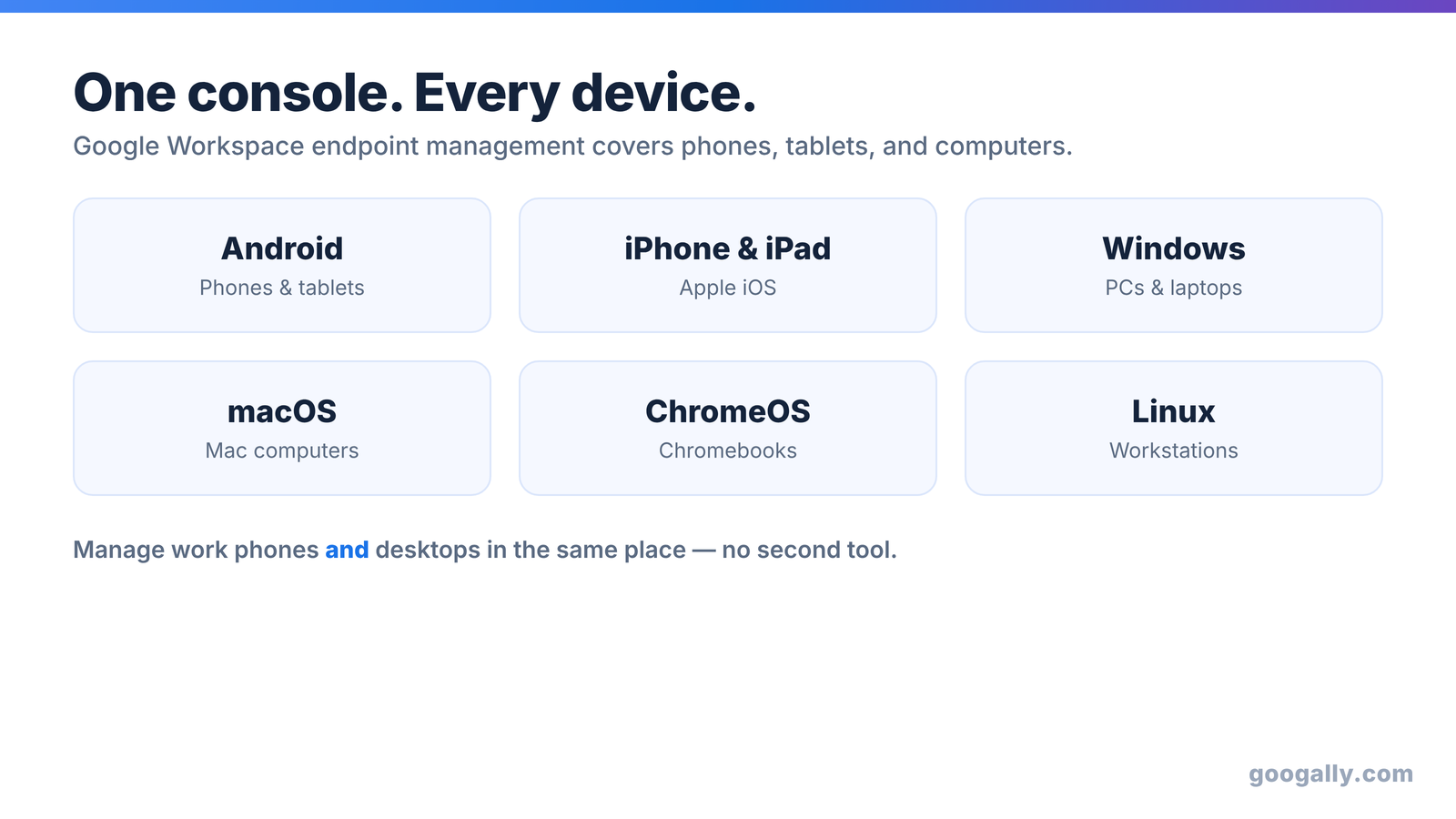
That breadth is part of why I push back on buying a separate tool. A standalone MDM often covers only mobile, then you're bolting on something else for desktops. Here, phones, tablets, and computers live under one roof. If your team is standing up new hardware, our setup guides for iPhone and other devices get them connected the right way from day one.
How do you turn it on?
Setup is lighter than most people expect. At a high level:
- Sign in to the Google Admin console with a super admin account.
- Open Devices → Mobile & endpoints → Settings and choose basic or advanced management (advanced requires Business Plus or higher).
- Turn on the policies you want — passcode enforcement first, then approvals and app rules if you're on advanced.
- For advanced management, have users enroll their devices so the deeper policies can apply.
Pair this with 2-Step Verification and a backup of your Workspace data, and you've covered the three pillars most small-business audits look for: strong sign-in, managed devices, and recoverable data.
Do you still need a third-party MDM?
For most small businesses, honestly, no. If your goal is to enforce screen locks, wipe lost phones, control a handful of apps, and keep company email off devices you don't trust, Google Workspace's built-in endpoint management does the job — and you're already paying for it.
You'd reach for a dedicated third-party platform only in specific cases: managing hundreds of complex device configurations, deep integration with a separate IT asset system, or specialized OS controls Google doesn't expose. Those are real needs for larger or highly regulated shops — and if you're in a regulated field, device management is one piece of a bigger picture I cover in Google Workspace and HIPAA compliance. But for the typical 2-to-50-person team, buying another subscription usually means paying twice for the same protection.
The bottom line
Device management isn't a feature you shop for separately with Google Workspace — it's already in the box. Starter and Standard give you the essentials to secure company data on any phone, and Business Plus adds full-device control for teams that need it. Figure out which tier matches your risk, turn the policies on, and you've closed one of the biggest security gaps small teams carry. If you're setting things up fresh, apply your promo code, pick the plan that fits, and you're protected from the first day.
Frequently asked questions
Can employees use their own phones (BYOD) without me controlling the whole device?
Yes. Basic management only secures the company account on a personal phone, so you're not taking over someone's device. On advanced management, Android work profiles keep work apps and data in a separate, managed container while the personal side stays private to the employee.
Will turning on device management lock employees out or disrupt their phones?
No, if you roll it out sensibly. Basic policies like requiring a screen lock are barely noticeable to users. The one thing to communicate ahead of time is advanced enrollment — employees should know you're not reading their texts or browsing their photos, only enforcing security on the work side. A quick heads-up email prevents almost every support ticket.
If I remotely wipe a lost phone, will it erase the employee's personal photos and apps?
It depends which wipe you use. A remote account wipe (available on every plan) removes only the company account and its data, leaving personal content untouched. A full device wipe — an advanced feature on Business Plus and up — erases everything, so it's best reserved for company-owned hardware.
Do I need a separate Cloud Identity license to manage devices?
No. Endpoint management is part of your Google Workspace subscription. You only need Cloud Identity Premium if you want to manage devices for people who don't have a Workspace license, which is rare for a small business.
How is device management different from 2-Step Verification?
2-Step Verification protects the sign-in — it makes sure the right person is logging in. Device management protects what happens after — it governs which devices can hold your data and lets you lock or wipe them. You want both; they solve different halves of the same problem.
Related Posts
Explore Tips and Guides! Discover expert insights and practical guides for optimizing your Google Workspace experience with our informative resources.