Reset a User's Password in Google Workspace: 2-Minute Fix
Most weeks, someone on a small team I support gets locked out of their Google Workspace account, usually right before a client call. As the admin, you can fix it yourself in about two minutes without calling Google. The reset takes one click; the step most people forget comes right after it.
To reset a user's password in Google Workspace, sign in to admin.google.com, go to Directory > Users, hover over the person and click Reset password. Auto-generate or type a temporary password, keep "Ask user to change their password" ticked, click Reset, then reset their sign-in cookies.
Below are the exact screens, what breaks on the user's phone and mail apps afterward, and how to handle admins, bulk resets and lockouts caused by verification codes.
Who can reset a password in Google Workspace?
Any admin with the reset-password privilege can reset an employee's password. Resetting another admin's password takes a Super Admin.
On most small teams the owner is the only Super Admin, which is a risk on its own: if that one person forgets their password, nobody inside the company can help. I always recommend at least two Super Admins, for example the owner and the office manager.
How to reset a user's password, step by step
Step 1: Sign in to the Admin console
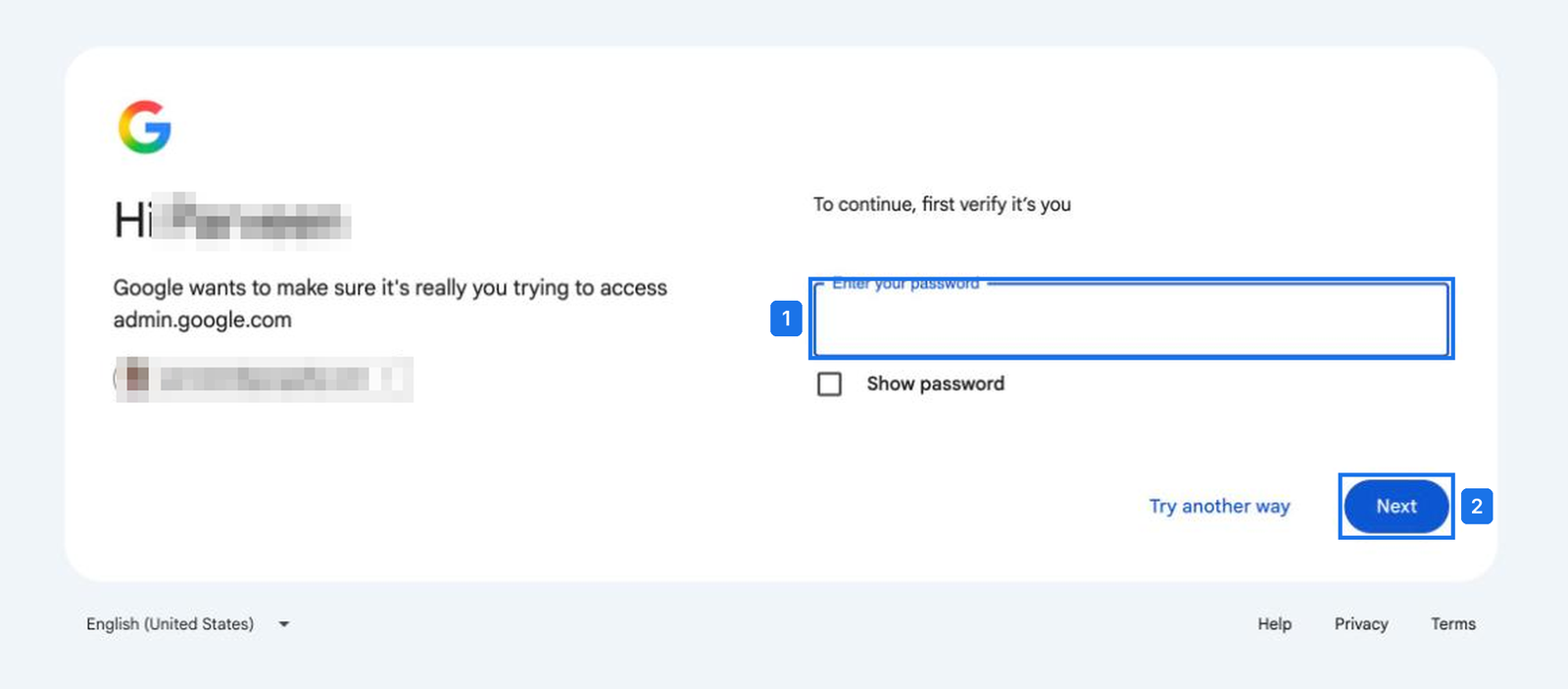
Go to admin.google.com and sign in with your Google Workspace admin account, the one on your company domain, not a personal @gmail.com address. Even if you're already in Gmail, Google often asks you to re-enter your password before it opens the Admin console. That's a normal security check for admin access.
Step 2: Find the user and click Reset password
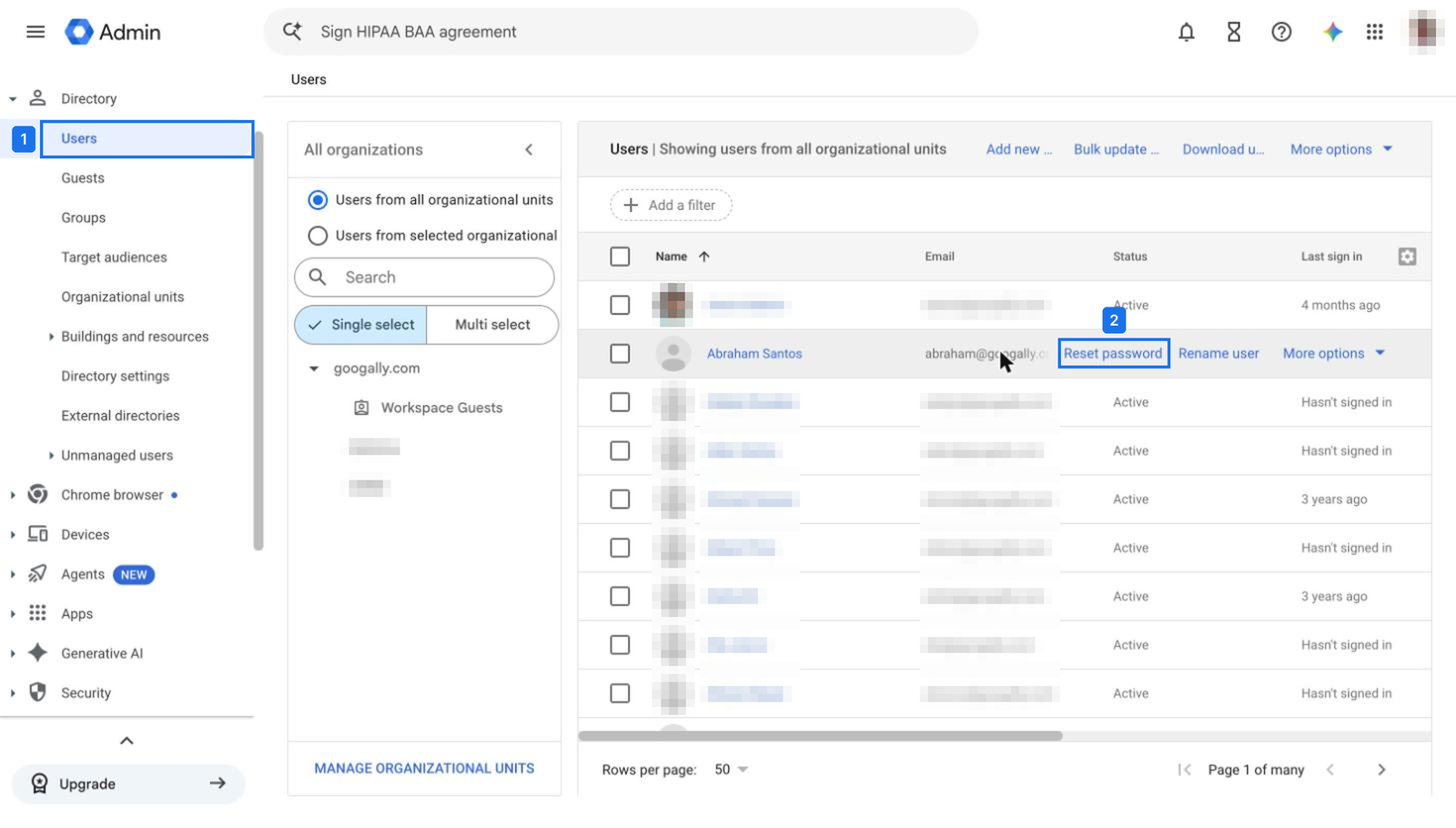
Open Directory > Users. Hover over the person's row and click Reset password. On a long list, search by name or email first. You'll also find Reset password on the left side of the user's own account page.
Step 3: Choose the new password and click Reset
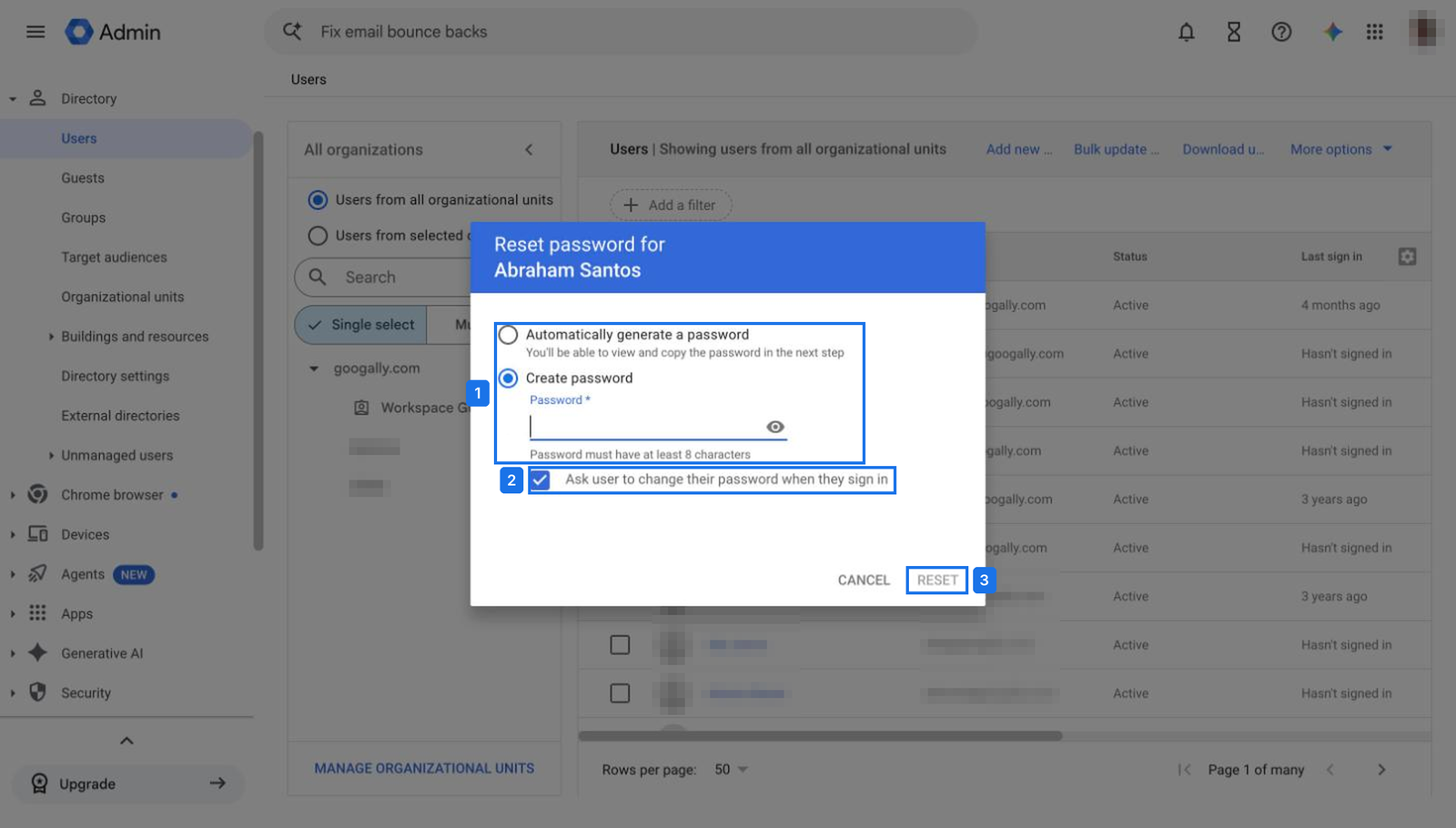
The dialog gives you two choices:
- Automatically generate a password: Google creates a strong random password and shows it on the next screen. Use this if you think the account was compromised.
- Create password: you type one yourself, at least 8 characters. Handy when you need to read a temporary password to someone over the phone.
Under Create password, leave Ask user to change their password when they sign in ticked. It's on by default, and it means the temporary password you shared never becomes their real one. An auto-generated password works the same way: the user picks a new one at next sign-in.
Step 4: Share the new password
After you click Reset, Google lets you copy the password or email it. If you email it, send it to an address the user can actually open, such as their personal email, because they can't get into their work inbox yet. Better still, read it to them on a call or send it by text, so the password and the account never travel through the same channel.
Why you should reset sign-in cookies right after
Changing a password doesn't sign anyone out of sessions that are already open. If a laptop was lost or a password was phished, the old session can keep reading email until you end it.
Open the user's account page, click the Security tab, then Sign in cookies > Reset. That signs the user out of every browser and device at once. On Android they'll be asked to verify; on iPhone the Google account is removed and they add it again with the new password.

What stops working after a password reset
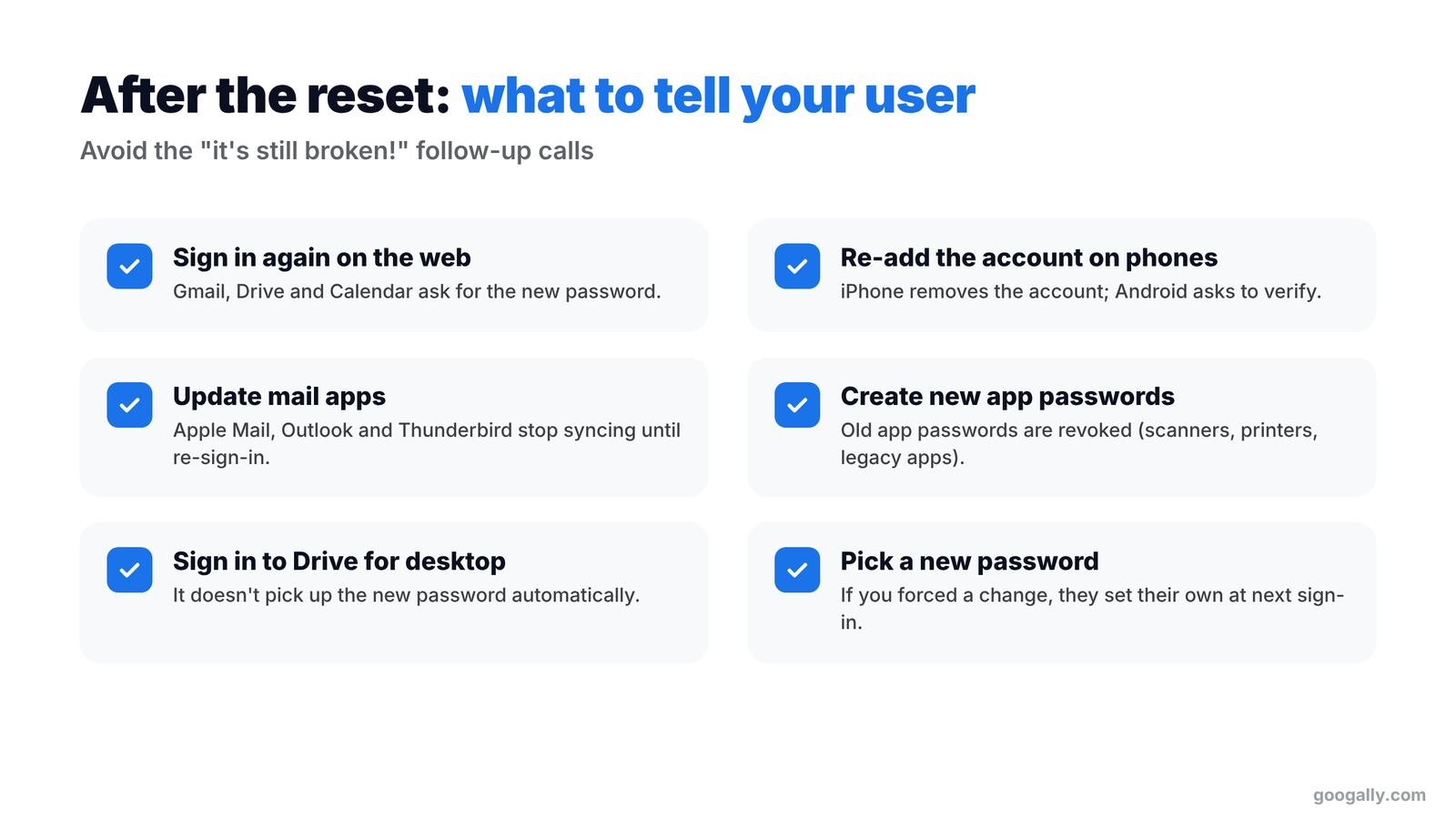
Anything that remembered the old password stops syncing until the user signs in again. In my experience, this is where the "it's still broken" calls come from, so give the user a heads-up:
- Mail apps such as Apple Mail, Outlook and Thunderbird stop syncing.
- App passwords used by scanners, printers and older apps are revoked. Here's our guide to creating app passwords if you need new ones.
- Google Drive for desktop needs a fresh sign-in.
- Phones need the account re-added or re-verified.
None of this deletes data. Email, Drive files, contacts and calendars stay exactly where they were.
How to force a password change without resetting it
If you suspect a password leaked but the user can still sign in, let them change it themselves. On the user's Security tab, turn Require password change on. Google makes them choose a new password at their next sign-in, and you never see it.
That's my preferred move after a phishing scare, because the admin never handles the password at all.
What if the user is stuck on a verification code?
Sometimes the password is fine and Google is asking for a code sent to a phone the user no longer has. Two fixes on the same Security tab:
- Login challenge: turn it off for 10 minutes, then have the user sign in right away.
- 2-Step Verification backup codes: if they lost their phone, generate a backup code and share one with them.
Locked-out-admin situations like these are exactly what we look for in a Google Workspace security assessment, along with recovery info, Super Admin coverage and 2-Step Verification.
How to reset passwords for many users at once
Use a CSV upload. In Directory > Users, choose Bulk update users, download the template, fill in the emails and new passwords, set the "change password at next sign-in" column to TRUE, and upload it.
This comes up after a security incident or on the first day after a migration, when everyone needs a fresh password. Schedule it for early morning and send the new passwords through a channel other than the email account being reset.
Does this work with single sign-on?
No. If your team signs in through a third-party identity provider such as Okta or Microsoft Entra ID, the password lives there, so reset it in that provider. Google's own instructions for resetting a user's password cover the SSO case too. Most small businesses don't use SSO, so if you're not sure, you almost certainly don't.
If nobody on your team really "owns" the Admin console, our Google Workspace setup service sorts out admin access, recovery options and a second Super Admin in a day.
Frequently asked questions
Will resetting a password delete the user's email or files?
No. A reset only changes how the user signs in. Their Gmail, Drive files, Calendar and contacts stay exactly where they were.
Can a user reset their own Google Workspace password?
Yes, if self-service password recovery is turned on and they've added a recovery phone or email. They click "Forgot password?" on the Google sign-in page. Otherwise an admin has to reset it from the Admin console.
How long does a password reset take to work?
It takes effect immediately. The user can sign in with the new password within seconds of you clicking Reset.
What if I forgot my own admin password?
Use "Forgot password?" on the sign-in page and verify with your recovery phone or email. If you have a second Super Admin, they can reset it for you in two minutes.
Do I need a paid plan to reset passwords?
Every Google Workspace plan, including Business Starter, includes the Admin console and password resets. Not on Google Workspace yet? Our Google Workspace promo code gets new customers 15% off the first 3 months.
If you'd rather not be the full-time password help desk, talk to the Googally team. We'll set up your admin accounts, recovery options and security settings the right way.
Related Posts
Explore Tips and Guides! Discover expert insights and practical guides for optimizing your Google Workspace experience with our informative resources.