
Google Workspace Shared Drives: Keep Files When Staff Leave
I've set up Google Workspace for a lot of small teams at Googally, and the same panic shows up every time someone quits: "Wait, where did all their files go?" If that work lived in the employee's personal My Drive, you're now chasing access to documents your business owns. Shared drives are the fix, and almost nobody turns them on until it's too late.
A shared drive is a team-owned space in Google Drive where files belong to the group, not the person who created them. When an employee leaves, the files stay put, because no single person owns them. Every Google Workspace Business plan includes shared drives, so any team can start using one today.
Below I'll explain exactly how shared drives differ from a normal My Drive, which plan you need, how to set one up, and the permission levels that keep the wrong people out.
What is a shared drive in Google Workspace?
A shared drive is a shared folder space that your whole team can use, where the files are owned by your organization instead of by one person. Think of My Drive as your filing cabinet and a shared drive as the company's filing cabinet that everyone with access can open.
Because the business owns the contents, membership and files are independent. People come and go, but the folder and everything in it remain. You can add or remove members without any file ever changing hands or going missing.
That single difference, ownership, is the reason I move every client's shared project files out of personal drives and into shared drives as one of the first setup steps.
Shared drives vs. My Drive: the real difference
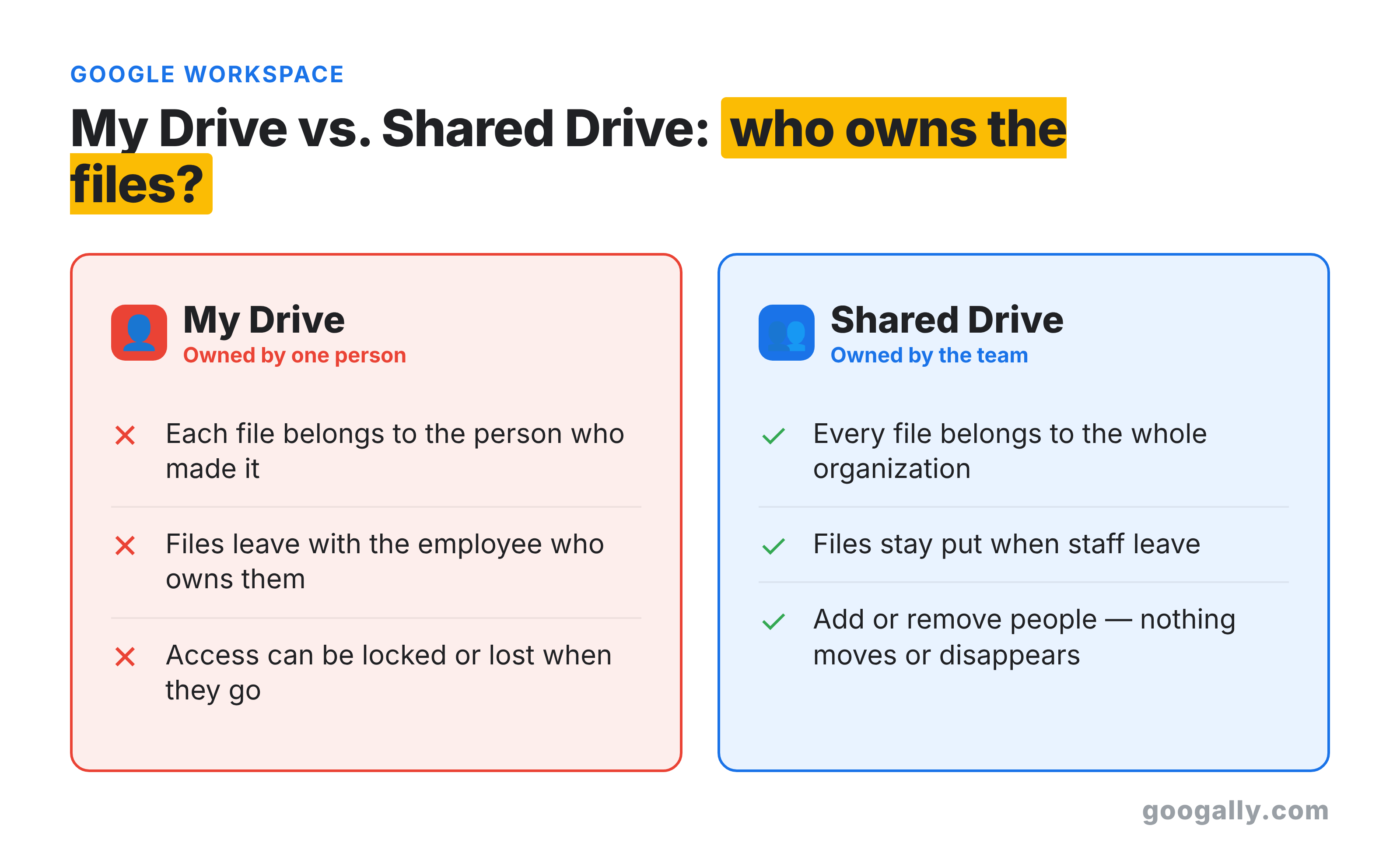
My Drive and shared drives look almost identical, so it's easy to assume they're the same. They aren't, and the gap matters most on the day an employee leaves.
In My Drive, each file is owned by the person who created it. If that person leaves and their account is deleted, the files they owned can be lost or locked until an admin recovers them. Sharing a My Drive folder with coworkers doesn't change who owns the files inside.
In a shared drive, the team owns everything. Remove a member and their access ends instantly, but every file they added stays exactly where it was. For any document your business actually depends on, that's the safer home. (It's also why a shared drive is not a substitute for real backup, which I cover in does Google Workspace back up your data.)
Which Google Workspace plans include shared drives?
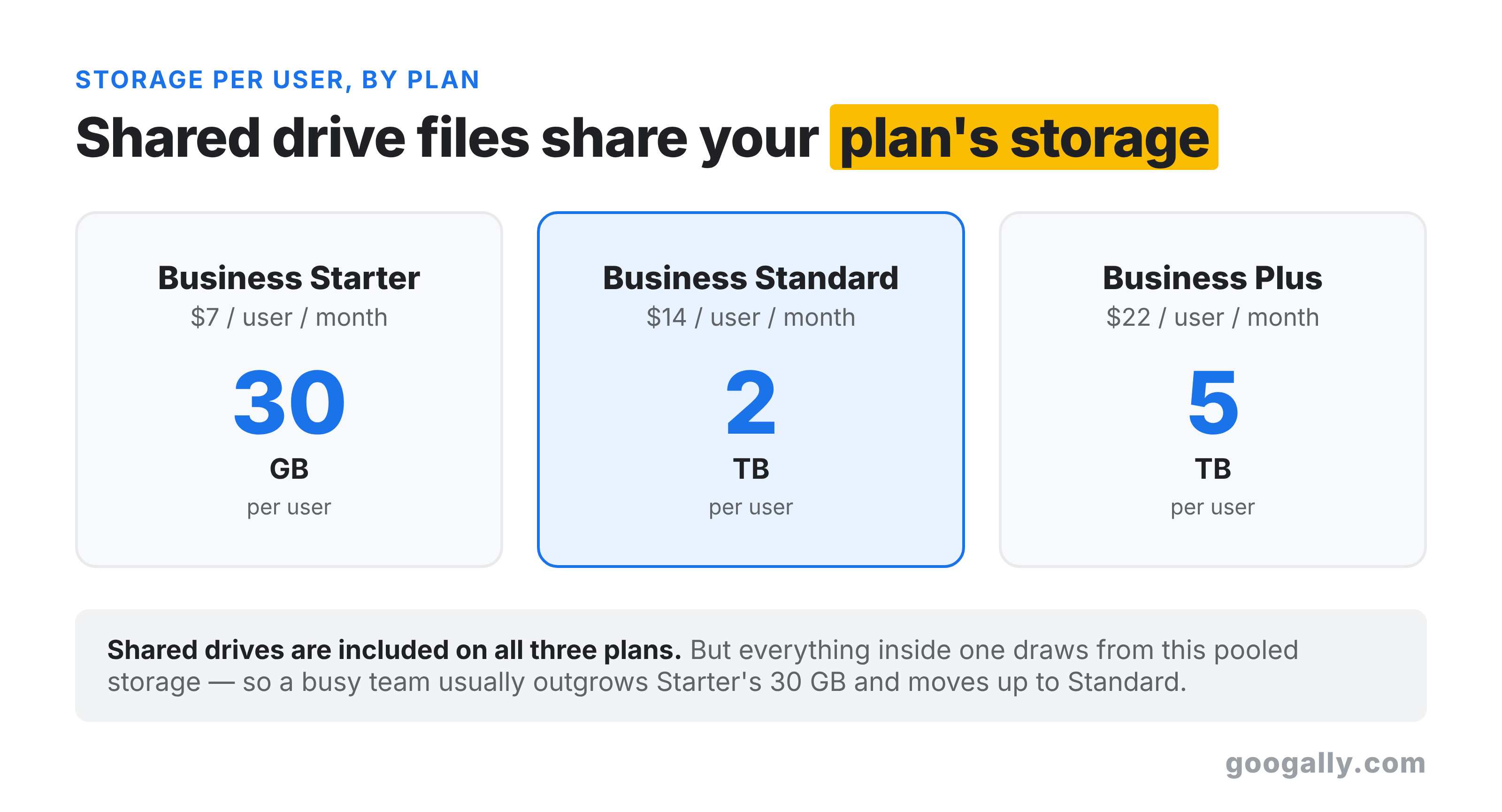
Shared drives are included with every Google Workspace Business plan: Business Starter, Business Standard, and Business Plus. You do not need a premium tier to use them. Business Starter does miss a few advanced admin controls, such as setting default external-sharing rules per drive, but the core feature works on all three.
The practical difference between the plans isn't the shared drive itself, it's the storage behind it. Files in a shared drive draw from your organization's pooled storage, and that pool is set by your plan:
- Business Starter ($7/user/month, annual): 30 GB per user
- Business Standard ($14/user/month, annual): 2 TB per user
- Business Plus ($22/user/month, annual): 5 TB per user
A small team that keeps shared files and video in a shared drive will burn through Starter's 30 GB fast, which is the honest reason most growing teams land on Business Standard. If you're weighing the tiers, I break them down in Google Workspace pricing plans and in Starter vs Standard vs Plus.
How to set up a shared drive (step by step)
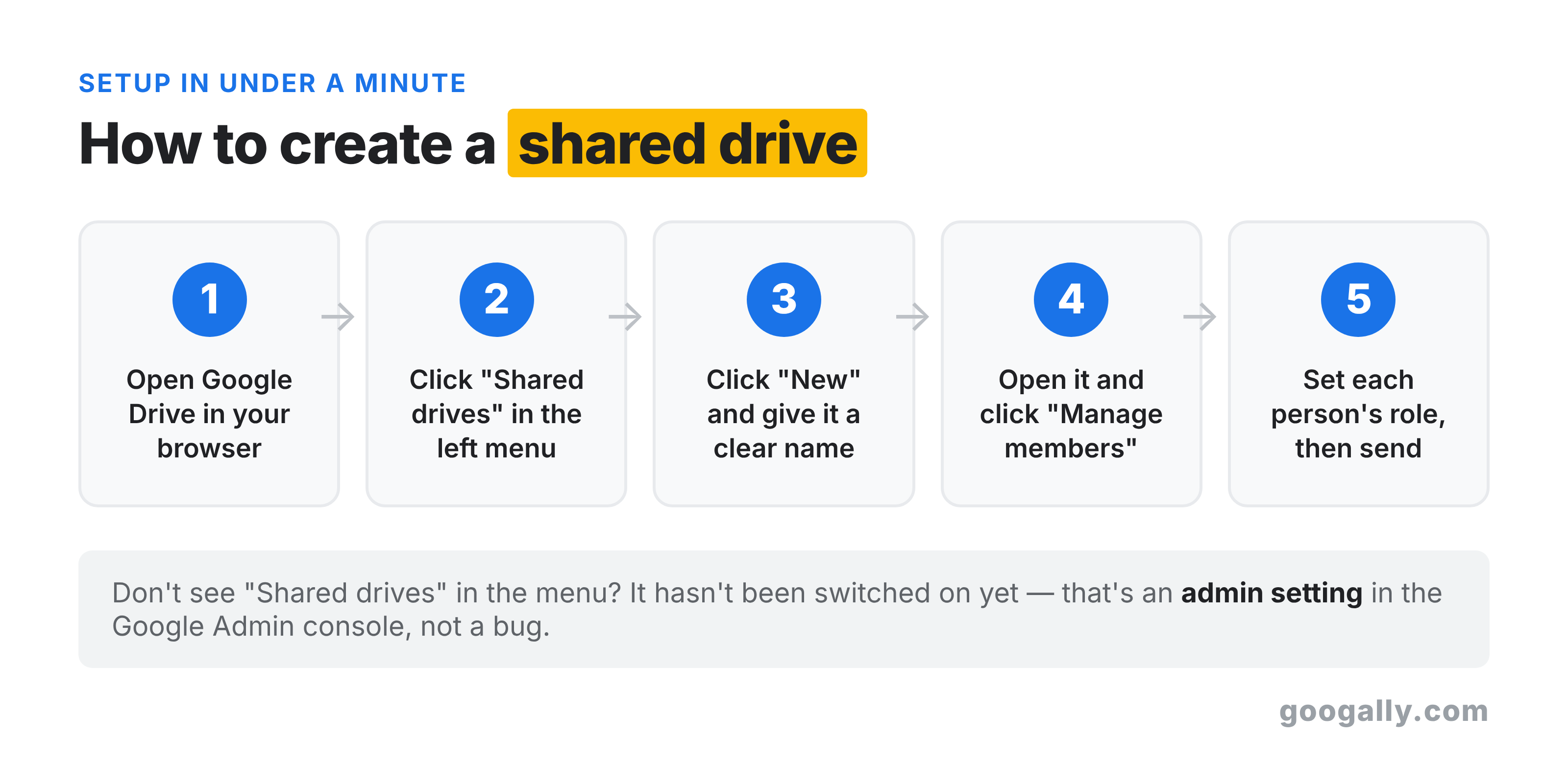
Once your admin has enabled shared drives for your organization, any team member can create one in under a minute:
- Open Google Drive in a browser and look at the left menu.
- Click Shared drives.
- Click New at the top, give the drive a clear name (I use the project or department, like "Sales" or "Client Contracts"), and click Create.
- Open the new drive, click Manage members, and add people by email.
- Set each person's access level (more on that next), then click Send.
If you don't see Shared drives in the menu, it hasn't been switched on for your account. That's an admin setting, not a bug. An administrator can turn it on in the Admin console, which I touch on in the Google Workspace super admin role. Google's own shared drives setup guide for admins walks through the console controls.
Shared drive roles and permissions
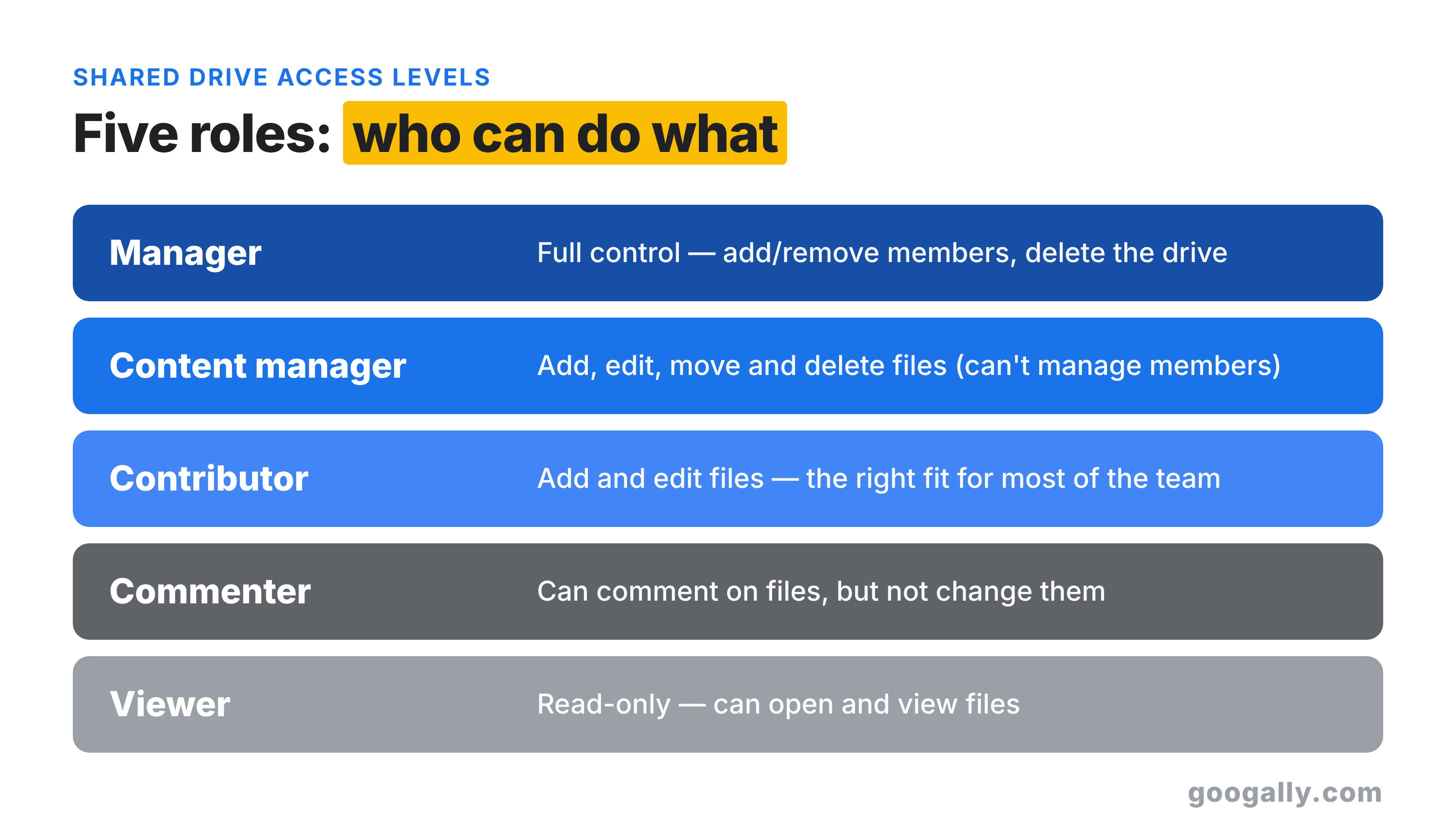
A shared drive has five access levels, from full control down to read-only. Giving each person the right level is how you let the team collaborate without someone accidentally deleting a folder.
- Manager: full control, including adding or removing members and deleting the drive.
- Content manager: can add, edit, move, and delete files, but can't manage members.
- Contributor: can add and edit files, the right fit for most everyday team members.
- Commenter: can comment on files but not change them.
- Viewer: can only read files.
My rule of thumb for small teams: one or two Managers (an owner plus a backup), Contributors for everyone doing the work, and Viewer for anyone who just needs to see the output. It keeps a well-meaning intern from dragging the whole "Invoices" folder into the trash.
When should a small business use a shared drive?
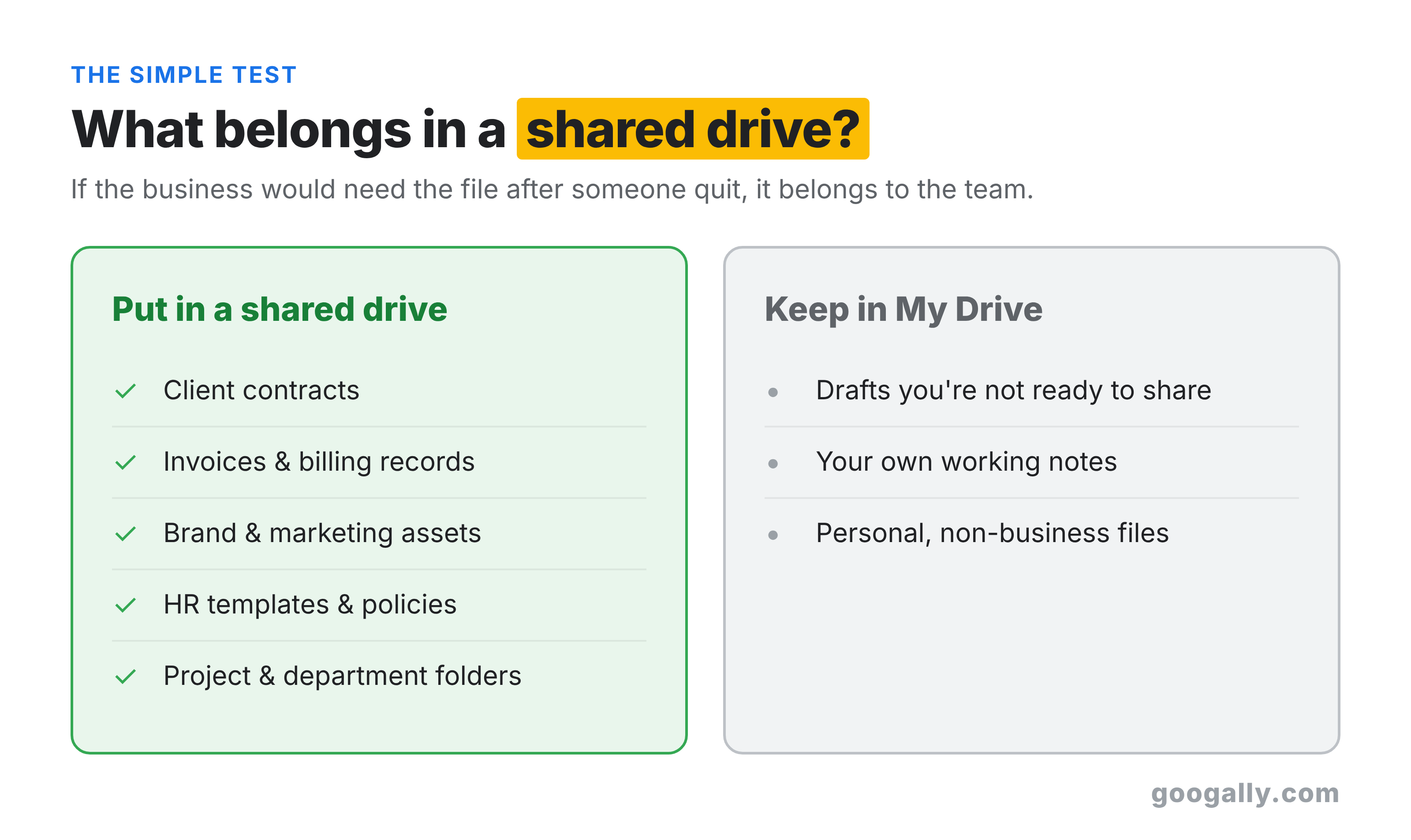
Use a shared drive any time the files belong to the business rather than to one person. That covers more than most owners expect.
Client contracts, invoices, brand assets, HR templates, and project folders all belong to the company, so they belong in a shared drive. Keep genuinely personal work, like a draft you're not ready to share or your own notes, in My Drive. The test I use with clients is simple: "If this person quit tomorrow, would the business need this file?" If yes, it goes in a shared drive.
Setting this up early is one of the cheapest forms of insurance a small team can buy. It costs nothing extra, takes an afternoon, and it's the difference between an employee's departure being a paperwork task and being a scramble to recover years of work.
Start with one shared drive this week
You don't need to migrate everything at once. Pick the one folder that would hurt most to lose, your client files or your contracts, create a shared drive, and move it there. Add your team with the right roles, and you've closed the biggest file-loss gap most small businesses carry without knowing it.
If you're still choosing a plan to build this on, remember shared drives work on every Business tier, and new customers can claim 15% off the first 3 months for new customers with a Google Workspace promo code. Want a clearer picture of everything a plan includes first? Start with what's included in Google Workspace.
Frequently asked questions
Can people outside my company access a shared drive?
Yes, if your plan and admin settings allow it. A Manager can share individual files or add external members to a shared drive, the same way you'd share a regular Drive file. On Business Standard and Business Plus, admins get finer control over whether external sharing is allowed per drive; Business Starter uses your organization's overall sharing settings.
What happens to my shared drives if I cancel Google Workspace?
If your subscription ends and accounts are deleted, you lose access to the data in Drive, including shared drives, after Google's retention window closes. A shared drive protects you from one employee leaving, not from the whole account lapsing, so export anything critical before you cancel.
Can I restore a file someone deleted from a shared drive?
Usually, yes. Deleted files go to the shared drive's trash and can be restored for 30 days, and a Manager or Content manager can recover them. For longer, enforced retention and the ability to recover items after trash is emptied, you'd use Google Vault, which I explain in what is Google Vault.
Do I have to be an admin to create a shared drive?
No. Once an administrator enables the feature for your organization, any regular user can create a shared drive and add members. You only need admin rights to change the organization-wide settings that govern how shared drives behave.
Related Posts
Explore Tips and Guides! Discover expert insights and practical guides for optimizing your Google Workspace experience with our informative resources.












.png)
.png)
.png)
.png)
.png)
.png)
.png)
.png)


.png)
.png)

.png)







.png)
.png)


.png)


