Gmail Delegation in Google Workspace: No Password Sharing
When a client hired their first executive assistant last year, the first thing she asked me was how to get into her boss's inbox without passing a password around on a sticky note. I've set up Gmail delegation for dozens of small teams since, and it's still the cleanest answer I know: the assistant works out of the owner's inbox from her own login, and nobody ever types the owner's password.
Gmail delegation lets you give a coworker access to your Google Workspace inbox so they can read, send, and delete email on your behalf — using their own login, never your password. An admin switches it on once in the Admin console, then each person adds a delegate from their own Gmail settings.
Below I'll walk through the admin switch, the two-minute setup inside Gmail, exactly what a delegate can and can't touch, and how delegation differs from a shared mailbox or a group address — so you pick the right tool the first time.
What Gmail delegation actually is (and why it beats sharing a password)
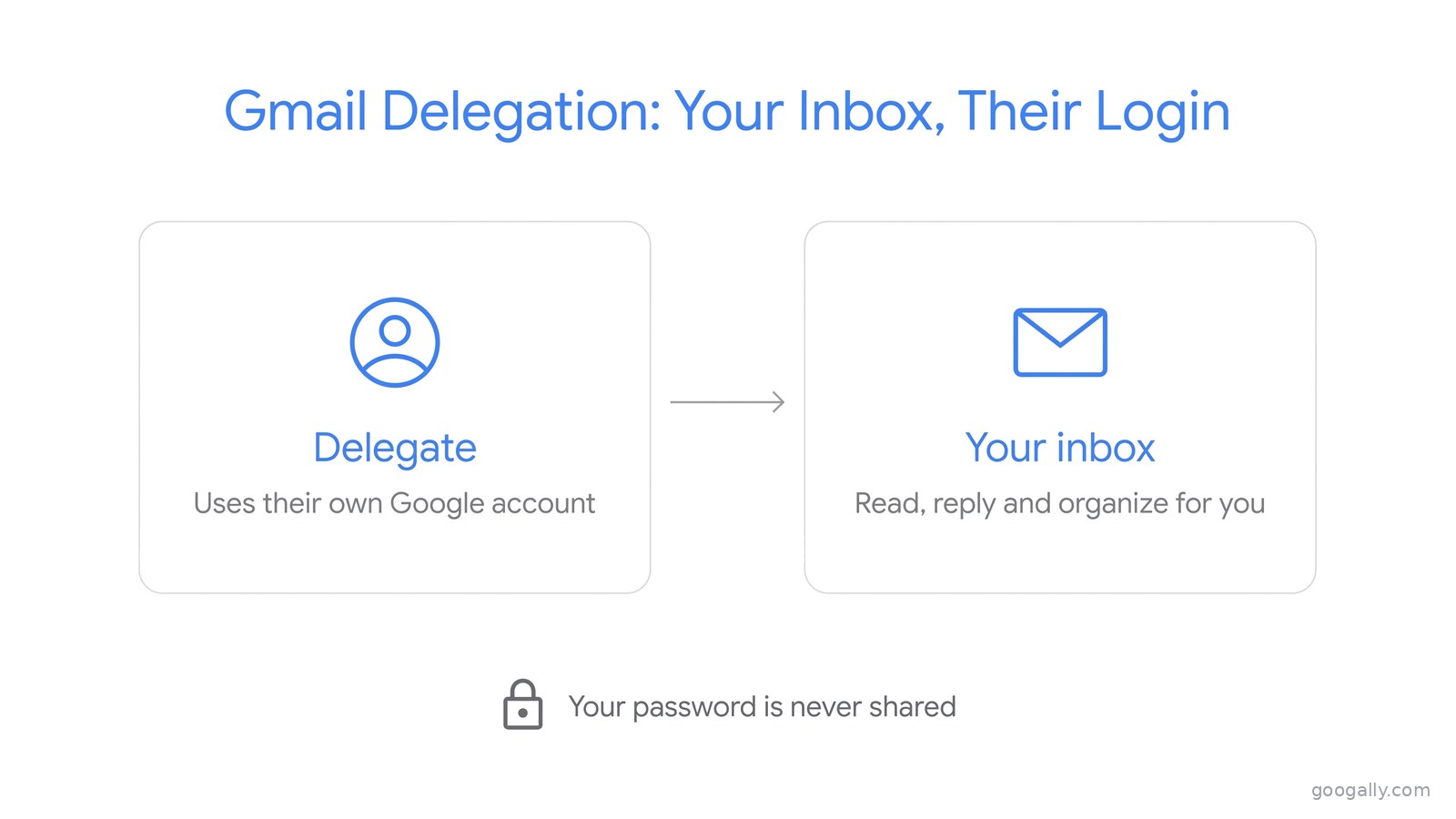
Delegation is a built-in Google Workspace feature that connects two accounts in your organization. You stay the owner of your mailbox, and the person you choose — the delegate — can open it from their own Gmail, read what comes in, reply, and clear things out, all while signed in as themselves.
The reason I always steer owners here instead of handing over a password is control. A shared password means two people know a secret, two-step verification gets awkward, and the day that assistant leaves you're resetting logins. With delegation, access is a setting you flip off in seconds, the delegate never sees your password, and their own 2-step verification keeps the door locked. It's the same reason I recommend turning on 2-step verification for every user: security in Workspace works best when each person has their own protected login.
It's also free. Delegation is part of every Google Workspace plan, so it doesn't add a seat or a cent to your bill — one of the quiet reasons Workspace is such good value for a growing team.
First, turn on mail delegation in the Admin console
Delegation is usually on by default, but if the "Grant access to your account" option is missing from someone's Gmail settings, an admin needs to switch it on. You'll need the Gmail settings admin privilege — in most small businesses that's the owner or whoever set the account up. If you're not sure who that is, our guide to the super admin role explains how to find and assign it.
Here's the path in the Google Admin console:
- Go to admin.google.com and sign in as an administrator.
- Open Apps > Google Workspace > Gmail > User settings.
- Click Mail delegation.
- Tick Let users delegate access to their mailbox to other users in the domain.
- Choose what delegated messages show: the account owner and the delegate who sent the email, or the account owner only. I leave the first option on so replies are honest about who's typing.
- Click Save.
Changes can take up to 24 hours to reach everyone, though they usually show up much faster. There's also an optional setting to let people grant their mailbox to a Google group — handy if a whole team should share coverage of one inbox.
How to grant someone access to your inbox
Once the admin switch is on, each person sets up their own delegates. There's no admin ticket for this — the owner stays in control of who gets in. Here's the end-to-end flow inside Gmail.
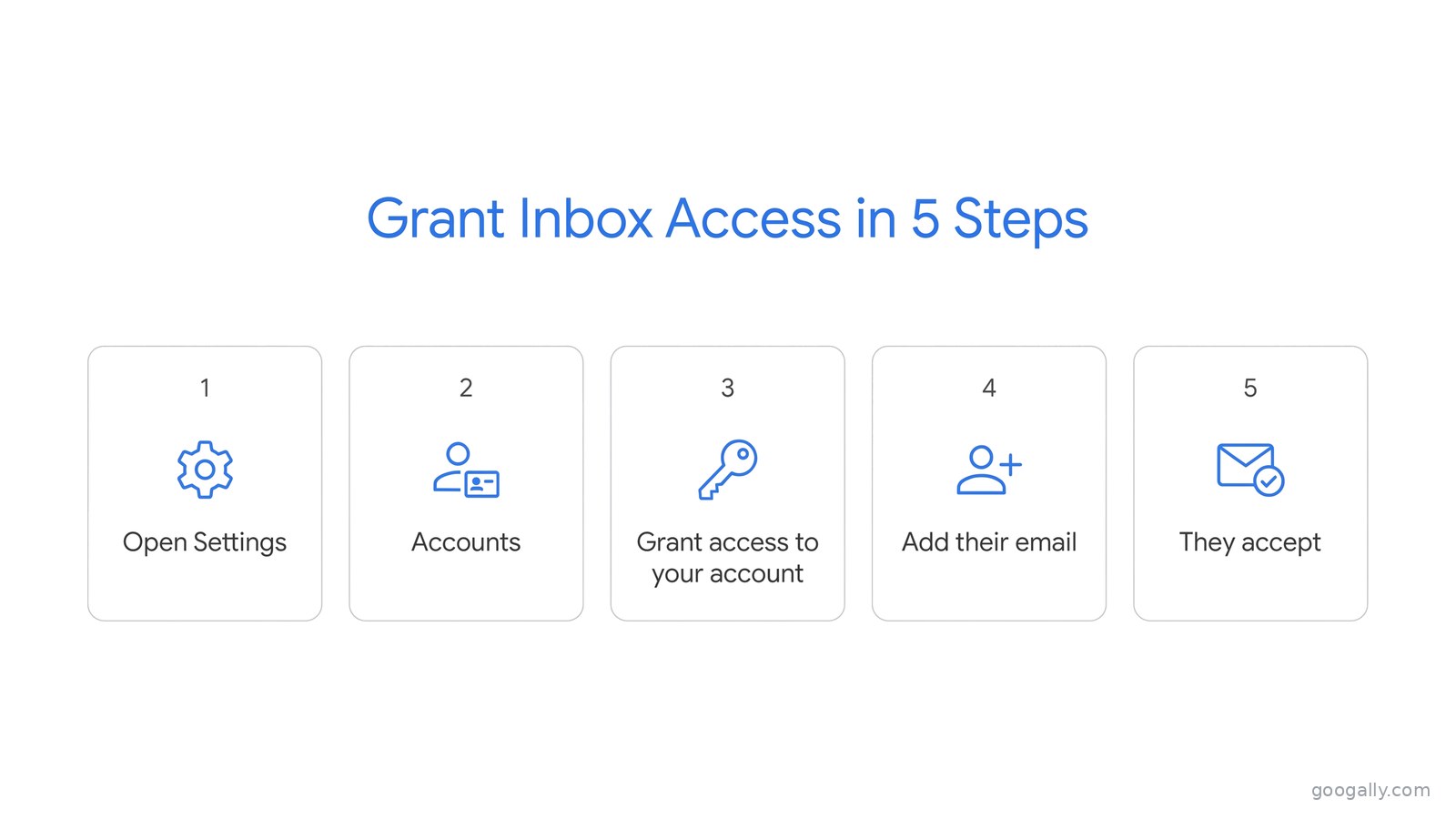
- In Gmail, click the gear icon (top right) and choose See all settings.
- Open the Accounts and Import tab (it may just say Accounts).
- Under Grant access to your account, click Add another account.
- Type the delegate's Google Workspace email address — they must be in your organization — and click Next Step, then Send email to grant access.
- The delegate gets a confirmation email. They click the link inside it to accept. Access can take up to 24 hours to activate but is often ready within minutes.
To use the access, the delegate clicks their own profile picture in the top-right corner of Gmail and selects the delegated account from the list. It opens in a new tab, and they're working in your inbox under their own name. When you want to remove them, come back to the same settings screen and click Delete next to their address.
What a delegate can and can't do
This is the part owners worry about most, so it's worth being precise. A delegate can handle your email, but Google deliberately walls off the sensitive stuff. Here's the plain-English breakdown.
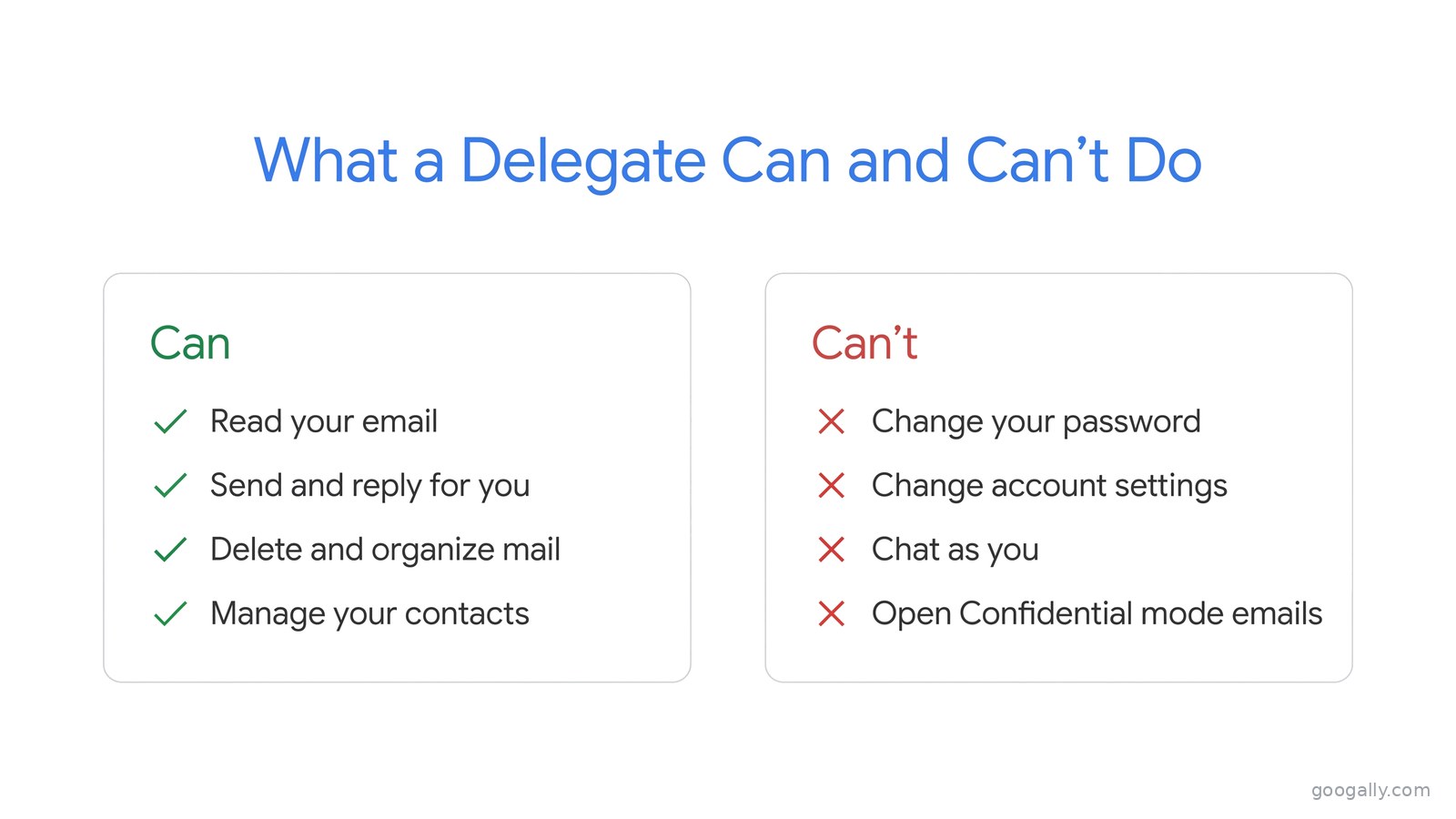
A delegate can: read, send, and delete email on your behalf; reply to and forward messages; and manage your contacts. Sent mail can show that it came from the delegate on your behalf, so recipients aren't misled.
A delegate can't: change your password or account settings, chat as you in Google Chat, or open your Confidential mode emails. They also can't use autocomplete in your inbox's search bar — a small quirk worth mentioning so it doesn't look like something's broken. Everything that actually protects your account stays with you.
Delegation vs. a shared mailbox vs. a group email
People mix these three up constantly, and picking the wrong one causes real headaches. They solve different problems, so here's how I sort them for clients.
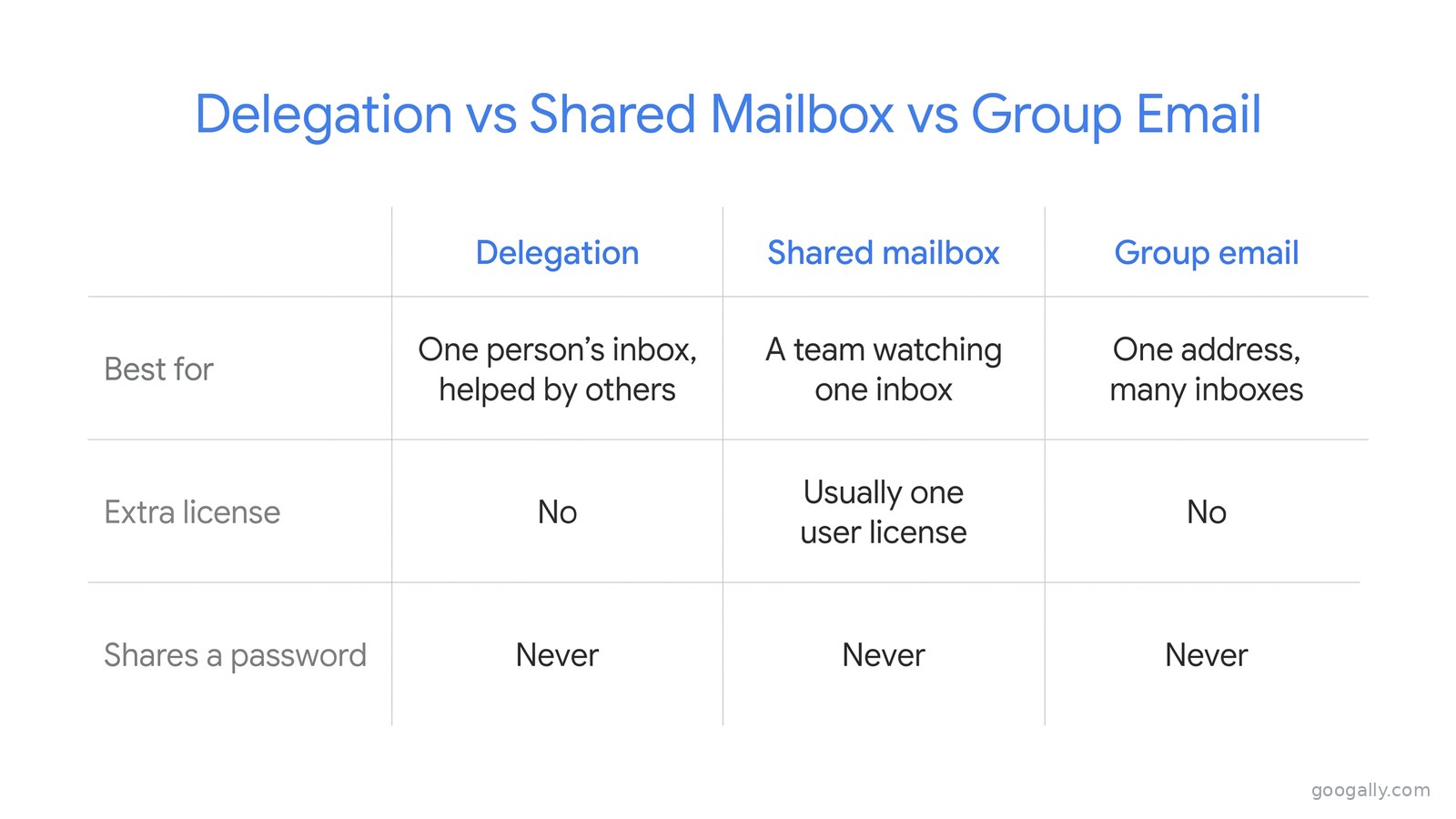
Delegation is for one person's real inbox that someone else helps run — an assistant covering an executive, or a teammate watching your mail while you're out. It's your account; they help.
A shared mailbox is a single inbox a few people watch together, like support@, usually built on a user account or Collaborative Inbox. If that's your goal, our shared mailbox guide walks through the setup.
A group email (a Google Group like sales@ or info@) fans one address out to several people's own inboxes and needs no license at all. I covered that in the group email guide. If the difference between a user, an alias, and a group still feels fuzzy, the user vs. alias vs. group breakdown clears it up.
Short version: delegation shares one person's inbox, a group shares one address, and a shared mailbox shares one collaborative inbox.
How small teams actually use delegation
A feature only matters if it saves you time. These are the setups I see working week in, week out:
- Executive and assistant: the EA triages the owner's inbox, replies to routine mail, and flags anything that needs the owner personally.
- Vacation and sick cover: before someone takes time off, they delegate their inbox to a colleague so nothing important sits unread. It pairs well with a Gmail out-of-office reply.
- Owner-to-manager handoff: a founder who still owns the main contact address lets a manager run day-to-day replies without giving up the account.
- Offboarding coverage: when someone leaves, delegating their inbox to a teammate keeps customer threads moving while you reassign work. Our offboarding guide covers doing that cleanly.
The limits and fine print worth knowing
Delegation scales further than most small businesses will ever need, but a few numbers and rules are good to have in your back pocket.
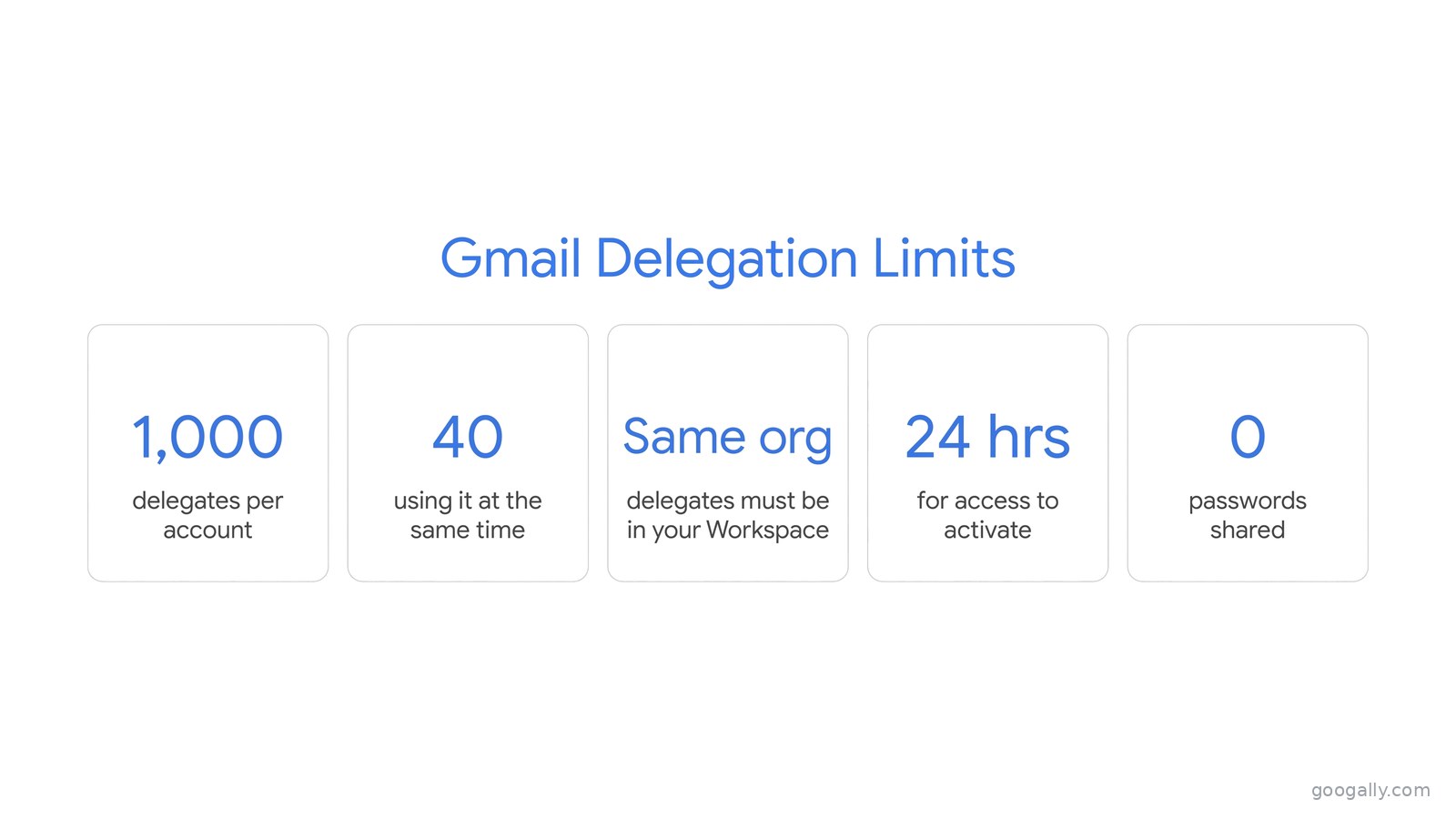
- Up to 1,000 delegates can be added to a single account, and a Google group counts as just one of them.
- About 40 delegates can actively use an account at the same time under normal use; heavy automated access can lower that.
- Same organization only — you can't delegate to a personal Gmail address or someone outside your Workspace.
- Up to 24 hours for new access to fully activate, though it's usually quicker.
- No extra sending power — delegation doesn't raise your account's normal daily email limits.
Common mistakes I see (and how to avoid them)
Most delegation problems come down to a handful of easy fixes:
- The option is missing. If "Grant access to your account" isn't in someone's settings, the admin switch above is off, or the user isn't in a plan or org unit that allows it. Flip it on in the Admin console.
- Adding someone outside the org. Delegation only works between accounts in your own Workspace. A contractor needs a Workspace user account first.
- Expecting instant access. Give it time — up to 24 hours — before assuming it failed.
- Using it for a team inbox. If three or more people need to own an address together, a group or shared mailbox is the better fit, not stacked delegation.
Set it up right from the start
Delegation is one of those Workspace features that quietly removes a daily headache — no shared passwords, no locked-out assistants, no scramble when someone's on vacation. It takes about two minutes once the admin switch is on.
If you're just moving your team onto Google Workspace, we handle the whole migration — email, contacts, and calendars with zero downtime — and set up delegation, groups, and security the right way from day one. New customers can use our Google Workspace promo code for 15% off the first 3 months. I've helped plenty of teams make the switch at Googally, and getting the inbox structure right on day one saves a lot of cleanup later.
Frequently asked questions
Does the person I delegate to need their own Google Workspace license?
Yes. A delegate has to be a licensed user in your own organization, because they sign in with their own account to reach your inbox. You can't delegate to a free personal Gmail or to someone outside your Workspace.
Will the sender see that an assistant replied, not me?
That depends on the admin setting. If "Show the account owner and the delegate who sent the email" is on, the message notes it was sent by the delegate on your behalf. If it's set to owner-only, the delegate's name is hidden and it simply looks like it came from you.
Can I set up delegation from the Gmail app on my phone?
No — you can only add or remove a delegate from Gmail in a web browser on a computer. The Gmail mobile app also can't switch into a delegated inbox, so a delegate who needs access on the go should open the delegated account in their phone's browser instead.
Does delegation let someone read my private or Confidential mode emails?
No. Delegates can't open messages you've sent or received with Confidential mode, and they can't change your account settings or password. The sensitive controls stay with you alone.
What happens to delegation when an employee leaves?
Nothing breaks automatically, so remove them as a delegate as part of offboarding. If you suspend or delete their account, their delegated access ends, but it's cleaner to delete the delegation first and reassign coverage to someone still on the team.
Is delegation the same as forwarding my email?
No. Forwarding sends copies of incoming mail to another address, where the other person can't reply as you or manage your inbox. Delegation gives real, two-way access to your actual mailbox without copying anything or sharing a password.
Related Posts
Explore Tips and Guides! Discover expert insights and practical guides for optimizing your Google Workspace experience with our informative resources.