
Google Workspace Studio: No-Code AI Automation for Small Business
Google Workspace Studio (formerly Google Workspace Flows) is a no-code automation tool available in all Google Workspace plans. It allows business owners to create workflows using triggers, data processing, and actions. By integrating Gemini AI agents, users can automate complex tasks like email categorization and decision-making without technical expertise.
Everything has become very expensive whether it is labor or material, and even when I hire someone to do something for me, I have to invest lots of time training them.
So, don’t get me wrong, but as a small business owner, I am always looking to automate parts of my business, as this way I can save cost and still provide consistent experience to my customers.
We use Google Workspace (Standard Plan) for our business, and I got pretty excited after reading about Google’s new product called Studio (which was earlier called ‘Flows’) which can help me automate (parts of) my business.
So I gave it a try, and it blew my mind. It is a perfect companion for small business owners like me who want to automate their day to day without being technical or learning any coding.
How Google Workspace Studio Works
Let me explain to you how it works, and what you can automate with it.
Workflow Trigger
Each automation in Google Workspace Studio starts with a trigger, this trigger can be a scheduled action like ‘Start this workflow everyday at 8 a.m’, or it can also be based on the Google Workspace apps like Gmail (e.g Start this workflow when I receive an email).
Data Processing
Data is processed as it goes via different systems or rules you create. For e.g. when I receive an email → Apply the label to it based on certain conditions.
Workflow Action
Each workflow ends with an action. This is where you define what the workflow should do. For example, an action can be sending an email, a reply, a message in Google Chat Space etc.
Studio has hundreds of actions available including Workspace Apps and 3rd party apps with an option to add custom actions too for those who are technical and can write code.
The World of Agents : Google Workspace Studio Agents
Google has added Gemini in Workflows, so you can build agents which make decisions on things just like you would do.
You can add Gemini in your workflows to filter, summarize, classify content or simply add your own prompt to define custom instructions you want Gemini to follow.
This really makes a huge difference for small businesses like ours.
Building a Virtual Executive Assistant Agent
One of the first workflows I built is an agent that reads my Gmail emails and finds the ones where I have to take an action, and it saves me so much time as I get so many emails everyday.
Here is how this workflow works:
- When I receive any email in my Gmail.
- Gemini reads those emails (like my assistant).
- Gemini makes a decision whether there is any action item for me in them.
- For all emails where #3 is true, it assigns them a label called “My To-do”.
To recap our understanding so far:
– Our trigger will be ‘When I receive emails’.
– Our action will be ‘Assign a label in Gmail’.
– Everything in between, we will use Gemini AI to read my email and make a decision on whether I have any action item in it.
Step-by-Step: Creating Your First Agent
How to access Google Workspace Studio?
To access Workspace Studio, go to https://studio.workspace.google.com/ and login with your Google Workspace email address and password. If you are logged in already, clicking on this url will take you directly to the Studio screen.
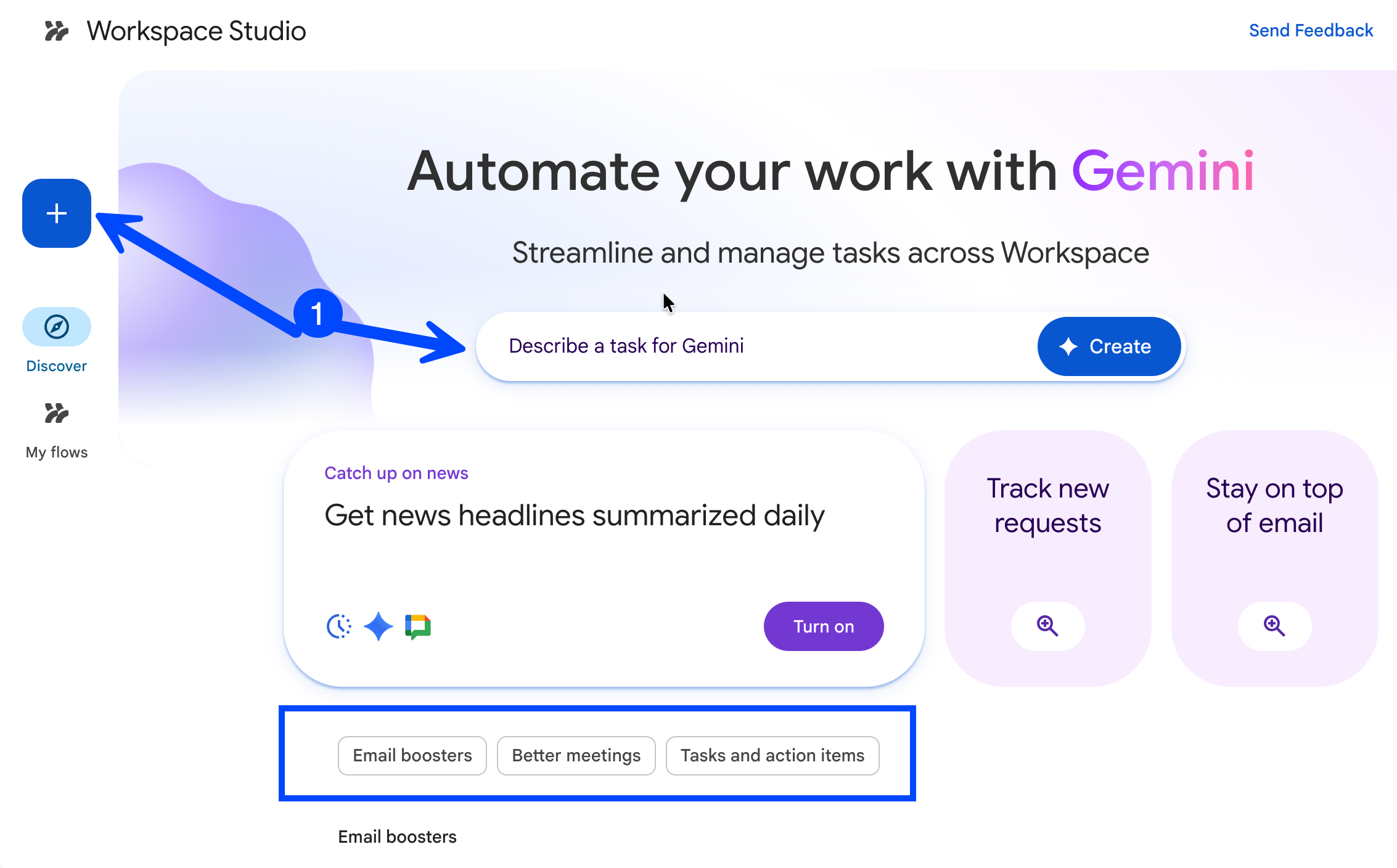
You will see a screen where you can either click on the large + icon to create workflow from scratch, or simply describe the workflow you want in plain english, and then click on create.
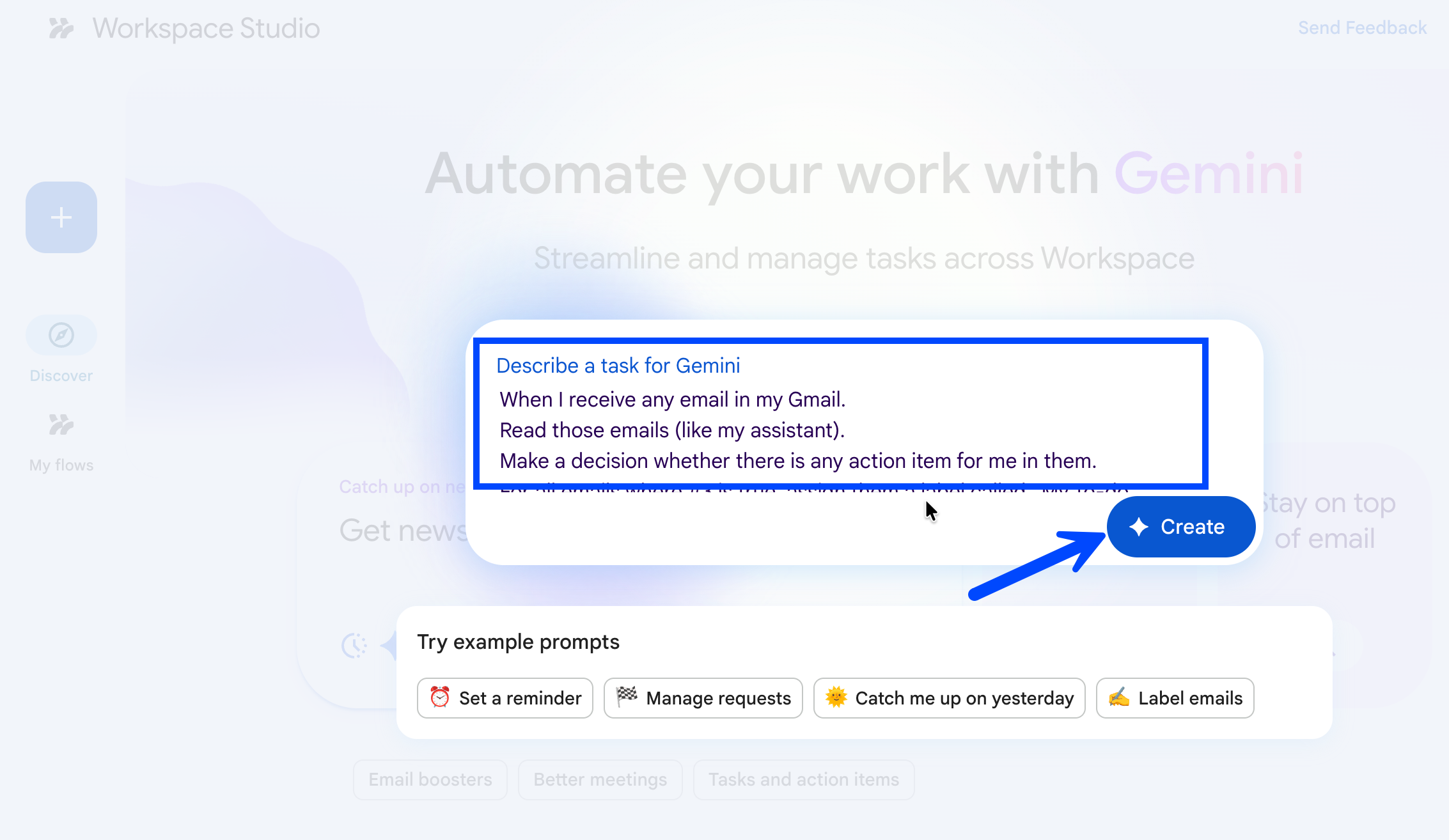
I have entered the description of my email agent as you see here, and then clicked on the create button to let Gemini create it for me.
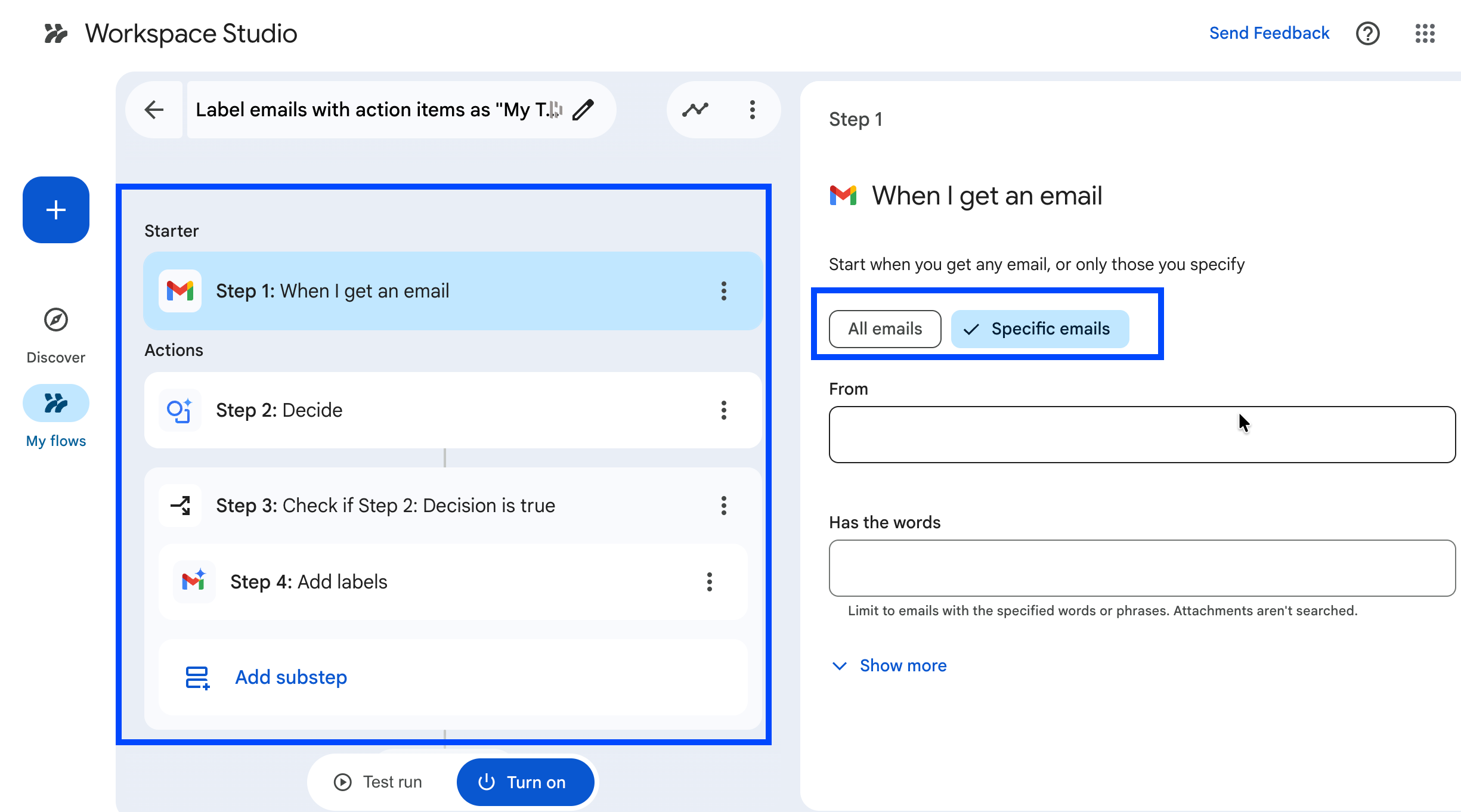
As you can see, Gemini successfully created the complete workflow, and now I just need to review and provide any missing information to it. In my experience, creating workflows with Gemini by just describing works great from easy to medium workflows.
Creating Workflows from Scratch
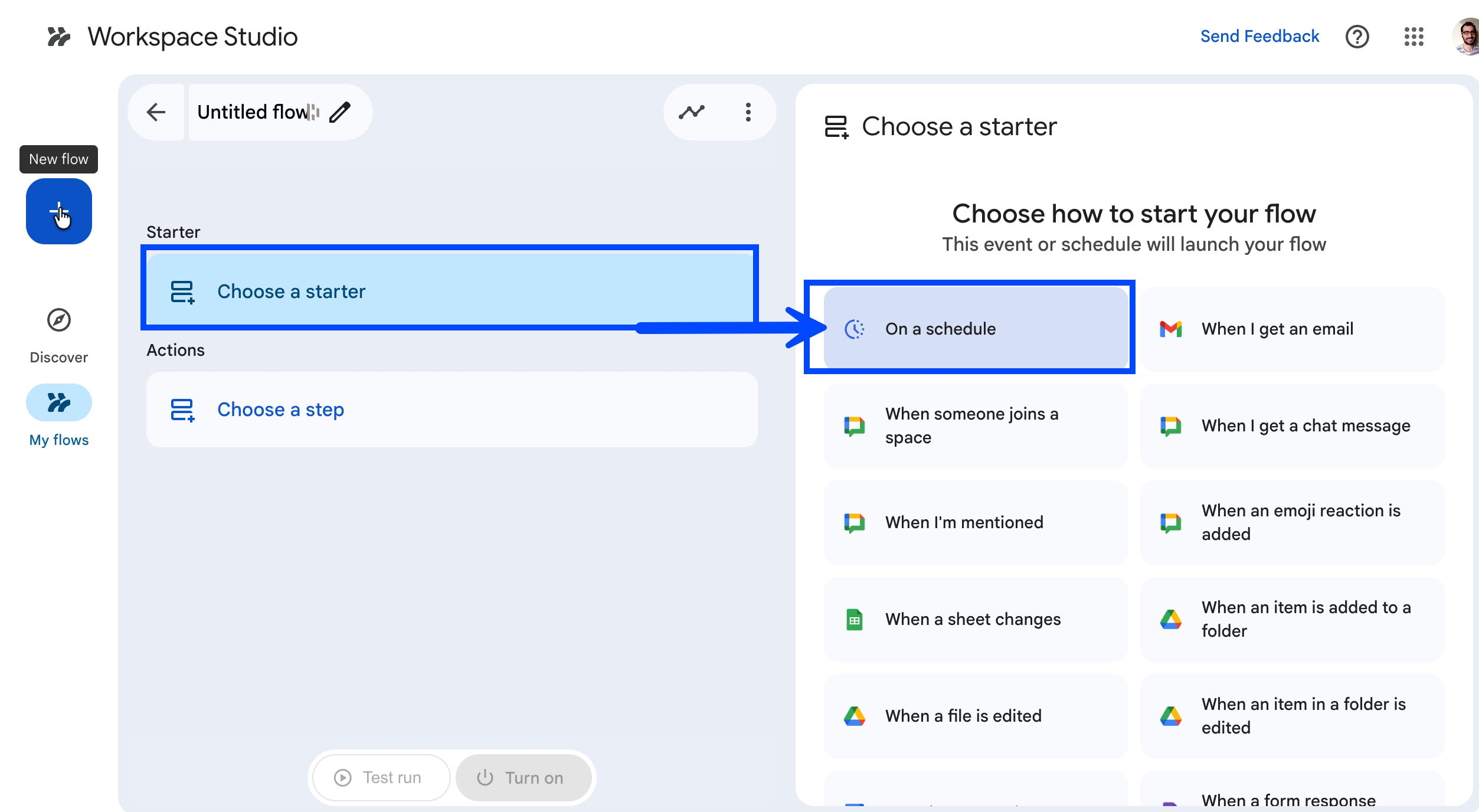
You can also create workflows from scratch by yourself by clicking on the large blue plus icon on the left as shown below. I would recommend you to try this and create a few automated workflows by yourself to get hang of the system.
Here first, we need to use the trigger, which can either be a scheduled time (e.g. everyday at 8 a.m) or trigger in Workspace apps like when I receive an email in Gmail.
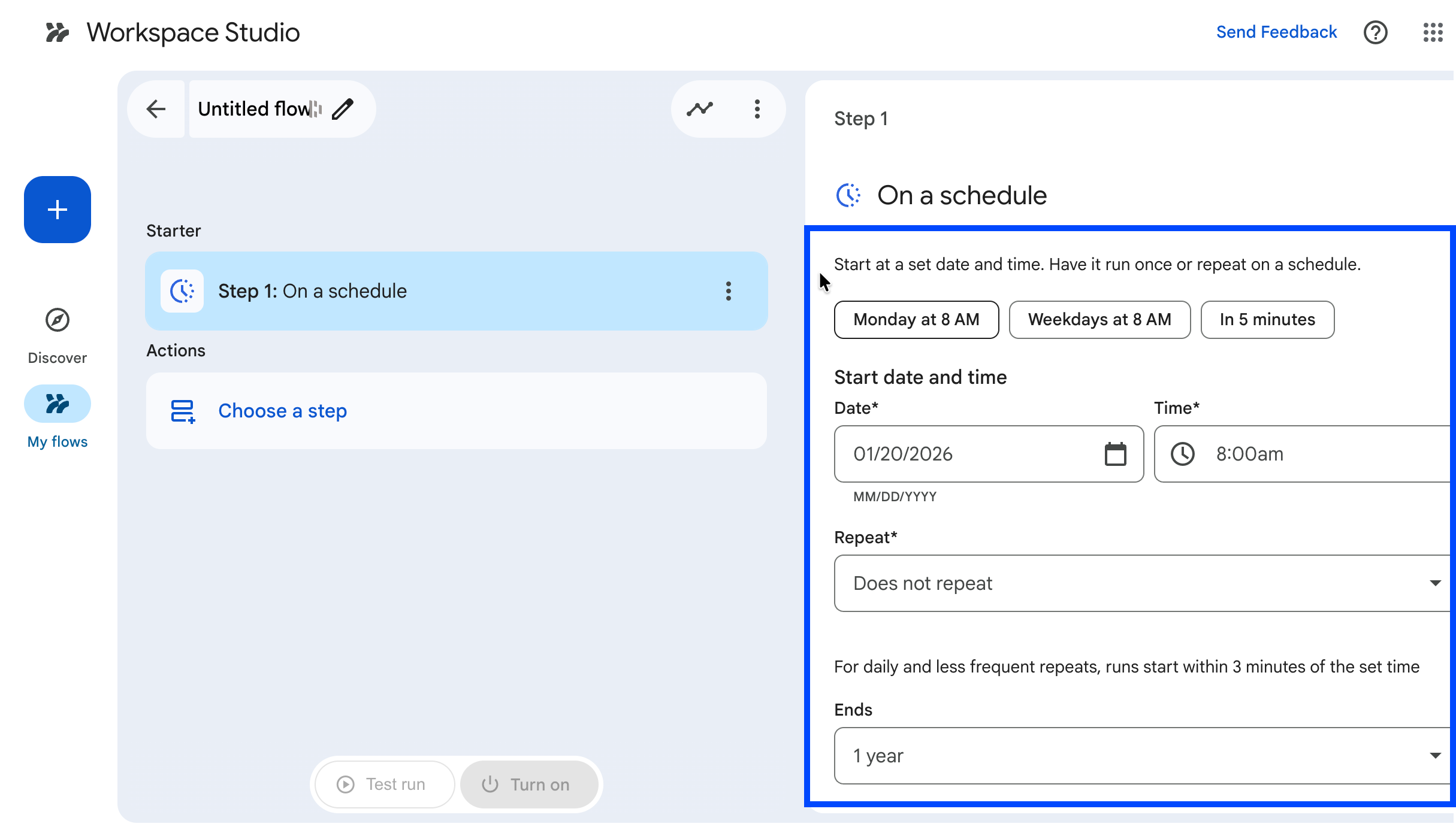
Lets click on a schedule trigger.
Here you will see the granular options for your schedule where you can define the cadence including data, time, whether it should repeat and its end time.
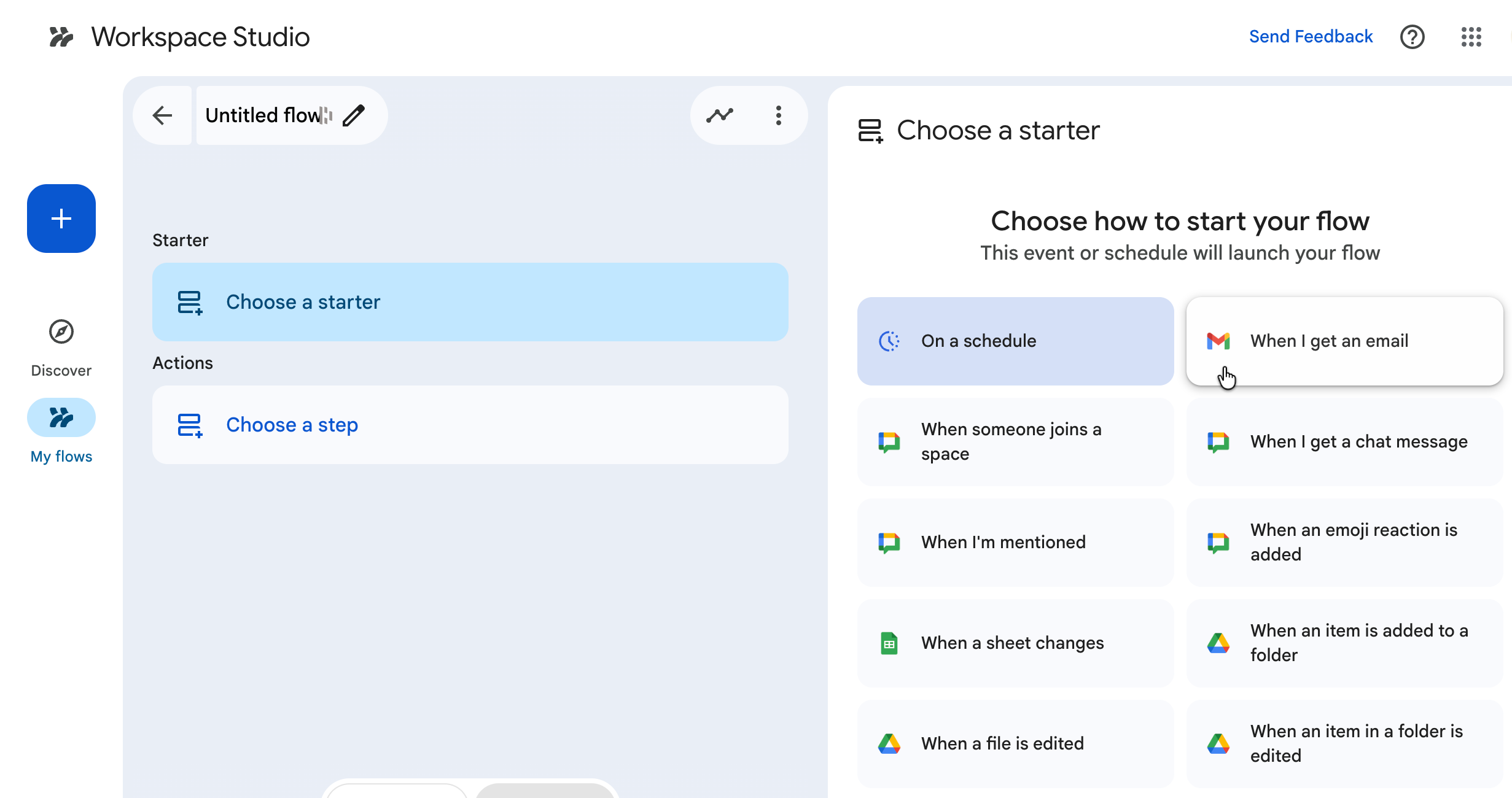
Setting Up the Gmail Trigger
However, for our scenario, let's rather choose ‘When I get an email’ as the trigger.
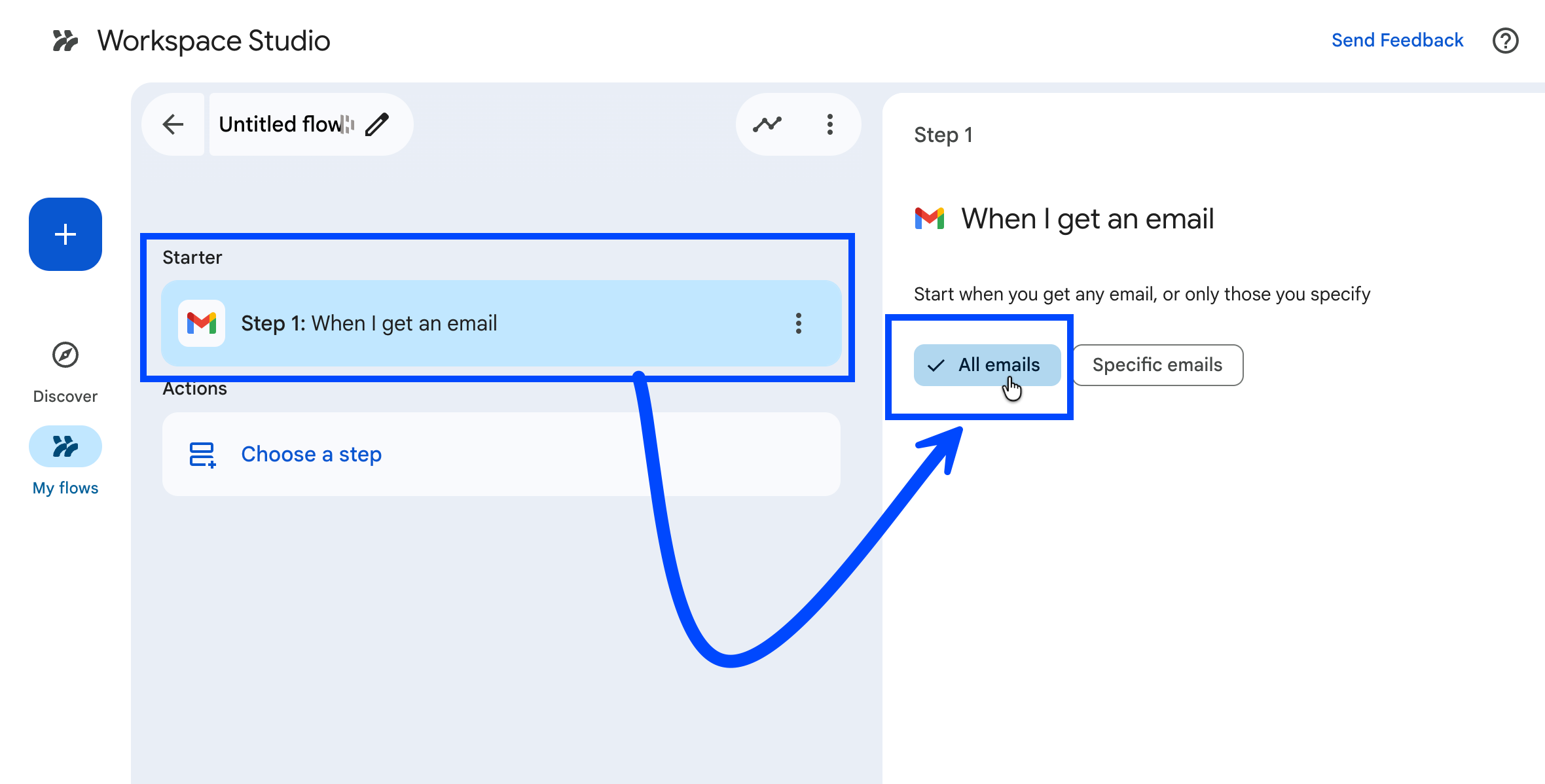
Now, based on the trigger, your further processing options would be different, because I chose ‘When I receive an email’, I see an option to define the scope. Here I can trigger this workflow only on specific emails too, but for my use case, I will go with All Mails.
Adding AI Decision Power
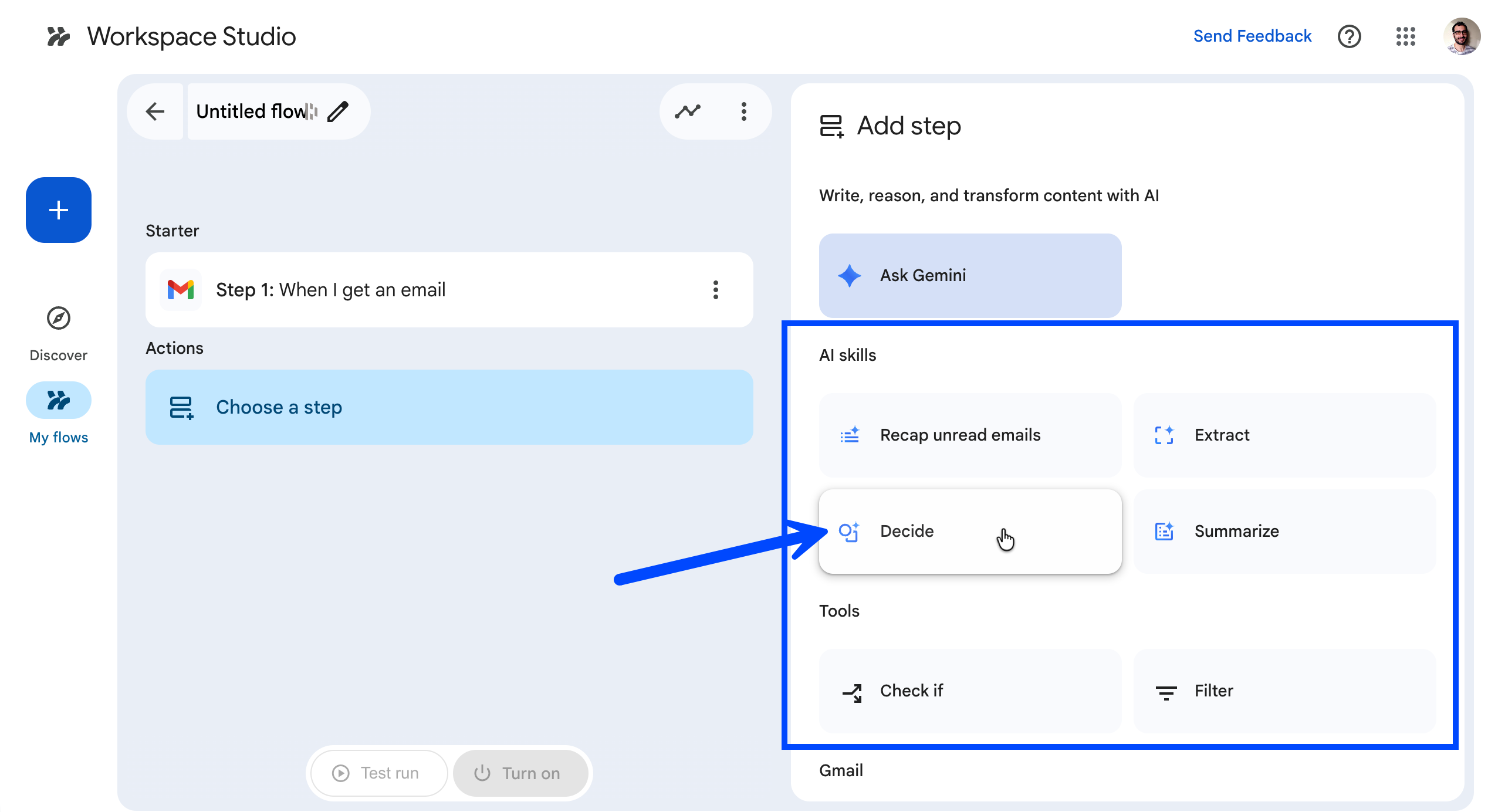
Once I receive an email in Gmail, I then want to use Gemini’s decision making to decide if this email has any action item for me or not. So I will click on ‘Decide’ node under AI Skills as you can see below.
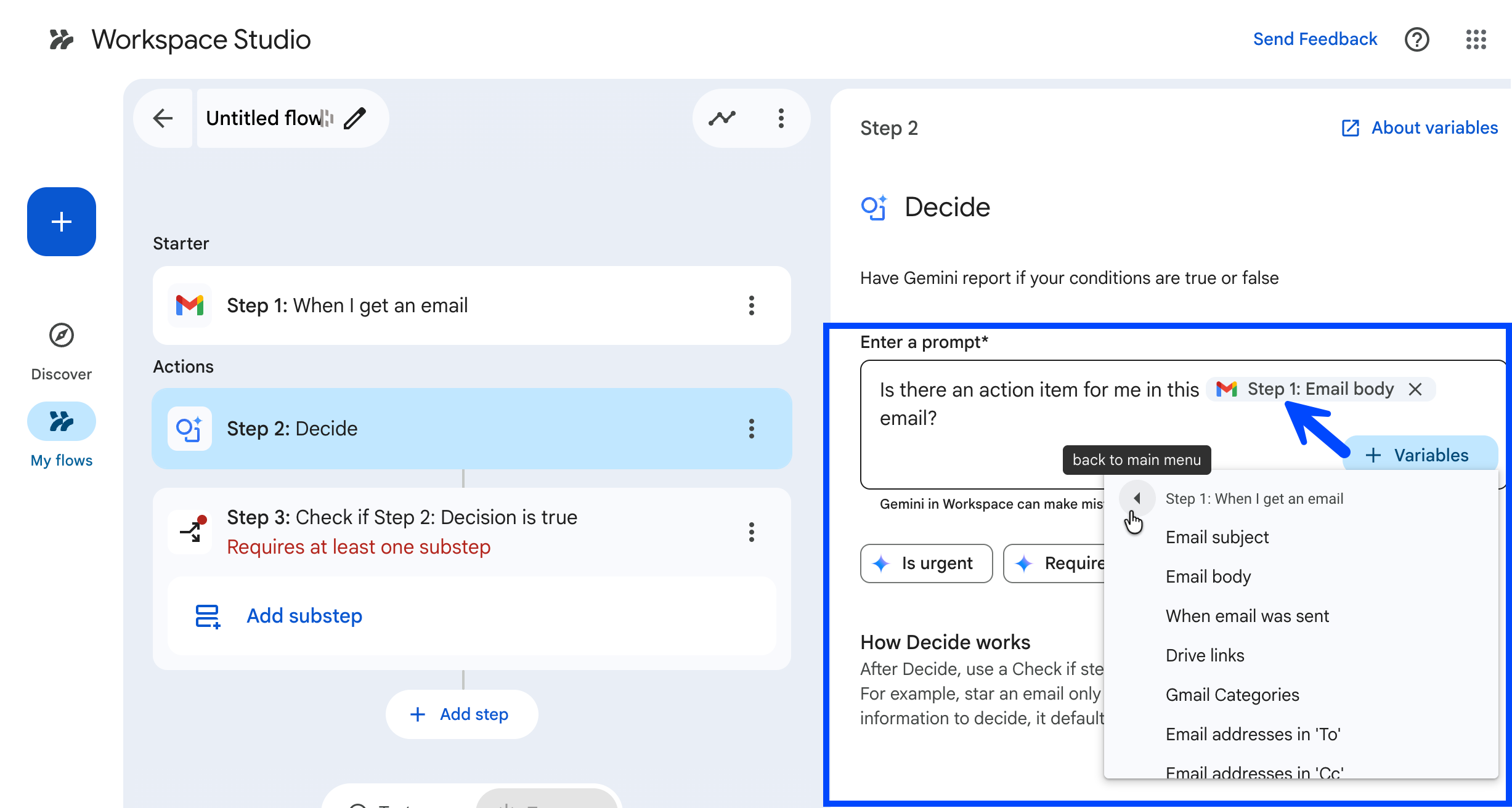
Now, I will write a prompt to provide context to Gemini. I am simply asking ‘Is there an action item for me in this email? However, to make sure Gemini reads the email body, I clicked on ‘variable’ and selected the email body from the last / Gmail node.
Finalizing the Action and Testing
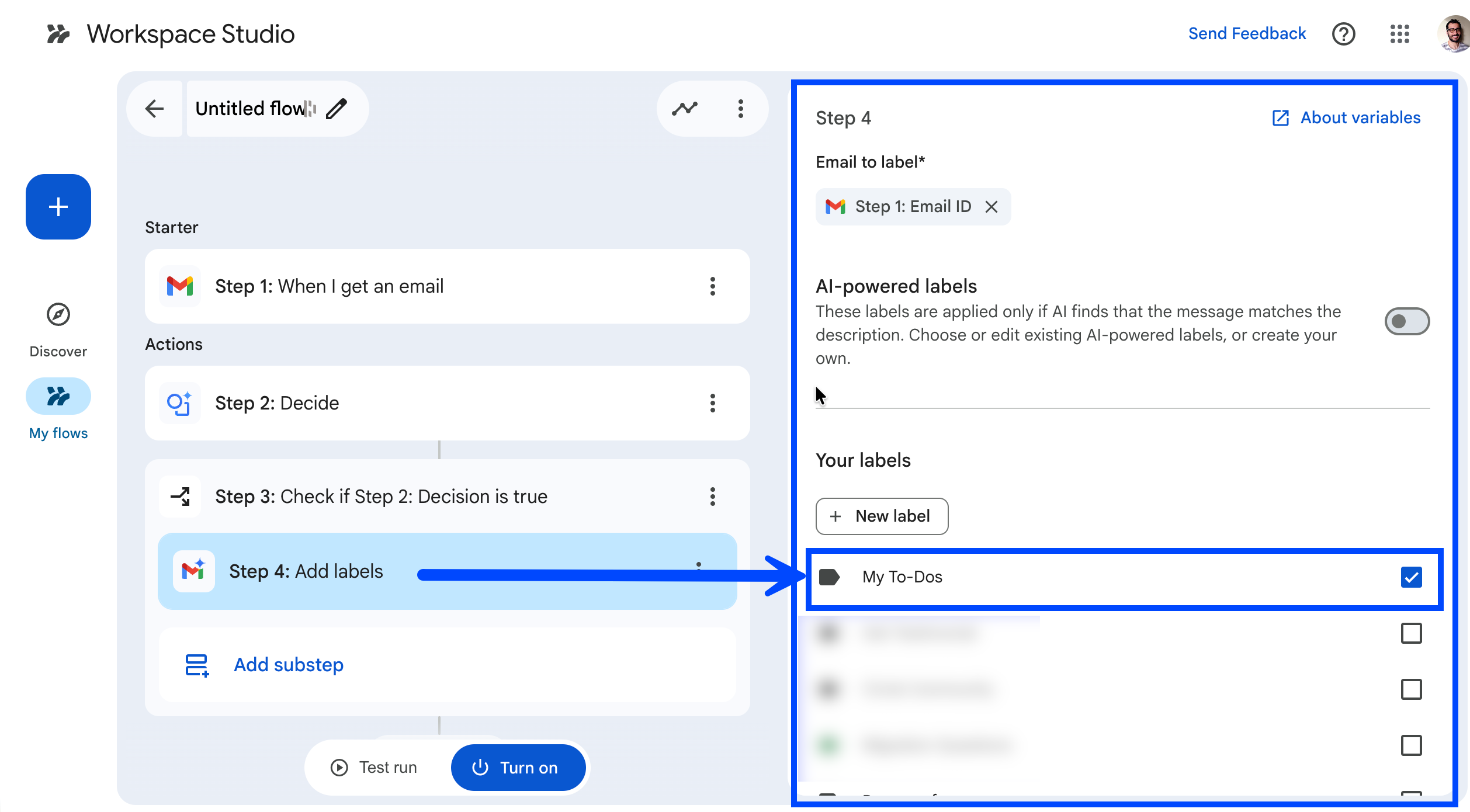
Now, it's time to add the action, so I added a Gmail action here called ‘Add labels’ and then selected the My To-Dos label that I created.
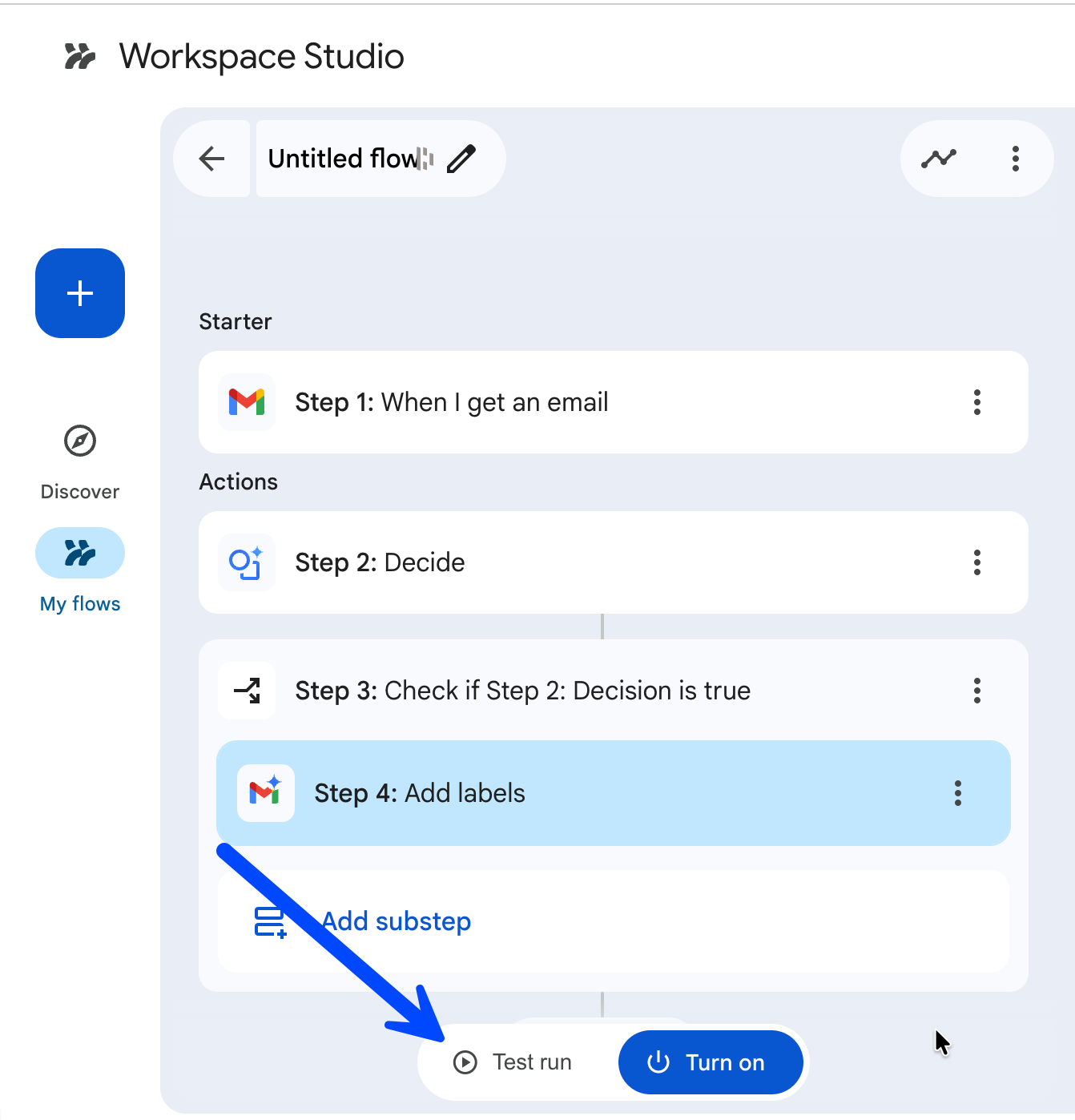
Google Workspace Studio has this very feature which allows me to test the workflow before turning it on, and it saves me so much time as I can see how it works before activating it. So, let me click on ‘Test Run’.
Here I can select any of my recent Gmail emails for the test run, and click on the Start button. This will now take this email through the workflow (e.g. email body will be read by Gemini to make a decision on whether it contains any action item for me or not).
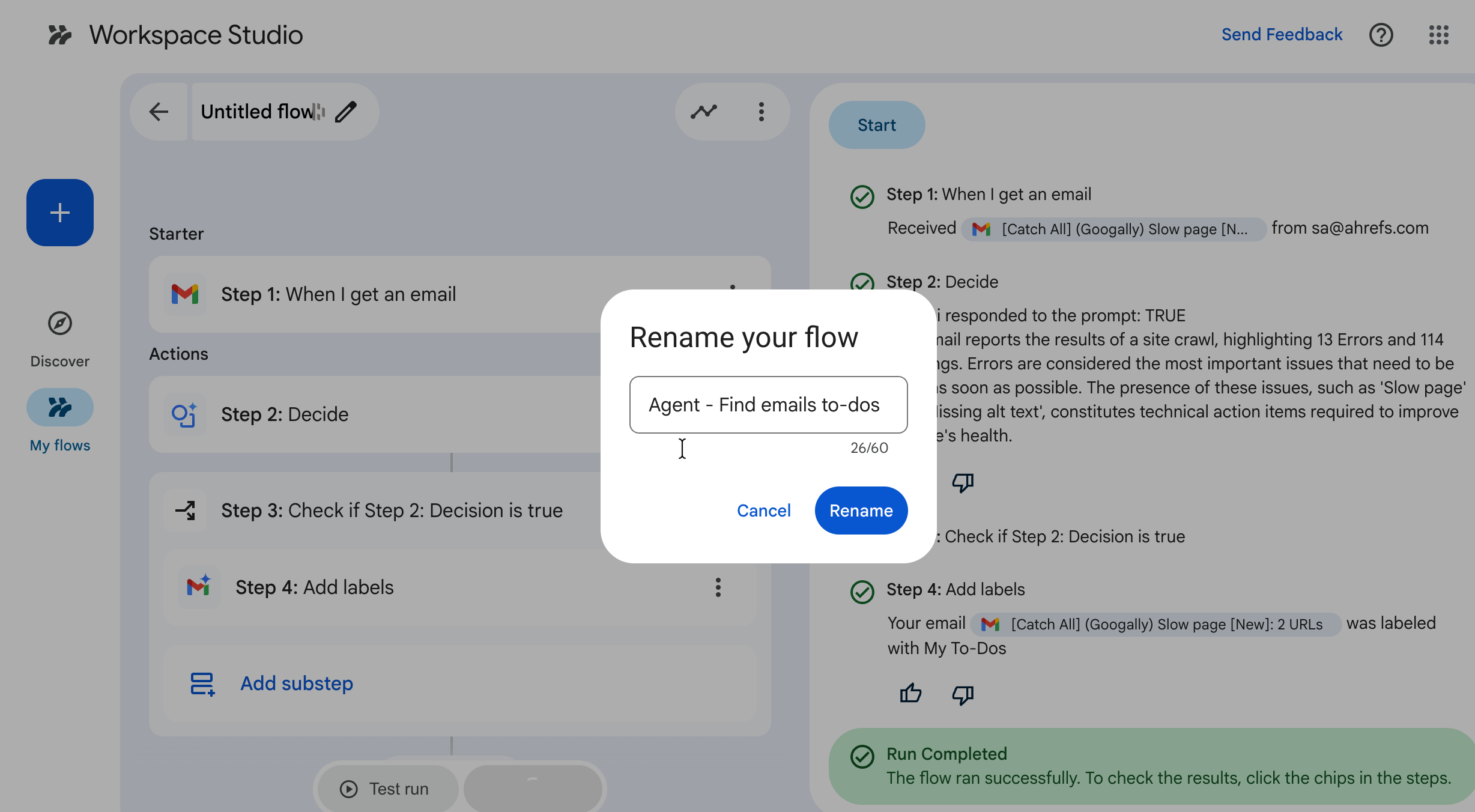
As you can see in the screenshot below, Gemini successfully found an action item for me in it, it applied the My To-Dos label on this email.

Now, as it is working perfectly, I will go ahead and activate the workflow by clicking on the ‘Turn On’ button. This will ask me to name the workflow (if I have not named it yet).
Results: Your New AI Executive Assistant
Now, if any email comes to me in Gmail, Gemini will figure out if I need to take any action on it, and will put that in the My To-Dos label as you can see below.
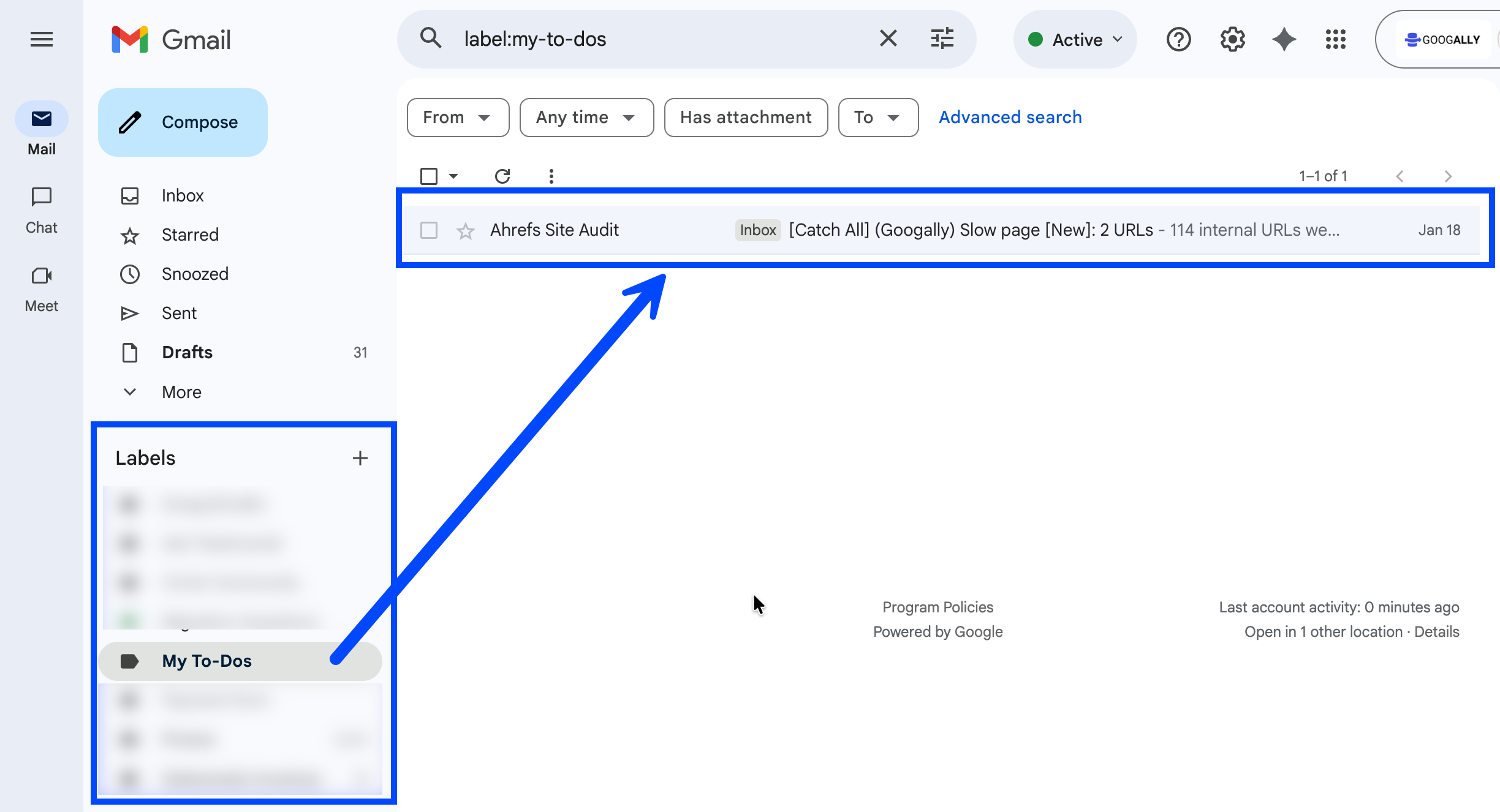
This makes me feel like I have hired an executive assistant who checks my emails and I only need to work on the ones that truly matter. It saves me a bunch of hours every week.
Frequently Asked Questions (FAQs) about Google Workspace Studio
Which Google Workspace plans include Workspace Studio?
As per Google’s documentation, Studio is included in all Business and Enterprise plans.
Is there an additional cost to use Gemini within Studio?
No, there is no additional cost to use Gemini in the Workspace Studio as it is included.
It will be good to see if Google adds any limits to the amount of Gemini you can use based on your Google Workspace subscription plan.
Can Workspace Studio automate apps outside of the Google ecosystem?
Yes, Google has already added some 3rd party actions in alpha including Asana, Confluence, Jira, Mailchimp and Slack.
I have also heard Studio integrates with Google Apps Script and allows you to connect with your own or 3rd party applications for custom actions.
Is there a limit to how many workflows I can run per day?
Yes, there are limitations in place like you can create up to 100 flows, each flow can have up to 25 steps etc. You can see the complete limitations list in the Google Support documentation here : https://support.google.com/workspace-studio/answer/16765942?hl=en
Do I need to know Google Apps Script to use Workspace Studio?
Not really, Google has hundreds of triggers and actions from Workspace apps including Gmail, Drive, Calendar, Chat, Docs etc, and also including 3rd party apps.
However, if you want to create your own custom actions which integrate with your own systems or the systems which Google has not added yet to Studio, then you will need to use Apps Script.
Related Posts
Explore Tips and Guides! Discover expert insights and practical guides for optimizing your Google Workspace experience with our informative resources.


















.png)
.png)
.png)
.png)
.png)
.png)
.png)
.png)



.png)
.png)

.png)




.png)
.png)


.png)


