

How to Find Archived Emails in Gmail: A Guide for Small Businesses
To find archived emails in Gmail, navigate to the "All Mail" label in the sidebar (desktop) or menu (app). Unlike the Inbox, "All Mail" contains every email that hasn't been deleted, including archived ones. You can also find them by typing "-in:inbox -in:trash -in:spam" in the search bar to filter for only archived messages.
Back in August, I received an email from a customer. We migrated them from Microsoft 365 to Google Workspace, and the title of the email was ‘Urgent’- we lost our emails.
This customer has been using Microsoft Outlook for years, and though moving to Gmail provided them agility and cloud based collaboration, there were a few things that were new to them.
They misunderstood the archive email functionality in Gmail. For Context, in Microsoft Outlook, there are a few archive options including online archive (if you are on Microsoft 365) and traditional local archive.
So when businesses move to Google Workspace, they get confused with the archive emails concept in Gmail.
So, how does the archive work in Gmail?
Once you understand how Google implemented an archive in Gmail, you will start to appreciate it.
See, usually unlike traditional email systems, nowadays storage is not a limitation, in fact, in cheapest Google Workspace (Business Starter) subscription plan, you get 30 GB of storage which can host millions of emails, and there is no need to have a dedicated archival system.
Now, to understand the Gmail archiving better, let's take a real life analogy, let say you have a house with a shed in its backyard which you use to store the stuff you don’t need.
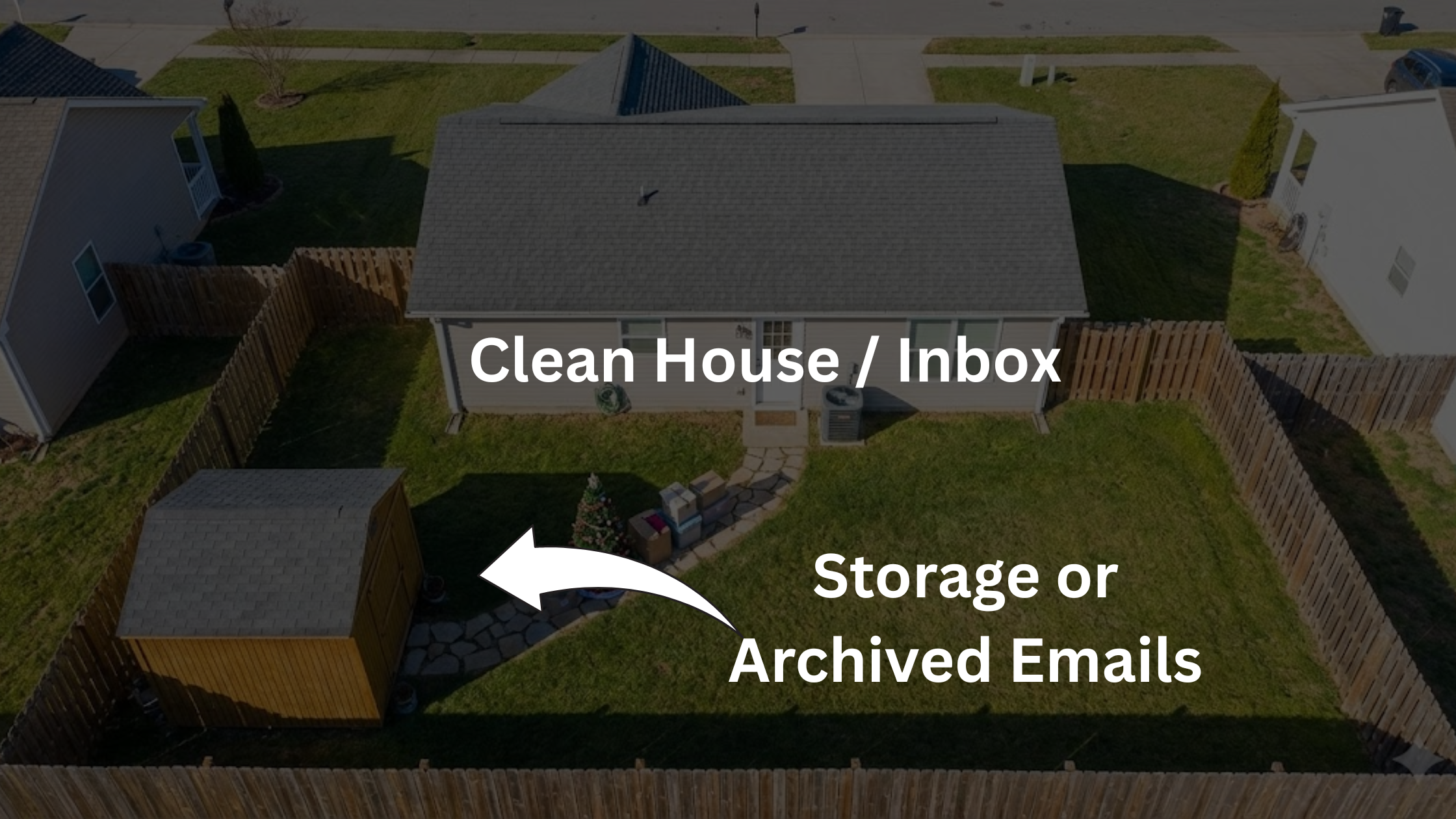
Imagine it's Christmas time, you bring your tree from the shed, decorate it, light it up etc, but once the Christmas is over, you want your house to look clean, so you would put these boxes back to your shed/storage.
Now, this shed in your backyard is exactly your Archive (All Mail label) in Gmail. You want your house / inbox to look clean, so you simply select the emails, and then click on Archive, this does two simple things:
- These emails disappear from your Inbox (your inbox looks clean).
- These emails go to a Gmail system created label called “All Mail”.
Now, in future, if you need any item from this All Mail label, either you can simply go to this label and move those items to Inbox (or other labels), or run a search in Gmail to look for required emails and then move them back to Inbox.
Archive vs Delete Emails - What’s the difference?
Going back to our example, you want your house / inbox to look clean, so you would usually do one of the following:
- Archive: Move the items to your backyard shed (items that you will need in the future, e.g your Christmas tree).
- Delete: Trash the items which you do not need anymore.
That same principle applies to Gmail as well, whether to archive an email or delete it, is based on ‘Will I need this email in the future’? If your answer is No, delete it, however if the answer is Yes or even may be, then it is better to archive.
Please remember, if you delete an email, it goes to Trash label and gets permanently deleted after 30 days, but if you archive an email, it simply moves from your Inbox to All Mail label and stays there forever (until you manually delete it).
Important Archiving Scenarios for Your Business
Now, as you understand the concept of Archiving in Gmail, let's cover a few important scenarios that would help you.
How to archive an email in Gmail
To archive an email, simply select one or more emails, and then click on the ‘Archive’ button as shown in the screenshot below.
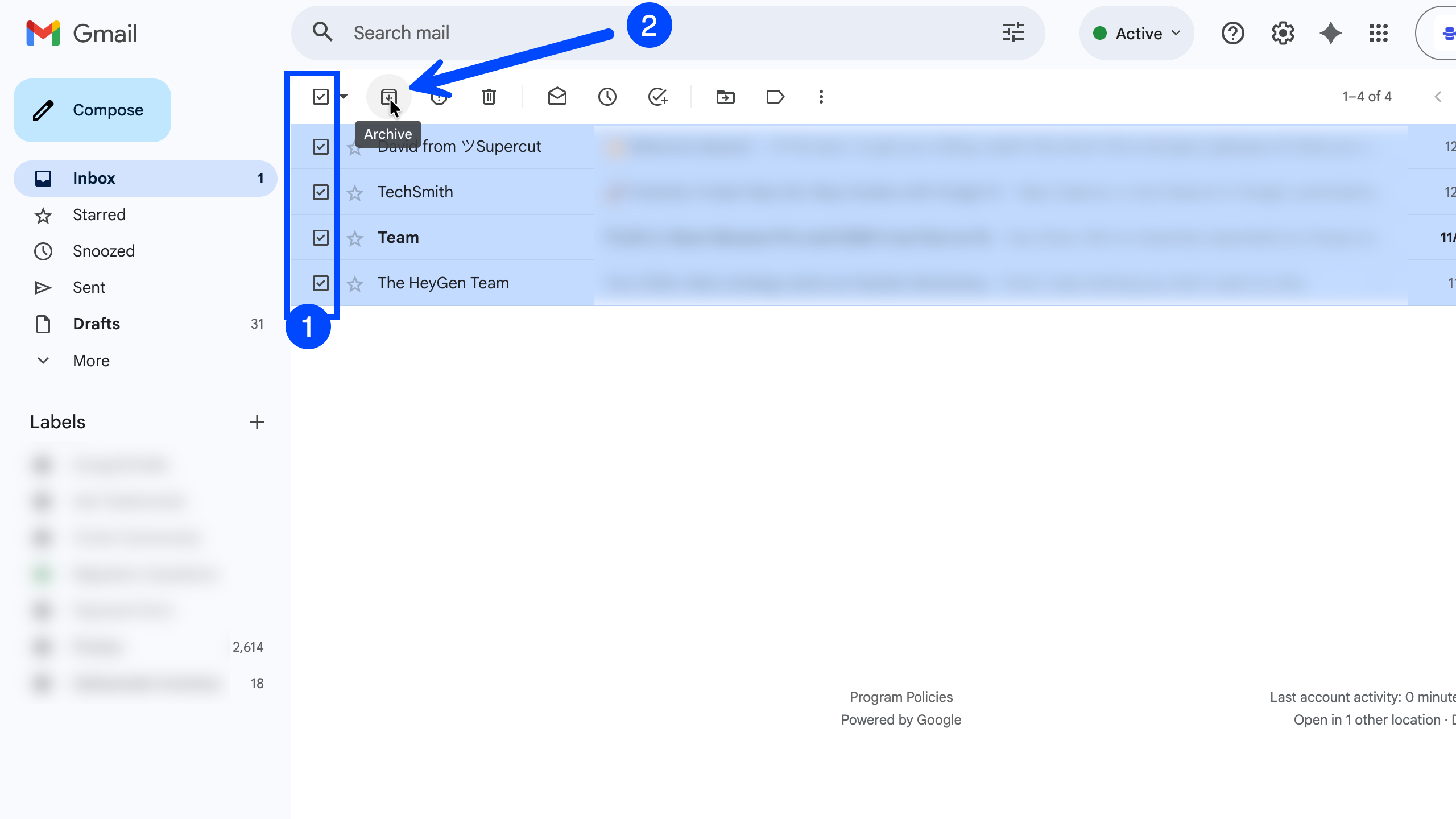
There is no limit on the number of emails you can archive in one go (and yes, please do not worry, even if you move the ones by mistake that you didn’t want to, you can still find them in the All Mail label and bring them back when / if needed).
How to archive emails based on criteria
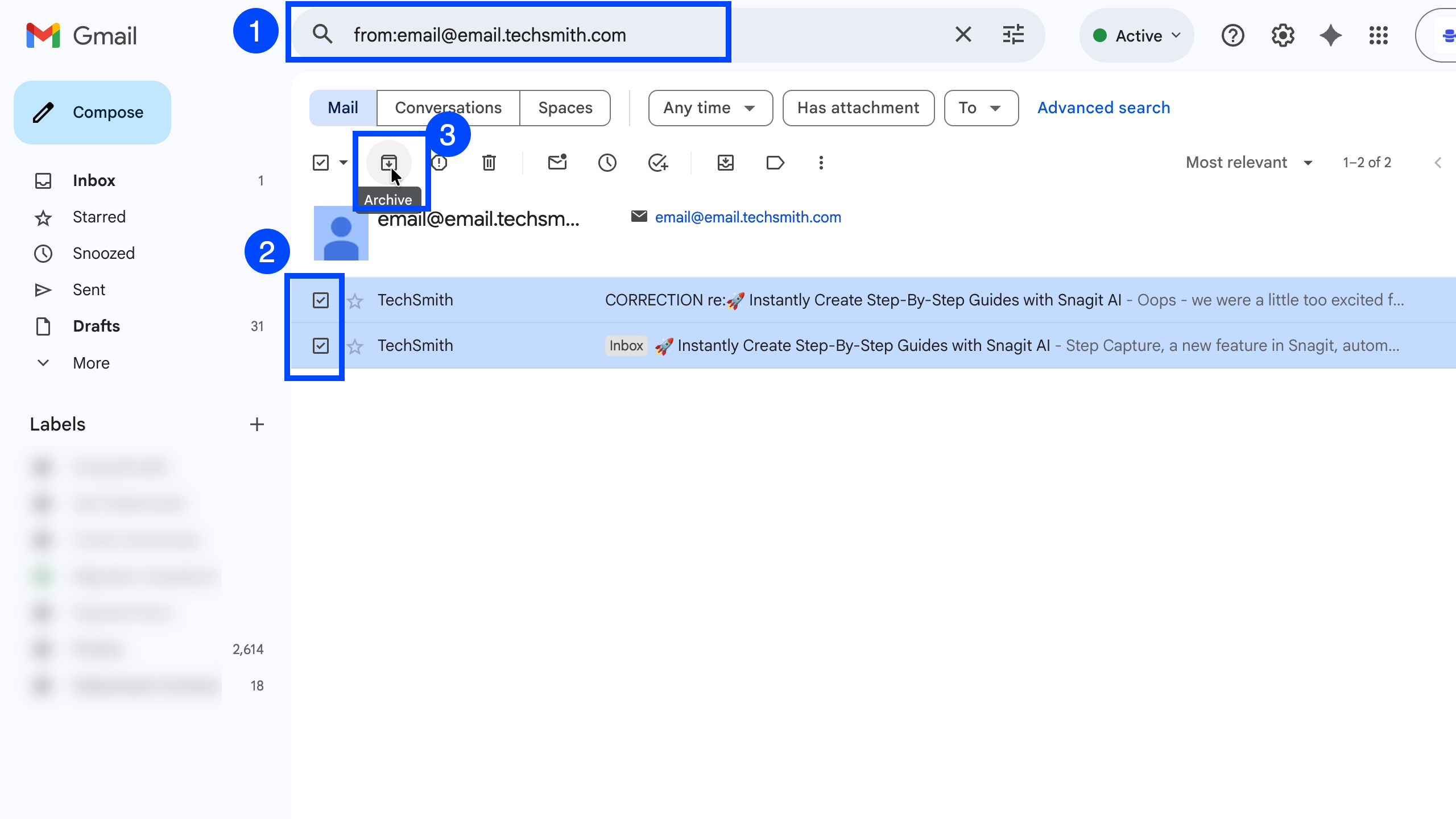
In some cases, you want to archive emails based on some criteria like emails which are older than x days, emails from a specific sender or subject etc, and this is where Gmail search bar is very helpful.
You can simply put your search query to filter down emails, and then select all to archive them. Let me show you a few important search filters:
- Archive by Sender: from:senderemail@theirdomain.com (e.g. jane@gmail.com)
- Archive Multiple Senders: from:sender1@gmail.com OR sender2@yahoo.com
- Archive by Size: For emails larger than 5 MB, search for larger:5M. For smaller than 5 MB, use smaller:5M.
- Archive by Date: Use before:yyyy/mm/dd or after:yyyy/mm/dd. For example, to archive emails that are 6 months or older (assuming it's 01/01/2026), you would use: before:2025/06/01.
How to find archived emails
Now, how about finding your archived emails, this is very easy too, you will just go to the All Emails label in Gmail, and here you will see all the emails you archived.
If you want to bring one or some or all of them back to your Inbox, simply select them and click on ‘Move to Inbox’ icon or button.

You can also use the search filters as we did above, to find specific emails in your All Mail (archive) label and bring them back to either your Inbox, or any other label or multiple labels too. For this, you would have to search like this: in:all emails.
How does it work on Android and iOS?
The process is absolutely same on mobile devices as well, simply go to your Android or iPhone or iPad, in your Gmail app, click on the hamburger icon, and go to All Mail label to see you archived emails, and select any emails to either move them to Archive (by clicking on Archive icon) or bring them back to Inbox or other label.

Frequently Asked Questions (FAQs)
- Does archiving save storage space?
No, archiving merely moves the emails from your Inbox to All Mail label, so your inbox looks clean, but because the emails are still in your mailbox, it does count against the storage. If you are running out of storage space, either consider deleting the emails (preferably the heavy ones using the size filter) or upgrade your storage or Google Workspace plan.
You can also build a no code agent in Google Workspace Studio that automatically deletes your emails based on certain conditions.
- Will I still receive replies to archived emails?
Of course, you will receive replies to archived emails, in fact, if you get a reply to your archived email, that email will be moved automatically to your Inbox, which is great to ensure you do not miss to read that reply.
- How long do archived emails stay in "All Mail"?
As I explained above, archiving is not deleting, so unlike the delete (where your emails will first go to the Trash label, stay there for 30 days before being permanently deleted), Archived emails stay ‘Forever’ in your All Mail (until you delete them manually).
- Can I archive emails automatically?
Yes, this is an advance move which will save you a lot of time, for this, you will simply create filters based on your criteria (for example, if I receive an email from a specific sender), and then apply the action as archive (e.g. then archive that email).
- Is there a keyboard shortcut for archiving?
Yes, once you enable keyboard shortcuts in Gmail settings, simply press 'e' to archive a selected message.
- What happens if I accidentally archive an email?
You don’t need to worry, as you are not deleting it, just archiving it, you can still find it in the All Mail label, and bring it back if needed.
- How do I search for only archived emails and nothing else?
You can use the search filter has:nouserlabels -in:Inbox -in:Trash -in:Spam to find only archived messages.
- Can my staff see my archived emails in a Shared Drive?
Of course not, there is no connection between your archive emails and Shared Drive, you are not sharing anything here. But please note, if you delegate your mailbox (e.g. to your secretary or spouse:), they will be able to see all your emails including Archived Emails, and take action on them.
Related Posts
Explore Tips and Guides! Discover expert insights and practical guides for optimizing your Google Workspace experience with our informative resources.





















.png)
.png)
.png)
.png)
.png)
.png)
.png)
.png)




.png)
.png)

.png)









.png)
.png)


.png)


