

Google Sheets Formulas: A Practical Guide for Small Businesses
Google Sheets formulas are instructions you type into a cell to do calculations, look up data, or transform text — automatically. Every formula starts with an equals sign (=), followed by a function name like SUM, IF, or VLOOKUP, and the cells you want it to act on. If you've ever totaled a column of expenses, calculated a tax rate, or pulled customer data from one tab to another, you've used (or wished you'd used) a formula. This guide walks through the most useful formulas in Google Sheets for running a small business — with examples you can copy into your own spreadsheets today.
Quick Takeaways
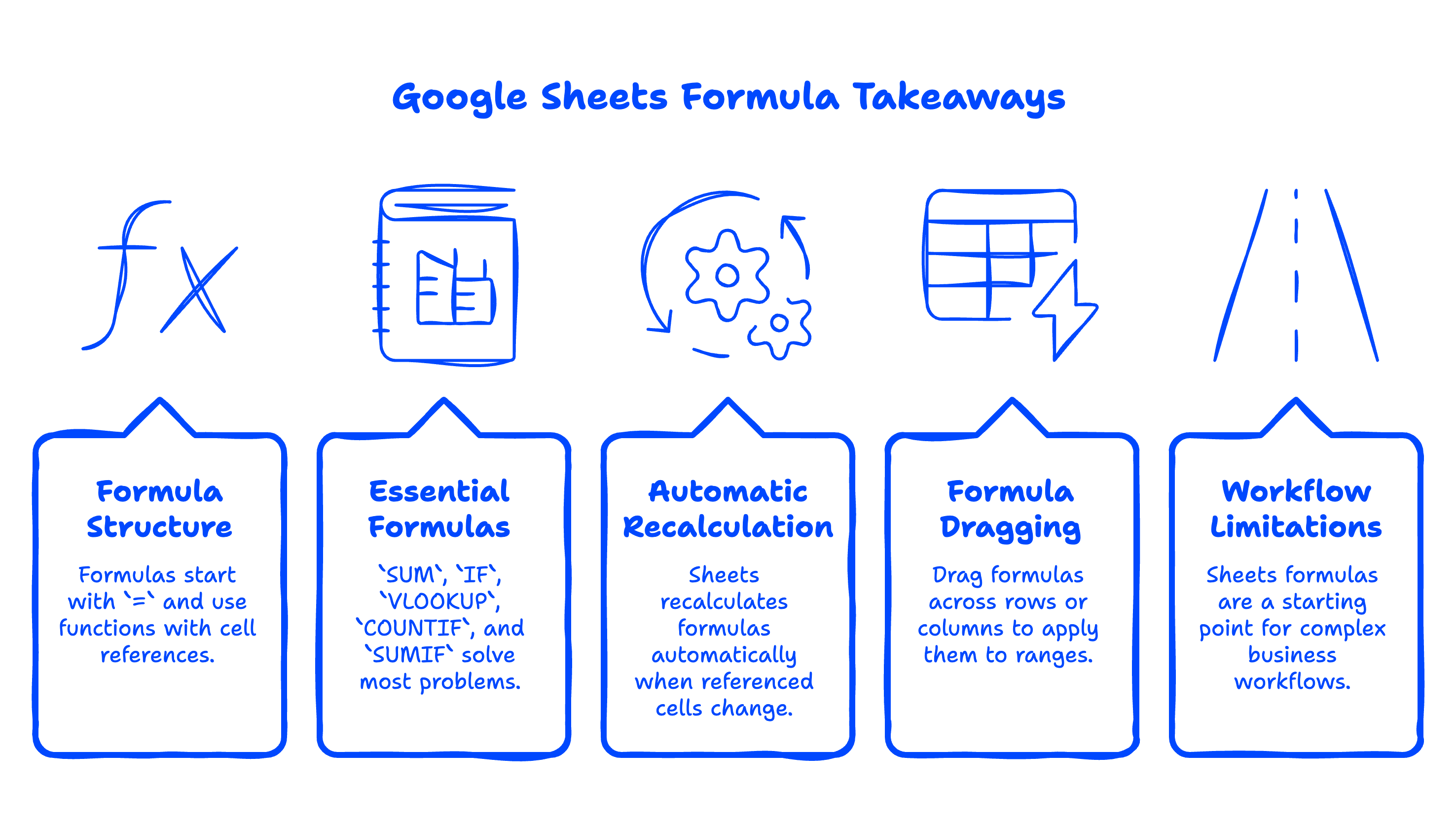
- Every Google Sheets formula starts with
=and uses a function (likeSUMorIF) followed by cell references in parentheses. - The five formulas that solve 80% of small-business spreadsheet problems are
SUM,IF,VLOOKUP,COUNTIF, andSUMIF. - Sheets recalculates formulas automatically the moment any referenced cell changes — no save button needed.
- You can drag a formula across rows or columns to apply it to a whole range without retyping.
- For complex business workflows (multi-user tracking, automated reports, license management), Sheets formulas are a starting point — not always the finish line.
How do I create a formula in Google Sheets?
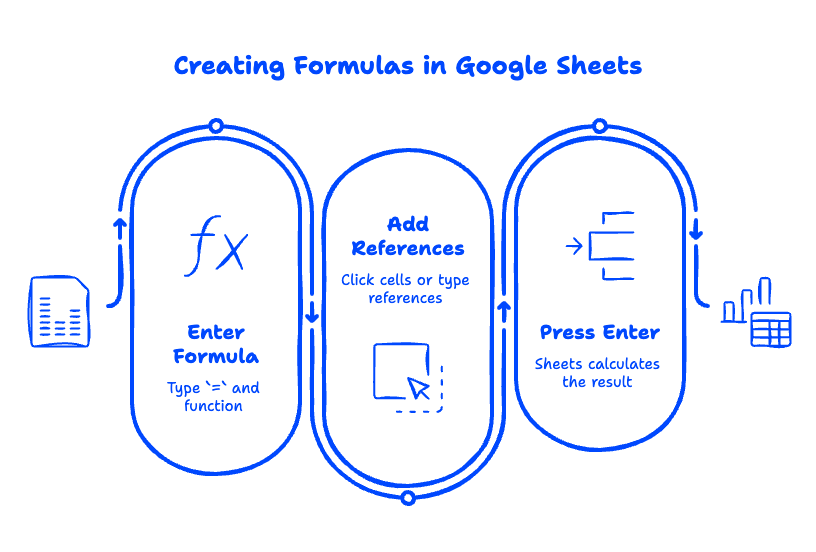
To create a formula in Google Sheets, click an empty cell, type =, and then enter your function and cell references. Press Enter, and Sheets does the math.
Here's the simplest possible example:
- Click cell
A3. - Type
=A1+A2 - Press Enter.
If A1 was 10 and A2 was 20, cell A3 now shows 30. Change A1 to 50, and A3 instantly updates to 70. That's the magic of formulas in Google Sheets — they're live, not static.
You can also build formulas without typing the cell references manually. After typing =, click the cells you want to include, and Sheets fills in the references for you. For longer formulas, this is faster and less error-prone.
What are the basic formulas in Google Sheets?
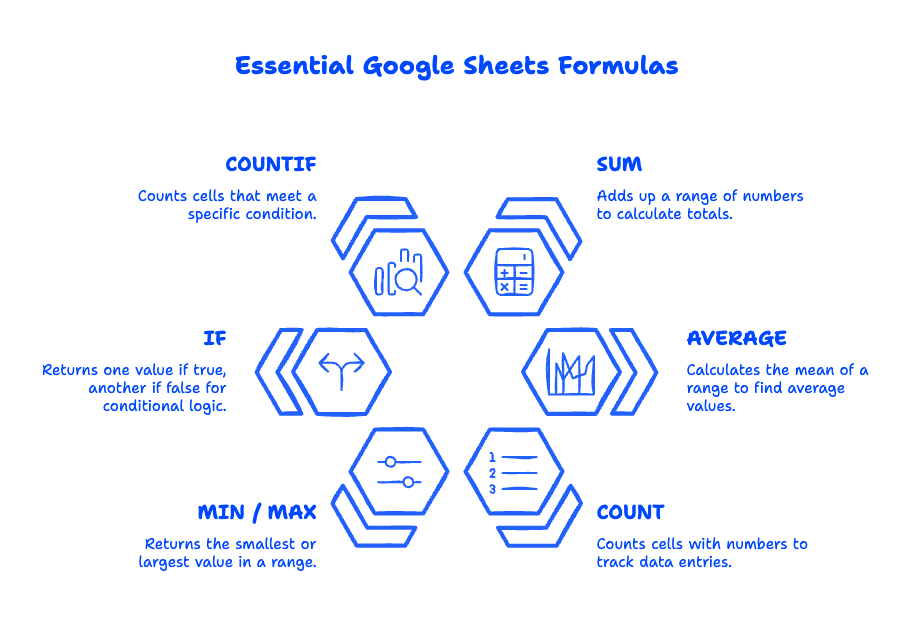
The basic formulas in Google Sheets are SUM, AVERAGE, COUNT, MIN, MAX, and IF. These six cover most everyday small-business calculations — totals, averages, conditional logic, and finding extremes in your data.
Here's what each does, with a quick business example:
FormulaWhat It DoesExampleSUMAdds up a range of numbers=SUM(B2:B20) totals 19 invoice amountsAVERAGECalculates the mean of a range=AVERAGE(C2:C20) finds your average customer order valueCOUNTCounts cells with numbers=COUNT(D2:D100) counts how many sales were loggedMIN / MAXReturns the smallest or largest value=MAX(B2:B20) finds your largest invoiceIFReturns one value if true, another if false=IF(B2>1000, "VIP", "Standard") tags customers by spendCOUNTIFCounts cells that meet a condition=COUNTIF(E2:E100, "Paid") counts paid invoices
Each of these is a Google Sheets function — a built-in formula with a specific job. Google Sheets has over 500 functions, but most small businesses use the same dozen or so daily.
How do I add a formula in Google Sheets?
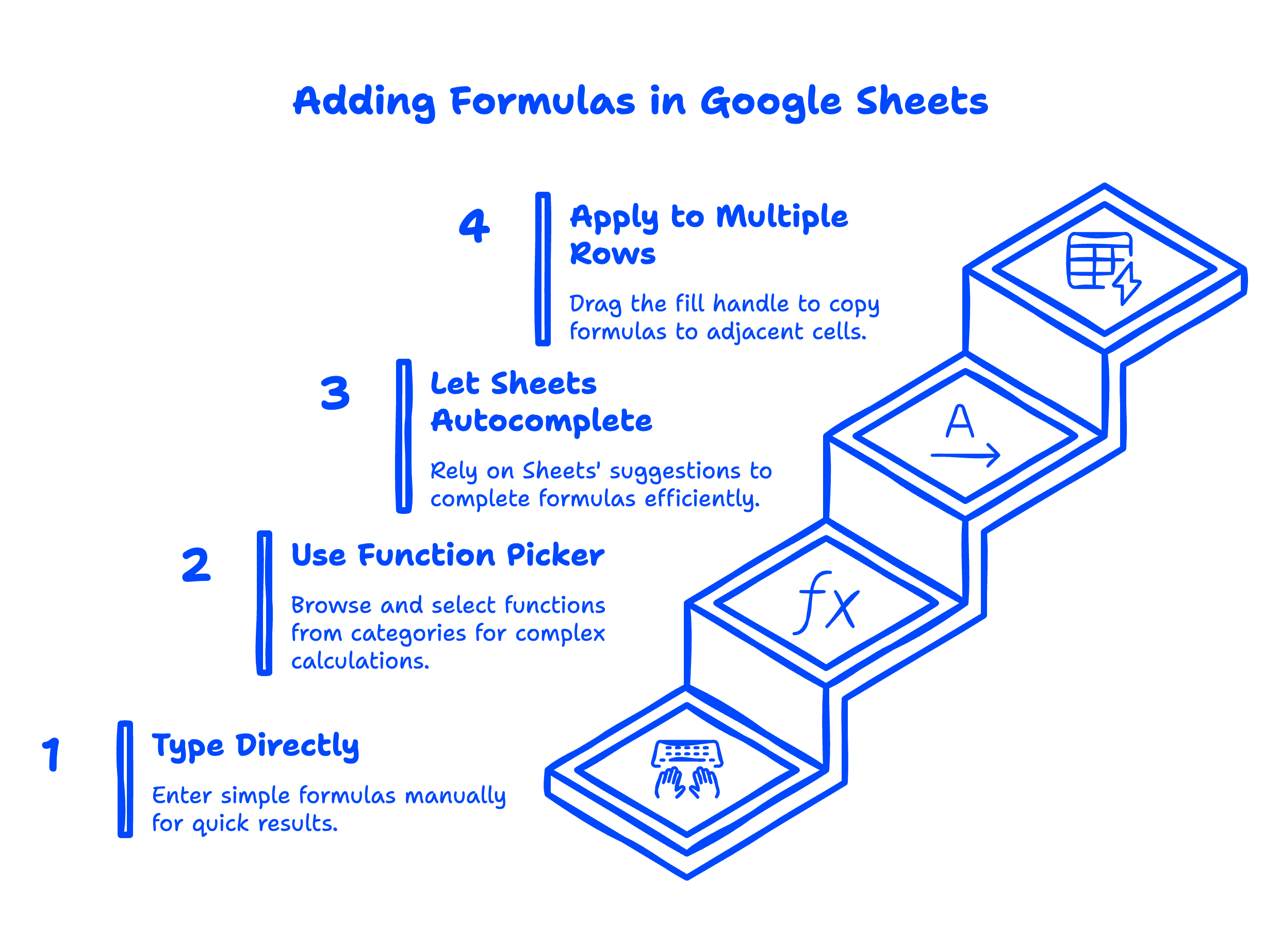
To add a formula in Google Sheets, click the cell where you want the result, type = followed by the function name and arguments, then press Enter. The cell shows the result, while the formula bar at the top shows the formula itself.
There are three ways to add a formula:
1. Type it directly. Best for simple formulas. Type =SUM(A1:A10) and press Enter.
2. Use the function picker. Go to Insert → Function and browse categories like Math, Logical, Lookup, and Text. This is helpful when you don't remember exact syntax.
3. Let Sheets autocomplete. When you start typing = followed by letters (like =VL), Sheets suggests matching functions and shows a tooltip explaining each one. Press Tab to accept the suggestion.
To apply a formula to multiple rows at once, click the small blue square at the bottom-right corner of the cell (the "fill handle") and drag down. Sheets will adjust the cell references automatically — so =A1+B1 in row 1 becomes =A2+B2 in row 2, and so on. This single feature alone has saved every Sheets user hours.
How do I use VLOOKUP in Google Sheets?
VLOOKUP looks up a value in the first column of a table and returns a related value from another column. It's the formula every small business owner eventually needs — for matching customer IDs to names, product codes to prices, or employee numbers to departments.
The syntax is:
=VLOOKUP(search_key, range, index, [is_sorted])
Real example: you have a sheet with customer email addresses in column A and a separate "Customers" sheet that lists email, name, and tier. To pull each customer's tier into your main sheet:
=VLOOKUP(A2, Customers!A:C, 3, FALSE)
This says: take the value in A2, find it in column A of the Customers sheet, and return the value from the 3rd column (Tier). The FALSE at the end means "exact match only" — which is what you almost always want for business data.
If you've ever copied data from one tab to another by hand, VLOOKUP is the formula that ends that habit.
How do I make Google Sheets automatically calculate?
Google Sheets automatically calculates formulas the moment any referenced cell changes. There's no recalculate button or save action required — it's built into how Sheets works.
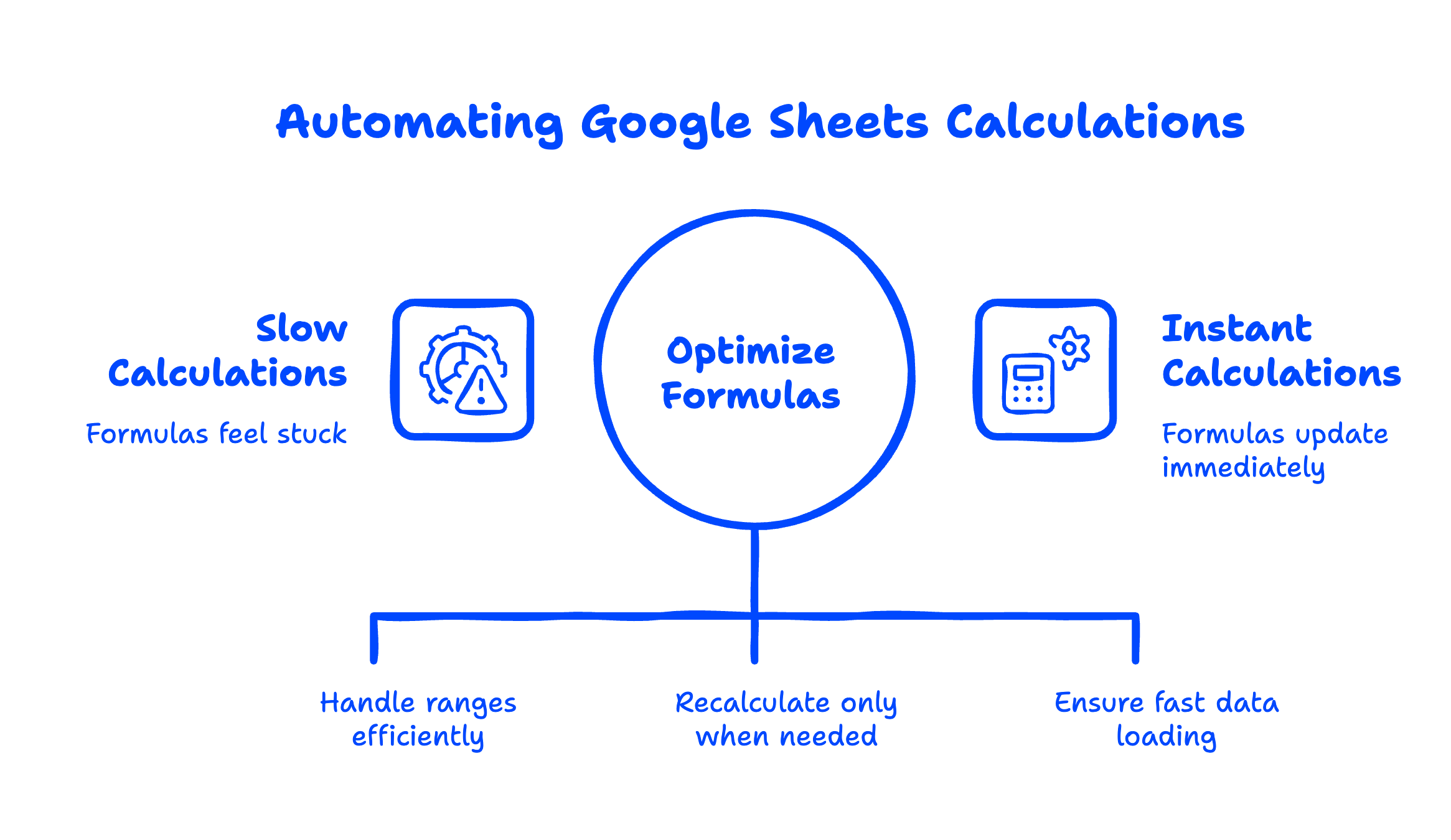
That said, three things can make calculations feel "stuck":
- The sheet has too many formulas. Sheets with 100,000+ formulas can lag. Use
ARRAYFORMULAto handle ranges in a single formula instead of copy-pasting one formula per row. - You're using volatile functions. Functions like
NOW(),TODAY(), andRAND()recalculate every time anything changes. If you're seeing performance issues, check whether you have these scattered through your sheet. - Your formula references an external sheet that's slow to load.
IMPORTRANGEandIMPORTDATAdepend on other sources. If those sources are slow, your formula waits.
For most small business spreadsheets, none of this matters — calculations happen instantly.
How do I put a conditional formula in Google Sheets?
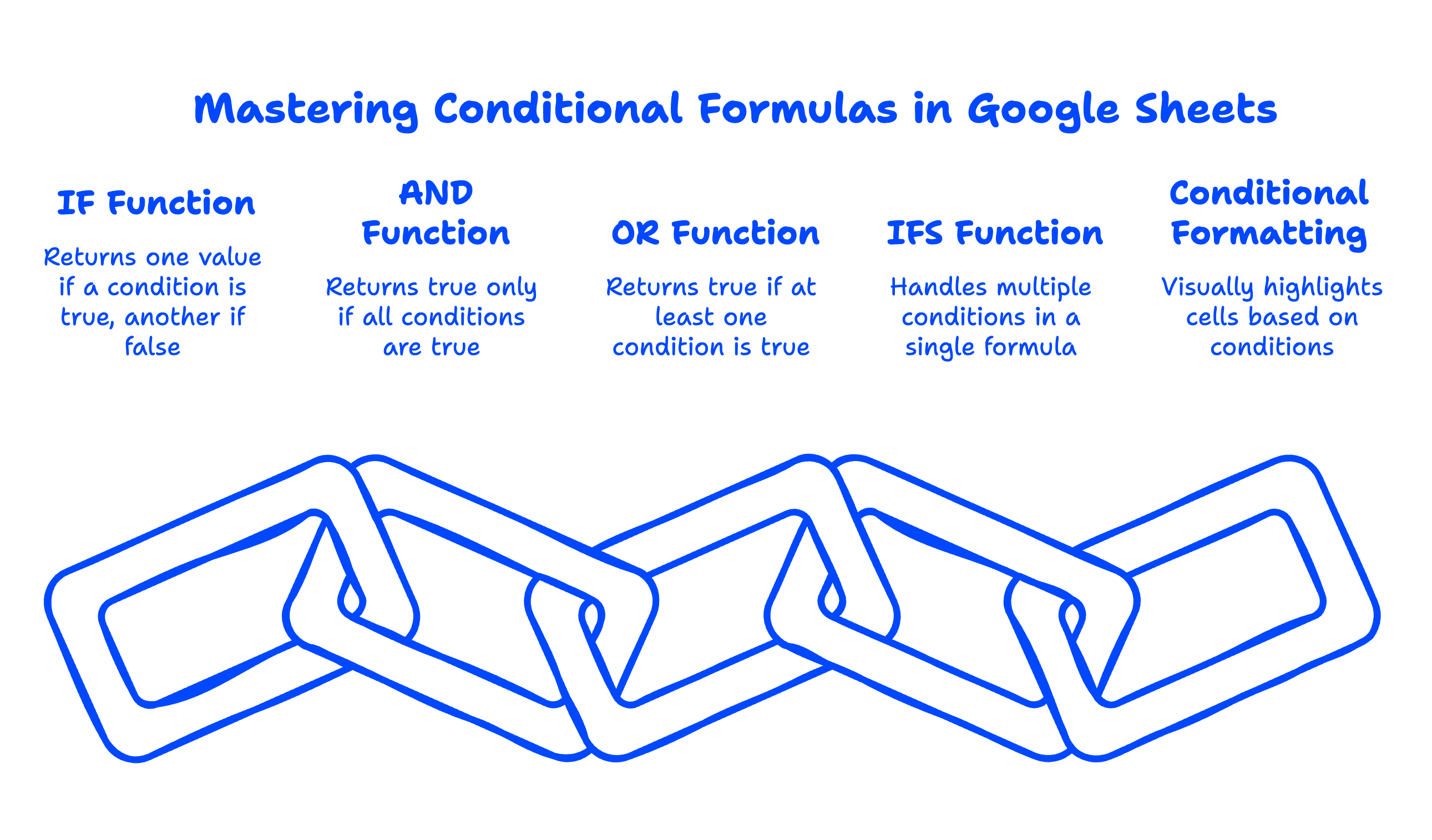
A conditional formula in Google Sheets uses the IF function to return one value when a condition is true, and a different value when it's false. The structure is =IF(condition, value_if_true, value_if_false).
Practical example for a small business:
=IF(B2>30, "Overdue", "Current")
If column B holds the days an invoice has been outstanding, this formula tags invoices over 30 days as "Overdue" and the rest as "Current."
For more complex logic, combine IF with AND, OR, or use IFS for multiple conditions:
=IFS(B2>60, "Critical", B2>30, "Overdue", B2>0, "Current", TRUE, "Paid")
This handles four scenarios in one formula. Combined with conditional formatting, you can build a color-coded accounts-receivable view that updates itself.
A practical Google Sheets cheat sheet for small businesses
Here are the formulas in Google Sheets that we see most often in real small business workflows — the ones worth bookmarking.
Use CaseFormulaWhat It DoesTotal invoices=SUM(B2:B100)Adds invoice amountsAverage order=AVERAGE(B2:B100)Mean of order valuesCount paid=COUNTIF(C:C, "Paid")Counts cells matching "Paid"Sum by category=SUMIF(D:D, "Service", B:B)Sums revenue by categoryLookup customer name=VLOOKUP(A2, Customers!A:B, 2, FALSE)Pulls related value from another sheetDays until due=DATEDIF(TODAY(), C2, "D")Days between today and a due dateCombine first + last name=A2 & " " & B2Joins text from two cellsConditional flag=IF(B2>1000, "Large", "Small")Tags rows based on a thresholdCount unique values=COUNTUNIQUE(A2:A100)Number of distinct customersAuto-fill a range=ARRAYFORMULA(A2:A * 1.1)Applies formula to entire column
Bookmark this cheat sheet — every formula here works in any Google Sheet, no add-ons needed.

When formulas aren't enough
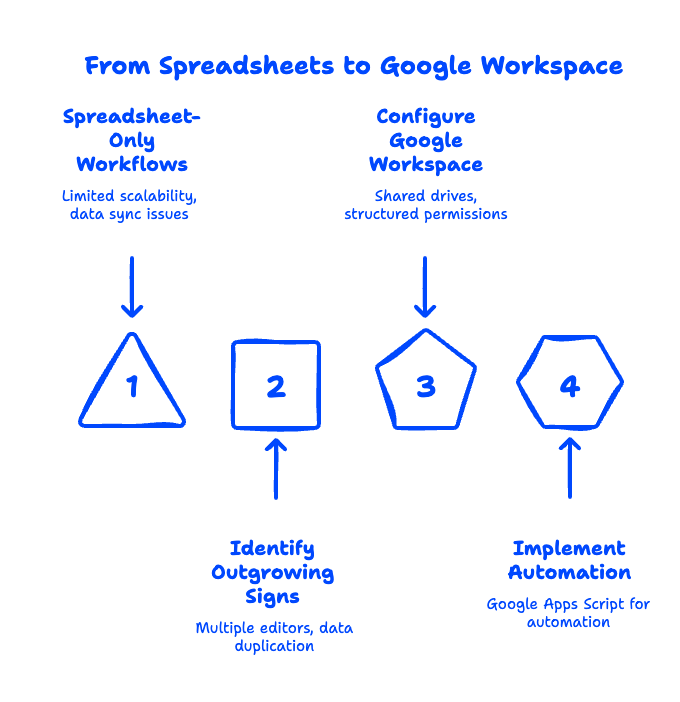
Google Sheets formulas are powerful for individual workflows, but they have limits when your business grows. Tracking 50 customers in a spreadsheet is fine. Tracking 5,000 customers, with role-based access, audit logs, and automated reminders? That's where Sheets stops scaling and you need either a real CRM or custom Google Workspace setup — and picking the right Google Workspace plan makes a real difference here.
Common signs you've outgrown spreadsheet-only workflows:
- Multiple people are editing the same sheet and overwriting each other's work
- You're maintaining the same data in three different sheets (and they keep falling out of sync)
- You need to control who can see specific rows or columns
- You're spending more time fixing formulas than using the data
If any of those sound familiar, a properly configured Google Workspace account — with shared drives, structured permissions, and automation through Google Apps Script — solves most of it. There are 10 ways Google Workspace runs a small business once it's set up properly.
Frequently Asked Questions
What's the difference between a formula and a function in Google Sheets?
A function is a pre-built operation (like SUM or VLOOKUP). A formula is the full instruction you put in a cell — which usually contains one or more functions. So =SUM(A1:A10) is a formula that uses the SUM function.
How do I copy a formula without changing the cell references?
Use absolute references with dollar signs. $A$1 always points to A1, even if you copy the formula. $A1 locks the column but lets the row change. A$1 does the opposite. This is essential when you're applying a tax rate or commission percentage to many rows.
Why is my Google Sheets formula returning an error?
Common errors include #REF! (a referenced cell was deleted), #DIV/0! (you're dividing by zero or empty), #N/A (VLOOKUP couldn't find a match), and #VALUE! (you mixed text and numbers in a math formula). Wrap risky formulas in IFERROR to handle them cleanly: =IFERROR(VLOOKUP(...), "Not found").
Is there a Google Sheets formula generator?
Yes — Gemini in Google Sheets can generate formulas from plain-English descriptions. Tell it "calculate the total sales for customers in California" and it suggests the right SUMIFS formula. It's part of Google Workspace's Gemini integration and has dramatically lowered the learning curve for non-technical users.
Mastering formulas in Google Sheets is one of the highest-leverage skills a small business owner can pick up. Start with SUM, IF, and VLOOKUP, and you'll handle 80% of what comes up. If you'd like help setting up Google Workspace and getting your team productive in Sheets, we'd love to help.
Related Posts
Explore Tips and Guides! Discover expert insights and practical guides for optimizing your Google Workspace experience with our informative resources.
















.png)
.png)
.png)
.png)
.png)
.png)
.png)
.png)



.png)
.png)

.png)










.png)
.png)


.png)


.png)