
.png)
The Best Free Invoice Template for Google Docs
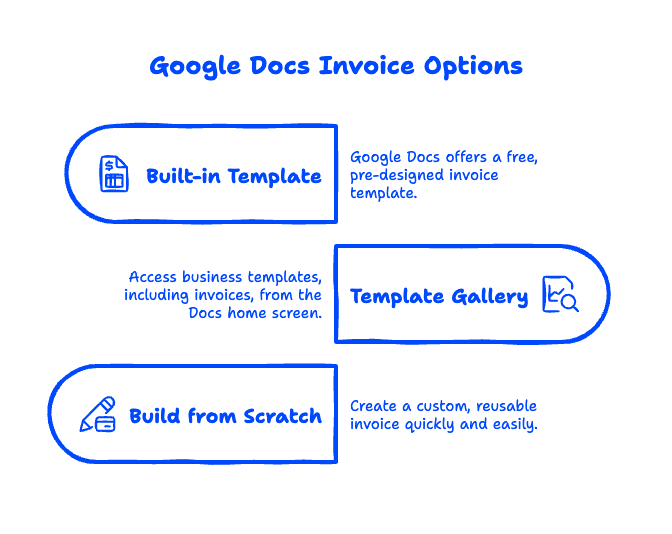
Yes — Google Docs has a free, built-in invoice template, and it takes about two minutes to make it your own. The fastest way to find an invoice template in Google Docs is to open the Template Gallery at the top of your Docs home screen and look under the business templates. If you'd rather have more control, you can build a clean, reusable invoice from scratch just as quickly. Either way, you get a professional invoice you can fill in, save as a PDF, and email to a client without paying for separate invoicing software. This guide walks through the best free invoice template options for Google Docs, how to customize one, and how to send it so you actually get paid on time.
Quick Takeaways
- Google Docs includes a free invoice template in its Template Gallery — no add-ons or subscriptions required.
- You can also build a simple invoice template in Google Docs from a table in about five minutes and reuse it forever with "Make a copy."
- A good invoice needs seven things: your business details, the client's details, an invoice number, dates, a line-item table, totals, and payment terms.
- Always send invoices as PDFs (File → Download → PDF Document) so your formatting stays locked and looks professional.
- For growing teams, moving your business to Google Workspace adds branded email, eSignature, and shared storage that make invoicing feel far more official.
Does Google Docs Have an Invoice Template?
Yes. Google Docs has a free invoice template built into its Template Gallery, alongside templates for letters, resumes, and project proposals. You don't need to install anything or upgrade your account — it's available to both free Google accounts and Google Workspace business accounts.
To find it, open Google Docs on a computer, and at the top of the home screen click Template Gallery (you may need to click the small arrow to expand it). Scroll to the business or work section and choose the Invoice template. Google opens a ready-to-edit copy with placeholder text for your company name, the client, and the line items.
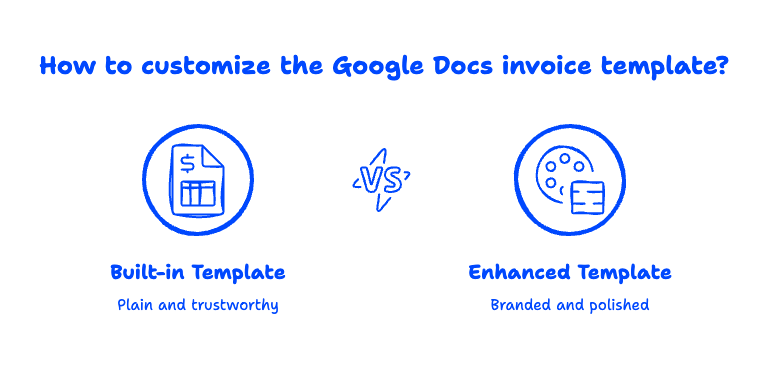
One thing we tell every small business we set up: the built-in template is intentionally plain. That's a feature, not a bug — a clean invoice reads as trustworthy and is less likely to trip a client's spam filter when you email it. You can add polish (a logo, your brand color) in a few clicks, which we cover below.
The Best Free Invoice Templates for Google Docs
The best free invoice template for Google Docs depends on how much customizing you want to do. Here are the three routes small business owners actually use, ranked by how quickly you'll be sending invoices.
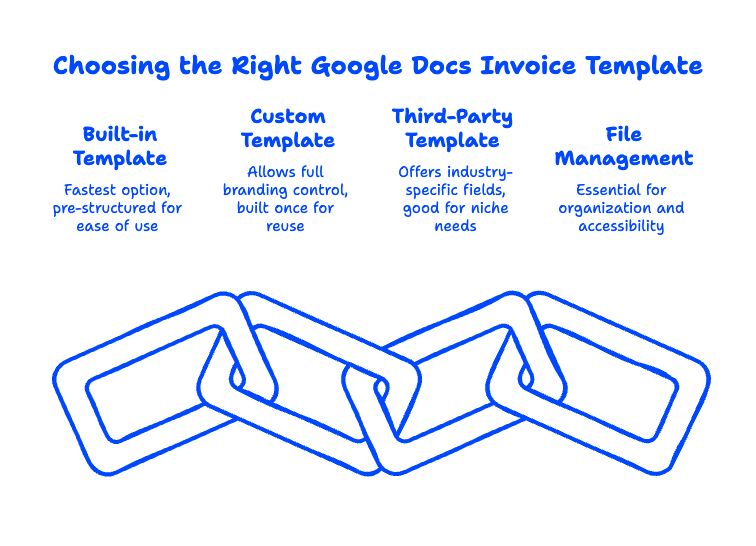
1. Google's built-in invoice template (best for most people). Found in the Template Gallery, this is the fastest option. It already has the right structure — header, bill-to block, itemized table, and total — so you just swap in your details. Perfect if you send a handful of invoices a month and want zero setup.
2. A custom invoice you build once and reuse. If the built-in layout doesn't match your brand, build your own from a two-column header and a simple table (steps below). It takes about five minutes up front, but then you own a simple invoice template in Google Docs that looks exactly how you want. Duplicate it for every new client with File → Make a copy.
3. A free third-party template. Plenty of accounting tools — Invoice Simple, Wave, and similar services — offer free Google Docs invoice templates you can copy into your Drive. These sometimes include extra fields like tax breakdowns or purchase-order numbers. They're worth a look if you have industry-specific needs, though for most small businesses the first two options are all you'll ever need.
Whichever you pick, save the finished file somewhere sensible. We recommend a dedicated "Invoices" folder in Google Drive so every invoice is searchable and backed up — something that matters a lot more than people expect when tax season or a client dispute rolls around.
How Do I Make an Invoice in Google Docs?
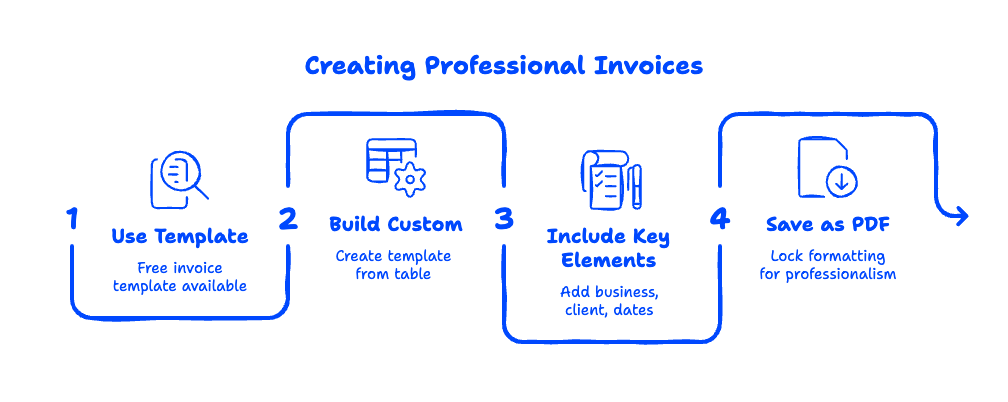
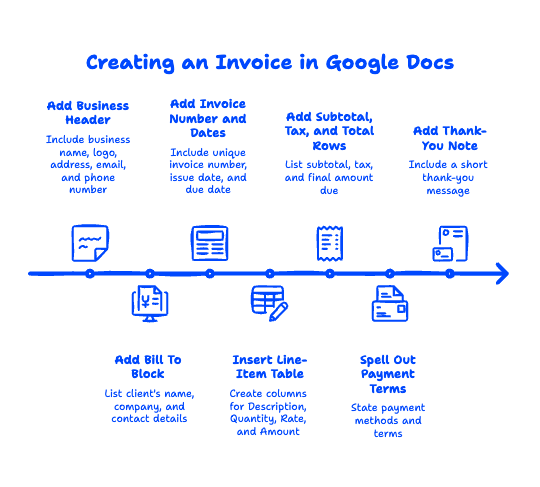
To make an invoice in Google Docs, open a blank document or the built-in template and add seven core elements in order. Here's the step-by-step:
- Add your business header. Put your business name, logo, address, email, and phone number at the top. Use Insert → Image to drop in your logo, then right-align it next to your name.
- Add a "Bill To" block. Just below the header, list the client's name, company, and contact details so it's clear who owes the money.
- Add an invoice number and dates. Every invoice needs a unique number (e.g., INV-0001), the issue date, and a due date. Sequential numbers keep your records clean and make your business look established.
- Insert a line-item table. Use Insert → Table to create columns for Description, Quantity, Rate, and Amount. Add one row per product or service.
- Add subtotal, tax, and total rows. Below the table, list the subtotal, any tax, and the final amount due. Bold the total so it's impossible to miss.
- Spell out payment terms. State how you accept payment (bank transfer, card, check) and your terms (e.g., "Payment due within 14 days"). Clear terms are the single biggest factor in getting paid on time.
- Add a short thank-you note. A one-line "Thank you for your business!" is a small touch that clients remember.
How Do I Turn It Into a Reusable Template?
The simplest way to reuse your invoice is to keep a clean "master" copy and duplicate it each time. Open your finished invoice, click File → Make a copy, rename it for the new client, and fill it in — your original stays untouched. If you're on a business account, you can also submit it to your organization's private template gallery so your whole team pulls from the same branded invoice. That consistency is one of the quiet perks of running your business on the right Google Workspace plan.

How to Send a Google Docs Invoice (Convert It to PDF First)
Always send a Google Docs invoice as a PDF, not as an editable document or a shared link. To convert it, go to File → Download → PDF Document (.pdf), then attach that file to an email.
Sending a PDF does two important things. First, it locks your formatting so the invoice looks identical on the client's screen, phone, or printer — no shifted tables or missing logos. Second, it signals professionalism; a shared, editable Google Doc invites accidental edits and looks unfinished. If you send invoices from a branded address like you@yourbusiness.com rather than a personal Gmail, they land with even more credibility — one reason so many owners eventually set up a professional email address on Google Workspace.

When to Upgrade Beyond a Google Docs Invoice
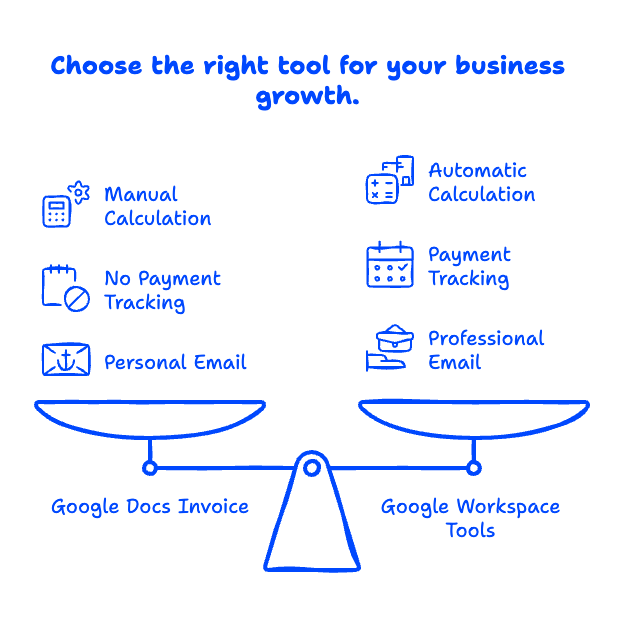
A Google Docs invoice template is perfect when you're starting out or billing a few clients a month. But as your business grows, you'll feel the limits — Docs won't calculate totals automatically, track which invoices are paid, or send payment reminders.
That's usually the point where a proper toolset pays off. Running on Google Workspace gives you a professional domain email, eSignature for signed proposals and contracts on Business Standard and above, and shared drives so your invoices and client records live in one secure place instead of scattered across personal accounts. When your invoicing needs outgrow a document, a dedicated invoicing or accounting tool becomes worth the cost — but plenty of small businesses run happily on a Google Docs invoice for years.
At Googally, we help small businesses set up and migrate to Google Workspace so the everyday stuff — professional email, document sharing, and yes, sending clean invoices — just works.
Frequently Asked Questions
Is Google Docs good for invoicing?
Google Docs is a great free option for low-volume invoicing. It's ideal for freelancers and small businesses sending a handful of invoices a month who want a professional-looking document without paying for software. Its main limitation is that it won't do math or track payments automatically, so high-volume billers eventually outgrow it.
How do I add my logo to a Google Docs invoice?
Open your invoice, click Insert → Image → Upload from computer, and select your logo file. Once it's placed, click the image and choose a wrapping option so your text flows neatly around it, then drag it into the header. Resizing by the corner handles keeps the proportions correct.
Can I calculate totals automatically in a Google Docs invoice?
No — Google Docs does not calculate totals for you, so you'll need to add up line items manually. If you want automatic calculations, a spreadsheet-based invoice handles the math for you, or you can use dedicated invoicing software. For most simple invoices, doing the math by hand takes only a moment.
How do I convert a Google Docs invoice to PDF?
Go to File → Download → PDF Document (.pdf). Google Docs generates a PDF copy of your invoice that you can save and attach to an email. This is the recommended way to send any invoice because it preserves your formatting and prevents accidental edits.
Are Google Docs invoice templates really free?
Yes. The invoice template in the Google Docs Template Gallery is completely free with any Google account, and there are no usage limits or watermarks. You can create and send as many invoices as you like at no cost — you only ever pay if you choose to upgrade to Google Workspace for business features.
Ready to run your whole business — invoices included — on tools that actually talk to each other? See how Googally sets up Google Workspace for small businesses, with zero downtime.
Related Posts
Explore Tips and Guides! Discover expert insights and practical guides for optimizing your Google Workspace experience with our informative resources.















.png)
.png)
.png)
.png)
.png)
.png)
.png)


.png)
.png)

.png)







.png)
.png)


.png)


