
.png)
How to Create Forms in Google Forms (Step-by-Step)
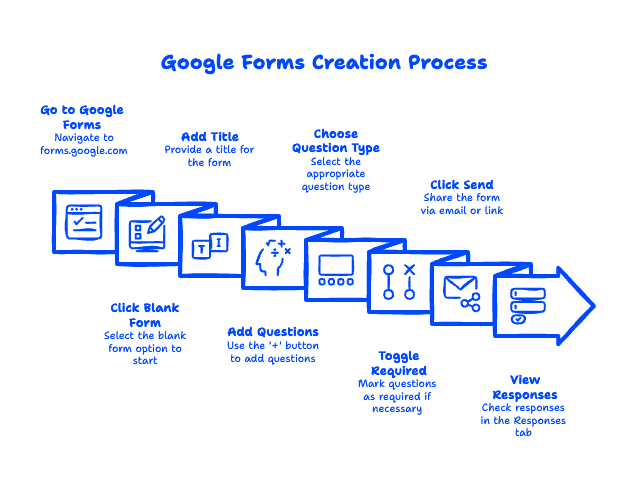
To create a form in Google Forms, go to forms.google.com, click the Blank form (+) button or pick a template, add a title, then add your questions using the + button in the side toolbar. Choose a question type (multiple choice, short answer, dropdown, and more), toggle Required for must-answer questions, and click Send to share it by email or link. Responses appear in the Responses tab in real time. That's the whole thing — a working form in under five minutes, at no cost. The rest of this guide covers the details that trip people up: turning a form into a survey, quiz, or poll, the settings that actually matter, and how to collect responses without chaos.
Quick Takeaways
- Create a form: forms.google.com → Blank form (+) → add questions → Send. Free with any Google account.
- 11 question types are available, from multiple choice to file upload and linear scale.
- Quizzes are a built-in mode — flip one switch in Settings to add answer keys, points, and auto-grading.
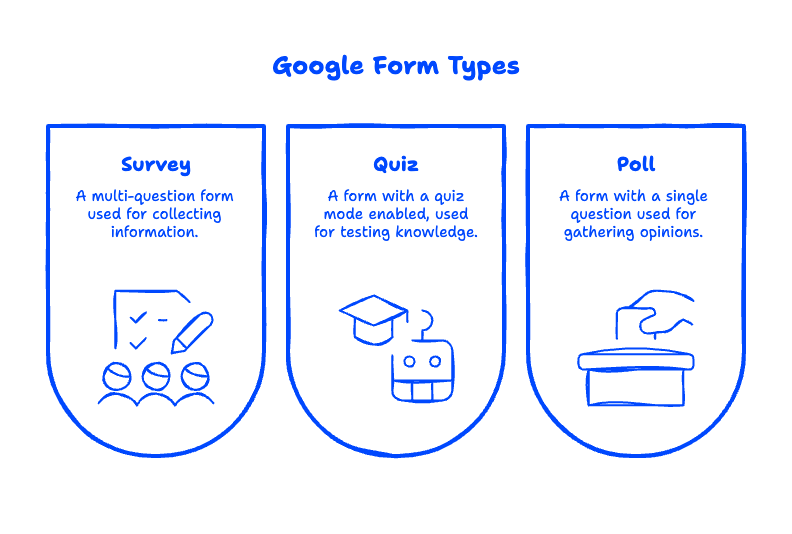
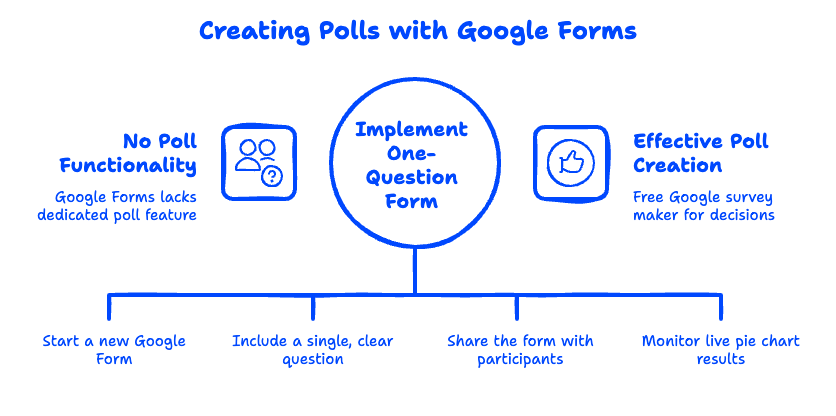
- Polls are just one-question forms; surveys are the default multi-question setup.
- Responses land in the Responses tab and can be exported or reviewed as charts automatically.
How Do I Create a Google Form?
Creating a Google Form takes six steps: open Forms, start a blank form, name it, add questions, adjust settings, and send it. Here's the full walkthrough.
- Go to forms.google.com (or open it from the app grid in Gmail or Drive). Sign in with any Google account — personal or Google Workspace.
- Click the Blank form (+) tile, or scroll the template gallery if you'd rather start from a pre-built layout.
- Name your form. Click "Untitled form" at the top and type a real title — this is what recipients see. Add a short description underneath so people know why they're filling it out.
- Add questions. Click the + icon in the floating toolbar on the right. Type your question, then use the dropdown to pick the question type. Toggle Required at the bottom right of any question people can't skip.
- Style it (optional). Click the palette icon to change the header image, theme color, and font. If this form represents your business, drop your logo in the header — it takes ten seconds and looks far more professional.
- Click Send. Share via email, a copyable link, or an embed code for your website. There's also a shortened-link checkbox if you're printing the URL or reading it aloud.

Everything auto-saves to Google Drive as you work, so there's no save button to hunt for — and no lost work when your laptop dies mid-edit.
What question types does Google Forms offer?
Google Forms includes 11 question types: short answer, paragraph, multiple choice, checkboxes, dropdown, file upload, linear scale, rating, multiple-choice grid, checkbox grid, and date/time. A few practical notes from the forms we build for clients:
- Multiple choice vs. checkboxes: multiple choice allows one answer; checkboxes allow several. Mixing these up is the #1 form-building mistake we see.
- Dropdown is your friend when the option list is long (states, departments, time slots) — it keeps the form compact.
- File upload requires respondents to sign in to a Google account, and uploads count against your Drive storage. Great for job applications; wrong choice for anonymous public feedback.
- Linear scale and rating are made for satisfaction surveys — "How likely are you to recommend us?" style questions.

How to Make a Google Form Survey, Quiz, or Poll
The same builder handles all three — a survey is the default multi-question form, a quiz is a mode you switch on, and a poll is simply a form with one question. Choose based on what you're collecting.
How do I turn a Google Form into a quiz?
Open Settings at the top of the editor and toggle Make this a quiz. Every question now gets an Answer key option where you set the correct answer, assign point values, and add feedback for right or wrong responses. You can release grades immediately after submission or hold them for manual review — teachers and trainers usually hold grades for anything with a paragraph question. This built-in google quiz mode is why so many schools run assessments through Forms instead of paid tools.

Can I make a poll with Google Forms?
Yes — a google poll is just a one-question form. Create a form, add a single multiple-choice question ("Which date works for the team offsite?"), and send the link. The Responses tab renders a live pie chart as votes come in, which effectively makes Forms a free google survey maker for quick team decisions. For anonymous polls, make sure you're not collecting email addresses in Settings (more on that next).
Which Google Forms Settings Actually Matter?
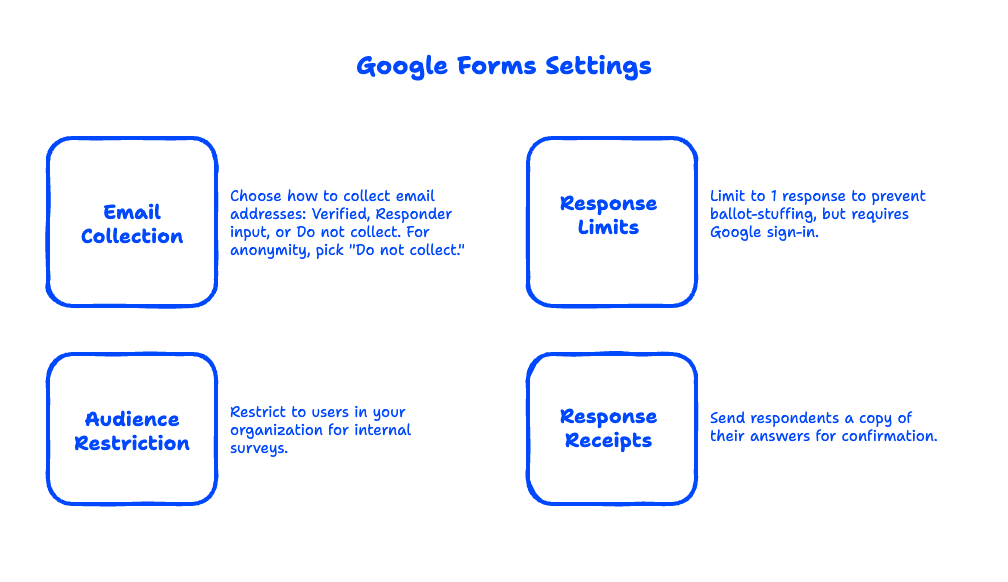
Three settings determine whether your form behaves the way you expect: email collection, response limits, and audience restriction. Most people never open the Settings tab — then wonder why their "anonymous" survey collected everyone's email.
- Collect email addresses: set to Verified, Responder input, or Do not collect. For anonymous feedback, pick Do not collect — and say so on the form, because respondents are rightly skeptical.
- Limit to 1 response: stops ballot-stuffing on polls and contests, but forces respondents to sign in to Google.
- Restrict to users in your organization: if you're on Google Workspace, you can limit the form to your company domain — essential for internal HR surveys. In our experience migrating small businesses to Workspace, this one setting is the reason many of them move their forms off third-party tools: domain-restricted internal forms with zero extra cost.
- Response receipts: send respondents a copy of their answers. Turn this on for order forms and registrations; people expect a confirmation.
Are There Google Forms Templates?
Yes — the template gallery at forms.google.com includes ready-made google forms templates for RSVPs, contact information, event registration, customer feedback, order forms, and quizzes. Templates are a solid starting point, but every field is editable, so treat them as scaffolding rather than a finished product. Google Workspace users also see templates shared within their organization, which is handy once one person builds a good intake form the whole team can reuse. For official documentation on any of this, Google's own guide is the canonical reference Create your first form in Google Forms.

How Do You Collect and Review Responses?
Every submission lands in the Responses tab, shown three ways: a Summary view with auto-generated charts, a Question view to compare answers per question, and an Individual view for one respondent at a time. You can also link responses to a spreadsheet with one click if you need to filter, sort, or share the raw data — the link stays live, so new submissions flow in automatically. When you're done collecting, flip the Accepting responses toggle off and Forms will politely turn away latecomers.
For a small business, this is where Forms quietly becomes an operations tool: intake forms feed a spreadsheet, the spreadsheet feeds your workflow, and nobody re-types anything.

Frequently Asked Questions
Is Google Forms free?
Yes. Google Forms is completely free with any personal Google account, with no limits on the number of forms or responses. Google Workspace plans include the same Forms product plus business features like domain-restricted sharing and shared team templates.
Can Google Forms be anonymous?
Yes, if you set email collection to "Do not collect" and avoid asking for names. Note that "Limit to 1 response" forces sign-in, which undermines anonymity — you can't have both strict one-response enforcement and true anonymity.
Can I see who filled out my Google Form?
Only if you collect identifying information. With email collection set to Verified or Responder input, each response is tied to an address; with it off, responses are anonymous unless a question asks for a name.
Does Google Forms work on mobile?
Yes — both building and filling out forms work in any mobile browser. There's no dedicated Forms app, but the mobile web editor covers everything, and forms automatically render mobile-friendly for respondents.
Can I add collaborators to a Google Form?
Yes. Click the three-dot menu → Add collaborators and invite teammates by email, just like sharing a Doc. Collaborators can edit questions and view responses, which is ideal for team-owned forms like event registrations.
Building forms is the easy part — getting your whole business onto Google Workspace so forms, files, and email all live in one place is where we come in. Googally has migrated hundreds of small businesses to Google Workspace with zero downtime. If you're still juggling a third-party form tool, a legacy email host, and scattered files, take a look at what Google Workspace can do for your business or compare Google Workspace plans to see whether they fit your budget. Questions? Talk to us — we answer fast.
Related Posts
Explore Tips and Guides! Discover expert insights and practical guides for optimizing your Google Workspace experience with our informative resources.













.png)
.png)
.png)
.png)
.png)
.png)
.png)


.png)
.png)

.png)






.png)
.png)


.png)


