

Strikethrough in Google Docs: Shortcuts for Every Device
To apply strikethrough in Google Docs, select the text you want to cross out and press Alt + Shift + 5 on Windows or Chromebook, or ⌘ + Shift + X on Mac. You can also go to Format → Text → Strikethrough from the menu bar. On mobile, select the text, tap the formatting icon (the "A" with lines), then tap the strikethrough button ( S ).
That’s the quick version. Below, we’ll walk through every method on every device — plus how to remove strikethrough, add it to your toolbar, and a few practical ways to use it beyond just crossing things out.
Quick Takeaways
- The fastest way to strikethrough text in Google Docs is the keyboard shortcut: Alt + Shift + 5 (Windows/Chromebook) or ⌘ + Shift + X (Mac).
- You can also use the Format → Text → Strikethrough menu on desktop.
- On Android and iOS, use the formatting toolbar — tap the "A" icon, then strikethrough.
- Strikethrough is purely visual — it doesn’t delete the text, so it’s perfect for showing edits, tracking progress, or marking completed tasks.
- You can remove strikethrough using the same shortcut or menu option — just select the text and toggle it off.
How to Strikethrough on Google Docs (Desktop)
There are two reliable ways to cross out text in Google Docs on desktop: the keyboard shortcut and the Format menu. Both work identically — the shortcut is just faster once you memorize it.

Method 1: Keyboard Shortcut for Strikethrough
This is the fastest method. Select the text you want to strikethrough, then:
- Windows or Chromebook: Press Alt + Shift + 5
- Mac: Press ⌘ + Shift + X
The selected text will immediately appear with a line through it. Press the same shortcut again to remove the strikethrough.
One thing to note: the Windows/Chromebook shortcut uses the 5 key on the number row, not the numpad. If you’re pressing numpad 5 and nothing happens, that’s why.
Method 2: Format Menu
If you prefer clicking over keyboard shortcuts:
- Select the text you want to cross out.
- Click Format in the top menu bar.
- Hover over Text.
- Click Strikethrough.
This method works on every desktop browser and operating system. It’s the same path whether you’re on Chrome, Firefox, Safari, or Edge. For the full list of formatting shortcuts, check Google’s keyboard shortcuts documentation.
How to Cross Out Text in Google Docs on Mobile
Strikethrough works on both the Android and iOS versions of Google Docs, though the steps are slightly different from desktop since there’s no keyboard shortcut on mobile.
On Android
- Open your document in the Google Docs app.
- Double-tap to place your cursor, then drag the selection handles to highlight the text.
- Tap the formatting icon in the toolbar (it looks like an "A" with horizontal lines).
- Tap the strikethrough button ( S ) in the text formatting options.
On iPhone and iPad
- Open the document in Google Docs.
- Select the text by tapping and holding, then adjusting the blue handles.
- Tap the "A" formatting icon at the top of the screen.
- Under the Text tab, tap the strikethrough icon ( S ).
On both platforms, tapping the strikethrough button again on selected text will remove the formatting — same toggle behavior as desktop. If you’re also curious about other display settings, here’s how to enable Google Docs dark mode on any device.
What Is the Shortcut for Strikethrough in Google Docs?
Here’s a quick reference table with the strikethrough shortcut for every platform:
Platform | Strikethrough Shortcut
Windows | Alt + Shift + 5
Mac | ⌘ + Shift + X
Chromebook | Alt + Shift + 5
Android | No keyboard shortcut — use formatting toolbar
iPhone/iPad | No keyboard shortcut — use formatting toolbar

If you’re coming from Microsoft Word, you might try Ctrl + 5 out of habit — but that doesn’t work in Google Docs. The correct shortcut on Windows is Alt + Shift + 5. On Mac, Word uses ⌘ + Shift + X as well, so that one transfers over perfectly.
Can You Add Strikethrough to the Toolbar in Google Docs?
Not directly — Google Docs doesn’t let you customize the default toolbar to add a dedicated strikethrough button. However, there are a couple of workarounds that make it nearly as convenient.
Use the Keyboard Shortcut
Once you’ve used Alt + Shift + 5 (or ⌘ + Shift + X) a few times, it becomes second nature. Most people find this faster than clicking a toolbar button anyway.
Use a Chrome Extension
If you really want a toolbar button, there are Chrome extensions like "Google Docs Strikethrough Button" that add a one-click strikethrough icon to the Docs toolbar. These work fine for individual users, but if you’re a Google Workspace admin managing a team, be cautious about browser extensions — understanding what Google Workspace includes and how admin policies work helps you manage extensions across your org. For teams on higher-tier Google Workspace plans, admins can control which extensions users install.
The Compact Toolbar Workaround
Google Docs does show a strikethrough option in the text formatting submenu when you right-click selected text. Right-click → scroll to the formatting options → Strikethrough. It’s a few clicks, but it keeps everything within the Docs interface.
How to Remove Strikethrough in Google Docs
Removing strikethrough is the same as applying it — it’s a toggle. Select the strikethrough text and either:
- Press the keyboard shortcut again (Alt + Shift + 5 on Windows or ⌘ + Shift + X on Mac)
- Go to Format → Text → Strikethrough again
- On mobile, tap the strikethrough button in the formatting toolbar
The line through the text will disappear immediately.
If you need to remove strikethrough from a large section of text that also has other formatting you want to keep, use the keyboard shortcut method — it only toggles strikethrough without affecting bold, italic, or other formatting.
Removing All Formatting (Nuclear Option)
If you want to strip all formatting from text — including strikethrough, bold, italic, font changes, everything — select the text and press Ctrl + \ (Windows) or ⌘ + \ (Mac). This is the "Clear formatting" shortcut. Use it carefully — it removes everything, not just strikethrough.
When to Actually Use Strikethrough in Google Docs
Strikethrough isn’t just for crossing out typos. Here are some practical use cases we see from the teams we work with at Googally:
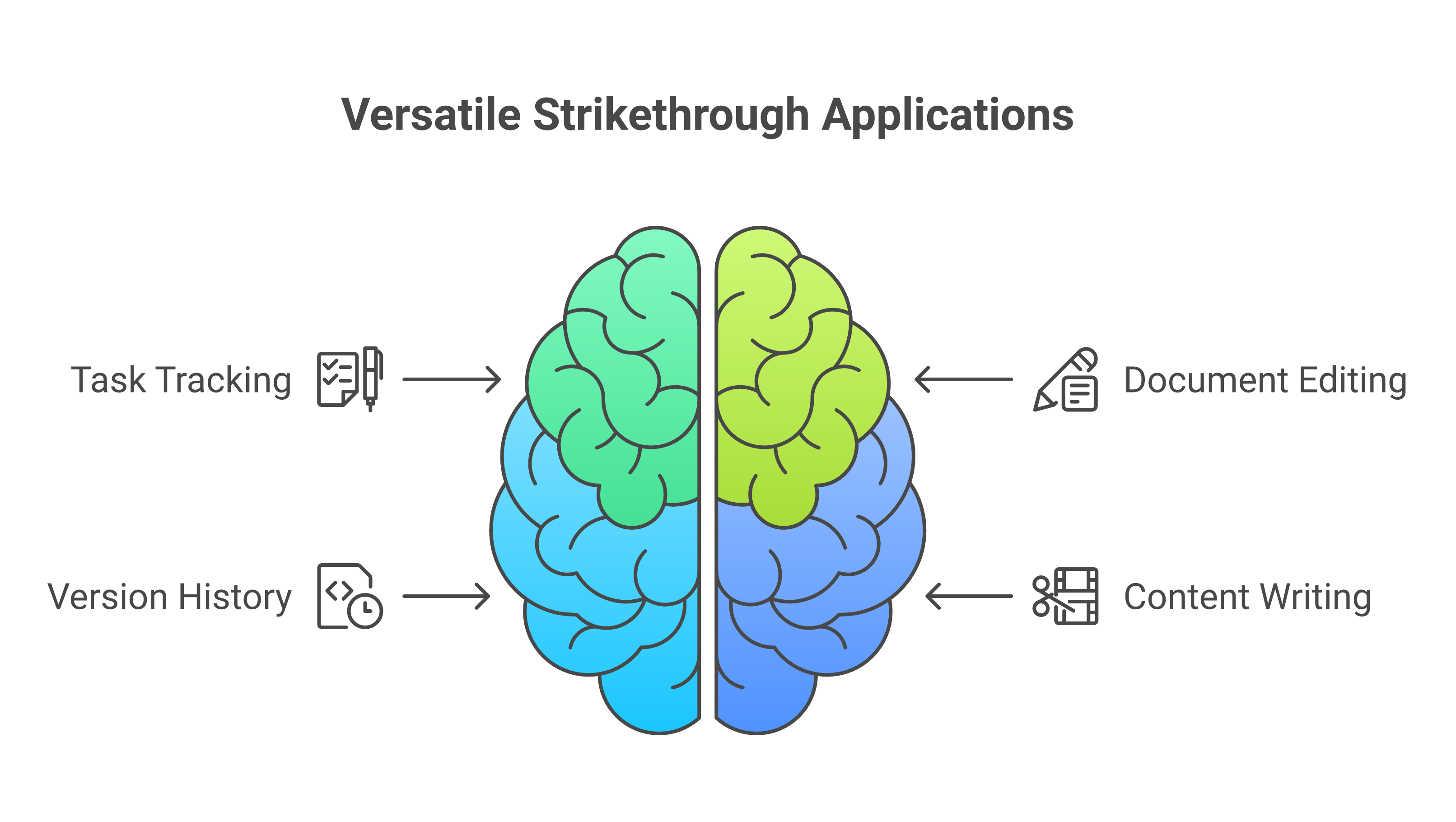
Tracking task completion in shared docs. Instead of deleting finished items from a to-do list or project plan in a shared Google Doc, strikethrough them. This way everyone can see what’s done without losing context about what was originally planned.
Showing suggested edits visually. When reviewing a teammate’s draft, strikethrough the text you’d remove and type your suggested replacement next to it. It’s clearer than a comment and shows exactly what you’re proposing.
Maintaining document version history inline. For legal teams or contract reviews, strikethrough shows what was removed in a revision — similar to redlining in Word, but simpler for quick reviews.
Content editing workflows. Writers use strikethrough to "soft-delete" paragraphs they’re not sure about — keeping them visible in case they want to bring them back, without cluttering the final draft.
Frequently Asked Questions
Does strikethrough work in Google Sheets and Slides too?
Yes. In Google Sheets, select the cell(s) and use Alt + Shift + 5 (Windows) or ⌘ + Shift + X (Mac) — the same shortcut as Docs. In Google Slides, select the text box text and use the same shortcuts. The Format menu path is identical across all three apps.
Can I strikethrough text in a Google Docs comment?
No. Google Docs comments don’t support any text formatting — no bold, italic, or strikethrough. If you need to show crossed-out text in feedback, you’ll need to make the edit directly in the document body using Suggesting mode.
Is strikethrough text visible when I export Google Docs to PDF or Word?
Yes. Strikethrough formatting carries over when you download a Google Doc as a PDF (.pdf) or Word document (.docx). The crossed-out text will appear the same way in the exported file. This is useful for contracts and formal documents where you need to show changes.
Does strikethrough affect how Google Docs reads text with screen readers?
Most screen readers will announce strikethrough text as "deleted" or "strikethrough" depending on the reader’s settings. If you’re creating accessible documents, be aware that strikethrough implies the text has been removed — use it intentionally so assistive technology users get the right context.
Need help setting up Google Workspace for your team — or migrating from another email platform? Contact Googally for a free consultation. We handle migrations from Rackspace, Microsoft 365, GoDaddy, and more — with zero downtime, guaranteed.
Check out our migration services to see how we can help your business make the switch.
Related Posts
Explore Tips and Guides! Discover expert insights and practical guides for optimizing your Google Workspace experience with our informative resources.












.png)
.png)
.png)
.png)
.png)
.png)
.png)
.png)

.png)
.png)

.png)









.png)
.png)


.png)


