
How to Share Your Google Calendar With Your Team
To share your Google Calendar, open Google Calendar on a computer, hover over the calendar you want to share under “My calendars,” click the three dots, and choose Settings and sharing. From there you can either share with specific people by email or share with everyone in your organization — and you pick exactly how much each person can see. The whole thing takes about a minute. Knowing how to share Google Calendar the right way matters most for teams: the wrong permission setting can either expose private appointment details or block colleagues from booking time with you. This guide walks through every method — for one person, a whole team, and on your phone.
Quick Takeaways
- You can share a Google Calendar with one person, a Google Group, or everyone in your company — each with different visibility.
- Sharing happens from Settings and sharing on a computer; the mobile apps can adjust some settings but full sharing is done in a browser.
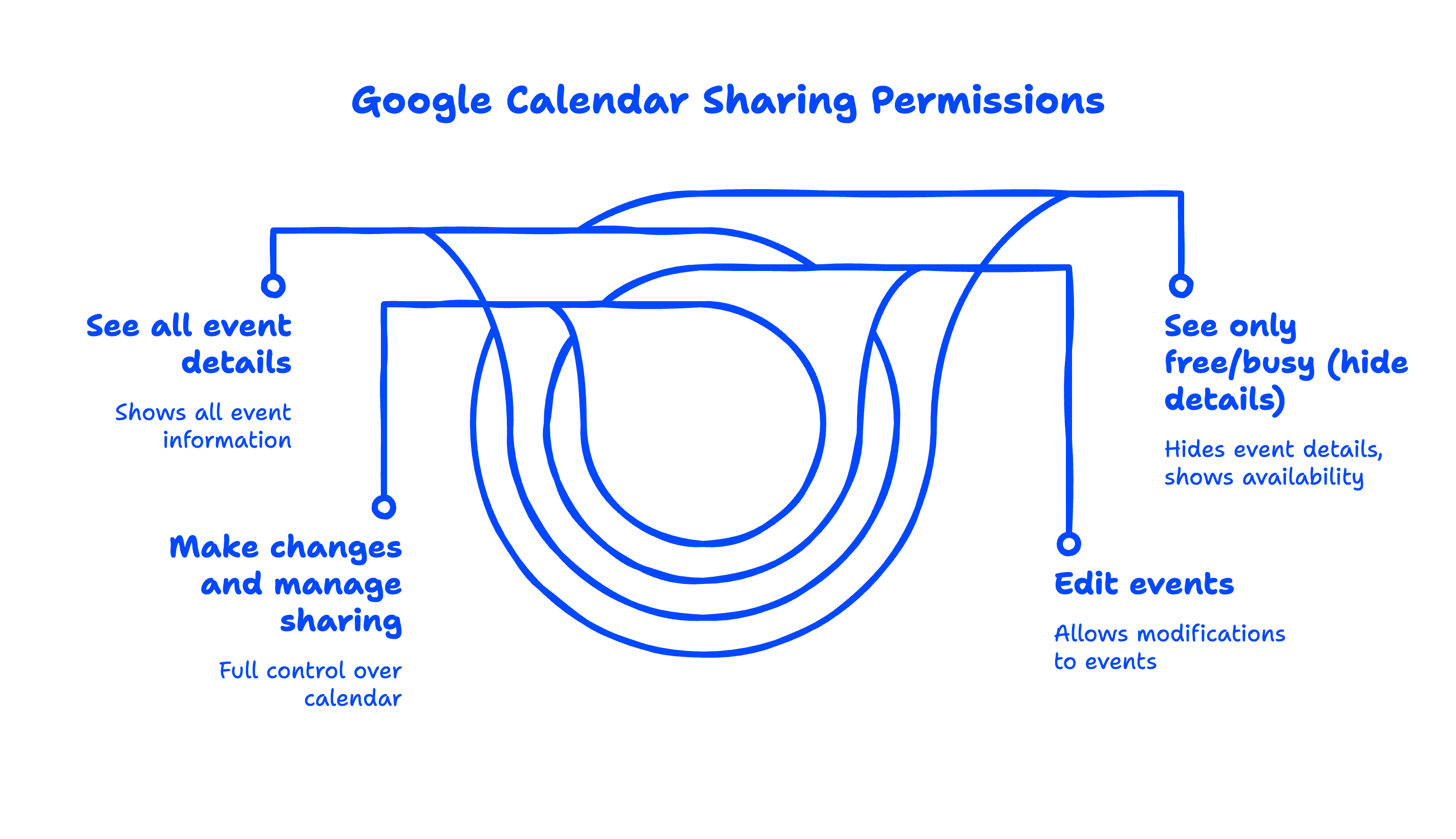
- Google Calendar has four permission levels, from “See only free/busy” (most private) to “Make changes and manage sharing” (full control).
- To share with a team, the best practice is to create a dedicated shared calendar rather than sharing your personal one.
- You can stop or change sharing at any time, and removing someone takes effect immediately.
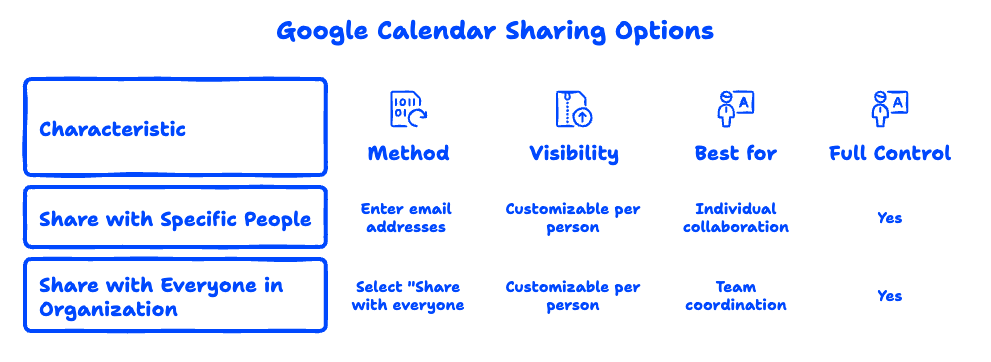
How do I share my Google Calendar with someone?
To share your Google Calendar with a specific person, add their email address under the “Share with specific people or groups” section of your calendar settings. Here's the step-by-step:
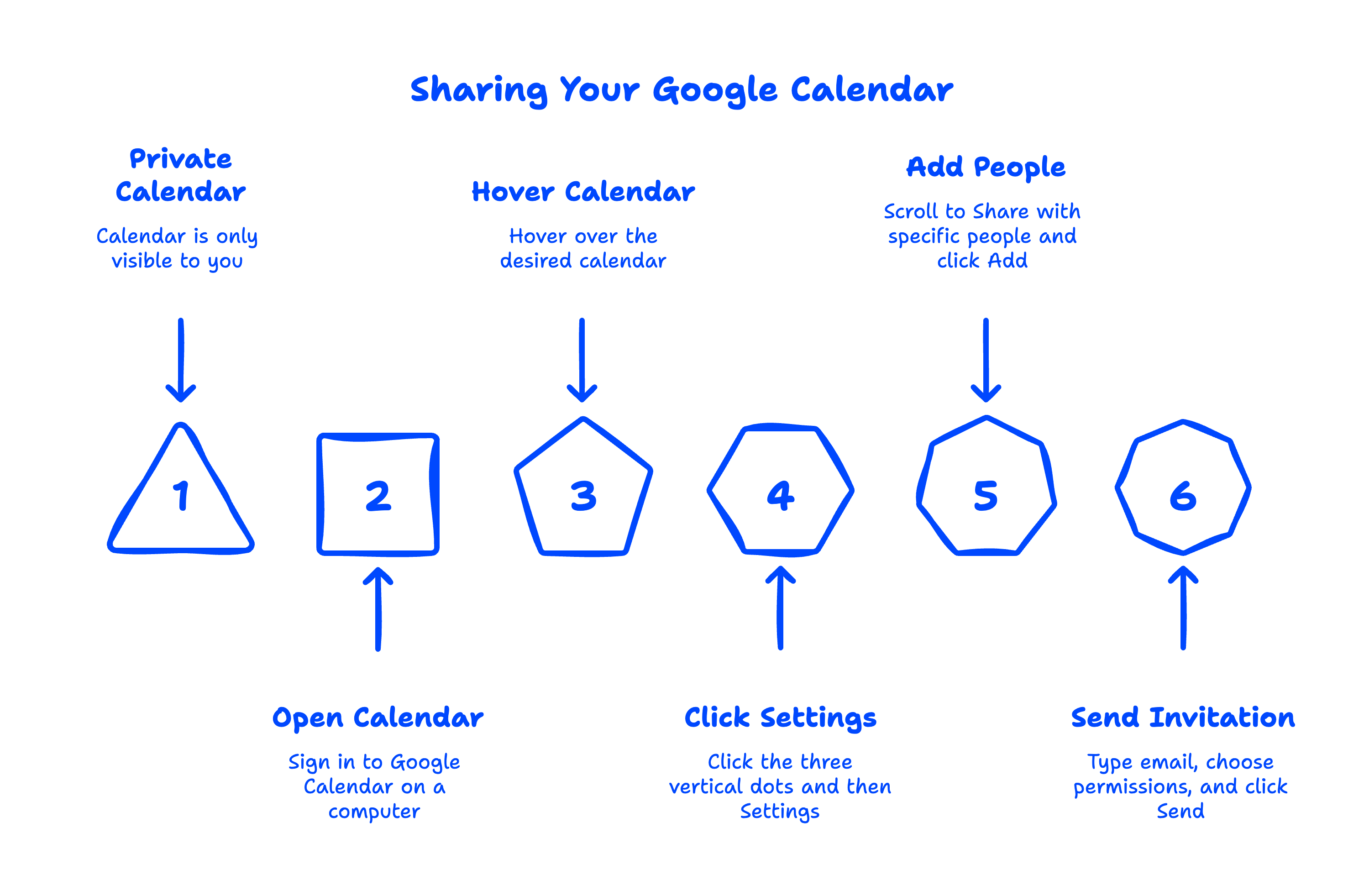
- On a computer, open Google Calendar and sign in.
- On the left under My calendars, hover over the calendar you want to share.
- Click the three vertical dots, then click Settings and sharing.
- Scroll to Share with specific people or groups and click Add people and groups.
- Type the person's email address, choose a permission level from the dropdown, and click Send.
The person receives an email invitation. Once they accept, your calendar appears in their “Other calendars” list. This is also the answer when people ask how to add someone to a Google Calendar — it's the same “Add people and groups” flow.
One thing we see constantly when setting up Google Workspace for new teams: people share their entire personal calendar with full edit rights by accident. Take two seconds to set the right permission level (more on that next) before you hit Send.
What do the Google Calendar permission levels mean?
Google Calendar offers four permission levels that control exactly how much a person can see and do. Choosing the right one is the single most important decision when you share a calendar. These four levels are the full set Google provides, as detailed in Google's Calendar sharing guide.
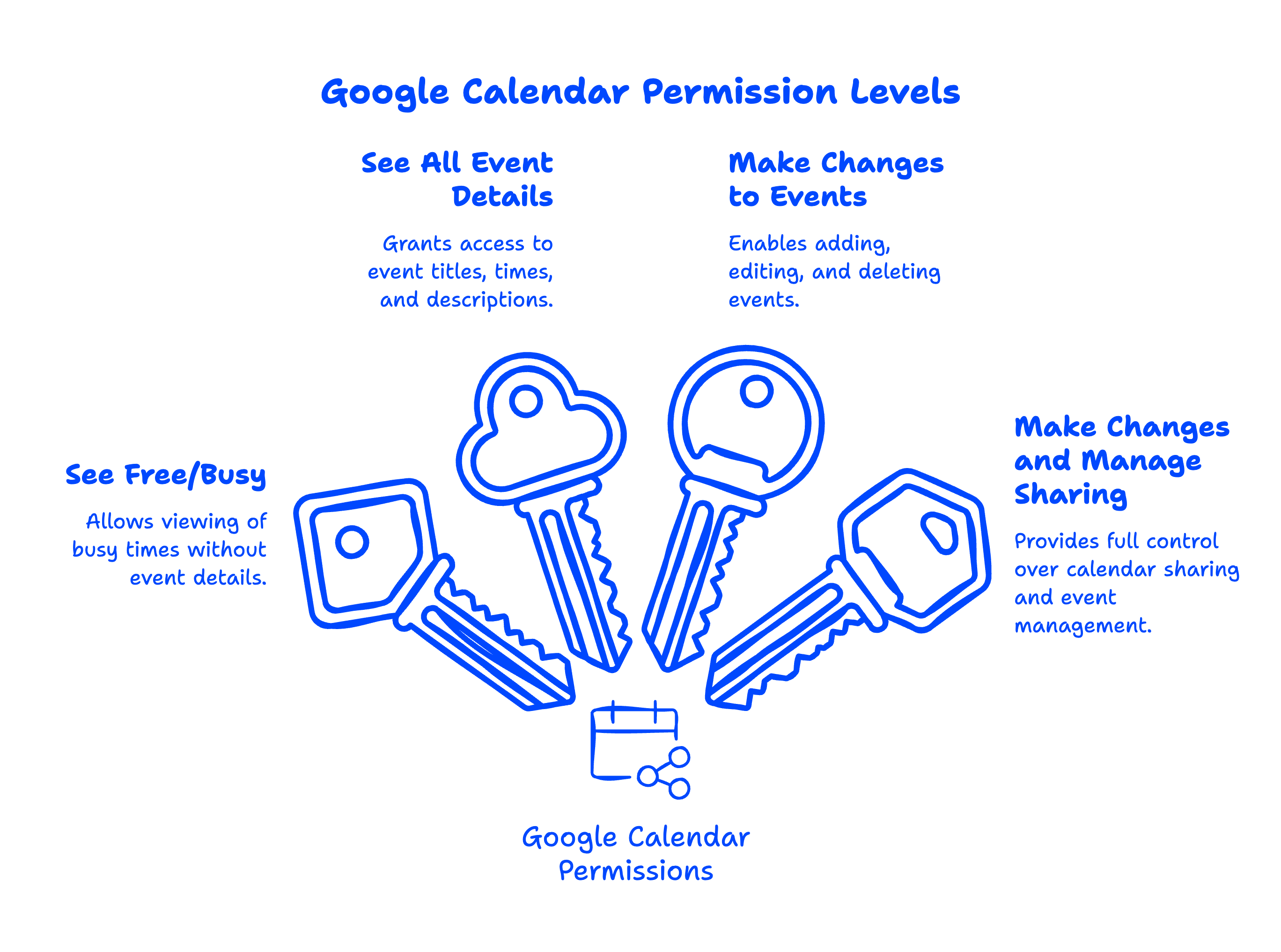
- See only free/busy (hide details) — Sees when you're busy, but no event titles or details — best for privacy
- See all event details — Sees event titles, times, locations, and descriptions
- Make changes to events — Can add, edit, and delete events on your calendar
- Make changes and manage sharing — Full control, including sharing the calendar with others
For most coworkers, See all event details is the right balance — they can schedule around you without being able to edit your calendar. Reserve Make changes for an assistant or a teammate who genuinely manages your schedule. The free/busy option is perfect when you want people to book time with you without revealing what your meetings are about.
Can I share my Google Calendar without showing event details?
Yes. Choose the See only free/busy (hide details) permission level when you add someone. They'll see blocked-out times on your calendar but won't see event names, attendees, locations, or notes. This is ideal for sharing with clients or large groups where the what of your meetings should stay private but your availability shouldn't.
How do I share my Google Calendar on iPhone or Android?
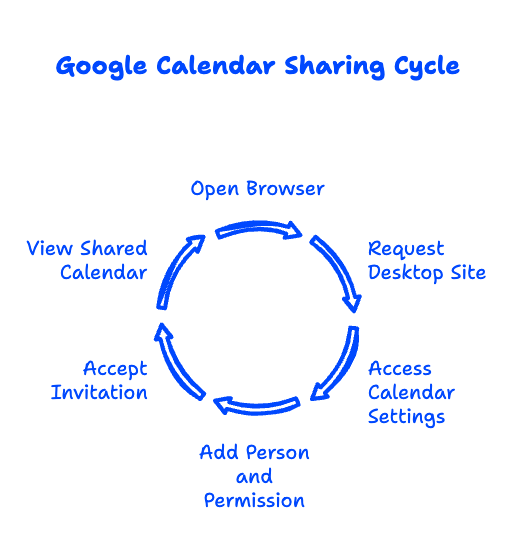
You can manage Google Calendar sharing on mobile, but the full sharing controls live in a web browser, not the app. The Google Calendar app lets you view shared calendars and adjust some settings, yet to add a new person you'll typically open Google Calendar in your phone's browser.
To share your Google Calendar on iPhone or Android:
- Open your phone's browser (Safari or Chrome) and go to the Google Calendar site.
- If it loads the app version, tap the browser menu and choose Request desktop site.
- Open the menu, find your calendar under My calendars, and tap Settings and sharing.
- Add the person's email under Share with specific people or groups and pick a permission level.
If you only need to receive a shared calendar on your phone, the Google Calendar app handles that automatically once you've accepted the invitation on any device. For a smoother experience across devices, make sure everyone is on a consistent setup — something we help teams standardize when they move to the right Google Workspace plan.
How do I create a shared Google Calendar for a team?
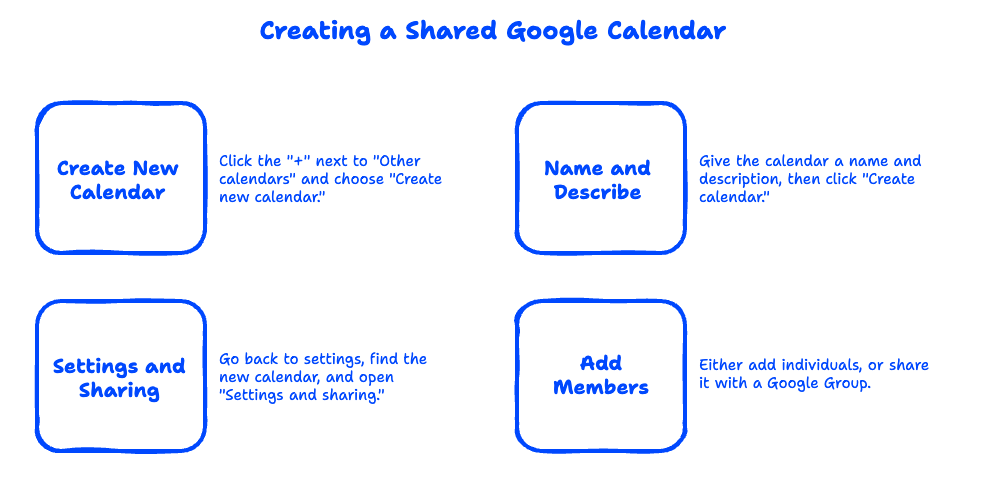
For a team, the best practice is to create a brand-new shared calendar rather than sharing your personal one. A dedicated calendar — for things like project deadlines, on-call rotations, or company holidays — keeps team events separate from anyone's private schedule.
To create a shared team calendar:
- In Google Calendar on a computer, click the + next to Other calendars.
- Choose Create new calendar, give it a name and description, then click Create calendar.
- Go back to settings, find the new calendar, and open Settings and sharing.
- Either add individuals, or share it with a Google Group so everyone on the team gets access at once.
Sharing with a Google Group is a huge time-saver: add the calendar to the group once, and every current and future member is included automatically. For organization-wide calendars, your administrator can create and distribute them centrally. Your administrator can also create and distribute these calendars centrally, and a Super Admin role can even set default sharing rules for the whole company. This kind of structured calendar setup is exactly what Google Workspace can do for a small business once it's configured properly.
How do I stop sharing my Google Calendar?
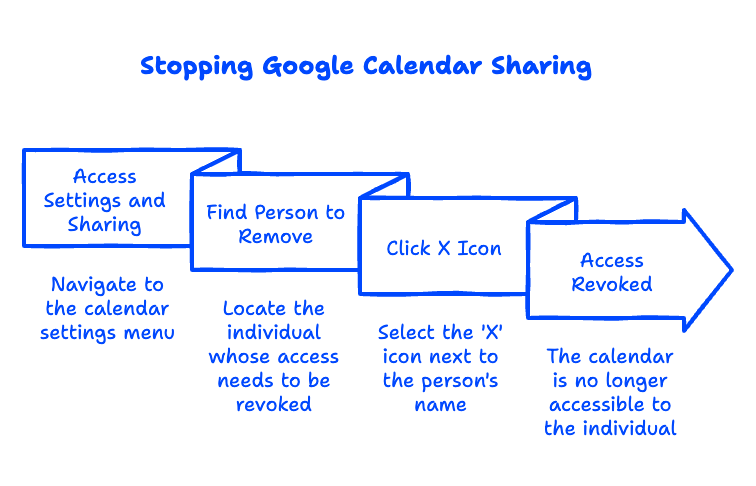
To stop sharing your Google Calendar, return to Settings and sharing, find the person under “Share with specific people or groups,” and click the X next to their name. Access is revoked immediately — the calendar disappears from their list and they can no longer see your events. You can also change someone's permission level here instead of removing them entirely, which is useful when a teammate's role changes.
Frequently Asked Questions
Why can't I share my Google Calendar?
The most common reasons are that you're trying to share from the mobile app (which has limited sharing controls — use a browser instead) or that your Google Workspace administrator has restricted external sharing. If the recipient is outside your organization and sharing is blocked, your admin controls that setting in the Admin console.
How do I send a Google Calendar invite?
Sending a calendar invite is different from sharing your calendar. To invite someone to a single event, open the event, click Add guests, type their email, and save — they'll get an invitation for just that event. Sharing your calendar (covered above) gives ongoing access to many events, while an invite is for one specific meeting.
Does the person I share with need a Google account?
To see your full calendar inside Google Calendar, the person needs a Google account (a free Gmail account works fine). However, you can also publish a calendar via a shareable link or embed it, which lets people view it without a Google account — though with fewer features.
Can I share my Google Calendar with someone outside my company?
Yes, as long as your Google Workspace settings allow external sharing. The steps are identical — just enter their external email address. If it doesn't work, external sharing may be turned off at the admin level for security reasons.
Need help setting up shared calendars, group permissions, or your whole Google Workspace the right way? Talk to the Googally team — we set up businesses on Google Workspace with zero downtime, guaranteed.
Related Posts
Explore Tips and Guides! Discover expert insights and practical guides for optimizing your Google Workspace experience with our informative resources.

















.png)
.png)
.png)
.png)
.png)
.png)
.png)
.png)



.png)
.png)

.png)







.png)
.png)


.png)


