
.png)
How to Add a Signature in Gmail (Step-by-Step)
To add a signature in Gmail on a computer, open Gmail, click the gear icon in the top-right, select See all settings, scroll down the General tab to the Signature section, click Create new, name your signature, type and format it in the box, and click Save Changes at the bottom. Your new signature will now appear automatically on the emails you send. The whole process takes about two minutes, and you can create several signatures for different purposes. Below, we'll walk through every step on desktop, Android, and iPhone — plus how to add a logo, fix a signature that won't show up, and roll out one consistent signature across your entire team using Google Workspace.
Quick Takeaways
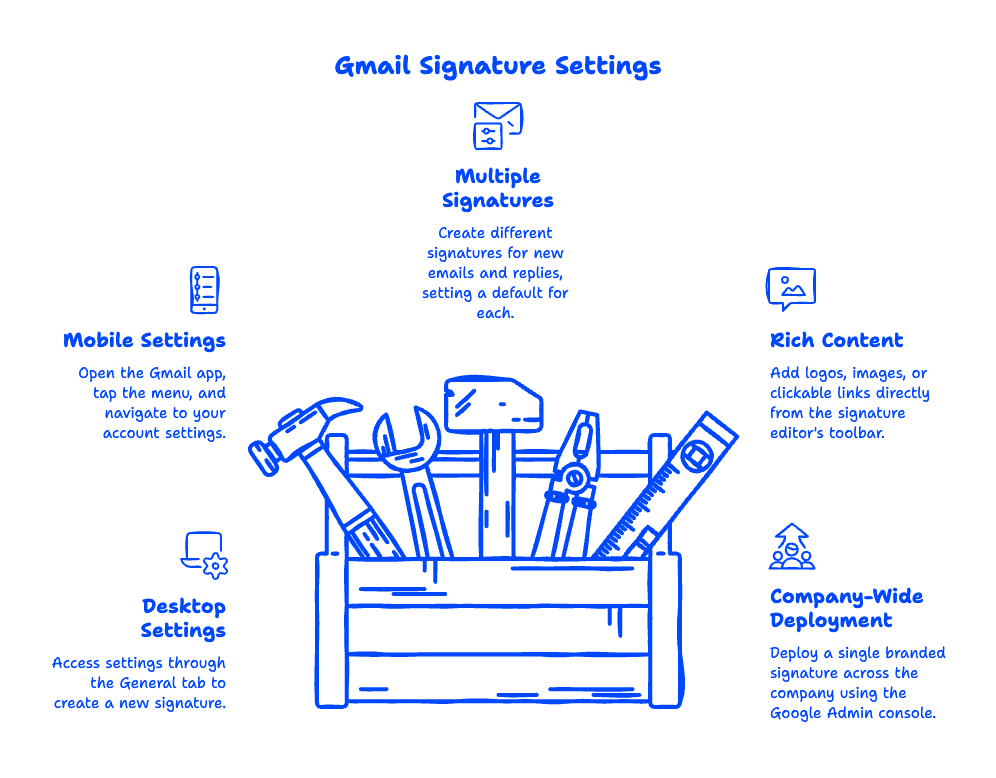
- Desktop: Settings → General tab → Signature → Create new → type it → Save Changes.
- Mobile: Gmail app → Menu → Settings → tap your account → Signature settings (Android) or Signature (iPhone).
- You can create multiple signatures and set defaults for new emails versus replies.
- Add a logo, image, or clickable link straight from the signature editor's toolbar.
- For a business, you can deploy a single branded signature company-wide from the Google Admin console — no asking 30 employees to do it themselves.
How do I add a signature in Gmail on desktop?
Adding a signature in Gmail on a computer takes six quick steps inside your settings. Here's exactly how to create a signature in Gmail from a browser:
- Open Gmail and click the gear icon (Settings) in the top-right corner.
- Click See all settings.
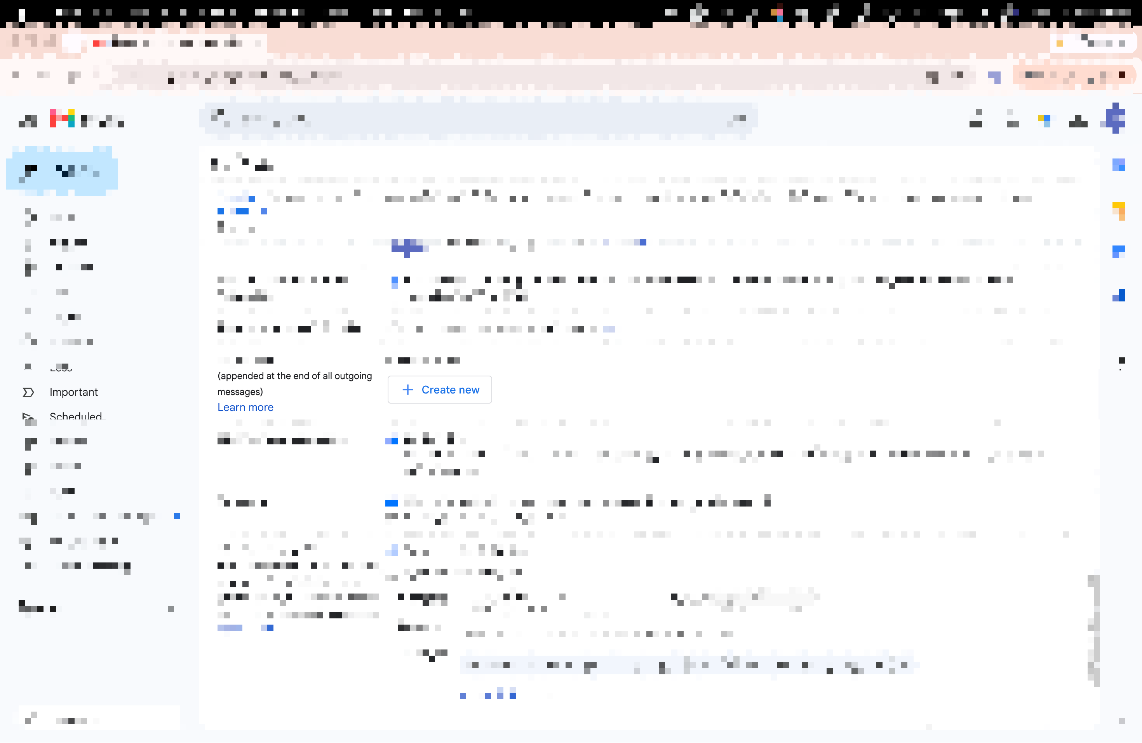
- Stay on the General tab and scroll down to the Signature section.
- Click Create new, give the signature a name (for example, "Main" or "Sales"), and click Create.
- Type your signature in the text box. Use the formatting toolbar to change the font, add bold, insert a link, or drop in an image.
- Under Signature defaults, choose which signature appears on new emails and on replies, then click Save Changes at the very bottom of the page.
That's it — every email you send from this account will now carry your signature. The most common mistake we see? People format a beautiful signature and then forget to scroll down and hit Save Changes, so nothing sticks. Always save before you close the tab.
How to add a signature in Gmail on your phone
You can add a Gmail signature on your phone, but the steps differ slightly between Android and iPhone, and mobile signatures are stored separately from your desktop one. That means setting a signature on your laptop does not automatically create one in the Gmail app. Here's how to set up a gmail email signature on each device.
Android
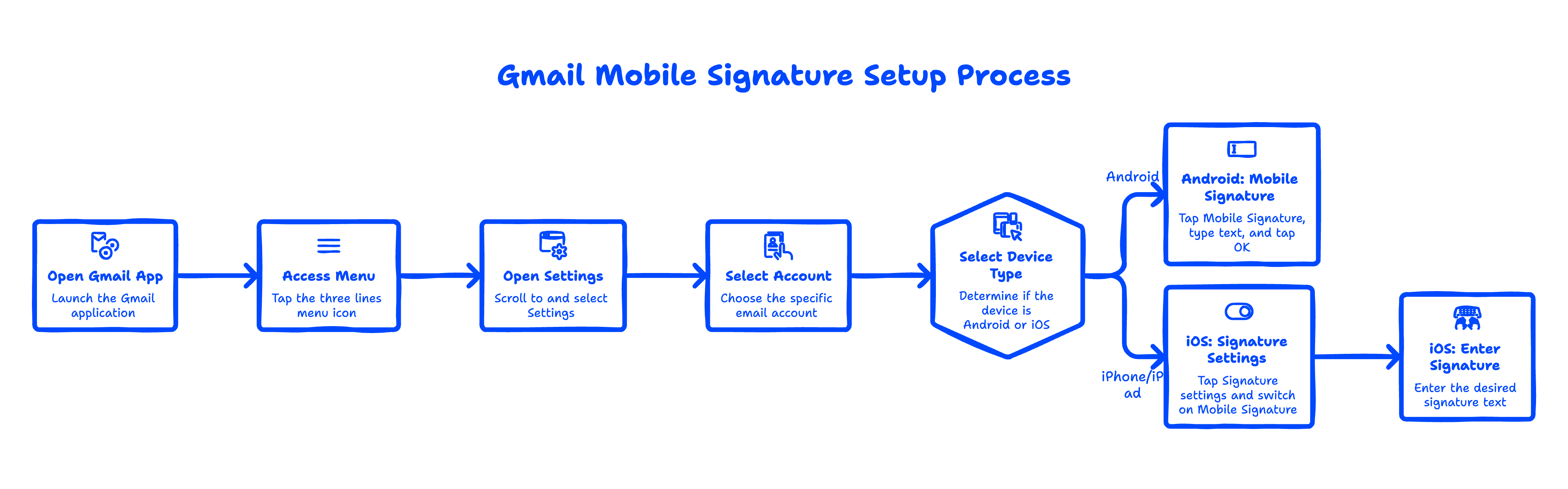
- Open the Gmail app and tap the menu (three lines) in the top-left.
- Scroll down and tap Settings, then tap the account you want.
- Tap Mobile Signature, type your signature, and tap OK.
iPhone and iPad
- Open the Gmail app and tap the menu (three lines).
- Tap Settings, then choose your account.
- Tap Signature settings, switch on Mobile Signature, enter your text, and you're done.
A quick tip from experience: mobile signatures are plain text only, so save the logo and fancy formatting for your desktop signature. On a phone, something short like your name, title, and phone number works best.
How to change or edit your Gmail signature
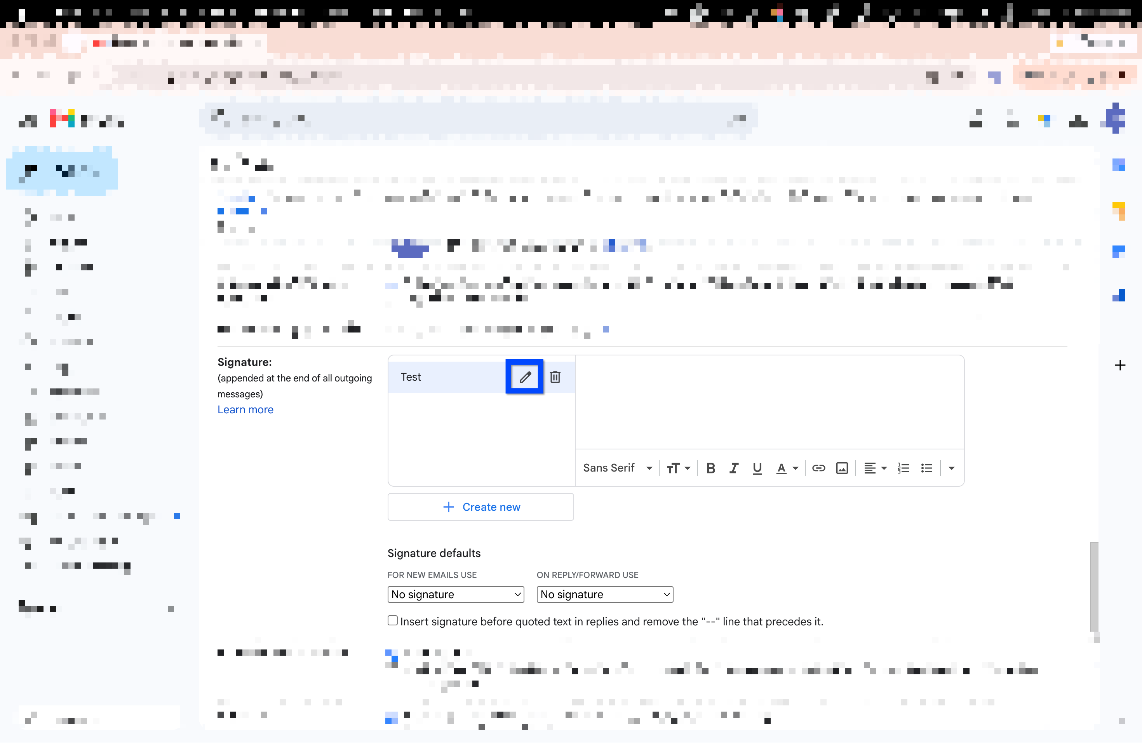
To change your signature in Gmail, go back to the exact same place you created it: Settings → See all settings → General → Signature. Click the signature you want to edit, make your changes in the text box, and click Save Changes. To rename it, click the pencil icon; to remove it entirely, click the trash icon.
If you're wondering how to change your email signature in Gmail because your job title, phone number, or company branding changed, this is the only spot you need. There's no separate "edit" screen — editing and creating live in the same Signature section. On mobile, you edit a signature the same way you created it, through the app's Settings menu.
How to add a logo or image to your Gmail signature
To add a logo or image to your Gmail signature, place your cursor in the signature box, click the Insert image icon in the formatting toolbar, and either upload a file, paste an image URL, or pull one from Google Drive. Once it's in, click the image to resize it (small, medium, large, or original).
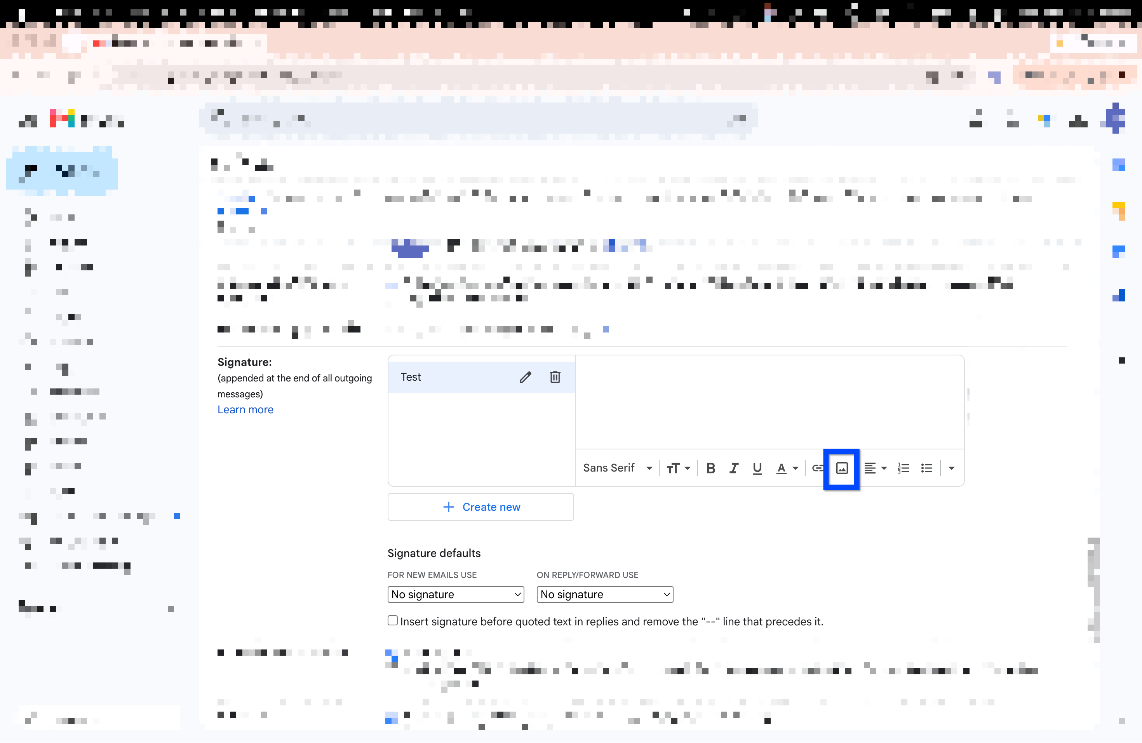
It's the same branding you'd apply when uploading your company logo across Google Workspace. For a clickable logo — say, one that links to your website — insert the image, select it, click the link icon, and paste your URL. This turns your logo into a button that drives traffic back to your site. You can do the same with text: highlight your company name and add a link to it.
A few things we've learned setting these up for clients:
- Host the image somewhere permanent. If you paste an image from a temporary link and that link dies, recipients see a broken-image box. Google Drive or your website is safer than a random URL.
- Keep logos small — around 100-150 pixels tall. Oversized images look unprofessional and can get clipped on mobile.
- Don't overload it. A clean signature with your name, title, company, phone, and one logo beats a cluttered wall of social icons.
Can you have multiple signatures in Gmail?
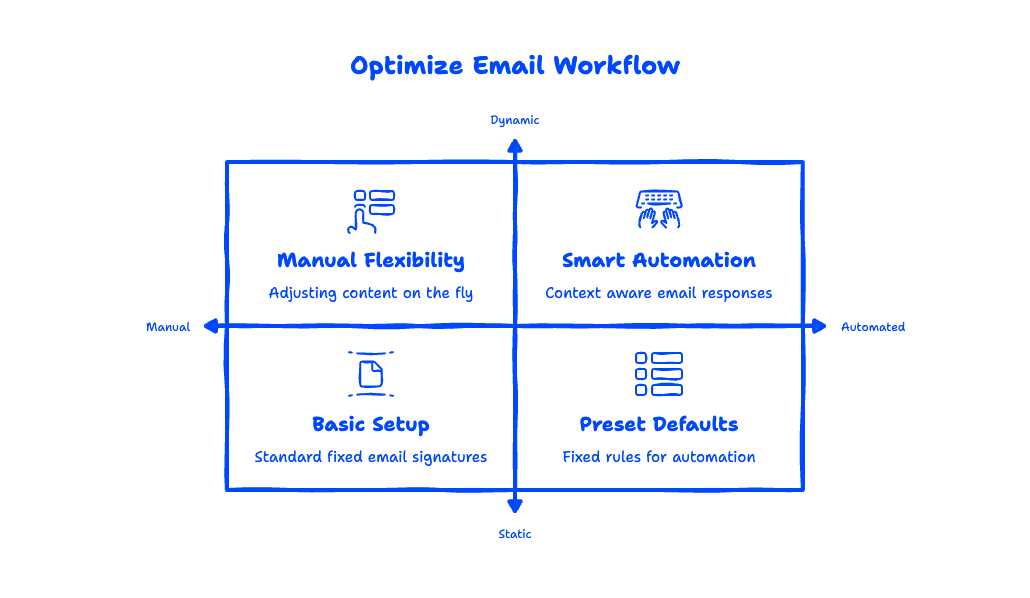
Yes — Gmail lets you create multiple signatures and switch between them per email. This is useful if you wear different hats, like sending sales emails under one signature and support replies under another. Just click Create new in the Signature section for each one.
Under Signature defaults, you can assign one signature for brand-new emails and a different one (or none) for replies and forwards. When you're writing an email, you can also swap signatures on the fly using the pen icon in the toolbar at the bottom of the compose window. This flexibility is one of the most underused features in gmail signature settings. If you also find yourself retyping the same messages, pair your signatures with reusable canned responses to fly through repetitive email.
How to set up company-wide email signatures in Google Workspace
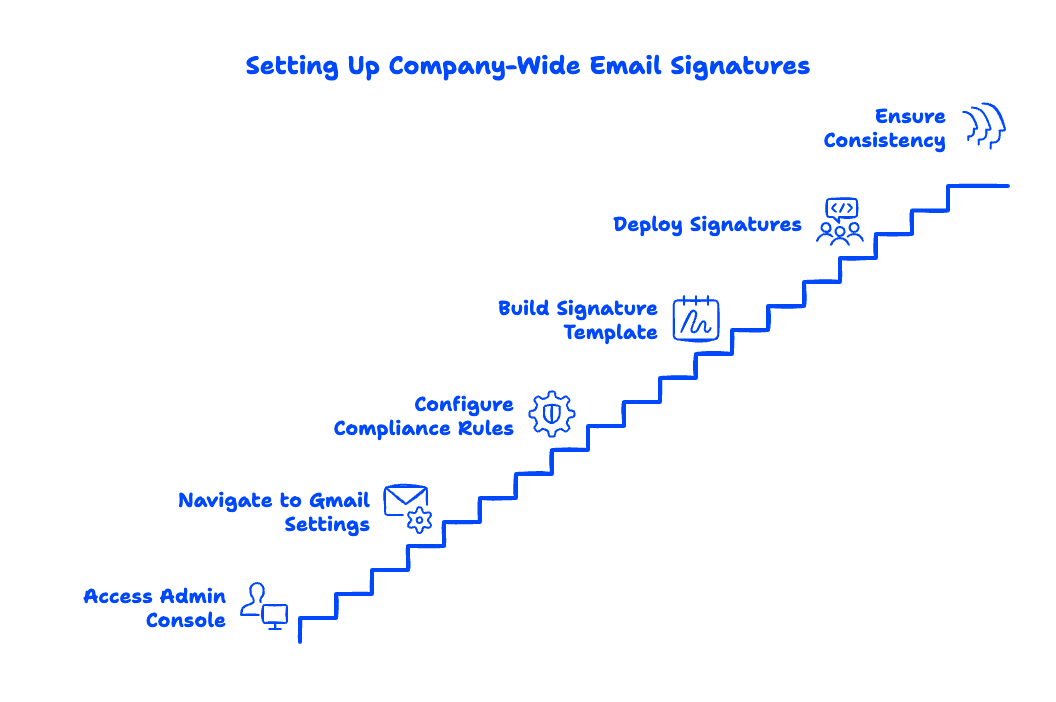
If you run a business on Google Workspace, you don't have to rely on each employee creating their own signature — you can deploy one consistent, branded signature across every mailbox from the Google Admin console. This is the single biggest difference between a personal Gmail account and a business one, and it's where most "how to add a signature" guides stop short.
Here's the high-level approach a Workspace administrator takes: in the Admin console, go to Apps → Google Workspace → Gmail → Compliance, then configure an Append footer rule. You can build a template that automatically pulls in each person's name, title, and contact details, so a new hire's signature is correct on day one without IT touching their account.
Why does this matter? Consistency and trust. When every email from your company carries the same logo, formatting, and legal footer, you look like one professional brand instead of 30 people winging it. It also lets you push out compliance disclaimers or marketing banners to the whole organization at once.
Getting these admin rules exactly right — without breaking replies or doubling up signatures — is fiddly. If you'd rather not experiment in your live mail flow, this is exactly the kind of setup we handle for businesses every day.
Frequently Asked Questions
What is an email signature?
An email signature is a block of text and images that automatically appears at the bottom of the emails you send. It typically includes your name, job title, company, phone number, and sometimes a logo or website link. Think of it as a digital business card that saves you from retyping your details on every message.
Why isn't my Gmail signature showing up?
The most common reasons are that you didn't click Save Changes after editing, or your Signature defaults are set to "No signature" for new emails or replies. Mobile is a separate setting too — if your signature shows on desktop but not your phone, you need to set a Mobile Signature in the Gmail app. Double-check both and you'll usually find the culprit.
Can I use an HTML signature in Gmail?
Gmail doesn't let you paste raw HTML code, but its signature editor supports rich formatting, images, and links — which covers most of what an HTML signature offers. If you build a signature in a third-party generator, you can usually copy the rendered result and paste it directly into the Gmail signature box, and the formatting carries over.
How do I make a signature in Gmail apply to replies?
In the Signature defaults section of your settings, use the dropdown labeled "ON REPLY/FORWARD" to pick which signature appears on replies. By default, Gmail may leave replies without a signature, so set it deliberately if you want your details on every message in a thread.
Want every mailbox in your business to send polished, on-brand email from day one? Googally sets up and manages Google Workspace for small businesses — signatures, security, and migrations included. Talk to our team and let us handle the technical bits while you get back to work — or read Google's own guide to creating a Gmail signature if you'd rather DIY.
Related Posts
Explore Tips and Guides! Discover expert insights and practical guides for optimizing your Google Workspace experience with our informative resources.












.png)
.png)
.png)
.png)
.png)
.png)
.png)



.png)
.png)

.png)










.png)
.png)


.png)


