
.png)
How to Unsend an Email in Gmail (Before It's Too Late)
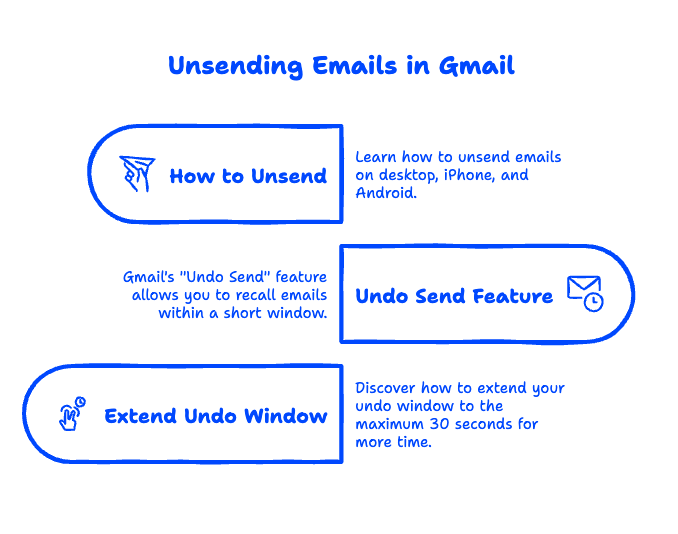
Yes, you can unsend an email in Gmail — but you have to act fast. Gmail's "Undo Send" feature gives you a short window (up to 30 seconds) after hitting send to pull the message back before it reaches the recipient's inbox. Once that window closes, the email is delivered and cannot be recalled. Unlike Microsoft Outlook's recall feature, Gmail's undo send actually works reliably — it just requires you to set it up in advance and click "Undo" quickly when you spot a mistake.
Here's exactly how to unsend an email in Gmail on desktop, iPhone, and Android — plus how to extend your undo window to the maximum 30 seconds so you have more time to catch errors.
Quick Takeaways
- Gmail lets you unsend an email for up to 30 seconds after clicking Send — but only if you've enabled the setting.
- The default undo window is just 5 seconds. You should change it to 30 seconds immediately in Gmail Settings.
- The Undo Send feature works on desktop, iPhone, and Android — the setup is slightly different on each.
- Once the undo window expires, the email is permanently delivered. Gmail cannot recall it after that point.
- Google Workspace admins can recommend the 30-second setting to their team but cannot enforce it through the Admin Console — it's a per-user setting.
How to Unsend an Email in Gmail on Desktop
Unsending an email on desktop Gmail takes two clicks — if you've already enabled the Undo Send setting.
Step 1: After you click Send, look for the small notification bar that appears at the bottom-left corner of your Gmail window. It says "Message sent" with an "Undo" link next to it.
Step 2: Click "Undo" before the timer runs out. Gmail will pull the email back and reopen it as a draft so you can edit and resend.
That's it. If the "Undo" bar disappears before you click it, the email has already been delivered.

How to Set Your Undo Send Window to 30 Seconds
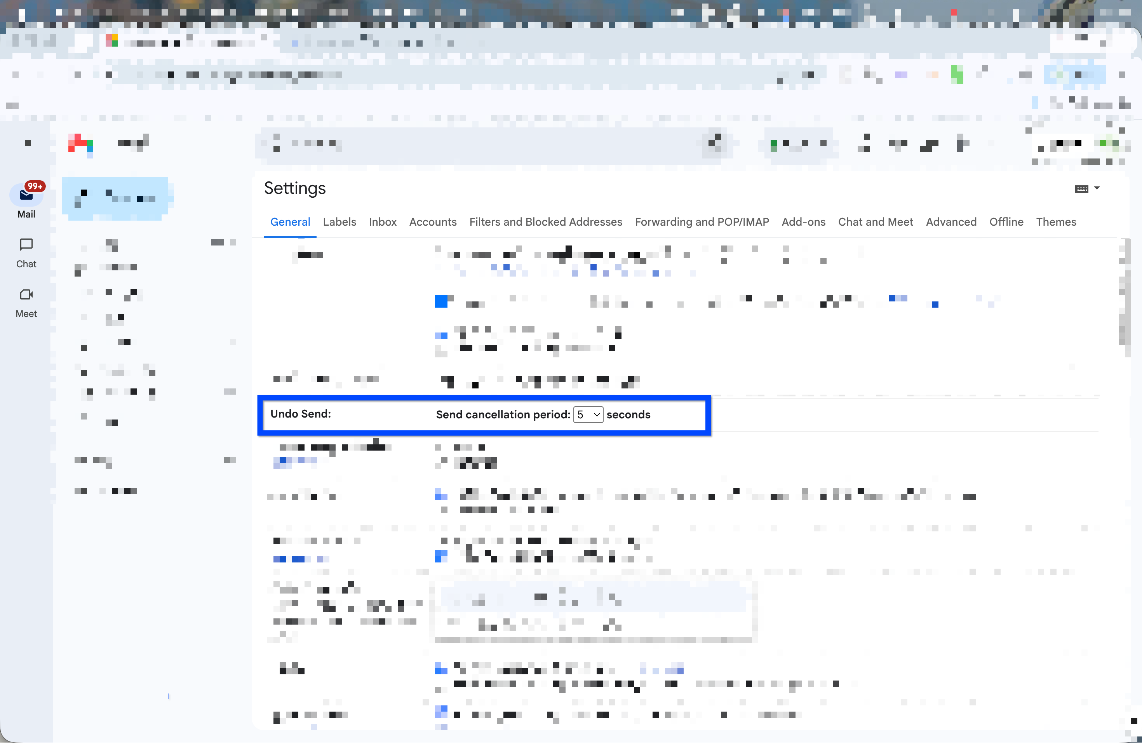
By default, Gmail gives you only 5 seconds to undo a sent email. Here's how to extend it:
- Open Gmail on your desktop and click the gear icon in the top-right corner.
- Click "See all settings."
- In the General tab, scroll down to "Undo Send."
- Change the Send cancellation period dropdown from 5 seconds to 30 seconds.
- Scroll to the bottom and click "Save Changes."
We recommend this as the very first thing you do when setting up a new Google Workspace account for your team.
Can You Unsend an Email in Gmail on iPhone and Android?
Yes — Gmail's Undo Send works on mobile too, but the behavior is slightly different from desktop.
On iPhone (iOS):
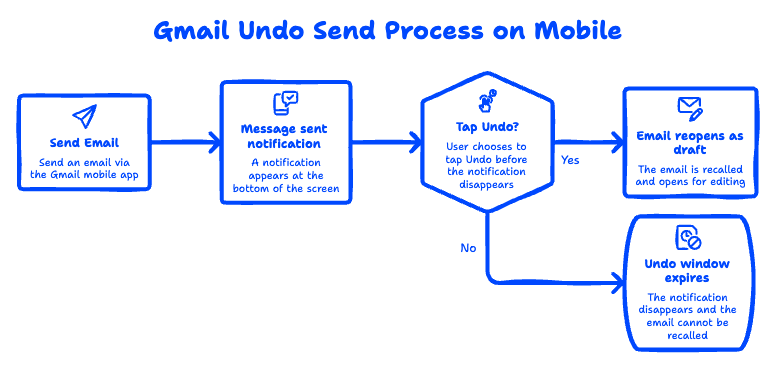
- After sending an email in the Gmail app, a "Message sent" notification appears at the bottom of the screen.
- Tap "Undo" before it disappears.
- The email reopens as a draft.
On Android:
- The same "Message sent" toast notification appears at the bottom.
- Tap "Undo" to recall the email.
One important difference on mobile: the undo window on the Gmail mobile app is typically shorter than what you set on desktop.
How to Recall an Email in Gmail After the Undo Window Closes
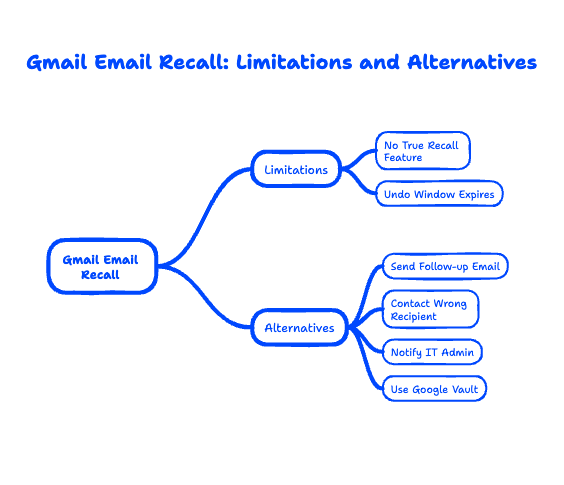
Can you recall an email in Gmail after 30 seconds? Unfortunately, no. Once the Undo Send window expires, the email is fully delivered. Gmail does not have a true recall feature — see Google's official guide on sending and unsending Gmail messages.
Here's what you can do instead:
- Send a follow-up email immediately with the correct information.
- If it was sent to the wrong person, contact them directly and ask them to delete it unread.
- If sensitive information was accidentally shared, notify your IT admin or Google Workspace super admin right away. Tools like Google Vault may help with compliance documentation.
Can Google Workspace Admins Recall Emails for Their Users?
Not directly. However, admins can use Content Compliance rules in the Admin Console to delay outbound email delivery — useful for law firms using Google Workspace or healthcare providers.
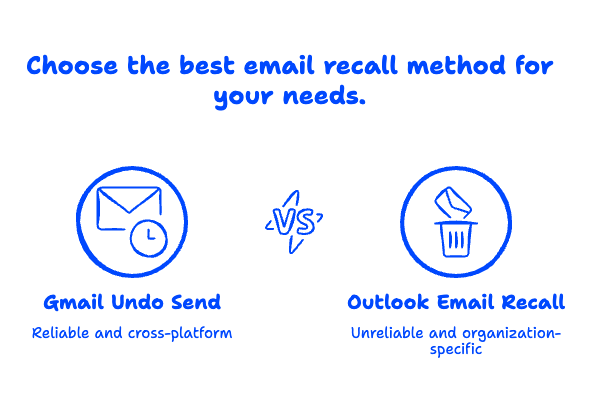
Gmail Undo Send vs. Outlook Email Recall
If you're coming from Microsoft Outlook, here's how the two compare:
How it works: Gmail delays sending for up to 30 seconds so you can cancel. Outlook attempts to delete the email from the recipient's inbox after delivery.
Reliability: Gmail works 100% of the time within the window. Outlook's recall often fails.
Time limit: Gmail gives you 5-30 seconds. Outlook has no time limit, but success drops rapidly.
Cross-platform: Gmail works regardless of the recipient's email client. Outlook recall only works within the same Exchange organization.
In our experience migrating businesses from Office 365 to Google Workspace, teams prefer Gmail's honest approach.
What Happens Behind the Scenes When You Click Undo?
Gmail doesn't transmit the email immediately. It holds the message locally for your cancellation period. When you click "Undo," Gmail cancels the queued delivery and moves the message back to Drafts. The recipient's mail server never sees it.
Frequently Asked Questions
Can I unsend an email in Gmail after 1 hour?
No. Gmail's maximum Undo Send window is 30 seconds.
Does Undo Send work with Google Workspace business accounts?
Yes. It's available on all Gmail accounts including every Google Workspace plan.
Can I unsend an email if I close the Gmail tab?
No. Closing the tab or navigating away ends the cancellation window.
Does the recipient know if I unsend an email?
No. The email was never delivered, so the recipient has no notification.
Need help setting up Gmail and Google Workspace? Get in touch with Googally and we'll configure every setting for your organization from day one.
Related Posts
Explore Tips and Guides! Discover expert insights and practical guides for optimizing your Google Workspace experience with our informative resources.




.png)
.png)
.png)
.png)
.png)
.png)
.png)
.png)



.png)

.png)





.png)
.png)


.png)


.png)
