
.png)
How to Remove Duplicates in Google Sheets (3 Easy Ways)
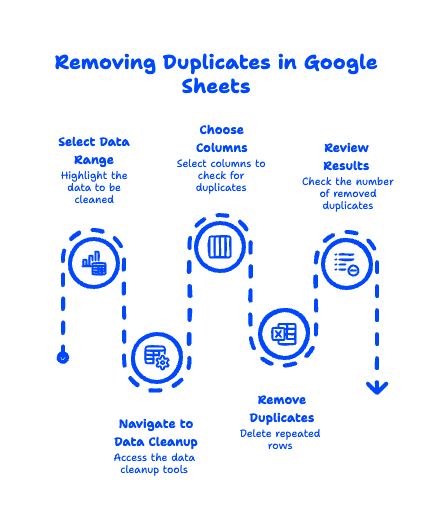
To remove duplicates in Google Sheets, select your data range, click Data → Data cleanup → Remove duplicates, choose which columns to check, and click Remove duplicates. Google Sheets instantly deletes every repeated row and tells you how many it removed. That's the fastest method—but it's not the only one, and it's not always the right one. If you'd rather find duplicates before deleting anything, or pull a clean list of unique values into a new column, there are better tools for the job. In this guide, we'll walk through all three approaches so you can clean up messy spreadsheets without accidentally wiping out data you needed.
Quick Takeaways
- Fastest fix: Highlight your data, then Data → Data cleanup → Remove duplicates. Done in three clicks.
- Safest fix: Use the UNIQUE function to copy unique values into a new column—your original data stays untouched.
- To find (not delete) duplicates: Use conditional formatting with COUNTIF to highlight repeats in color.
- The built-in tool only catches exact matches—extra spaces or different capitalization will slip through.
- Cleaning duplicates is the #1 spreadsheet job we tackle when migrating contact lists into Google Workspace.

How do I remove duplicates in Google Sheets?
The built-in Remove duplicates tool is the quickest way to delete repeated rows. Here's the step-by-step:
- Select the data you want to clean. You can highlight a single column, several columns, or your entire table. (Tip: click the corner cell and press
Ctrl + A/Cmd + Ato grab everything.) - Open the Data menu in the top toolbar.
- Hover over Data cleanup, then click Remove duplicates.
- In the pop-up, check "Data has header row" if your first row contains column titles—this keeps your headers safe.
- Choose which columns to analyze. Leave them all checked to remove rows that are identical across the board, or select specific columns (more on that below).
- Click Remove duplicates.
Google Sheets does the rest and shows a summary like "24 duplicate rows removed, 312 unique rows remaining." The first occurrence of each value is always kept; only the repeats are deleted.
This method permanently changes your data, so if you're nervous, make a copy of the sheet first (File → Make a copy) or just press Ctrl + Z / Cmd + Z immediately to undo. For the official walkthrough, Google documents this in its support article on splitting text and removing duplicates.

How to remove duplicates based on one column
To delete rows where just one field repeats—like a duplicate email address—uncheck every column in the Remove duplicates dialog except the one you care about. This is the trick most people miss.
Say you have a contact list with Name, Email, and Phone columns, and the same person was entered twice with slightly different phone numbers. If you leave all columns checked, Sheets sees the rows as different (because the phone numbers don't match) and keeps both. Instead, check only the Email column. Now Sheets treats any row sharing an email as a duplicate and removes the extras—keeping the first one it finds.
This column-level control is exactly why we reach for the built-in tool when cleaning up imported contact data during a migration. Mailing lists exported from old platforms are notorious for near-duplicate rows.
How to find duplicates in Google Sheets without deleting them
Sometimes you want to see duplicates before you remove anything—to review them, count them, or decide which copy to keep. The best way is conditional formatting paired with a COUNTIF formula, which highlights every repeated value in a color instead of deleting it.
Here's how to highlight duplicates in Google Sheets:
- Select the range you want to check (for example,
A2:A100). - Go to Format → Conditional formatting.
- Under Format rules, change the dropdown to "Custom formula is."
- Enter this formula:
=COUNTIF(A:A, A2) > 1 - Pick a fill color (red works well for catching the eye) and click Done.
Every cell whose value appears more than once instantly turns the color you chose. Nothing is deleted—you're just spotlighting the repeats so you can review them. This is the safest way to check for duplicates in Google Sheets when the data matters, like an invoice log or a customer database.

How to count how many duplicates you have
To identify duplicates and see how many times each value repeats, add a helper column with =COUNTIF(A:A, A2). Drag it down, and each row shows its own count—anything above 1 is a duplicate. Sort that column largest-to-smallest and your worst offenders float right to the top. It's a quick health check before you commit to deleting anything.
How to remove duplicates with the UNIQUE function
The UNIQUE function is the non-destructive way to remove duplicates: instead of editing your original data, it generates a fresh list of unique values in a new location. Your source data stays exactly as it was.
Click an empty cell where you want the clean list to appear and type:
=UNIQUE(A2:A100)
Press Enter, and Sheets spills out every distinct value from that range—no repeats. You can point UNIQUE at multiple columns too (=UNIQUE(A2:C100)) to return unique rows. Because it's a live formula, it updates automatically: add a new entry to your source range and the unique list refreshes on its own.
We love UNIQUE for dashboards and reports where the raw data needs to stay intact for the record. It pairs nicely with other everyday Google Sheets formulas like SORT and COUNTIF. If you're still building your spreadsheet skills, our library of ready-to-use Google Sheets templates can save you the setup time.

Why some duplicates survive (and how to fix it)
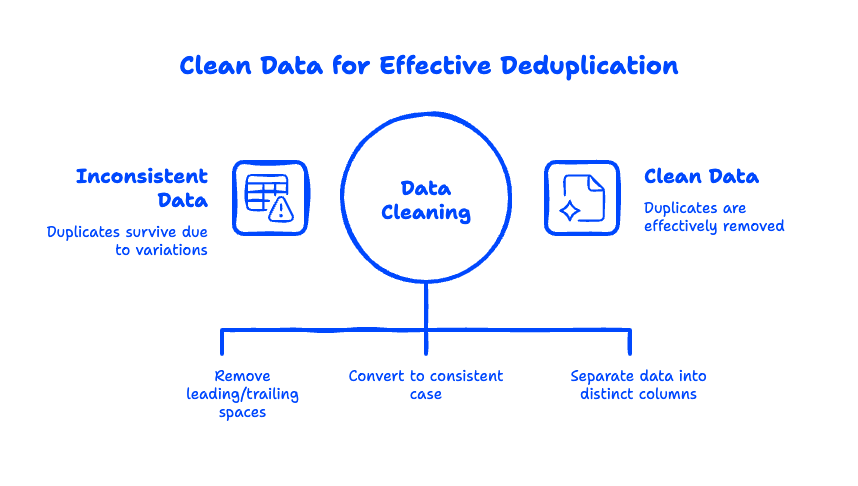
Here's the gotcha nobody warns you about: Google Sheets only removes exact duplicates. If two entries look identical to your eye but differ by a trailing space, a stray capital letter, or invisible formatting, Sheets treats them as unique and leaves both behind.
This is the single most common reason people think the Remove duplicates tool is "broken." It isn't—your data is just slightly inconsistent. Before deduplicating messy data, clean it first:
- Trim whitespace: Select your range and use Data → Data cleanup → Trim whitespace to strip leading and trailing spaces.
- Standardize case: Wrap values in
=LOWER()or=PROPER()so "John@email.com" and "john@email.com" match. - Split combined fields: If one column crams together data that should be separate, use Data → Split text to columns (the text to columns feature) so you're comparing apples to apples.
In our experience migrating small businesses to Google Workspace from platforms like Rackspace, GoDaddy, and Microsoft 365, this is where exported spreadsheets go sideways. Old contact databases are full of the same person entered three different ways—one with a space, one in all caps, one with a typo. We always run a trim-and-standardize pass before removing duplicates, and it's the difference between a clean import and a mailbox full of duplicate contacts.
Frequently Asked Questions
Does removing duplicates delete my original data?
The built-in Remove duplicates tool does permanently delete the repeated rows from your sheet, but it always keeps the first occurrence of each value. If you'd rather not touch your source data, use the UNIQUE function instead—it creates a separate clean list and leaves the original untouched. You can also undo any deletion right away with Ctrl + Z / Cmd + Z.
How do I remove duplicates and their first instances too?
The standard tool keeps one copy of every value, so it can't delete all instances of a duplicate on its own. To remove every row that has any duplicate—including the first one—add a helper column with =COUNTIF(A:A, A2), filter to show only rows where the count equals 1 (the truly unique entries), and copy those to a new sheet. What's left behind are your one-and-only records.
Why does Remove duplicates leave some duplicates behind?
Because Google Sheets matches values exactly. Extra spaces, different capitalization, or hidden characters make two "identical" entries look different to the tool. Run Trim whitespace and standardize capitalization with =LOWER() first, then remove duplicates again—they'll disappear.
How do I remove duplicate rows automatically?
For a one-time cleanup, the Remove duplicates tool is instant. For ongoing automatic deduplication—say, a form that keeps adding repeat entries—use a UNIQUE formula in a separate "clean" tab that references your raw data. It refreshes on its own every time new data arrives, no manual steps required.
Cleaning up a spreadsheet is easy. Cleaning up an entire email platform—contacts, calendars, and all—without losing data is where things get tricky. That's exactly what we do at Googally: zero-downtime migrations to Google Workspace, with the messy data sorted out for you. Talk to our migration team and let us handle the heavy lifting.
Related Posts
Explore Tips and Guides! Discover expert insights and practical guides for optimizing your Google Workspace experience with our informative resources.



















.png)
.png)
.png)
.png)
.png)
.png)
.png)




.png)
.png)

.png)










.png)
.png)


.png)


