
.png)
How to Forward Emails in Gmail
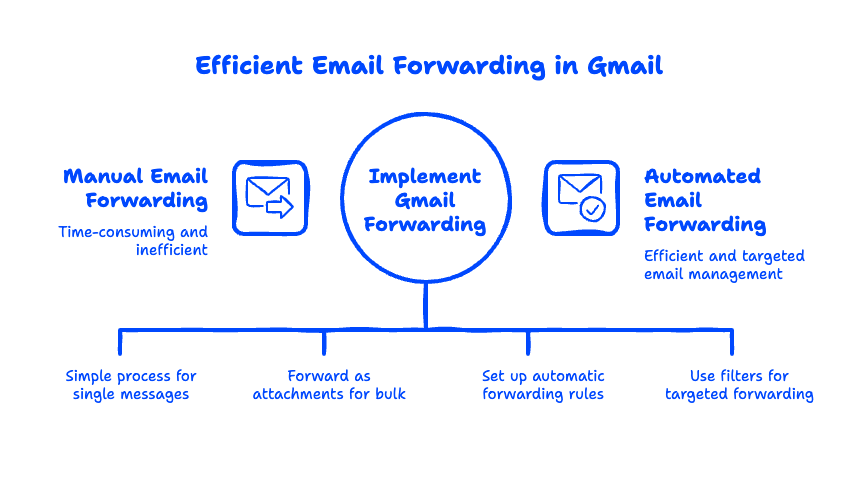
To forward emails in Gmail, open the message, click the Forward arrow at the top right (or below the email), type the recipient's address, and hit Send. That covers a one-off message — but Gmail forwarding is actually three different tools in a trench coat. You can forward a single email, bundle several emails into one, or set up automatic email forwarding so every incoming message lands in a second inbox without you lifting a finger. This guide walks through all three on both desktop and mobile, answers the privacy question everyone quietly wonders about, and shows you how to fix forwarding when it silently stops working.
Quick Takeaways
- Forward one email: open it → click the Forward arrow → add recipient → Send.
- Forward multiple emails: Gmail can't merge them natively, but you can forward them as attachments (up to 100 at once) with the "Forward as attachment" option.
- Auto-forward everything: go to Settings → See all settings → Forwarding and POP/IMAP and add a forwarding address (a verification step is required).
- Auto-forward only some emails: use a Gmail filter to forward messages from a specific sender or with certain keywords.
- Privacy: the original sender is not notified when you forward their email.
How do I forward a single email in Gmail?
Forwarding one message is the everyday version of Gmail forwarding, and it takes about five seconds. Here's how to do it on desktop:
- Open the email you want to forward.
- Click the Forward arrow (the right-pointing arrow) at the top right of the message, or scroll down and click Forward beneath it.
- In the To field, enter the recipient's email address.
- Add a note above the forwarded content if you want to give context.
- Click Send.

On the Gmail mobile app (iPhone or Android), the steps are nearly identical: open the email, tap the three-dot menu in the top-right of the message (or the reply arrow), choose Forward, add a recipient, and tap the send arrow.
A handy detail most people miss: by default, forwarding includes any attachments from the original email, so you don't need to re-download and re-attach files. If you only want the text, delete the attachment chip before sending.
How to forward multiple emails in Gmail at once
Gmail does not let you forward several separate emails as one combined message the way it merges a conversation thread — but there's a clean workaround: forward as attachments. This bundles multiple emails into a single new message, each as a self-contained .eml file the recipient can open.
To forward multiple emails in Gmail:
- In your inbox, tick the checkbox next to each email you want to forward. You can select up to 100 at a time.
- Click the three-dot "More" menu at the top of the inbox.
- Choose Forward as attachment.
- Add your recipient, write a short note, and click Send.
This is genuinely useful when you're handing a project off to a colleague or sending a batch of receipts to your accountant. Each message keeps its original sender, timestamp, and formatting intact — much tidier than copy-pasting five emails into one.
If you'd rather forward an entire back-and-forth conversation, just open the thread and use the standard Forward button — Gmail includes the full message history automatically.

How to set up automatic email forwarding in Gmail
Automatic email forwarding sends a copy of every incoming message to another address, hands-free. This is the feature people mean when they search for gmail auto forward — and it's perfect for routing a shared inbox, backing up mail to a second account, or covering someone who's out of office (pair it with a vacation responder so senders know what to expect). Setup lives in Gmail's settings and takes two minutes.
To set up email forwarding in Gmail (desktop only — this can't be configured from the mobile app):
- Click the gear icon in the top right, then See all settings.
- Open the Forwarding and POP/IMAP tab.
- Click Add a forwarding address.
- Enter the address you want to forward to and click Next, then Proceed.
- Gmail sends a verification email to that address. Open it and click the confirmation link (or copy the code back into Gmail).
- Return to the Forwarding and POP/IMAP tab, select Forward a copy of incoming mail to, and choose your verified address.
- Decide what happens to the original in your inbox — keep it, mark it read, archive it, or delete it. We recommend keep Gmail's copy in the Inbox so you always have a fallback.
- Click Save Changes at the bottom.

That verification step trips a lot of people up: forwarding won't start until the destination address confirms it, which is Google's way of preventing sneaky, unauthorized forwarding. You can follow the full walkthrough in Google's official guide to automatic forwarding. This is also how you'd forward Gmail to another Gmail account — the process is identical whether the destination is a personal Gmail, a work address, or another provider entirely.
How to auto-forward only specific emails using filters
If forwarding everything is overkill, Gmail filters let you auto-forward only the messages that match certain rules — say, emails from your biggest client or anything with "invoice" in the subject. This is the answer to how to auto forward emails in Gmail selectively.
- Click the search options icon (the sliders) in the Gmail search bar.
- Set your criteria — a sender in the From field, a keyword in Has the words, and so on.
- Click Create filter.
- Check Forward it to and pick your verified forwarding address.
- Click Create filter to save.
Note that a forwarding address must already be verified (using the steps above) before it appears as a filter option. Filters only act on mail that arrives after the filter is created, so they won't retroactively forward old messages.

Can people see if you forward an email?
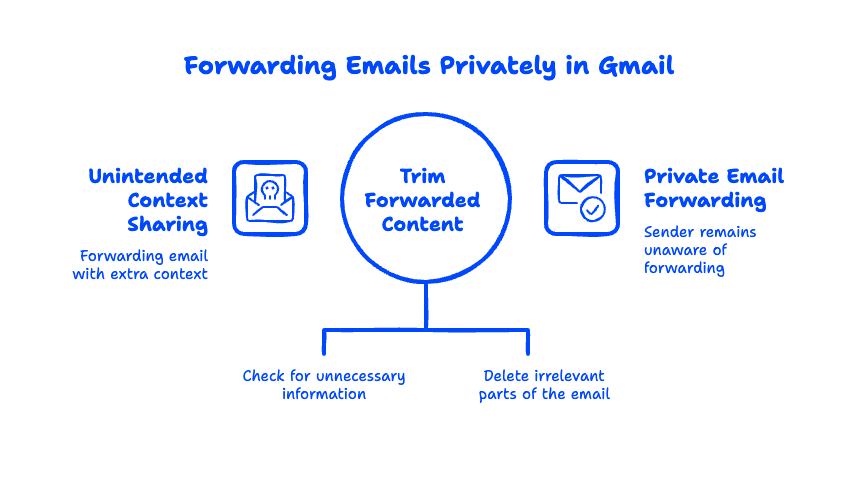
No. When you forward an email in Gmail, the original sender is not notified and has no way to see that you forwarded their message. Forwarding happens entirely within your account — Gmail doesn't send a read receipt or "this was forwarded" alert back to anyone.
The one caveat: the new recipient can obviously see the full original email, including the sender's address, any earlier replies in the thread, and attachments. So the privacy risk isn't that the sender finds out — it's that you might forward more context than you intended. Before hitting send, glance at the quoted history below your note and trim anything that shouldn't travel with the message.
Email forwarding for teams: the Google Workspace angle
Here's where things level up for businesses. Everything above is user-level forwarding, which any individual controls from their own inbox. But on Google Workspace, an administrator can set up forwarding and routing rules for the whole organization from the Admin Console — redirecting mail for a departed employee, splitting a shared address across a team, or enforcing archiving policies centrally.
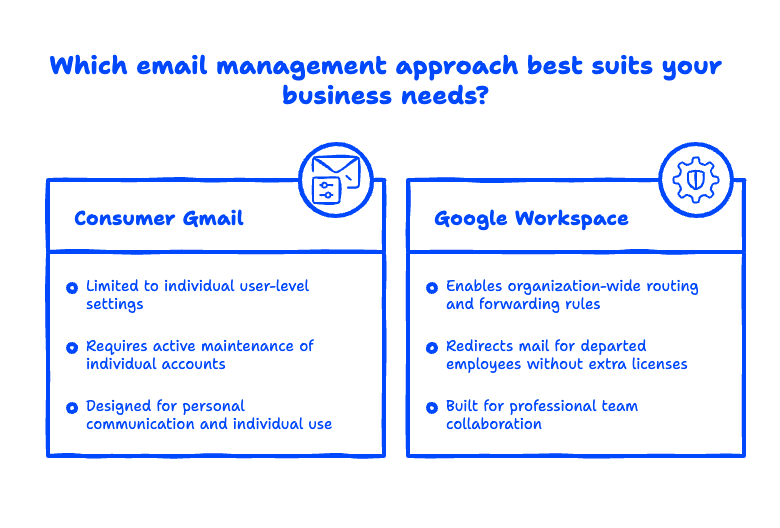
In our experience migrating small businesses to Google Workspace, this is one of the most underused features out there. A common scenario: someone leaves the company, and the business needs their old address to keep working so no customer email falls through the cracks. Admin-level routing handles that cleanly, without paying for an extra license or leaving a mailbox unmonitored. If you're running email through Google Workspace rather than a free Gmail account, you have far more control than the settings menu suggests.
That level of control is a big reason small businesses move off consumer Gmail in the first place. If you're weighing a switch, our overview of migrating your business to Google Workspace walks through how it works with zero downtime.
Why is Gmail forwarding not working?
If your forwarding suddenly stops, it's almost always one of a few culprits. The forwarding address may never have been verified — check the Forwarding and POP/IMAP tab for a "pending" status. A filter you set up might be catching and redirecting (or deleting) the messages before you see them. Forwarded mail can also land in the destination account's spam folder, especially the first few times, so tell the recipient to check there and mark it "not spam."
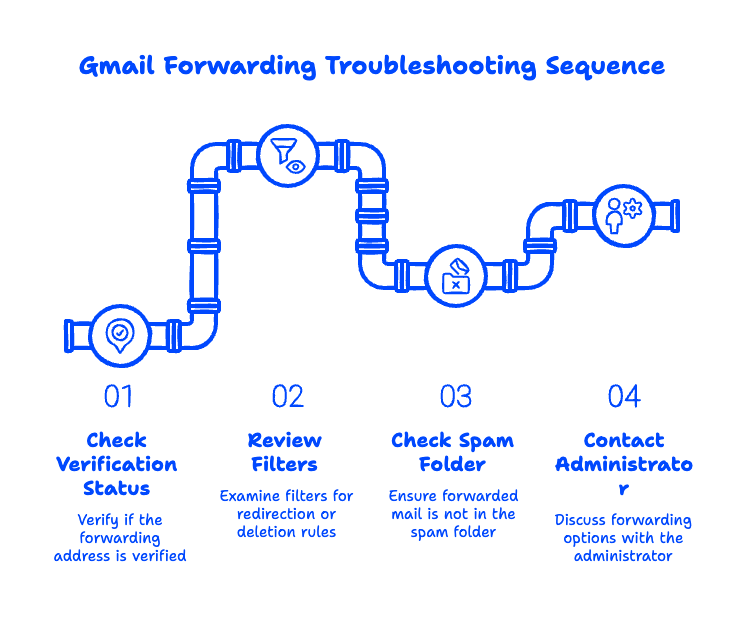
Finally, if you're on a work account — for example, a Google Workspace account — and forwarding options are greyed out, your administrator may have disabled external forwarding as a security policy. That's a legitimate and common setting for businesses protecting sensitive data. In that case, the fix is a conversation with your admin, not a settings tweak.
Frequently Asked Questions
How do I forward a Gmail to another email account?
Open the email and click the Forward arrow, then enter the other email address and send — that forwards a single message to any address, Gmail or otherwise. To forward all incoming mail automatically, add and verify the address under Settings → Forwarding and POP/IMAP, then select "Forward a copy of incoming mail to."
How do I turn off email forwarding in Gmail?
Go to Settings → See all settings → Forwarding and POP/IMAP, select Disable forwarding, and click Save Changes. If you forwarded via a filter instead, open Settings → Filters and Blocked Addresses, find the rule, and delete it.
Does forwarding an email forward the whole thread?
If you forward a single message, only that message is included. If you open a conversation and forward it, Gmail includes the entire thread history by default. Trim the quoted text below your note if you only want to share part of the conversation.
Can I forward emails without opening them?
Yes — automatic forwarding (via settings or a filter) forwards messages the moment they arrive, so you never have to open them manually. This is ideal for backing up a mailbox or routing certain senders to a teammate.
Setting up Gmail is easy; getting business email right — with proper forwarding, routing, and zero downtime — is where a lot of small businesses get stuck. If you're moving to Google Workspace or want your email set up the right way from day one, Googally can help. We migrate businesses to Google Workspace with zero downtime, guaranteed.
Related Posts
Explore Tips and Guides! Discover expert insights and practical guides for optimizing your Google Workspace experience with our informative resources.







.png)
.png)
.png)
.png)
.png)
.png)
.png)


.png)
.png)

.png)






.png)
.png)


.png)


