
.png)
How to Archive a Google Classroom (and When to Delete)
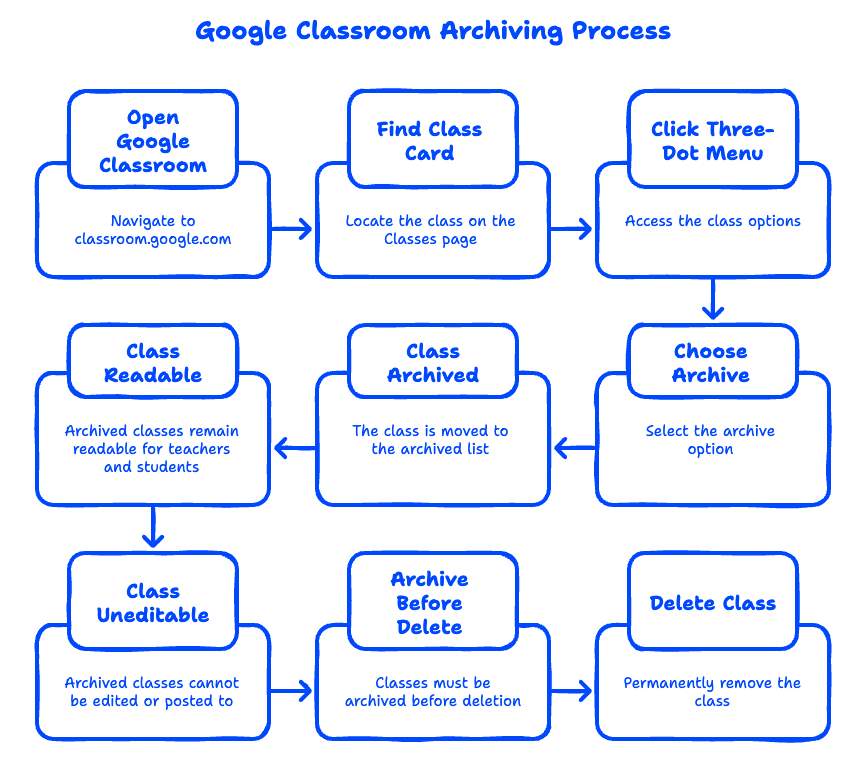
To archive a Google Classroom, open classroom.google.com, find the class card on your Classes page, click the three-dot menu in its top corner, and choose Archive. Archiving a class tucks it out of your active list while keeping every post, assignment, grade, and Drive file intact — and you can restore it anytime. That's the key thing to know before you touch anything: knowing how to archive a Google Classroom the right way means you almost never need to delete one. Deleting is permanent, it can't be undone, and Google won't even let you delete a class until you've archived it first. This guide walks through archiving, deleting, and restoring — plus the end-of-year workflow we recommend to the schools we support.
Quick Takeaways
- Archiving is reversible; deleting is not. Archive a class to preserve grades and materials; delete only when you're certain you'll never need it.
- You must archive a class before you can delete it. There's no direct "delete" on an active class.
- Archived classes stay fully readable for teachers and students — they just can't post, submit, or edit anything.
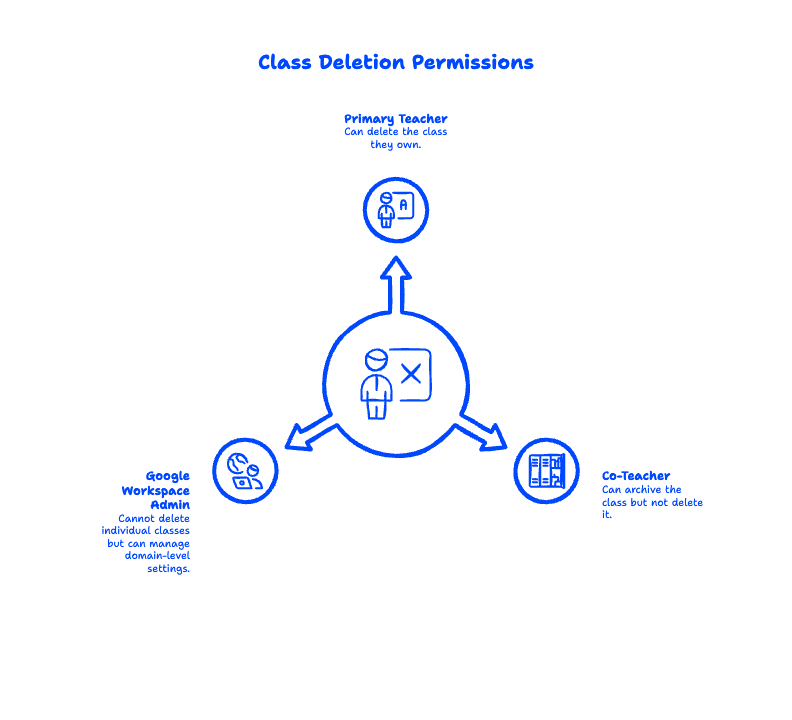
- Only the primary teacher can delete a class. Co-teachers can archive but not delete.
- Drive files survive both actions. The class's Google Drive folder and attachments remain in Drive whether you archive or delete.
How do I archive a class in Google Classroom?
Any teacher or co-teacher can archive a class in a few clicks. On the web, here's the exact path:
- Go to classroom.google.com and sign in with your Google Workspace for Education account.
- On the Classes page, locate the class you want to put away.
- Click the three-dot menu (⋮) in the top-right corner of that class card.
- Select Archive.
- Click Archive again in the confirmation box.

On the Google Classroom mobile app (iOS or Android), the steps are nearly identical: tap the three dots on the class card, then tap Archive. The class immediately drops off your active dashboard and moves into your Archived classes list, where it waits quietly until you need it again.
A quick note from experience: archive the class from the primary teacher's account when you can. Co-teachers can archive too, but keeping the owner in the driver's seat avoids confusion later if the class needs to be restored or deleted.
How do I delete a class in Google Classroom?
You cannot delete an active class directly — Google requires you to archive it first. Once a class is archived, deleting it takes just a moment, but remember this is permanent and irreversible:
- Click the main menu (☰) in the top-left corner of Google Classroom.
- Scroll down and select Archived classes.
- Find the class, click its three-dot menu (⋮), and choose Delete.
- Confirm the deletion.

Once deleted, the class, its Stream, and all grade records are gone for good. There is no trash can or undo for a deleted Google Classroom, so treat that Delete button with respect.
Can a teacher delete a class, or only an admin?
Only the primary teacher (the class owner) can delete a class in Google Classroom. Co-teachers can archive a class but will not see the Delete option. Interestingly, a Google Workspace super admin can't delete an individual class from the Admin console either — admins manage Classroom at the domain level and can reassign a primary teacher, but the actual delete happens from the owning teacher's account. If you run Google Workspace admin, it's worth knowing where that line sits.
Archiving vs. deleting: what's the difference?
The difference between archiving and deleting a Google Classroom comes down to one word: reversibility. Archiving hides a class while preserving everything and lets you bring it back; deleting removes it forever. Here's the side-by-side:
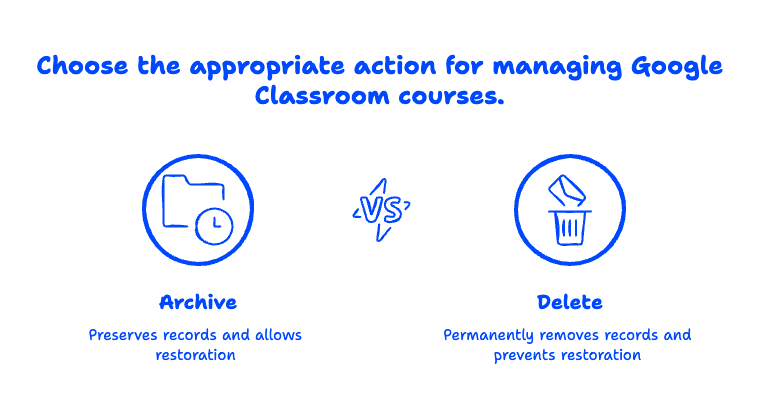
For the vast majority of situations — a course that wrapped up, a semester that ended — archiving is the right move. Deleting really only makes sense for the accidental duplicate class or the "test" class you spun up while learning the platform.
Where do archived classes go, and how do I restore one?
Archived classes aren't deleted — they're just moved to a separate list. To find them, click the main menu (☰) and select Archived classes. There you'll see every class you've tucked away, still holding its full Stream, Classwork, grades, and its dedicated folder in Google Drive. Teachers and students can open an archived class and read everything, but no one can post announcements, submit assignments, or change grades until it's restored.
To restore (unarchive) a class:
- Open the main menu (☰) and click Archived classes.
- Find the class card and click its three-dot menu (⋮).
- Select Restore.

The class hops right back to your active Classes page, exactly as you left it. This is why we tell schools that "archive first, ask questions later" is almost always the safe choice — a restore is one click, but a deletion is forever.
A smarter end-of-year workflow for schools
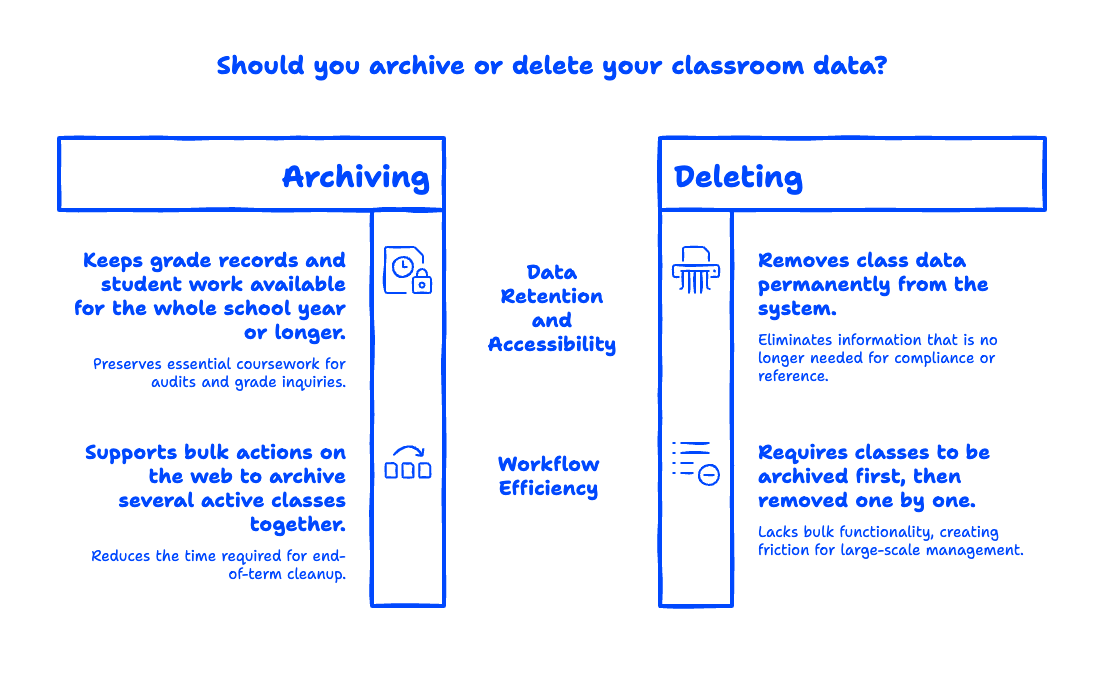
Here's the approach we recommend to the education teams we work with: archive classes at the end of each term, and reserve deletion for genuine cleanup only. Archived classes keep grade records and student work available for the whole school year (or longer), which matters when a parent questions a grade in month three or an administrator needs proof of coursework for an audit.
For organizations with retention or compliance obligations, remember that Classroom data connects to the wider Google Workspace ecosystem. Assignment attachments and the class Drive folder fall under your domain's storage and can be governed with Google Vault retention rules, so "archive vs. delete" is really part of a bigger data-governance picture — one every admin managing Google Workspace for your organization should think through.
The one place teachers hit friction is scale. On the web you can now select several active classes and archive them together, which takes the sting out of end-of-term cleanup — but there's still no bulk delete, and every class you actually want gone has to be archived first, then removed one by one. For admins overseeing hundreds or thousands of classes across a district, that's exactly the kind of task worth automating. According to Google's Classroom Help Center, class management stays teacher-owned by design — so district-wide oversight usually means tooling on top of Classroom rather than a single admin switch.
Frequently Asked Questions
Can students still see an archived class?
Yes. Students keep the archived class in their own Archived classes list and can open it to review posts, materials, and their grades. What they can't do is submit new work, comment, or interact — an archived class is strictly read-only until a teacher restores it.
Can you recover a deleted Google Classroom?
No. Deleting a class is permanent, and there is no trash or undo for the class itself. The associated Google Drive folder and file attachments remain in Drive, but the class, its Stream, and its grade records are gone. This is exactly why archiving — which is fully reversible — is the safer default.
What happens to Drive files when I archive or delete a class?
The class's Google Drive folder and all attached files stay in Google Drive in both cases. Archiving keeps everything neatly linked to the class; deleting removes the class shell but leaves the files sitting in their owners' Drive. Nothing in Drive is erased just because you archived or deleted the classroom.
How do I archive multiple classes at once?
On the web, Google Classroom now lets you select multiple active classes and archive them in one go from the Classes page — a handy end-of-term time-saver. There's still no bulk delete, though, so clearing out several classes means archiving them together and then deleting each one individually. Admins managing classes at scale typically lean on the Classroom API or dedicated admin tooling.
Running a school or district on Google Workspace and tired of end-of-year cleanup eating your time? That's exactly the kind of admin heavy-lifting we help education teams tame. See how Googally makes managing Google Workspace at scale a whole lot lighter.
Related Posts
Explore Tips and Guides! Discover expert insights and practical guides for optimizing your Google Workspace experience with our informative resources.


















.png)
.png)
.png)
.png)
.png)
.png)
.png)



.png)
.png)

.png)









.png)
.png)


.png)


