
.png)
How to Delete a Page in Google Docs (4 Fast Fixes)
To delete a page in Google Docs, click at the start of the page you want gone, hold Shift, click at the end of it, and press Backspace or Delete. That removes the content and pulls everything below it up. If the page is blank and won't disappear, the culprit is almost always an invisible page break or a trail of empty paragraph marks — put your cursor at the very top of the blank page and hold Backspace until it collapses. Google Docs has no "delete page" button, which is exactly why this simple task sends thousands of people searching every month. Below are the four fixes that cover every version of this problem.
Quick Takeaways
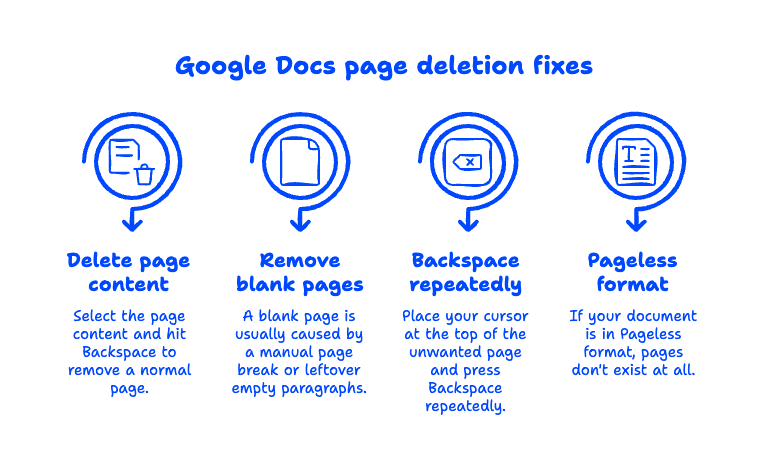
- Google Docs has no dedicated delete-page button — pages disappear when you delete the content that creates them.
- Select the page content and hit Backspace to remove a normal page.
- A blank page that won't go away is usually caused by a manual page break or leftover empty paragraphs.
- Place your cursor at the top of the unwanted page and press Backspace repeatedly — this fixes 90% of stubborn blank pages.
- If your document is in Pageless format, pages don't exist at all — switch to Pages format first, or stop worrying about it.
Why Does Google Docs Add a Page I Didn't Ask For?
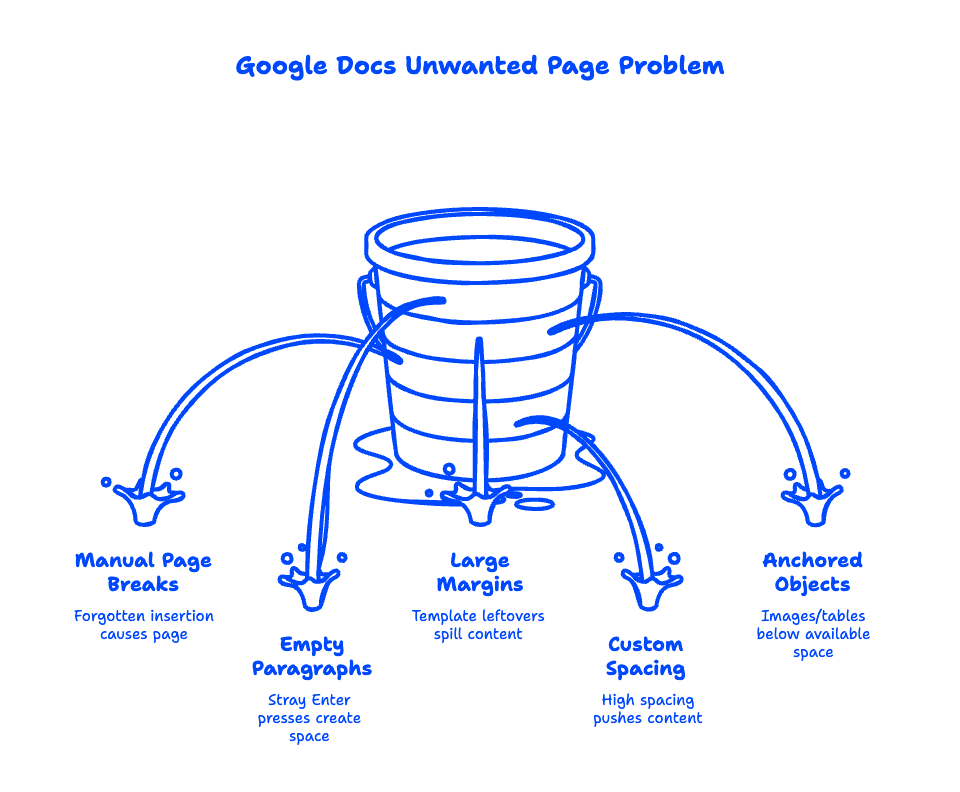
Google Docs never adds pages on its own. A page exists only because something is pushing content onto it — text, a page break, empty paragraphs, an oversized image, or a table that won't fit above.
This is the single most important thing to understand, and it's what most guides skip. Word processors are "flow" based: content flows until it runs out of room, then a new page appears. Delete whatever is doing the pushing and the page vanishes on its own.
In our experience helping small business teams clean up shared templates in Google Workspace, the usual suspects are:
- Manual page breaks someone inserted years ago and forgot about
- Empty paragraphs — dozens of stray Enter presses at the end of a document
- Large top or bottom margins left over from a template
- Custom spacing ("Space after paragraph") set high enough to spill a single line onto a new page
- Tables or images anchored just below the available space
How Do You Delete a Page in Google Docs?
Here are the four methods, in the order you should try them. Start with method one — it solves most cases in about three seconds.
Method 1: Select the content and delete it
This is the standard way to remove a page in Google Docs when the page actually has content on it.
- Click at the very beginning of the first line on the page you want to remove.
- Scroll to the end of that page.
- Hold Shift and click after the last character.
- Press Backspace (Mac) or Delete (Windows).
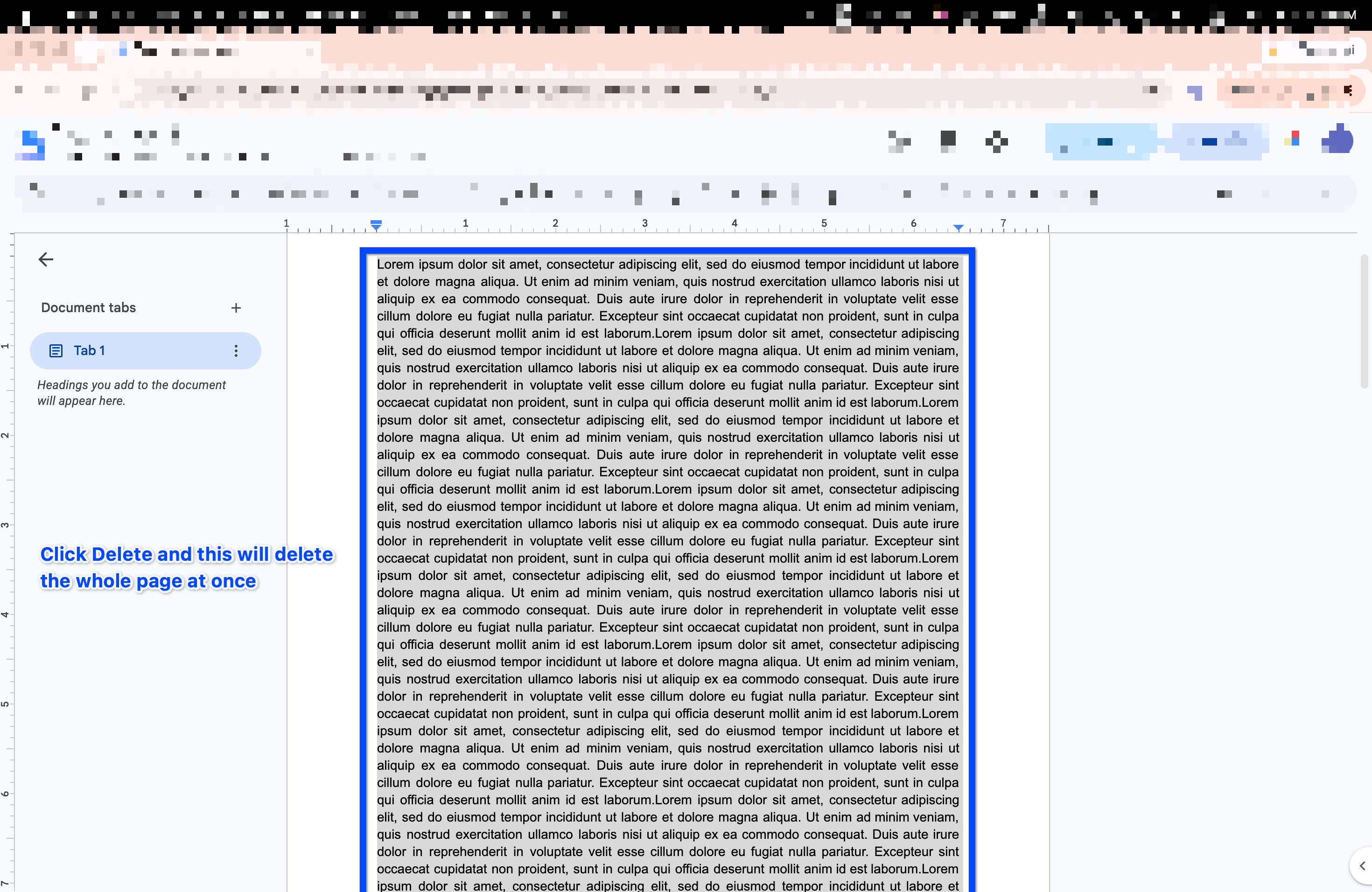
Everything below shifts up and the page is gone. If you're deleting the last page of the document, you may still see a stubborn empty page — jump to method two.
To delete multiple pages, use the same trick across a wider range: click at the start of the first page you want gone, Shift-click at the end of the last one, and delete in a single stroke. That's how to delete pages in Google Docs in bulk without repeating yourself.
Method 2: How to delete a blank page in Google Docs
A blank page is almost never truly blank. It contains invisible characters — usually empty paragraphs.
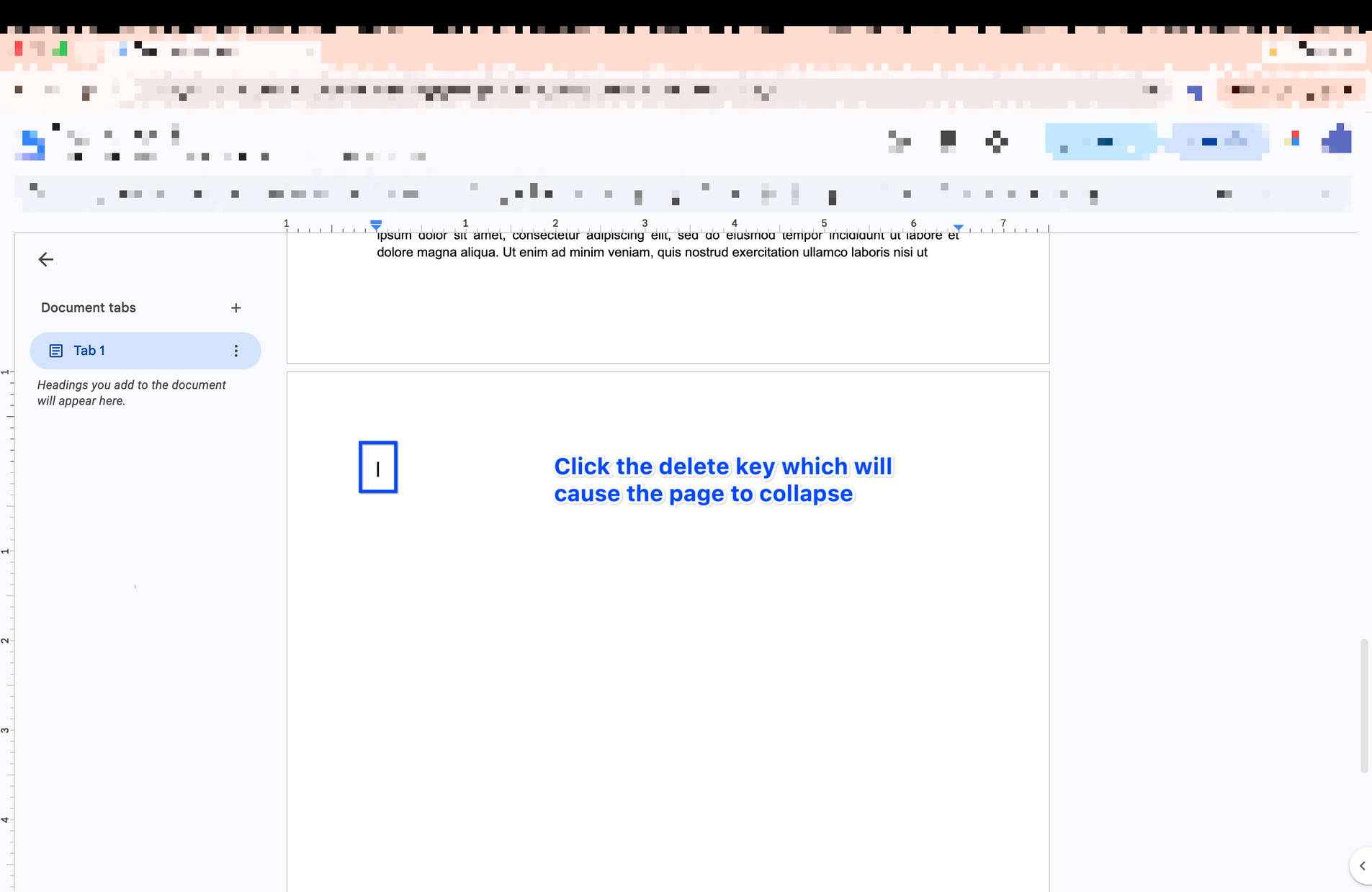
Put your cursor at the very start of the blank page and press Backspace repeatedly until the page collapses. Each press removes one hidden paragraph mark. Keep going until the cursor jumps back to the previous page.
If you'd rather do it in one move, click at the end of the last visible text on the previous page, then press Ctrl + Shift + End (Windows) or Cmd + Shift + Down (Mac) to select everything to the end of the document, and hit Delete. That's the fastest route for how to delete an empty page in Google Docs when it's sitting at the very end.
Method 3: How to remove a page break in Google Docs
If Backspace does nothing, you're fighting a page break. Page breaks are invisible by default, which is what makes this so maddening.
- Click at the very top of the unwanted page — right before the first character or, on a blank page, on the empty line itself.
- Press Backspace once.
- The break disappears and the content merges back onto the previous page.

To see what you're dealing with first, go to View → Show non-printing characters. Page breaks, section breaks, paragraph marks, tabs, and spaces all appear in blue. This one setting turns an invisible problem into an obvious one, and it's worth switching on any time a document misbehaves. If you appreciate the "see what's actually there" approach, we take the same angle with strikethrough in Google Docs.
Method 4: Fix the spacing and margins that create the page
Still there? Then the page is being created by layout, not content. Two settings do this:
- Custom spacing. Go to Format → Line & paragraph spacing → Custom spacing and lower the "Space after paragraph" value. A large value can push a single line onto a new page.
- Margins. Go to File → Page setup and reduce the bottom margin slightly. Template-inherited margins of 1.5" or more are a common cause of an extra page in Google Docs.
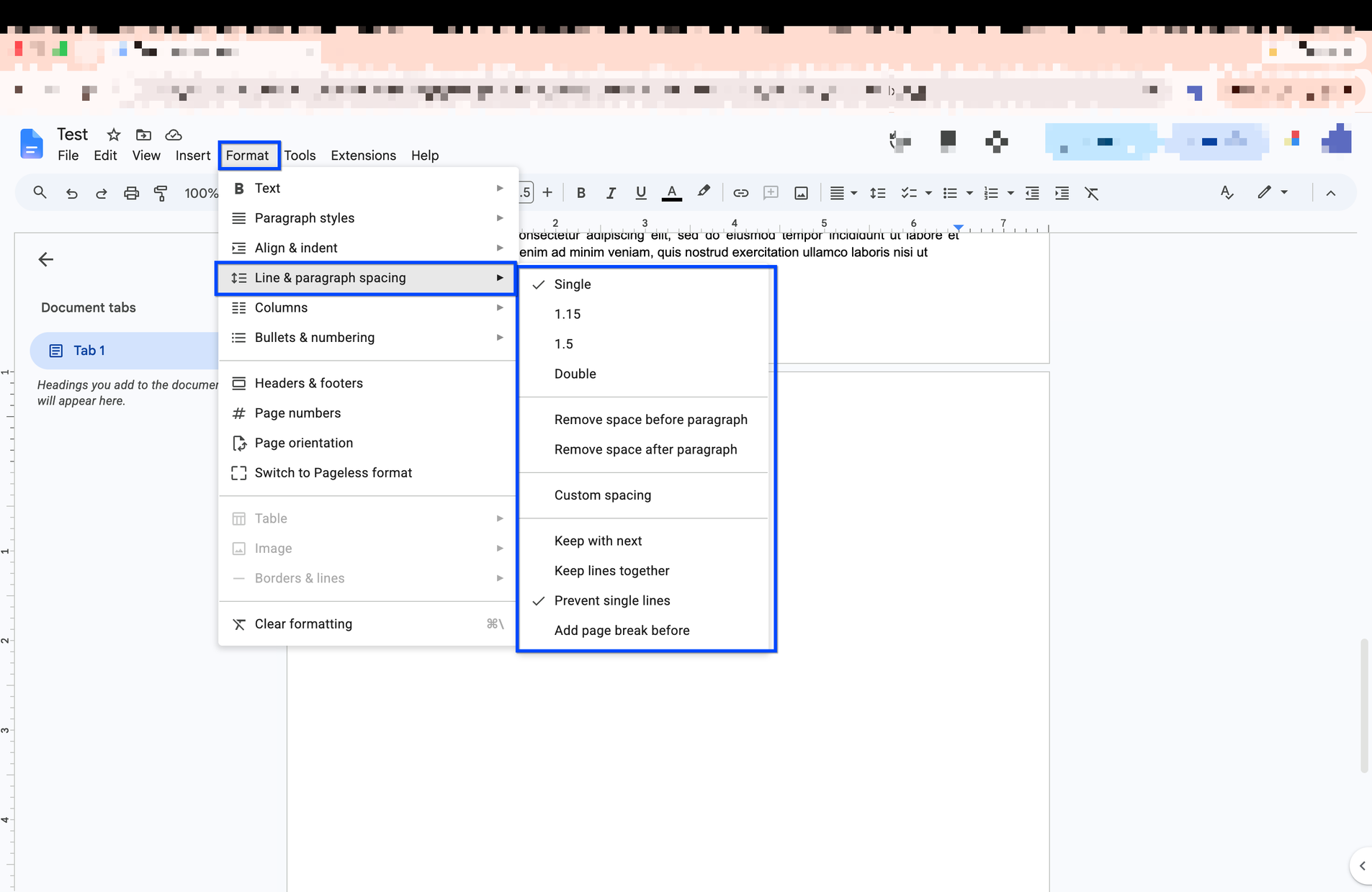
Adjusting the bottom margin by even a quarter inch is often enough to pull an orphaned line back up and delete the extra page entirely. According to Google's own documentation on page breaks and margins, you can also drag the triangle on the ruler to move a margin without opening Page setup at all.
Wait — Is Your Document in Pageless Format?
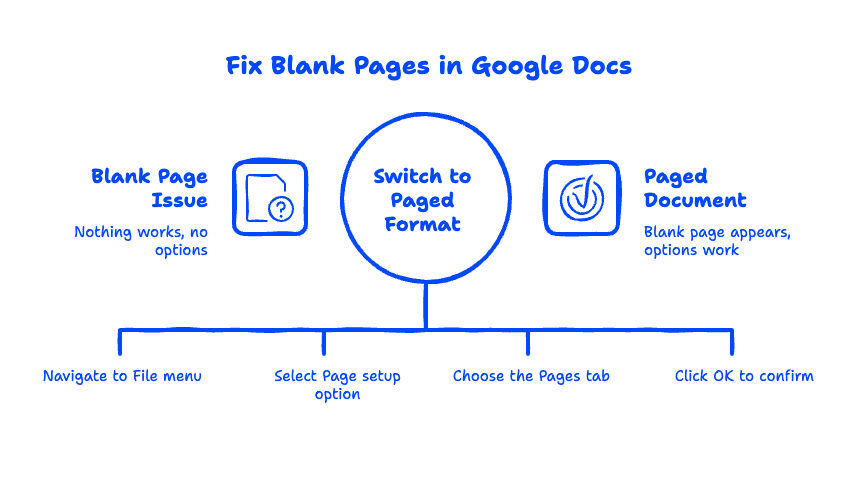
Here's the one nobody tells you. If your document is set to Pageless, it has no pages, no page breaks, and no margins to adjust. There is literally nothing to delete.
Pageless documents scroll as one continuous surface, which is great for collaboration and terrible for anyone following a guide written before 2022. If none of the menu options above appear — no page break option under Insert, no margins under Page setup — that's your answer.
To switch: File → Page setup → Pages → OK. Your content reflows into pages, the offending blank page appears, and the four methods above start working. This is the fix for a surprising share of the "nothing works!" cases we see.
How Do I Delete a Page in Google Docs on iPhone or Android?
On mobile, page boundaries only appear when Print layout is turned on — so the fix is the same, but you have to see the pages first.
- Open the doc in the Google Docs app.
- Tap the three-dot menu in the top right.
- Toggle Print layout on.
- Tap and drag to select the content on the unwanted page, then tap Delete on the keyboard.

If Print layout is off, the document reflows as one continuous scroll and pages don't exist at all — which is a perfectly good workaround if you're just reading or drafting on your phone.
Google Docs vs. Word: Why This Is Actually Easier in Docs
Here's the part almost no one mentions. If you've ever searched for how to remove a blank page in Word, you know the drill: navigation panes, section breaks, paragraph symbols, "Hidden" font tricks. Word gives you more layout machinery, and more machinery means more ways to trap a page you can't kill.
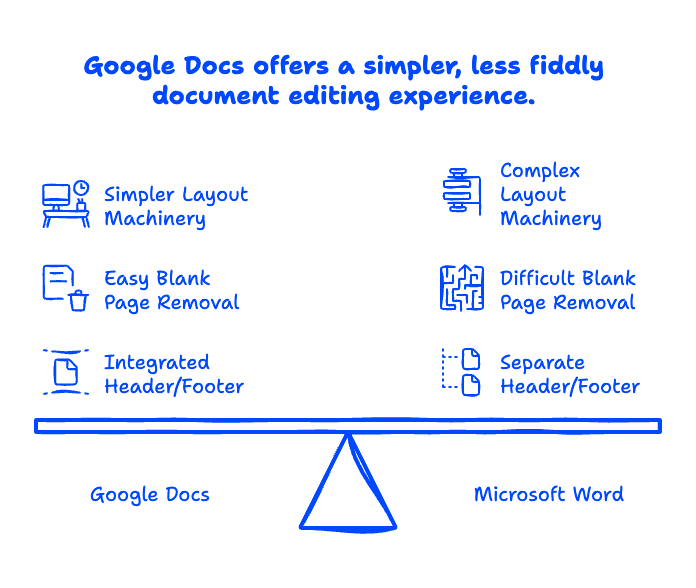
Google Docs has the same core concepts — it does have section breaks, and it has margins — but far fewer layers stacked on top. There's no separate header/footer layout engine wedging in an extra sheet, and no "different first page" setting quietly fighting your break. In practice that means the Backspace method above works nearly every time, and when it doesn't, there are only three things left to check: the break, the spacing, and the margin.
It's a small thing. But it's the kind of small thing that adds up across a team of twenty people editing shared documents all day, and it's one of many reasons the businesses we migrate from Microsoft 365 tell us their documents just get less fiddly. If your team is still splitting time between both worlds, our breakdown of Office 365 vs Google Workspace covers what actually changes day to day.
Frequently Asked Questions
How do I delete the second page in Google Docs?
Click at the very start of page two, then Shift-click at the end of page two, and press Backspace. If page two is blank, put your cursor at the top of it and press Backspace until it collapses into page one. The same method works for any page number in the document.
Why won't my blank page delete in Google Docs?
Because it isn't blank. It contains either a manual page break or empty paragraph marks. Turn on View → Show non-printing characters to reveal both, then delete whichever one is there. If neither exists, check your bottom margin under File → Page setup.
How do you delete a slide on Google Slides?
Right-click the slide thumbnail in the left-hand filmstrip and choose Delete. You can also select it and press Delete on your keyboard, or Ctrl/Cmd-click to select several slides first. Slides works differently from Docs — slides are discrete objects, so there's a real delete command. While you're in there, adding music to Google Slides is worth a look.
Can I delete the whole document instead of just a page?
Yes. In Google Drive, right-click the file and choose Remove. It moves to Trash and is permanently deleted after 30 days. If it's a shared team file, deleting it removes it for everyone with access, so check ownership first — a lesson worth learning before you click, not after. If you're new to how Drive handles shared files, our take on Google Drive for desktop is a good starting point.
Does dark mode change any of this?
No. Dark mode is purely visual and doesn't affect page breaks, margins, or spacing. If you want easier reading while you clean up long documents, though, see how to enable Google Docs dark mode.
Wrestling with Google Docs is one thing. Wrestling with a whole email platform that's fighting your team every day is another. If your business is still stuck on Microsoft 365, GoDaddy, or Rackspace, we move companies to Google Workspace with zero downtime — and we handle the messy parts so your team doesn't have to.
Related Posts
Explore Tips and Guides! Discover expert insights and practical guides for optimizing your Google Workspace experience with our informative resources.


















.png)
.png)
.png)
.png)
.png)
.png)
.png)


.png)
.png)

.png)








.png)
.png)


.png)


