
Google Workspace 2-Step Verification: Make It Mandatory
When I help a team tighten up their Google Workspace at Googally, the first thing I check is whether 2-Step Verification is actually enforced across the company — not just switched on for the owner. Almost every time, a few accounts are still guarded by a password alone. That single gap is how most small-business account takeovers start.
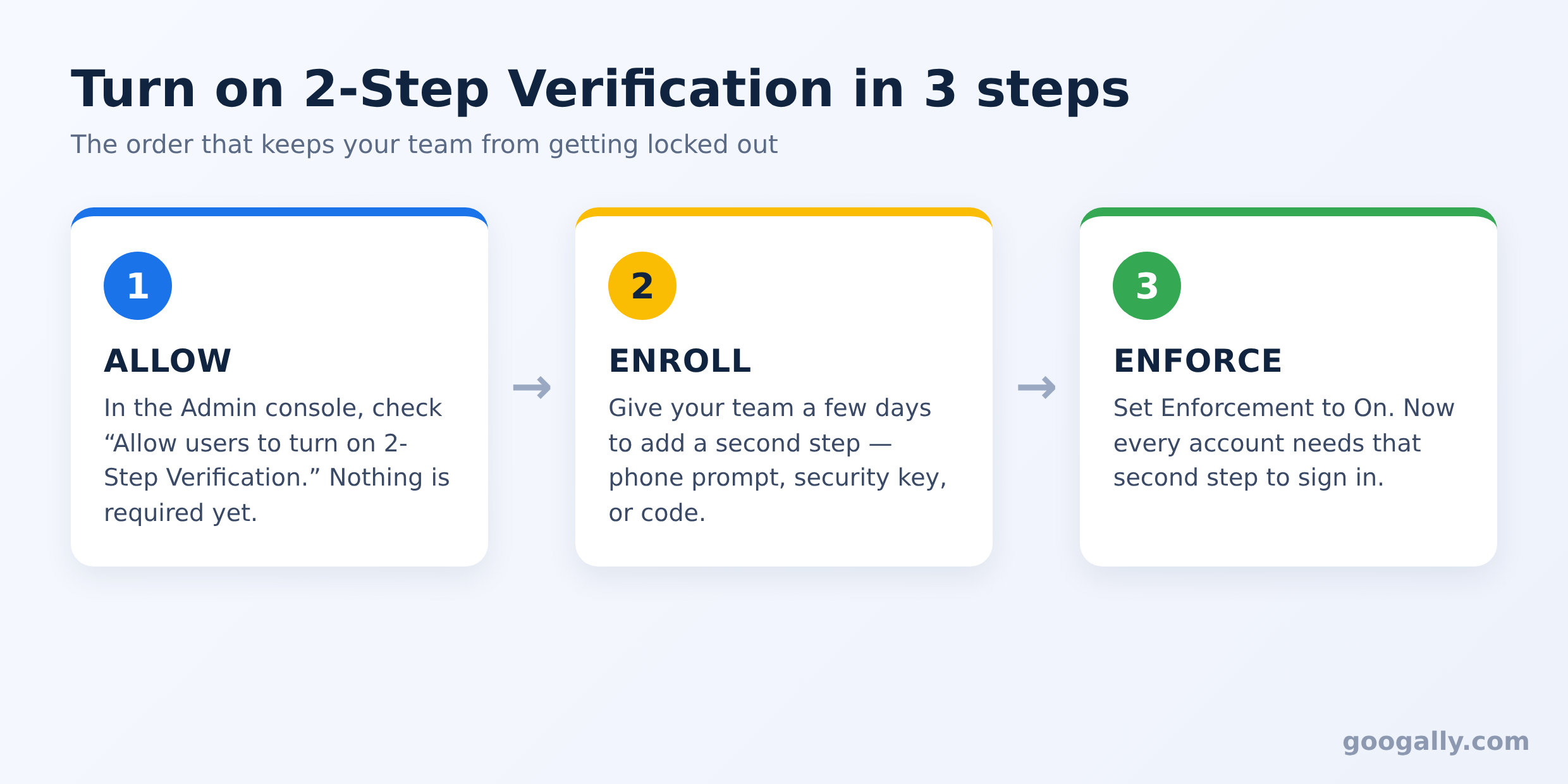
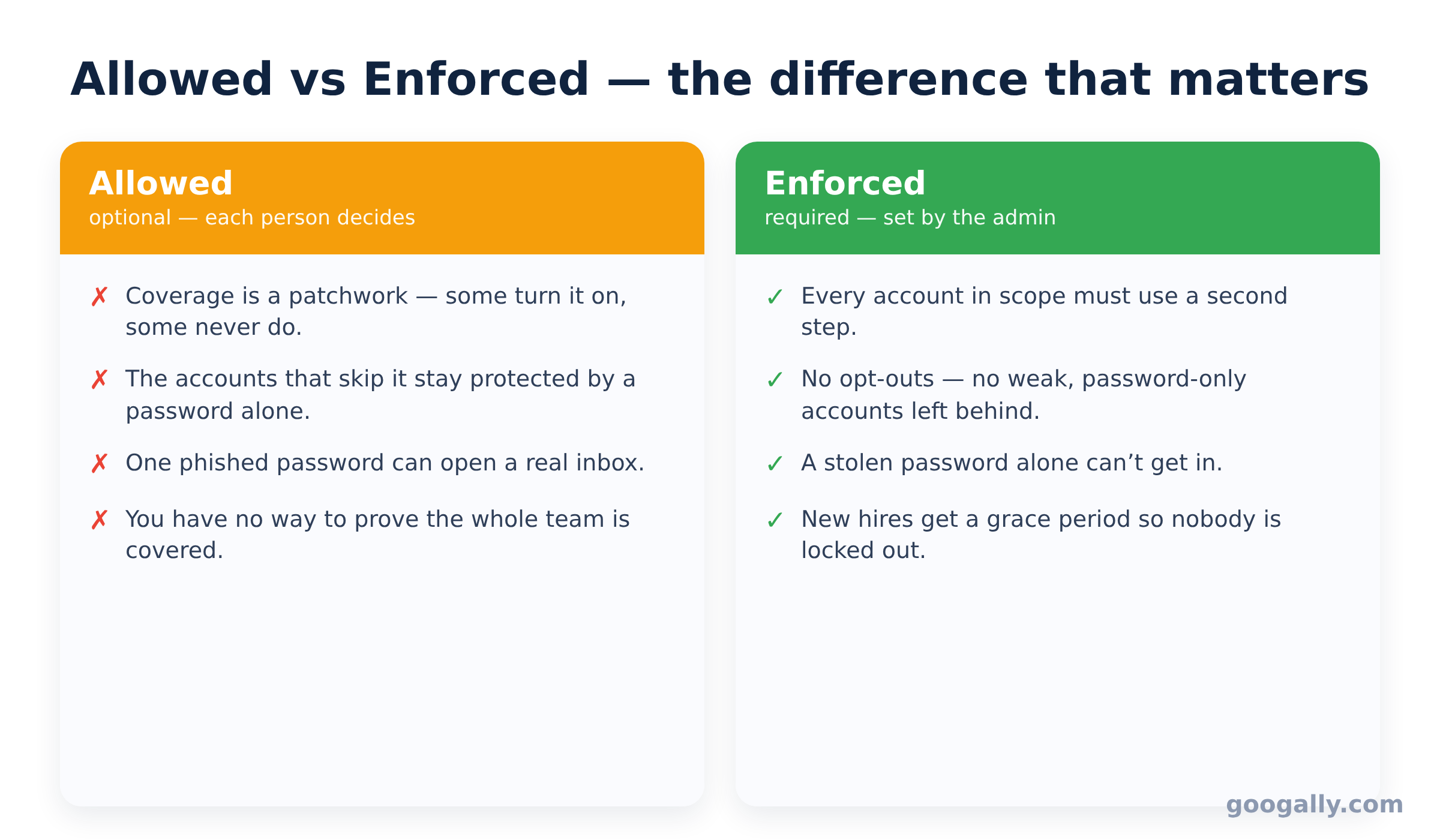
You set up 2-Step Verification in the Google Admin console under Security → Authentication → 2-Step Verification. First check "Allow users to turn on 2-Step Verification," give your team a few days to enroll, then set Enforcement to On so every account needs a second step to sign in.
That three-part order — allow, enroll, enforce — is what keeps people from being locked out on day one. Below I walk through each step, the verification methods worth allowing, and the one setting most guides skip.
What 2-Step Verification actually protects you from
2-Step Verification (2SV, sometimes called two-factor authentication or 2FA) adds a second check after the password: a tap on your phone, a code, or a physical security key. So even if someone steals, guesses, or phishes a staff password, they still can't get into the account without that second factor.
For a small business this matters more than it does for a personal Gmail. One compromised Workspace account can expose client email, shared files, and calendars — and it often becomes the launch pad for invoice fraud, where an attacker sits in a mailbox and quietly reroutes a payment. A password on its own is simply not enough protection for accounts that hold other people's data.
Here's the catch most owners miss: turning 2SV on for your account does nothing for the rest of the team. Until an admin requires it for everyone, each employee decides for themselves — and the ones who skip it are exactly the weak point an attacker looks for.
Turn on 2-Step Verification for your organization
Start by allowing 2SV before you require it. You need to be a super administrator to change this.
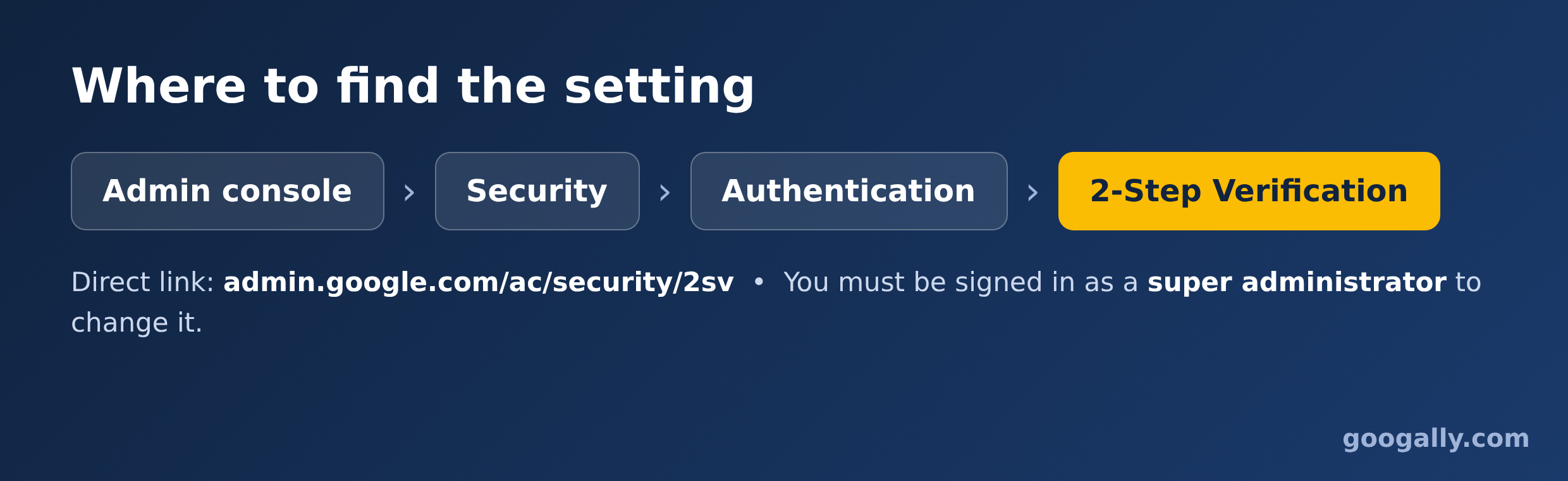
In the Admin console, open Menu → Security → Authentication → 2-Step Verification (you can also go straight to admin.google.com/ac/security/2sv). Optionally pick an organizational unit or group if you only want the change to apply to some staff. Then check Allow users to turn on 2-Step Verification, leave Enforcement set to Off for now, and click Save.
At this stage nothing is mandatory yet. You've simply opened the door so people can enroll their phones and security keys. That gap between "allowed" and "enforced" is deliberate — it's what you'll use next to avoid locking anyone out.
Let your team enroll before you enforce it
Give people time to sign up a second step before you make it a wall. If you flip enforcement on while half the company hasn't enrolled, those users get shut out of their own email the moment they next sign in.
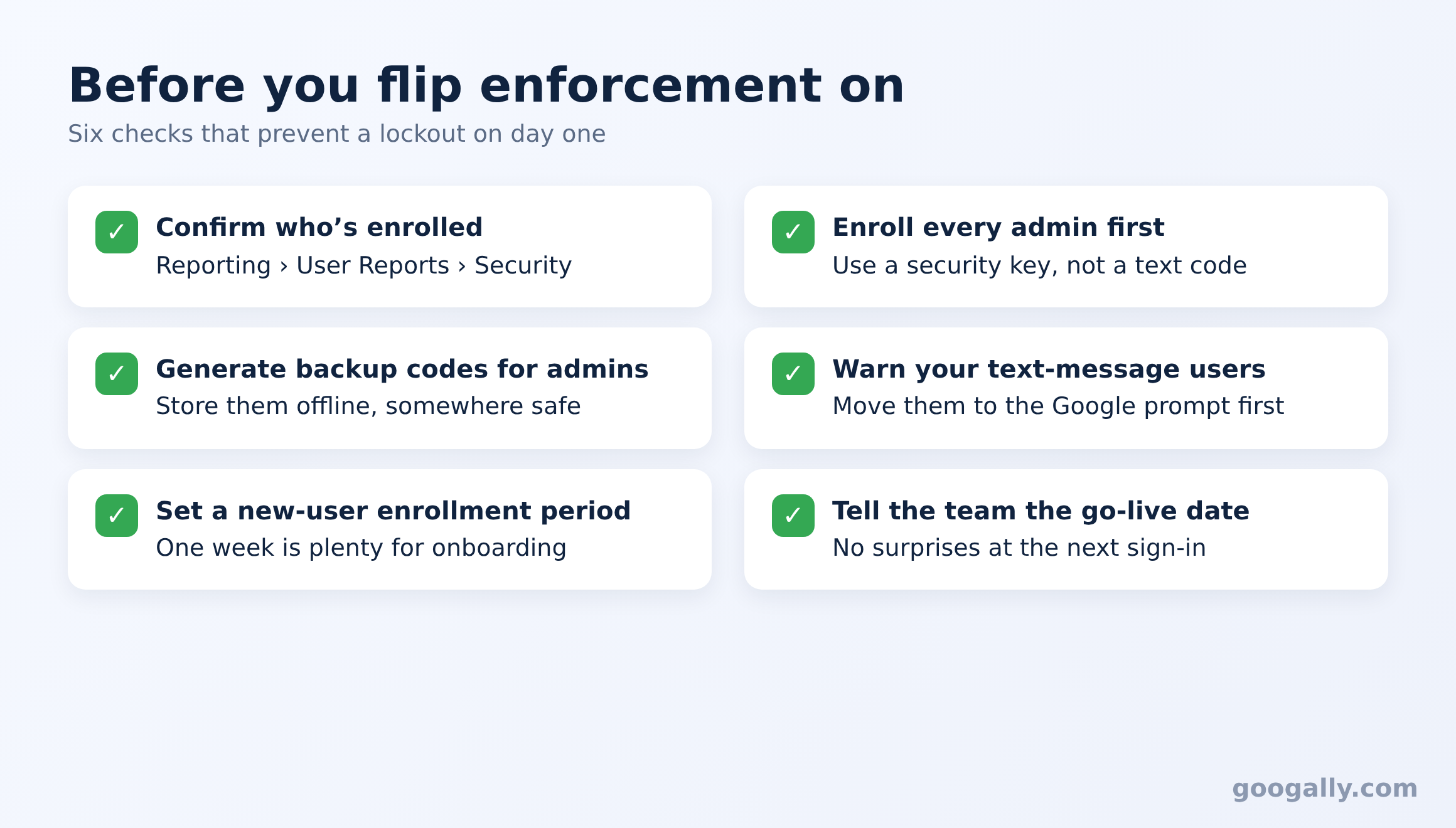
Send a short note asking everyone to add 2SV from their own account (myaccount.google.com → Security), then confirm who's done it. You can check enrollment in Reporting → User Reports → Security, or in Security → Security center → Security health. For a handful of stragglers, a quick in-person nudge beats a help-desk ticket later.
A week is plenty for most small teams. The point is to reach enforcement day with as close to 100% enrolled as you can get.
Enforce 2-Step Verification so it's mandatory
Once people are enrolled, go back to Security → Authentication → 2-Step Verification and set Enforcement. You have two choices: On, which starts right away, or Turn on enforcement from date, which begins within 24–48 hours of the date you pick. If you need a precise cutover, use On at the moment you're ready.
Then set a New user enrollment period — anywhere from 1 day to 6 months. This is the setting most guides skip, and it's the one that saves you headaches: during this window, brand-new hires can sign in with just a password long enough to set up their second step, instead of being blocked on their first morning. I usually set it to 1 week to match a normal onboarding.
Leave Allow user to trust the device unchecked unless your team constantly switches computers; trusting devices quietly weakens the whole point of 2SV. Save your changes (or click Override if you're applying it to one organizational unit), and from that point every account in scope needs a second step to get in. If you want the official reference as you go, Google's Deploy 2-Step Verification guide documents this exact screen.
Which verification methods should you allow?
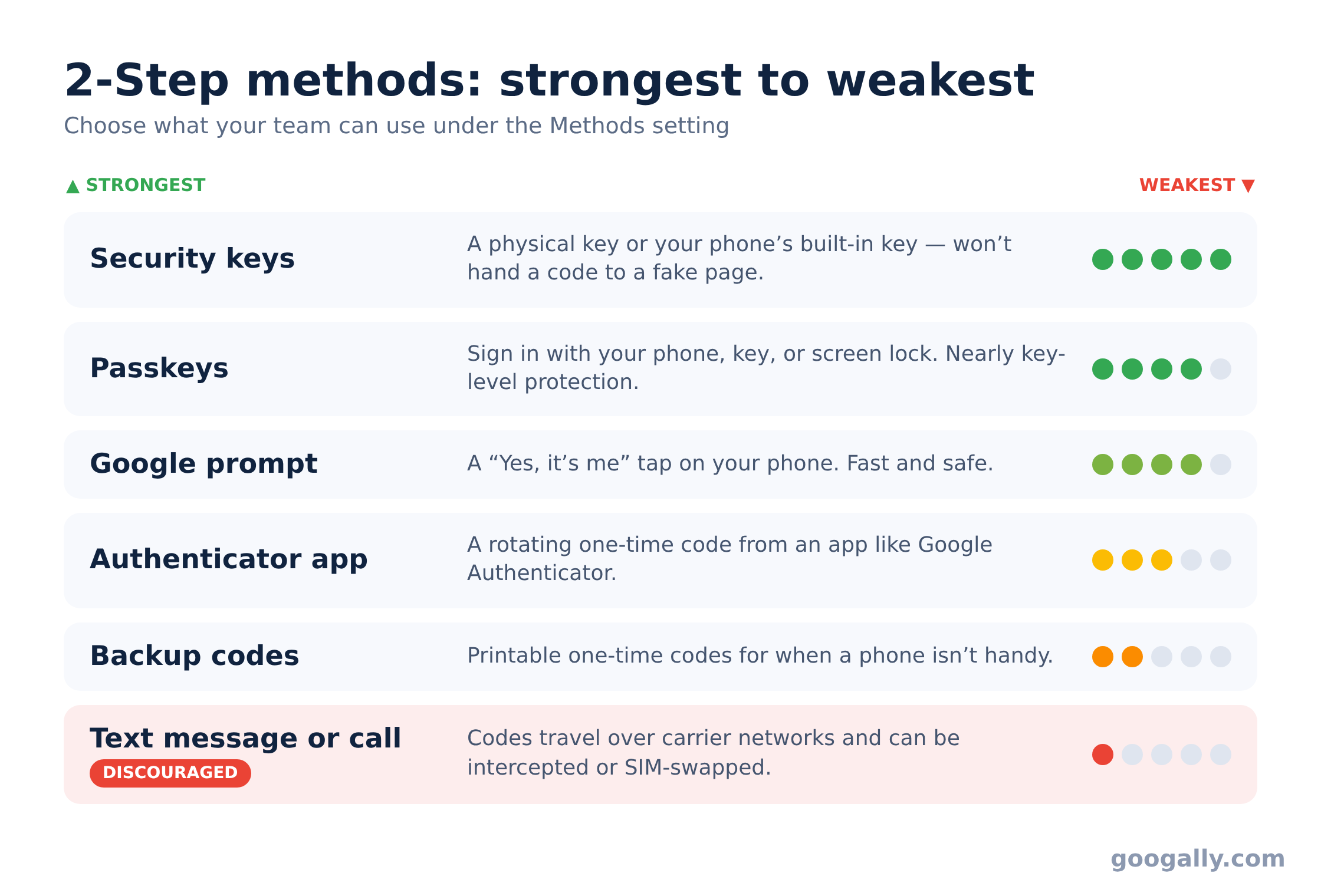
Not all second steps are equally strong, so it's worth choosing deliberately under the Methods setting. From strongest to weakest, your options are:
- Security keys — a hardware key, a Titan Security Key, or your phone's built-in key. Google calls these the strongest form of 2SV, because a key won't hand over a code to a fake login page.
- Passkeys — sign in with your phone, a security key, or your computer's screen lock. Nearly as phishing-resistant as a physical key.
- Google prompt — a "Yes, it's me" tap on your Android or Apple phone. Fast, and far safer than a typed code.
- Authenticator app — a rotating code from Google Authenticator or any app that supports standard one-time codes.
- Backup codes — printable one-time codes for when someone can't reach their phone.
- Text message or phone call — the weakest option. Google now discourages texts because codes travel over carrier networks and can be intercepted or SIM-swapped.
For most small businesses, allowing Any except verification codes via text, phone call is a sensible default: it keeps the convenient methods (prompt, authenticator, keys) while closing the SMS weak spot. Warn anyone who relies on texts before you switch, so they move to the Google prompt first.
Protect your admin accounts first
Your super admin accounts are the keys to the whole kingdom, so they deserve the strongest protection and your earliest attention. Google now requires 2-Step Verification on administrator accounts, so you'll be enrolling those first regardless — do it with a security key or passkey, not a text code.
Make sure more than one person has admin access with their own second step, and generate a set of backup codes for each admin stored somewhere safe offline. If a single admin loses their phone and there's no backup, recovering the account is slow and painful. A few minutes of prep here is cheap insurance for the account that can reset everyone else's.
If your business handles regulated data — think a law firm or a healthcare practice — enforced 2SV is just one of many controls auditors expect. It pairs with the deeper configuration work involved in making Google Workspace HIPAA compliant, and it's a good reason to review who holds the super admin role in the first place.
Don't stop at 2-Step Verification
Enforced 2SV blocks the most common break-in, but it isn't your whole security posture. Keep an independent backup of your Workspace data so a mistake or a malicious insider can't erase it, and understand how your email is encrypted in transit and at rest. Layered together, these turn Workspace into a genuinely hard target.
Set it up right — or let us do it
Rolling out enforced 2-Step Verification across a team is the kind of thing I handle for businesses every week at Googally, alongside full migrations and locking down the settings that keep you audit-ready. If you'd rather not touch the Admin console yourself, reach out and we'll configure it for you.
And if you're standing up a brand-new Google Workspace account to begin with, grab a Google Workspace promo code first — as an authorized partner we can get you 15% off the first 3 months for new customers, so securing your team and saving on your subscription happen in the same move.
Frequently asked questions
Can employees turn off 2-Step Verification after I enforce it?
No. Once enforcement is on for their organizational unit, users can't disable 2SV on their own — they can only change which second step they use. Only an admin can lift the requirement.
Will 2-Step Verification lock me out of Outlook or other email apps?
It can, because older apps that use only a password don't support the second step. The fix is an app-specific password you generate once for that app, which satisfies the login without weakening 2SV on your main account.
What happens if someone loses the phone they use for 2SV?
They sign in with a backup code if they created one, or an admin generates one for them. This is exactly why handing out backup codes before enforcement day — especially to admins — is worth the few minutes it takes.
Does 2-Step Verification cost extra?
No. 2-Step Verification is included free on every Google Workspace plan, from Business Starter to Enterprise. The only "cost" is optional hardware security keys if you choose to buy them for your most sensitive accounts.
Related Posts
Explore Tips and Guides! Discover expert insights and practical guides for optimizing your Google Workspace experience with our informative resources.













.png)
.png)
.png)
.png)
.png)
.png)
.png)
.png)



.png)
.png)

.png)







.png)
.png)


.png)


