

How to Schedule an Email in Gmail (and Send It Later)
To schedule an email in Gmail, write your message as usual, then click the small dropdown arrow next to the Send button, choose Schedule send, and pick a suggested time or select Pick date & time. Confirm, and Gmail holds the email in your Scheduled folder and delivers it automatically at the time you set — no add-ons required. It works the same way whether you're on a paid Google Workspace account or a free personal Gmail, and you can cancel or edit a scheduled message any time before it goes out. Below I'll walk through the exact steps on desktop and mobile, where scheduled emails live, how to cancel one, and a few pro tips I share with the teams I help set up Gmail at Googally.
Quick Takeaways
- Schedule send lives next to the Send button — click the arrow, pick a time, done.
- It works on Gmail on the web, plus the Android and iPhone apps.
- Scheduled emails wait in the Scheduled folder and send automatically at the set time.
- You can cancel or reschedule any scheduled email before it sends.
- Gmail lets you hold up to 100 scheduled emails at once — plenty for most people.
How do I schedule an email in Gmail on desktop?
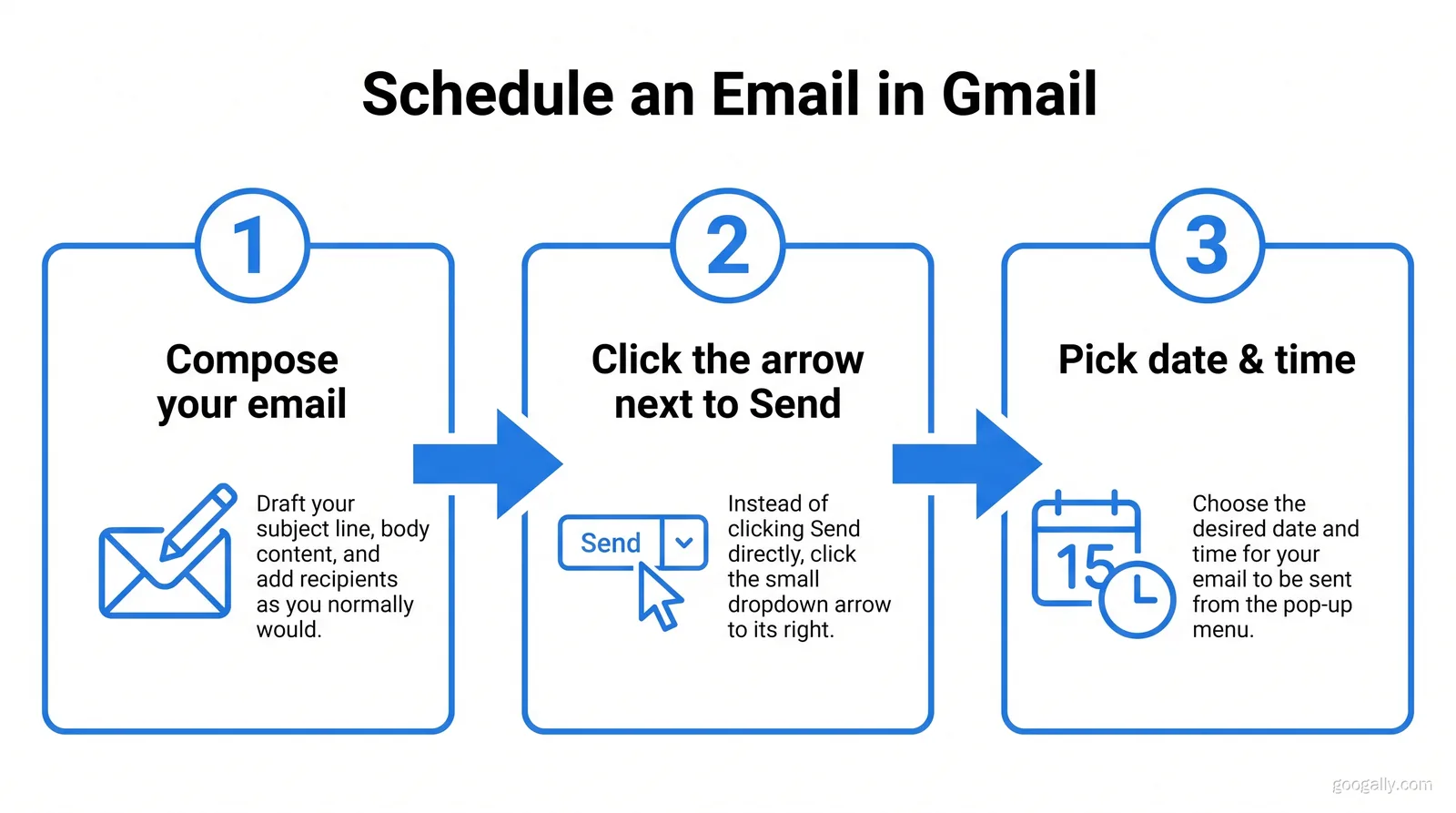
You schedule an email in Gmail on desktop in five quick steps. The feature is built in, so you don't need any extension or third-party tool.
- Compose your email as normal — add recipients, a subject, and your message.
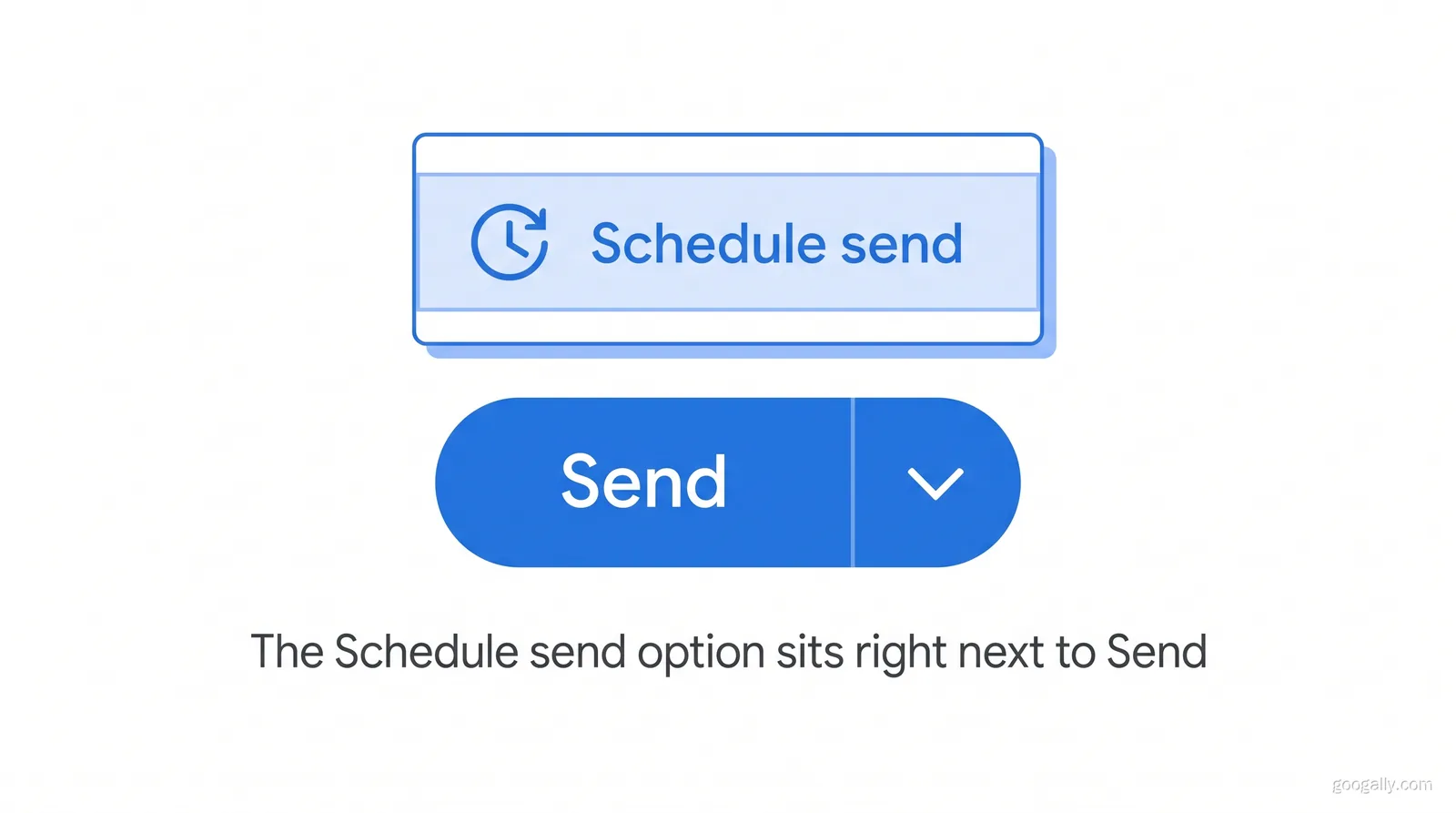
- Instead of clicking Send, click the dropdown arrow directly to the right of the Send button.
- Select Schedule send from the menu.
- Choose one of Gmail's suggested times (like "Tomorrow morning") or click Pick date & time to set an exact slot.
- Confirm. Gmail moves the message to your Scheduled folder and sends it automatically at that time.
That's it. The email leaves your outbox on schedule even if your computer is off or you're offline — it sends from Google's servers, not your device. If you're still fine-tuning how your outgoing mail looks, it's worth setting up a proper professional Gmail signature first so every scheduled message goes out polished.
How to schedule an email in the Gmail app (Android and iPhone)
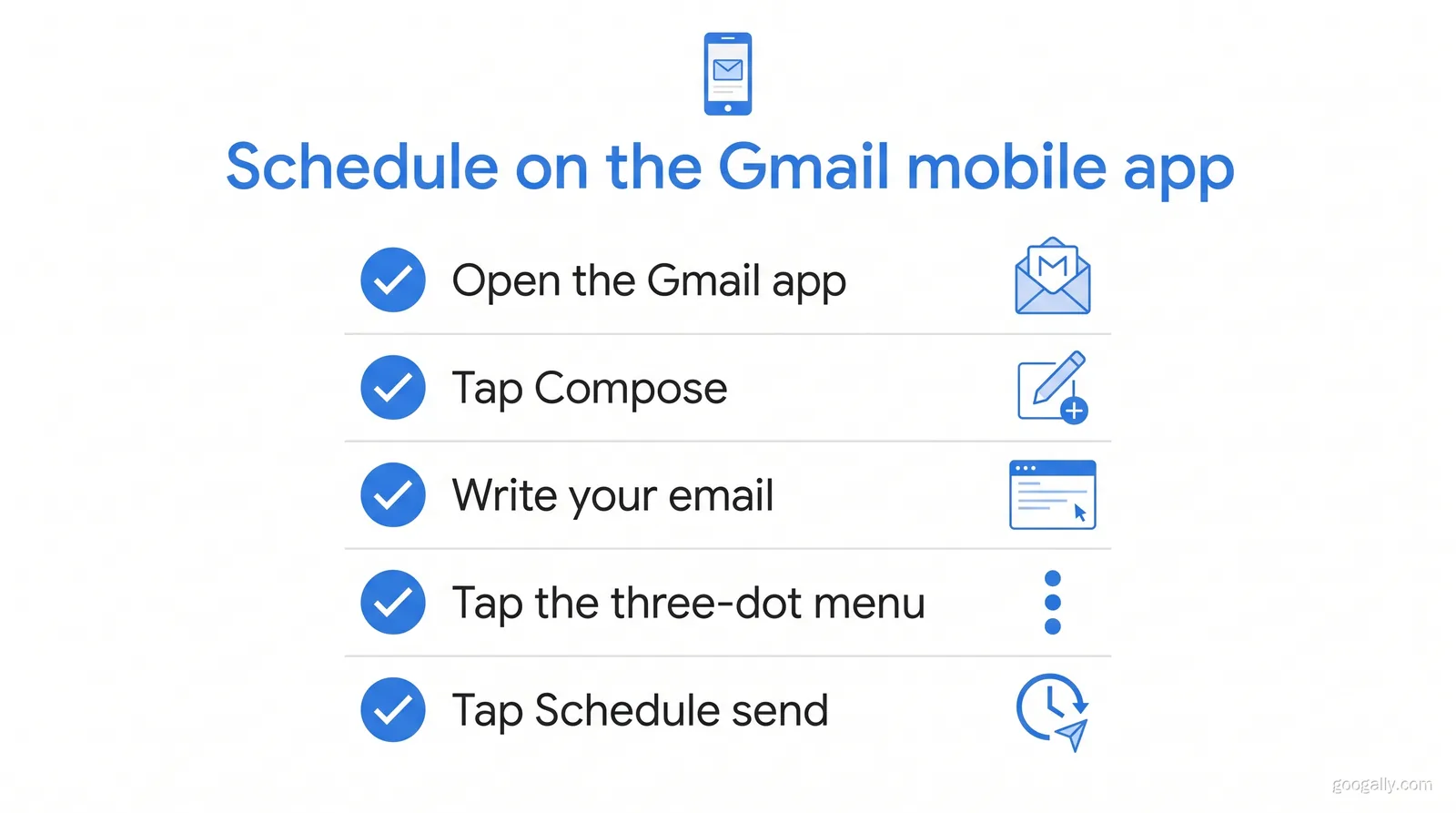
Scheduling from your phone works almost identically to desktop. Open the Gmail app, tap Compose, and write your email. Then tap the three-dot menu in the top-right corner and choose Schedule send. Pick a suggested time or set your own, and Gmail takes care of the rest.
This is genuinely useful on the go: you can draft a reply at midnight when it's fresh in your mind and have it land in your client's inbox at 8 a.m. when it actually gets read. The scheduled message syncs across all your devices, so you'll see the same pending email whether you open Gmail on your phone or your laptop.
Where do scheduled emails go in Gmail?
Scheduled emails go to a dedicated Scheduled folder (label) in the left sidebar of Gmail. Any email you've set to send later sits there until its delivery time, showing the exact date and time it will go out.
If you don't see the Scheduled label on desktop, click More at the bottom of the left menu to expand the full list. On mobile, tap the hamburger menu to find it. This folder is your control center — it's where you'll go to check, edit, or cancel anything you've queued up. Keeping an eye on it is a good habit, especially the way many teams miss messages the same way they overlook an out-of-office auto-reply that's still switched on.
How to cancel or reschedule a scheduled email
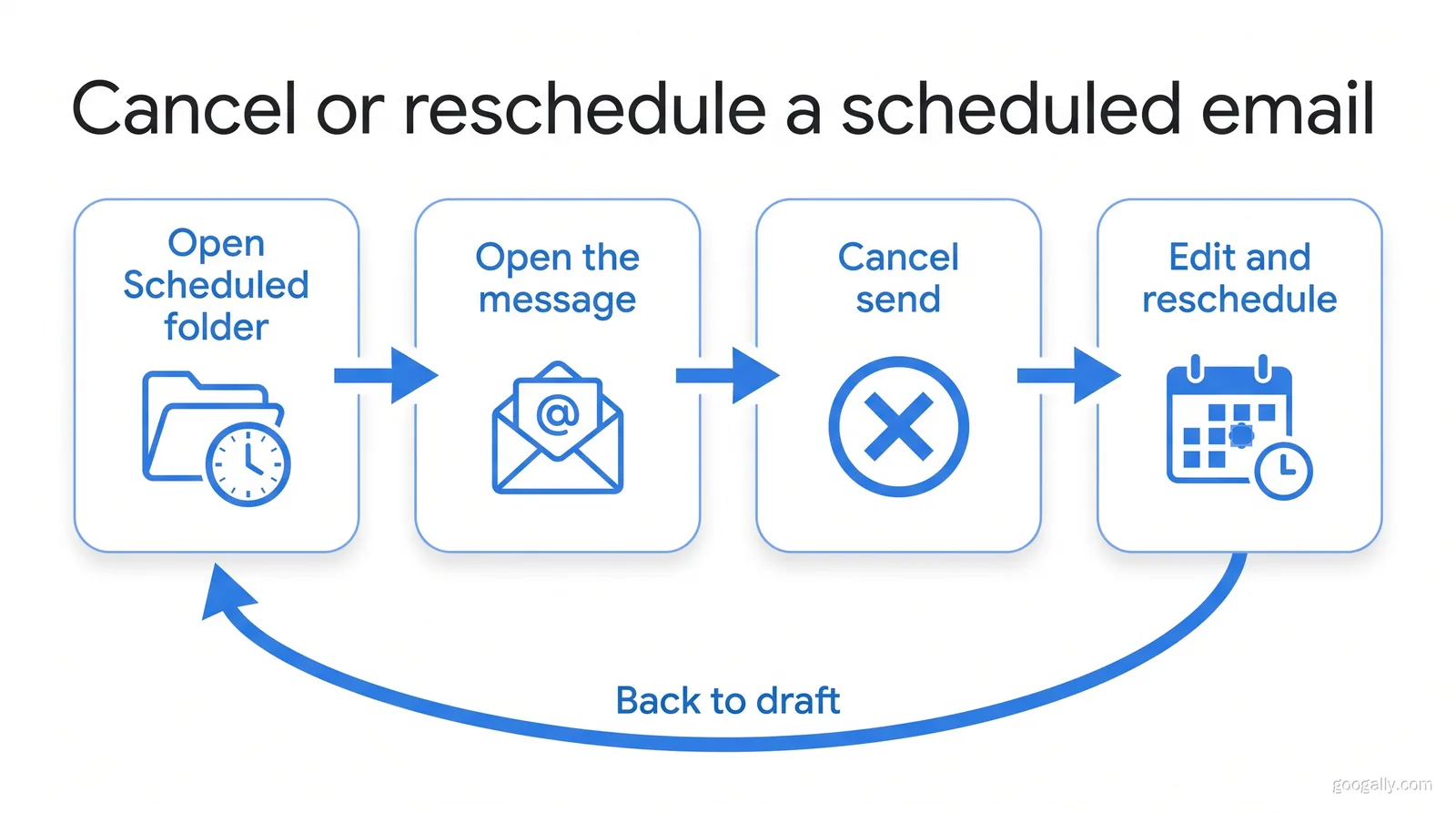
To cancel a scheduled email in Gmail, open the Scheduled folder, open the message, and click Cancel send. The email immediately returns to a normal draft, so nothing is lost — you can edit the content, change the recipients, or schedule it again for a new time.
There's no separate "reschedule" button; the flow is always cancel-then-reschedule. Cancel the send, make your changes, then click the Send dropdown arrow and set a new time. This is handy when plans shift — a meeting moves, a launch slips a day — and you need that queued message to land at a different moment.
How many emails can you schedule in Gmail?
You can have up to 100 scheduled emails in Gmail at one time. For everyday use that's far more than most people need, but it's worth knowing if you rely heavily on send-later for a small business or sales workflow.
One important limit: Gmail's built-in scheduler sends each email once, at a single time. It does not support automatically recurring emails (the same message every Monday, for example). For true recurring sends or large mail-merge campaigns, you'd use a dedicated tool or a Google Workspace add-on rather than the native feature. If email is becoming central to how you run your business, it's worth understanding everything Google Workspace is actually used for beyond the inbox.
What are the best times to schedule an email?
The best times to schedule business emails are typically early morning (around 8–9 a.m.) on Tuesday through Thursday, when inboxes are active but not yet buried. Scheduling also lets you respect recipients' time zones — draft when it suits you, deliver when it suits them. It's a small professionalism upgrade that costs nothing.
Why scheduling emails matters for a professional inbox
Send-later isn't just convenient — it's a credibility tool. Landing emails during business hours makes a small team look established and considerate, and it keeps you from training clients to expect 2 a.m. replies. Combined with features like undo send, it gives you real control over how your outgoing mail is received. If you ever fire off a message too soon, here's how to unsend an email in Gmail within the cancellation window.
For businesses running Gmail on a custom domain through Google Workspace, these controls come standard alongside admin management, bigger storage, and professional email. New customers can claim 15% off the first 3 months for new customers on any Workspace plan through our partner code — grab the current Google Workspace promo code and apply it at checkout. For the official steps straight from Google, see the Gmail schedule send help article.
Frequently Asked Questions
How do I set up an email to send at a specific time?
Compose the email, click the dropdown arrow next to the Send button, choose Schedule send, then select Pick date & time to enter the exact day and time. Gmail delivers it automatically at that moment, even if your device is off.
Why won't Gmail let me schedule send?
If Schedule send is missing or greyed out, you're usually on an outdated Gmail app or a browser tab that needs refreshing. Update the app or reload Gmail, make sure the message has at least one recipient, and confirm you're signed in to the account you want to send from.
Can you schedule a recurring email in Gmail?
No. Gmail's native scheduler sends each email once, at a single scheduled time. For recurring emails — the same message on a repeating schedule — you'll need a Google Workspace add-on or a third-party email tool built for automation.
Do scheduled emails send if my computer is off?
Yes. Scheduled emails are sent from Google's servers, not your device, so they go out at the set time whether your computer or phone is on, off, or offline.
Setting up Gmail the right way for your business — custom domain, professional email, and the admin controls that make features like this shine — is exactly what we do. Talk to the Googally team and we'll get your Google Workspace configured and migrated with zero downtime.
Related Posts
Explore Tips and Guides! Discover expert insights and practical guides for optimizing your Google Workspace experience with our informative resources.




















.png)
.png)
.png)
.png)
.png)
.png)
.png)
.png)



.png)
.png)

.png)









.png)
.png)


.png)


