
OneDrive vs Google Drive: Which Wins for Business?
For most small businesses, the OneDrive vs Google Drive decision comes down to one question: which ecosystem does your team actually live in? OneDrive is the better fit if your company runs on Microsoft 365, Windows, and Office desktop apps. Google Drive is the stronger choice if you want fast, browser-based collaboration, generous shared storage, and one place for email, docs, and files without the desktop overhead. Both are secure, reliable, and cheap enough that price is rarely the deciding factor. The real difference is how your people work every day — and how painful it is to switch teams, permissions, and years of files from one to the other.
Quick Takeaways
- OneDrive is per-user personal storage inside Microsoft 365; Google Drive blends personal storage with shared drives for whole teams.
- Google Drive wins on collaboration — real-time co-editing was built in from day one, not bolted on.
- OneDrive wins on Office desktop apps — if your team lives in Excel and Word on Windows, the integration is tighter.
- Pricing is nearly identical at the entry level; storage tiers and bundled apps are what really differ.
- Switching is very doable — a proper migration moves files, folder structures, and sharing permissions with zero downtime.
Is OneDrive the Same as Google Drive?
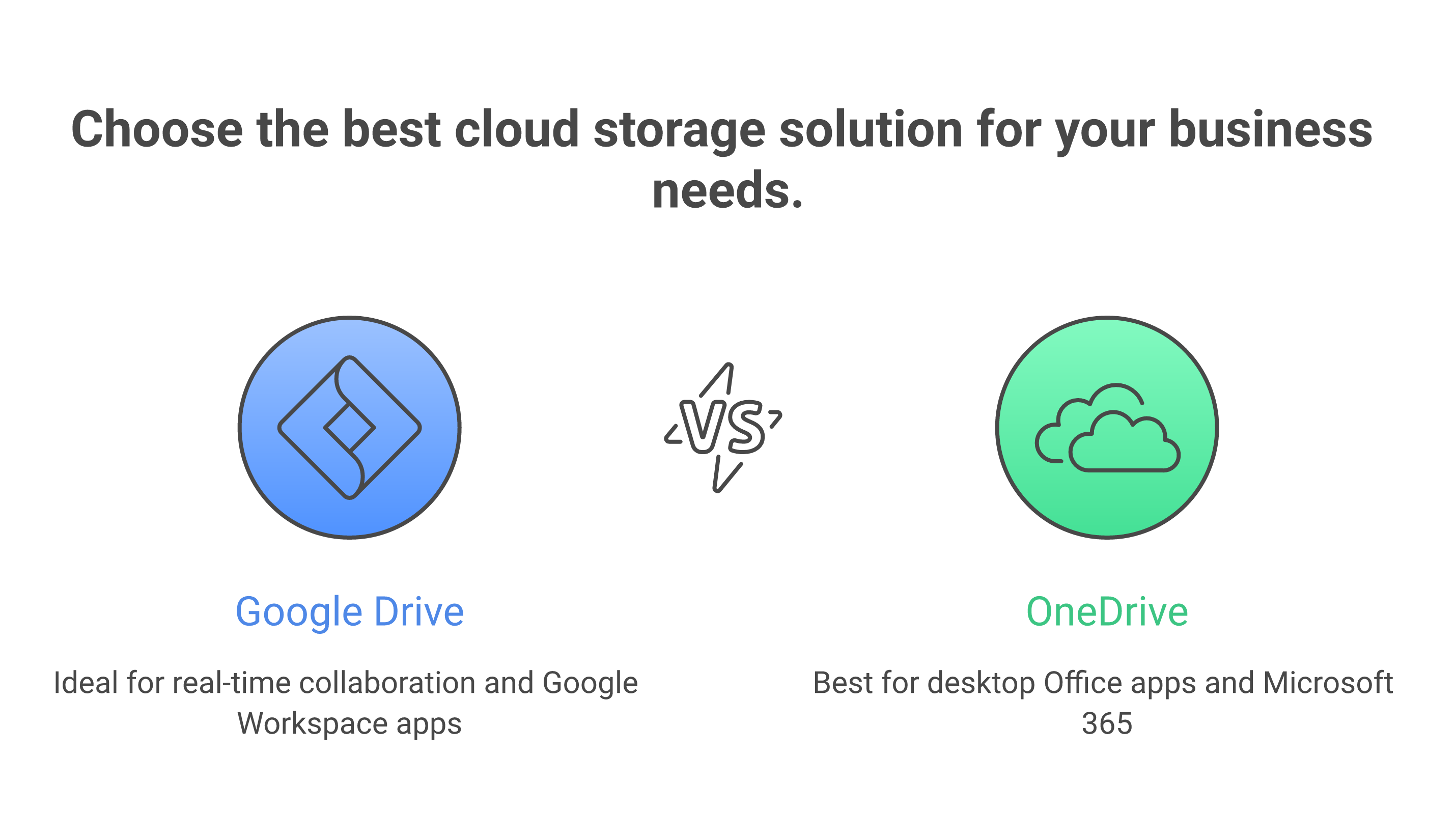
No. OneDrive and Google Drive are both cloud storage services, but they solve the problem differently. OneDrive is Microsoft's file-sync tool tied to a personal Microsoft 365 account — it mirrors folders on your Windows PC and stores them in the cloud. Google Drive is Google's cloud storage inside Google Workspace, and it comes in two flavors: My Drive (your personal files) and shared drives (files owned by the team, not an individual).
That shared-drive distinction matters more than most comparisons admit. When an employee leaves a Microsoft shop, their OneDrive files can get stranded with their account. In Google Workspace, files in a shared drive belong to the organization, so nothing walks out the door when someone does.
What Is the Difference Between OneDrive and Google One?
This trips people up constantly. Google One is the consumer storage plan for personal @gmail.com accounts. Google Drive inside Google Workspace is the business version, with admin controls, shared drives, and pooled storage. If you're running a company, you want Workspace Drive, not Google One — the same way you'd want OneDrive for Business, not the free consumer OneDrive.
OneDrive vs Google Drive: Feature Comparison
Here's how the two stack up on the things a small business actually cares about. Google Drive and OneDrive both cover the basics well, so the table below focuses on where they meaningfully diverge.
| Feature | Google Drive (Workspace) | OneDrive (Microsoft 365) |
|---|---|---|
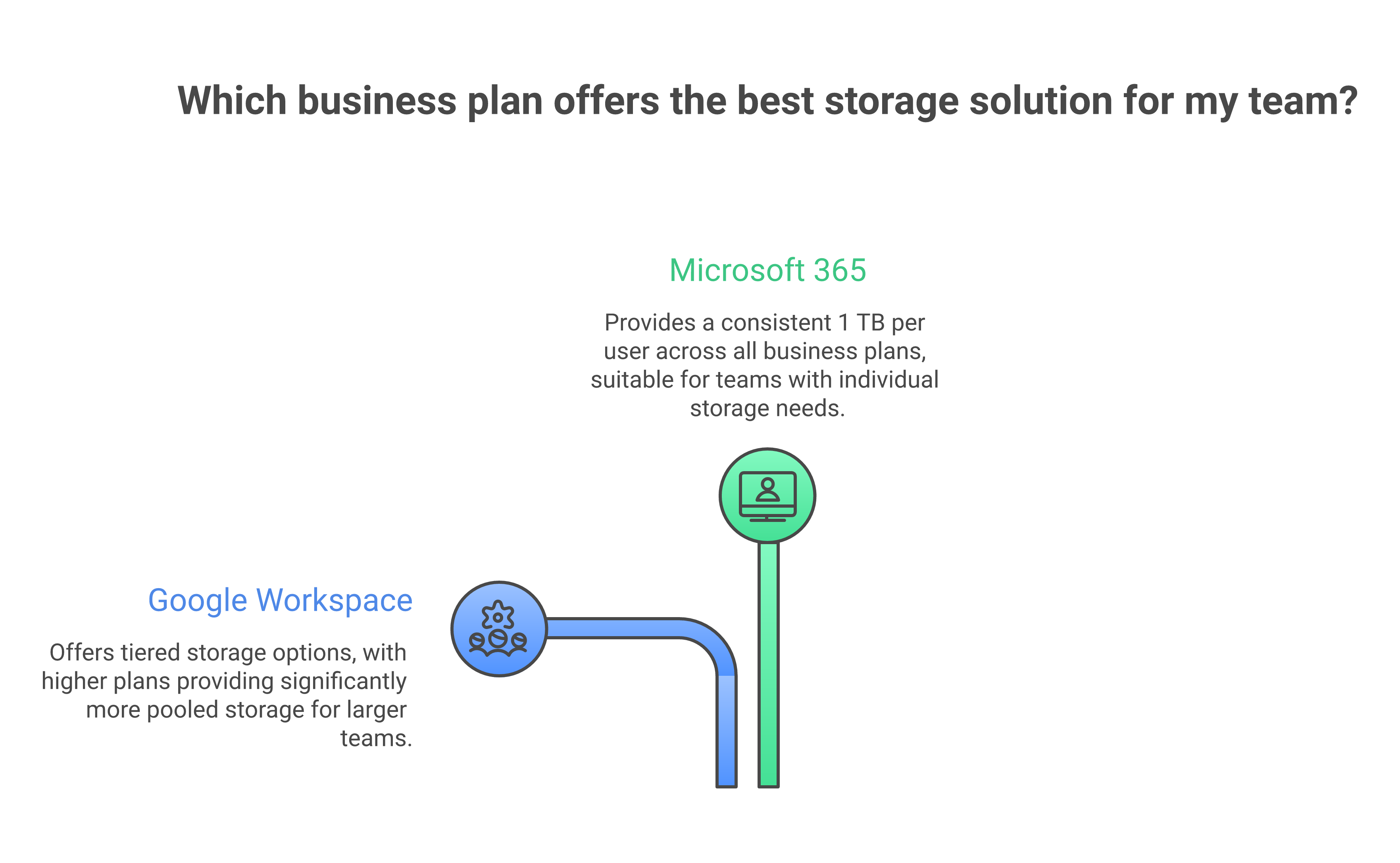
| Entry storage | 30 GB pooled (Business Starter) | 1 TB per user (Business Basic) |
| Real-time co-editing | Built in, browser-native | Works, best in desktop apps |
| Team-owned files | Shared drives | SharePoint / shared libraries |
| Best-fit apps | Docs, Sheets, Slides, Gmail | Word, Excel, PowerPoint, Outlook |
| Offline desktop access | Google Drive for Desktop | OneDrive sync client |
| Built-in AI | Gemini | Microsoft Copilot |
| Admin console | Simple, browser-based | Granular, more complex |
The headline that surprises people: OneDrive's 1 TB per user looks like it crushes Google's 30 GB. But Google's storage is pooled across the whole organization, and higher Workspace tiers jump to 2 TB and 5 TB per user. For a 10-person team, 30 GB pooled is tight, but Business Standard's 2 TB per user (also pooled) is plenty for most document-driven businesses that aren't storing video.
What Is the Disadvantage of OneDrive?
OneDrive's biggest weakness for small teams is collaboration friction and sync headaches. Co-editing works, but the smoothest experience still lives in the desktop Office apps, which means version conflicts and "file in use" errors are more common than in Google's browser-first model. The OneDrive sync client is also famous for the occasional stuck upload or duplicated file, especially across mixed Windows and Mac fleets.
The second disadvantage is structural: OneDrive is fundamentally personal storage. Sharing across a team leans on SharePoint, which adds a layer of complexity many small businesses never fully set up — so files end up scattered across individual OneDrives with no single source of truth.
What Is the Disadvantage of Google Drive?
Google Drive's main disadvantage is that its desktop app experience isn't as seamless as native Office, and heavy Microsoft users can feel the difference. If your accountant lives in complex Excel macros, or your team relies on advanced PowerPoint features, Google's Sheets and Slides are excellent but not always a 1:1 replacement. Google Drive for Desktop handles offline access well, but you're still nudged toward doing your best work in the browser.
The other honest drawback: the entry-level 30 GB pooled storage on Business Starter fills up faster than people expect. It's an easy fix — upgrade a tier — but it catches teams off guard.
OneDrive Pricing vs Google Drive Pricing
At the entry level, OneDrive and Google Drive cost about the same — the decision rarely hinges on a dollar or two per user. What differs is what's bundled. Microsoft 365 Business Basic pairs OneDrive with the web versions of Office and 1 TB per user. Google Workspace Business Starter pairs Drive with Gmail, Meet, and the full Docs suite. Both step up in price as you add storage and features, and both include a capable AI assistant at the higher tiers.
Rather than obsess over the sticker price, look at total fit: the plan that matches how your team already works will always be cheaper in real terms than the one that forces a workflow change. If you're weighing Google's tiers specifically, our breakdown of which Google Workspace plan makes sense walks through it in plain English.
Should You Switch From OneDrive to Google Drive?
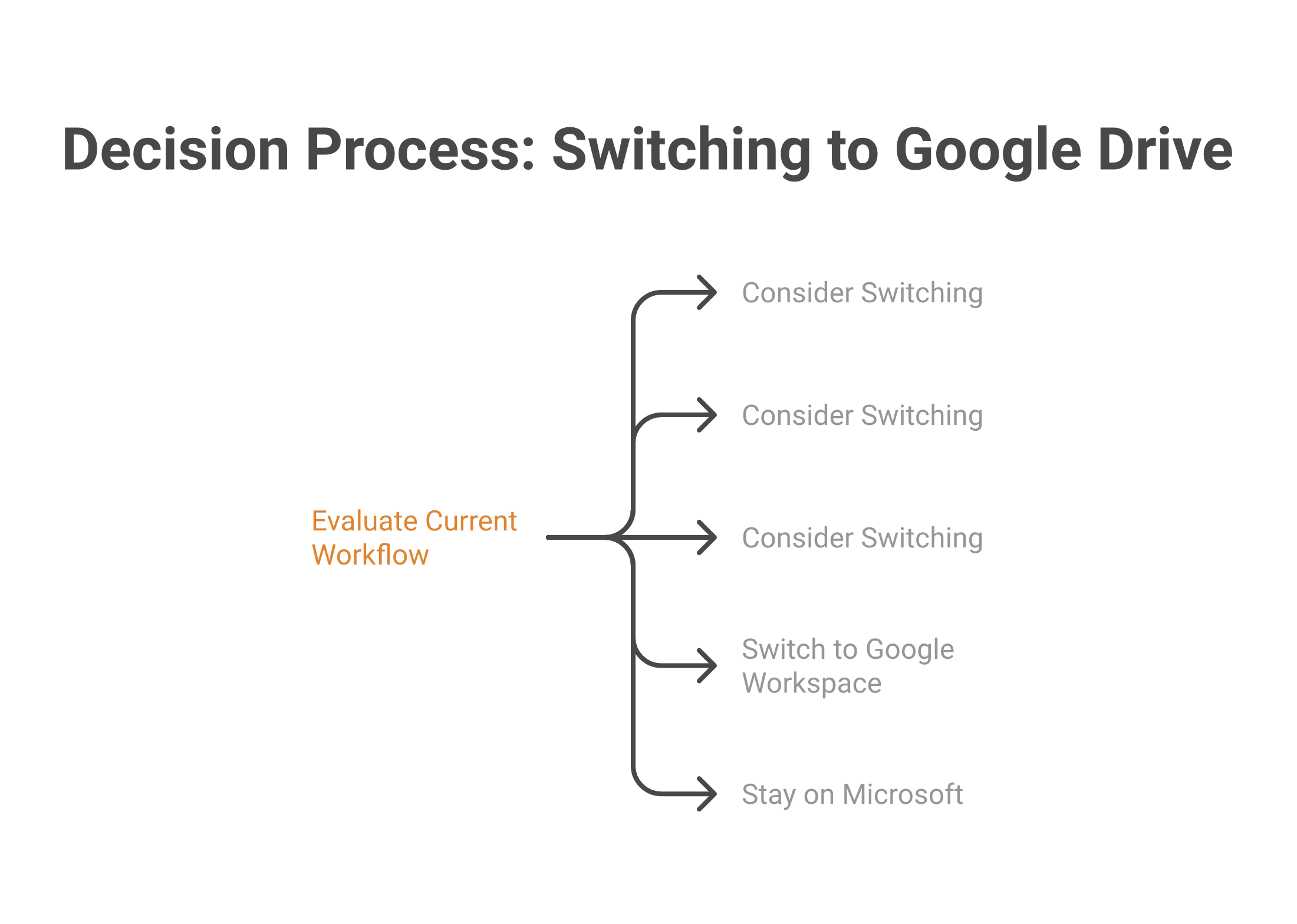
Switch if your team is fighting its tools more than using them. The clearest signals: you're constantly resolving sync errors, files live in a dozen personal OneDrives with no shared source of truth, collaboration means emailing documents back and forth, or you simply want email, calendar, docs, and storage unified in one place instead of stitched together. Businesses that make the move usually do it because Google's shared drives and browser-native collaboration remove daily friction, not because of price.
This is exactly the kind of switch we handle at Googally. Most small businesses assume moving off Microsoft means downtime, lost files, or broken sharing links — it doesn't have to. If you're weighing the bigger picture beyond storage, our full Office 365 vs Google Workspace comparison covers email, apps, and admin side by side, and if you've already decided, here's why it's time to leave Outlook behind.
How Do You Transfer From OneDrive to Google Drive?
You transfer from OneDrive to Google Drive with a managed migration that copies your files, folder structure, and sharing permissions into Google Drive — ideally without your team ever losing access. You can drag-and-drop small amounts manually, but for a real business, that approach loses folder hierarchies, breaks shared links, and eats days of staff time.
A proper migration runs in the background: files and permissions map over, users keep working in OneDrive until cutover, and then everyone switches to Drive with everything already in place. According to Google's Workspace documentation the platform supports structured data migrations for exactly this reason. If you want desktop access to your new Drive after the move, our guide to setting up Google Drive for Desktop gets your team synced in minutes.

Frequently Asked Questions
Do I need OneDrive if I have Google Drive?
No. OneDrive and Google Drive do the same core job — storing and syncing your files in the cloud — so running both usually just splits your files across two places and doubles the confusion. Pick the one that matches your ecosystem and keep everything in it.
Is OneDrive or Google Drive more secure?
Both are highly secure, with encryption in transit and at rest, admin controls, and compliance certifications. Security is rarely the deciding factor between them for a typical small business — how you configure sharing and access matters far more than which platform you choose. For a Google-specific view, see how Google Workspace handles security and encryption.
What about Dropbox — how does it compare to OneDrive vs Google Drive?
Dropbox is a strong pure file-sync tool, but it lacks the built-in productivity suite that both Google Drive and OneDrive include. For businesses that want storage plus docs, email, and collaboration in one subscription, Google Drive or OneDrive usually offers better value than adding Dropbox on top of another suite.
Can I keep using Microsoft Office files in Google Drive?
Yes. Google Drive stores, opens, and lets you edit Word, Excel, and PowerPoint files directly, and you can convert them to Google formats when you want real-time collaboration. Most teams migrating from Microsoft keep working with their existing files on day one.
Not sure which side of the OneDrive vs Google Drive line your business belongs on? We help small businesses move to Google Workspace with zero downtime and every file and permission intact. Talk to the Googally team and we'll map out the right fit for how your team actually works.
Related Posts
Explore Tips and Guides! Discover expert insights and practical guides for optimizing your Google Workspace experience with our informative resources.
















.png)
.png)
.png)
.png)
.png)
.png)
.png)
.png)


.png)
.png)

.png)







.png)
.png)


.png)


