

Gemini Gems: Custom AI Your Team Can Reuse
I've rolled out Gemini across Google Workspace for hundreds of small teams, and Gems are the feature that actually changes how people work day to day — once they click, nobody wants to go back to pasting the same instructions into a blank chat. But most owners I talk to still aren't sure what a Gem really is, how to build one, or whether it's safe to put company information into it. Here's the plain-English version, from someone who sets these up for a living.
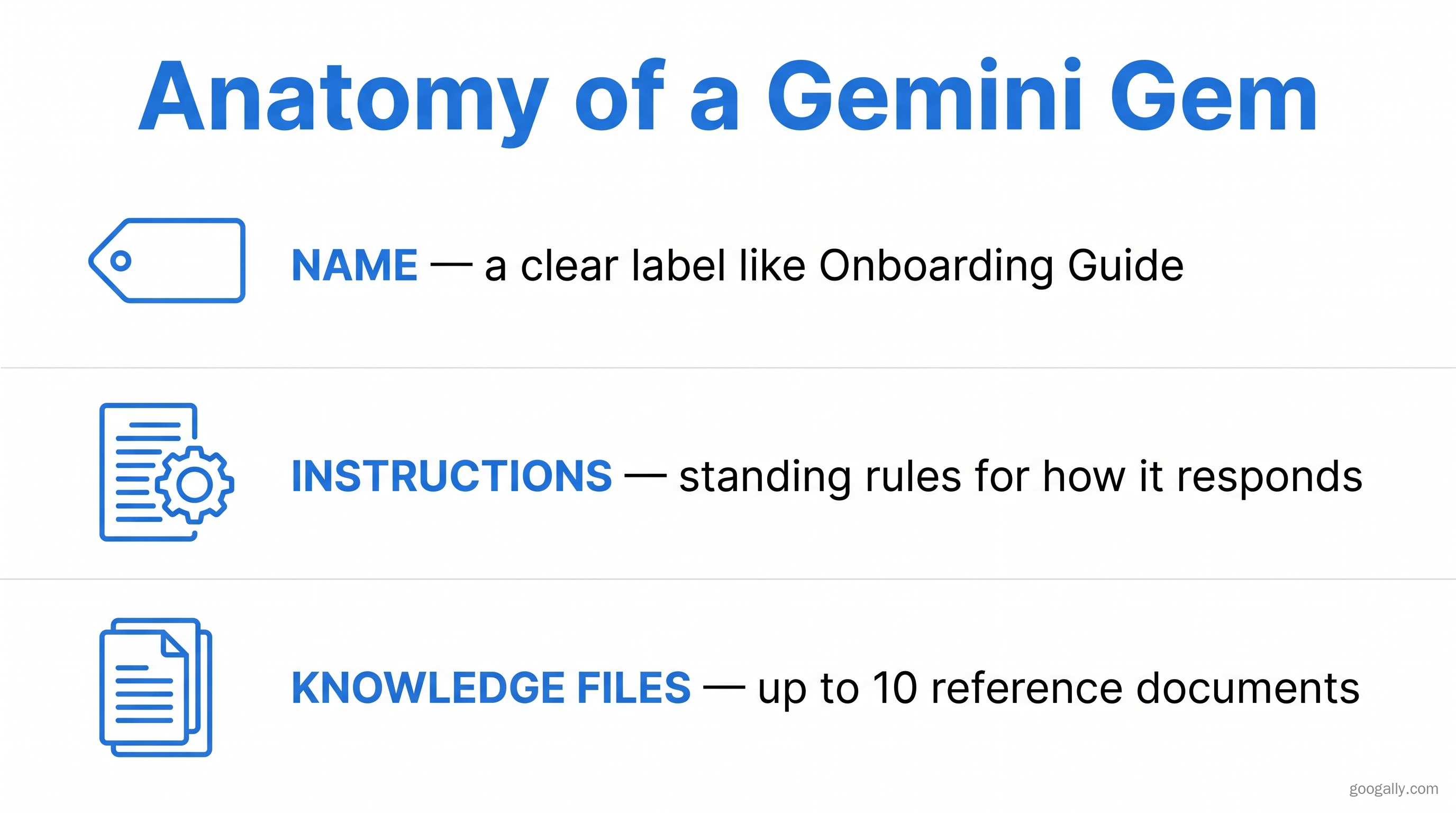
Gemini Gems are reusable, custom versions of Google's Gemini assistant: you give a Gem a name, standing instructions, and up to 10 reference files, and it becomes a specialized AI expert you reuse instead of re-explaining yourself every time. They live in the Gemini app and, for businesses, inside the side panel of Google Workspace apps like Docs and Gmail.
Below is the complete playbook — what Gems are, how to create, edit, and share them, the best business examples plus a copy-paste template, how privacy works on Workspace, and whether they cost anything.
What are Gemini Gems?
Gemini Gems are personalized AI assistants you create inside Google Gemini for specific, repeatable tasks. Instead of typing the same long prompt every time — "You are a formal B2B copywriter, keep sentences short, never use exclamation points…" — you save those instructions once as a Gem and just start chatting. Google calls them "custom AI experts," and functionally they work like custom chatbots you build with plain language.
Each Gem holds three things: a name, a set of instructions that shape how it responds, and optional knowledge files (documents, spreadsheets, or PDFs) it can reference. That last part is what makes Gems genuinely useful for a business — a Gem loaded with your service catalog or style guide answers from your material, not the open internet.
Premade Gems vs custom Gems
Google ships premade Gems — like a Writing editor, Coding partner, Learning coach, and Brainstormer — so you can try the feature immediately. Custom Gems are the ones you build yourself for your own workflows. Premade Gems are great for getting a feel for how Gems behave; custom Gems are where the business value lives, because they carry your instructions and your files. For the full picture of how Gemini fits into your subscription, see our explainer on whether Gemini is included in Google Workspace.
How are Gems different from a normal Gemini chat?
A normal Gemini chat starts from scratch every time; a Gem starts with memory of its job. Because the instructions and reference files are baked in, a Gem stays on-task and consistent across sessions and across your team. It's the difference between briefing a new freelancer every morning and having a trained specialist who already knows the drill.
How do you create a Gemini Gem?
Setting these up for clients, the pattern I keep seeing is that people overthink it — the whole thing takes about five minutes once you know where the Gem manager lives.
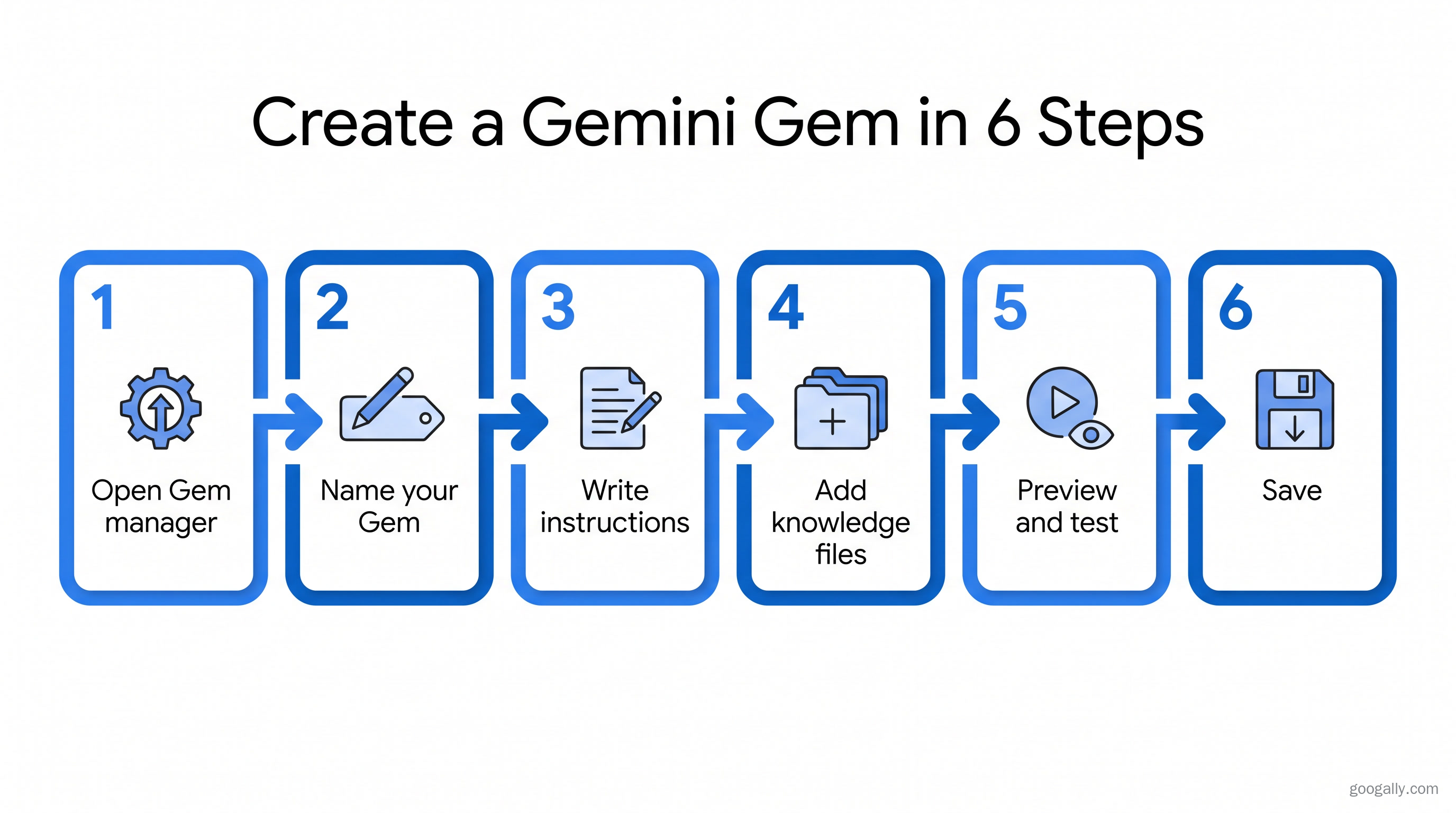
To create a Gemini Gem, open gemini.google.com, click Explore Gems → New Gem, give it a name, write its instructions, add up to 10 knowledge files if you want, preview it, and save. Here's the same process step by step:
- Open the Gem manager. On your computer, go to gemini.google.com, then click Explore Gems → New Gem (on mobile, tap the menu, then Gems).
- Name your Gem. Give it a clear, specific name like "Invoice Reminder Writer" or "New Hire Onboarding Guide."
- Write the instructions. Tell it who it is, what it should do, the tone to use, and anything to avoid. Be specific — "Reply in three short paragraphs, professional but warm, and always end with a clear next step."
- Add knowledge files (optional). Upload up to 10 reference files — your price list, brand guide, FAQ doc — so the Gem answers from your real information.
- Preview and test. Use the live preview to send a few sample prompts, then tweak the instructions until the responses are right.
- Save it. Your Gem now appears in your Gems list, ready to reuse anytime.
A tip from experience: write the instructions like you're onboarding a person, not programming a computer. Plain, specific English works better than rigid commands.
How do I edit, duplicate, or delete a Gem?
You manage existing Gems from the same Gem manager where you created them. Open Gems, find the one you want under "My Gems," and you can edit its instructions, duplicate it as a starting point for a similar Gem, or delete it. Duplicating is the fastest way to build a family of related Gems — for example, one "email drafter" Gem copied and tuned for sales, support, and billing.
What are the best Gemini Gems examples for a business?
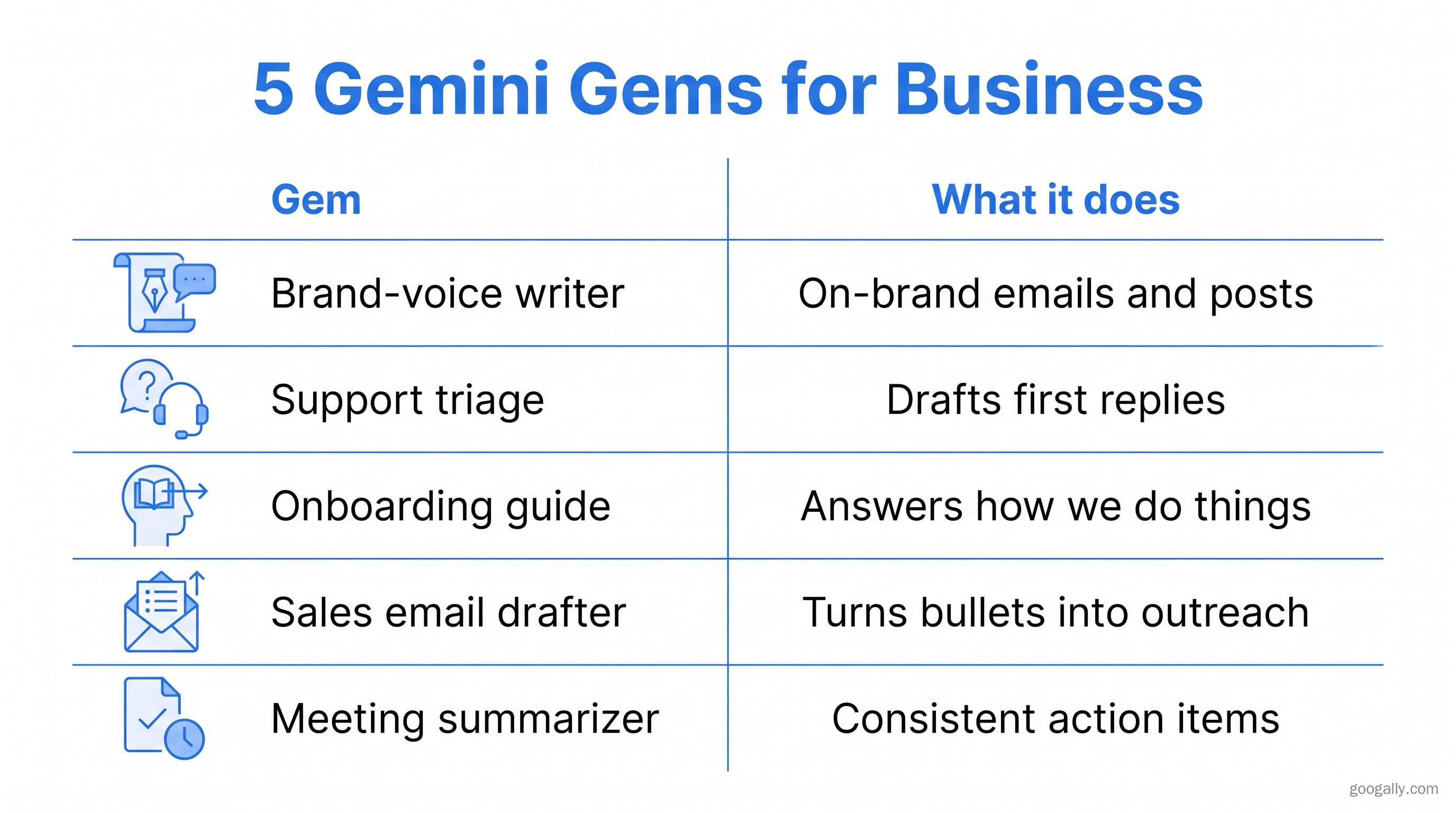
The best Gemini Gems automate a repeatable, rules-based writing or research task your team does constantly. In my experience helping small businesses adopt Google Workspace, these are the Gems that earn their keep fastest:
- Brand-voice writer — loaded with your style guide, it drafts emails, posts, and pages that already sound like you.
- Customer support triage — trained on your FAQ and policies, it drafts first-response replies for your team to review.
- New-hire onboarding guide — fed your SOPs, it answers "how do we do X here?" so people stop pinging you.
- Sales email drafter — given your offers and tone, it turns bullet points into ready-to-send outreach.
- Meeting-notes summarizer — paste a transcript and get consistent action items every time.
Gemini Gems templates to copy
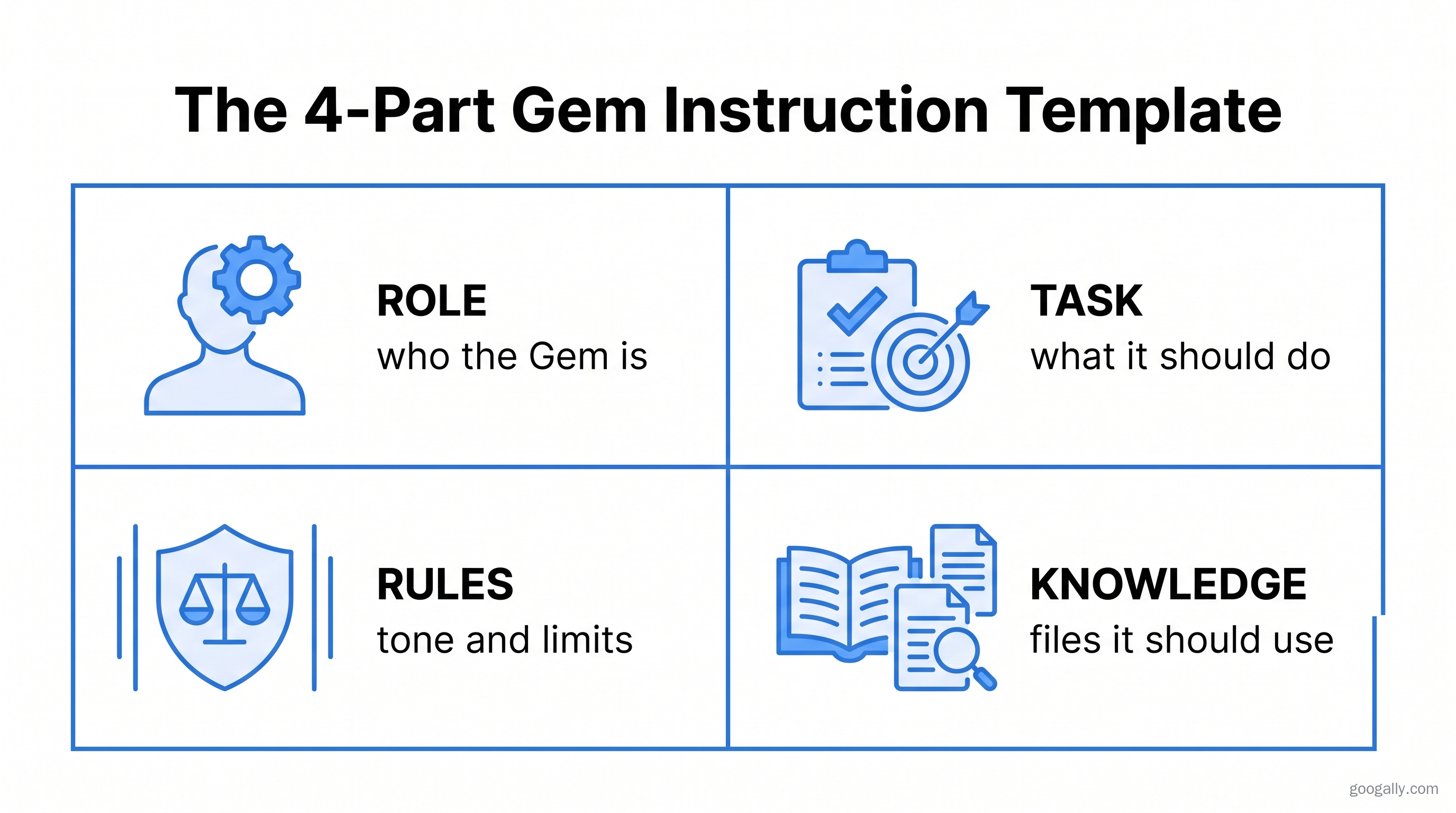
You don't need a perfect prompt to start — a simple template gets you 80% of the way. A reliable structure for any custom Gem's instructions is: Role ("You are our customer support assistant"), Task ("Draft first-reply emails to customer questions"), Rules ("Warm but concise; never promise refunds; always offer a next step"), and Knowledge ("Use the attached FAQ and returns policy"). Fill in those four parts, attach your files, and you have a working Gem. To automate multi-step work beyond a single Gem, pair them with Google Workspace Studio. And if you're weighing AI tools, our comparison of Gemini versus Copilot covers how Google's assistant stacks up.
Using Gemini Gems inside Google Workspace
For businesses, the real advantage is that Gems work inside the side panel of Google Workspace apps, not just the standalone Gemini site. Since mid-2025, you can open a Gem in the side panel of Docs, Gmail, Sheets, and Drive and put it to work on the document in front of you — summarizing a thread in Gmail, rewriting a section in Docs — without switching tabs, as Google detailed in its Workspace side-panel announcement.
That in-context access is why Gems matter more for Workspace teams than for casual users: the assistant lives where the work already happens. Gemini's business features are bundled into Google Workspace Business and Enterprise plans, so you're not paying for a separate AI subscription on top — and new customers can start with 15% off the first 3 months using a Google Workspace promo code.
Can you share a Gemini Gem with your team?
Yes — you can share a Gem, which is what turns it from a personal shortcut into a team standard. Sharing means everyone works from the same instructions and knowledge, so your whole team produces consistent, on-brand output without each person rebuilding the same assistant. For a small business, a shared "brand-voice writer" Gem is one of the simplest ways to keep everyone's writing aligned as you grow.
Are Gemini Gems private and secure?
Gems you create are private to your account unless you deliberately share them, and business data in Google Workspace gets enterprise-grade protection. When you use Gemini through a paid Google Workspace plan, your prompts, files, and Gem content are covered by Google's data-protection commitments — your data isn't used to train Google's models or shown to other people.
That distinction matters for companies: running Gems through Workspace, rather than personal accounts, keeps your instructions and knowledge files inside your organization's controls. It's the same reason we steer security-conscious clients toward Workspace for anything involving sensitive information. If your team also works with document-heavy research, it's worth knowing how Gems compare to Google's NotebookLM, which is built specifically for reasoning over your uploaded sources.
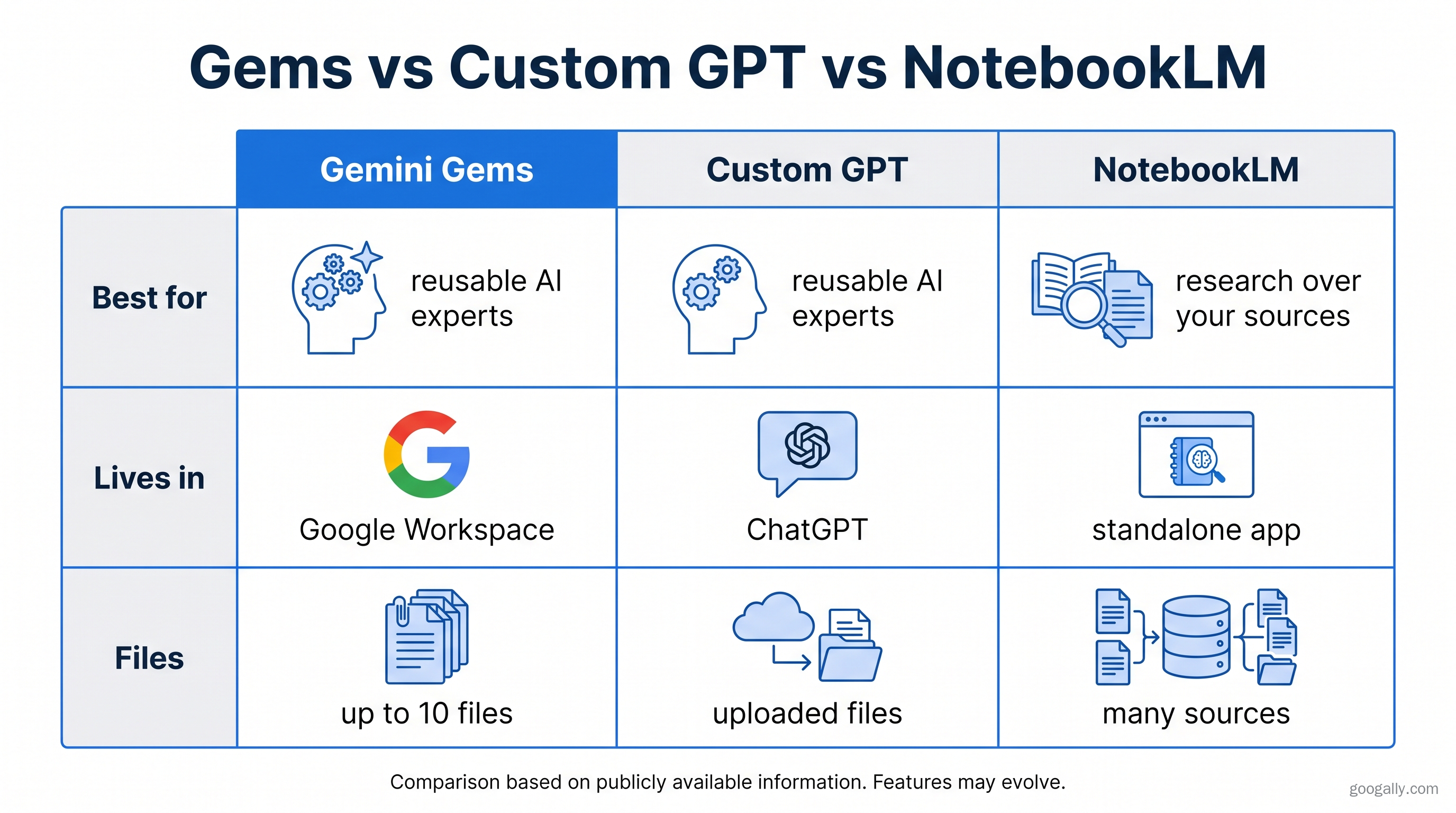
Gemini Gems vs custom GPTs: what's the difference?
A Gemini Gem is Google's take on the custom-assistant idea, functionally similar to a custom GPT in ChatGPT — both let you save instructions and reference files into a reusable, specialized bot. The practical difference for businesses is where it lives: Gems integrate directly into Google Workspace, so they sit alongside your Gmail, Docs, Sheets, and Drive. If your company already runs on Google Workspace, Gems keep your AI, your files, and your team in one ecosystem instead of bouncing between platforms.
Frequently Asked Questions
Are Gemini Gems free?
Yes, Gemini Gems are available to free Gemini users, who can create custom Gems and use the premade ones. Business capabilities — including using Gems in the Google Workspace side panel with enterprise data protection — come with a paid Google Workspace or Gemini plan.
How many files can a Gemini Gem use?
A single Gem can reference up to 10 knowledge files, such as documents, PDFs, or spreadsheets. The Gem uses those files as its source material, which lets it answer from your specific business information instead of general web knowledge.
How do I edit a Gemini Gem?
Open gemini.google.com, go to Gems, and select the Gem you want under "My Gems." From there you can update its name and instructions, swap its knowledge files, or duplicate it to spin off a related Gem. Changes apply the next time you use it.
Are Gemini Gems private?
Yes, the Gems you build are private to your account unless you choose to share them. On a paid Google Workspace plan, the content you put into Gems is protected by Google's enterprise data commitments and is not used to train its models.
Do I need Google Workspace to use Gems?
No, you can use Gems with a personal Google account, but Google Workspace unlocks the business-grade version: the Workspace side-panel integration, enterprise data protection, and the ability to standardize Gems across your team.
Thinking about rolling out Gemini and custom Gems across your team the right way? We set up Google Workspace — Gemini included — and configure it securely, with new customers starting at 15% off the first three months. Talk to our team to get started.
Related Posts
Explore Tips and Guides! Discover expert insights and practical guides for optimizing your Google Workspace experience with our informative resources.















.png)
.png)
.png)
.png)
.png)
.png)
.png)
.png)


.png)
.png)

.png)






.png)
.png)


.png)


