

How to Record a Google Meet (and Where It Saves)
To record a Google Meet, join the meeting on a computer, click the Activities icon (or the three-dot More menu), choose Recording, and click Start recording. When you're done, open the same menu and select Stop recording — the finished video lands automatically in the meeting organizer's Google Drive. The one catch most people miss: recording is a built-in feature of paid Google Workspace editions, so knowing how to record a Google Meet also means knowing whether your plan includes it. This guide walks through exactly who can record, how to do it, where the file goes, and what to check when the record button is nowhere to be found.
Quick Takeaways
- Recording is built into Google Meet on eligible paid Workspace plans — you don't need a third-party screen recorder.
- You must be on a computer (the web app) and be the host, a co-host, or in the same organization as the host.
- The free personal version of Google Meet and Business Starter don't include recording — you'll need Business Standard or higher.
- Recordings save to the organizer's Google Drive in a "Meet Recordings" folder, and a link is emailed when the file is ready.
- An admin has to turn recording on for your organization before the option appears.
Can You Record a Google Meet?
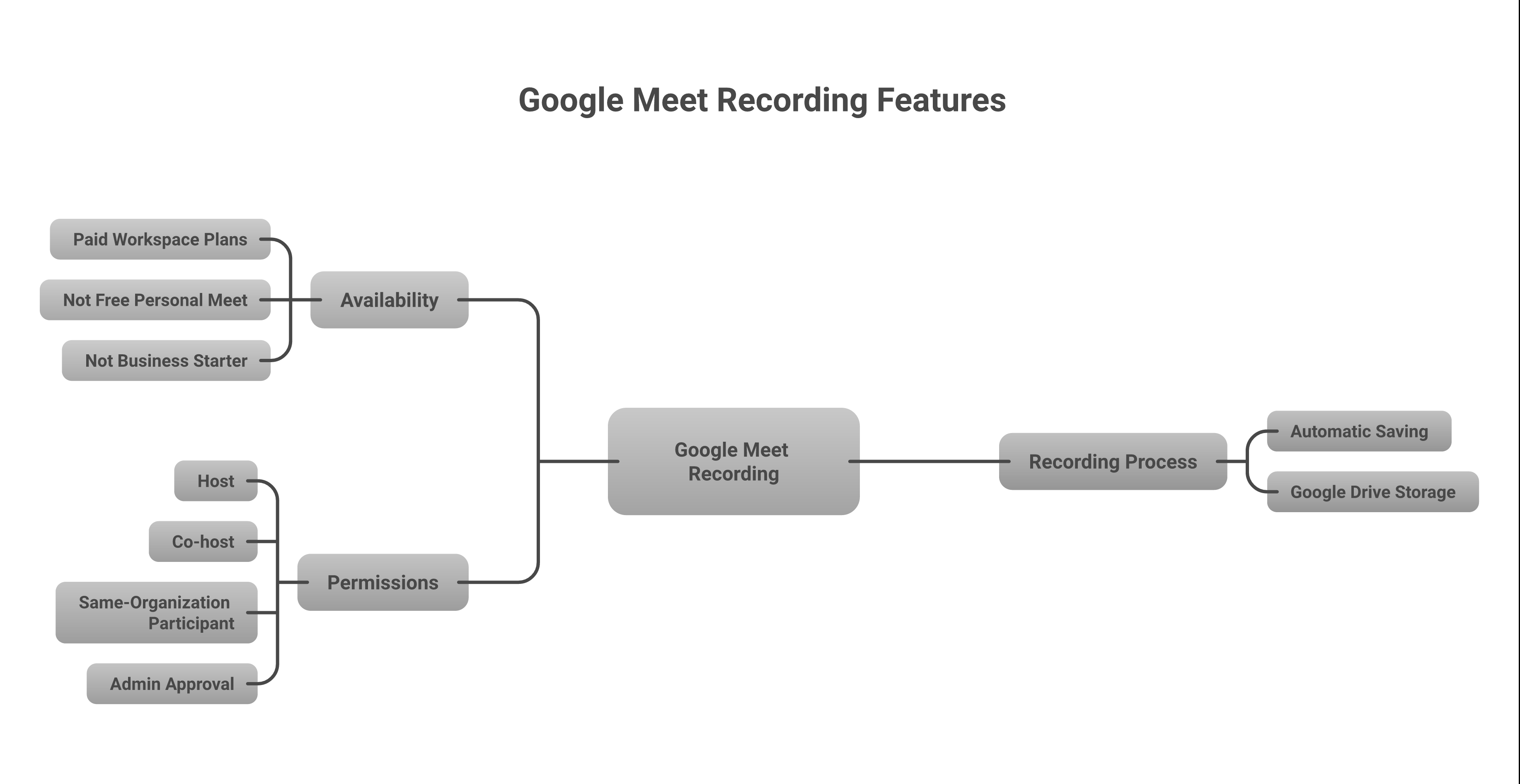
Yes — you can record a Google Meet directly inside the app, as long as three things are true: your Google Workspace edition includes recording, your admin has enabled it, and you're either the meeting host, a co-host, or a participant from the host's organization. There's no need to install a browser extension or point a separate screen recorder at your call.
That last point trips people up. If you join a meeting hosted by an outside company on your free personal account, you won't see a record button — but the host on their paid plan will. Recording is tied to the account that has the feature, not to the meeting itself. This is exactly why so many search results push third-party recorders: they're written for people whose own plan doesn't include the native tool. In most cases, the cleaner answer is to use the built-in feature on the right plan. If you're weighing which plan that should be, our guide to the best Google Workspace plan breaks down the differences.
Which Google Workspace Plans Include Recording?
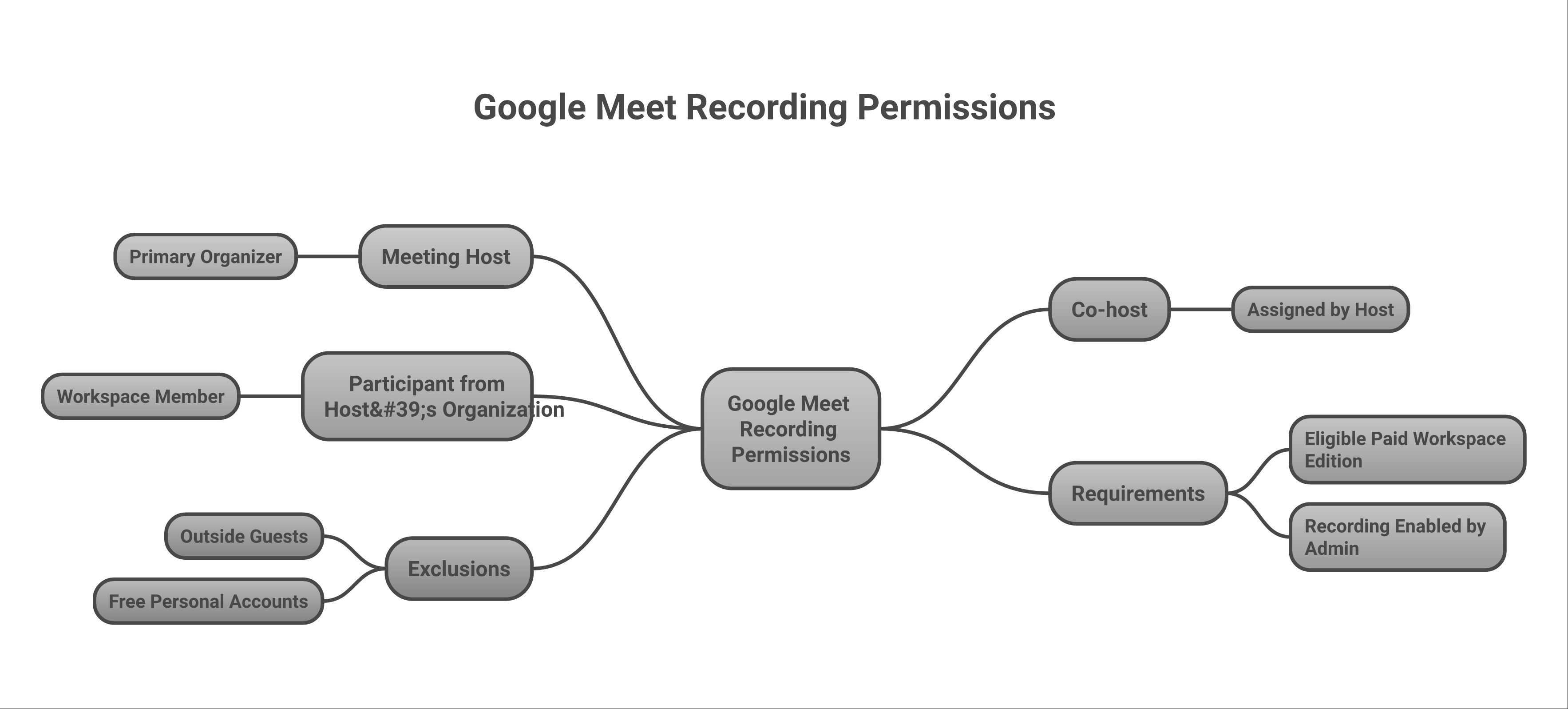
Google Meet recording is available on most paid Workspace editions, but not on the entry-level Business Starter plan or the free personal version of Meet. According to Google's support documentation, recording is included with Business Standard, Business Plus, and the Enterprise and Education tiers above them.
| Plan | Meet Recording Included? |
|---|---|
| Personal (free @gmail.com) | No |
| Business Starter | No |
| Business Standard | Yes |
| Business Plus | Yes |
| Enterprise Standard / Plus | Yes |
| Education Plus | Yes |
If you're on Business Starter and you record calls regularly, upgrading a single tier to Business Standard is usually worth it — you also gain more storage and longer meeting times. Moving up is quick, and we cover exactly how in our walkthrough on changing your Google Workspace plan. Not sure what your current tier includes? Here's what Business Starter actually covers.
How to Record a Google Meet, Step by Step
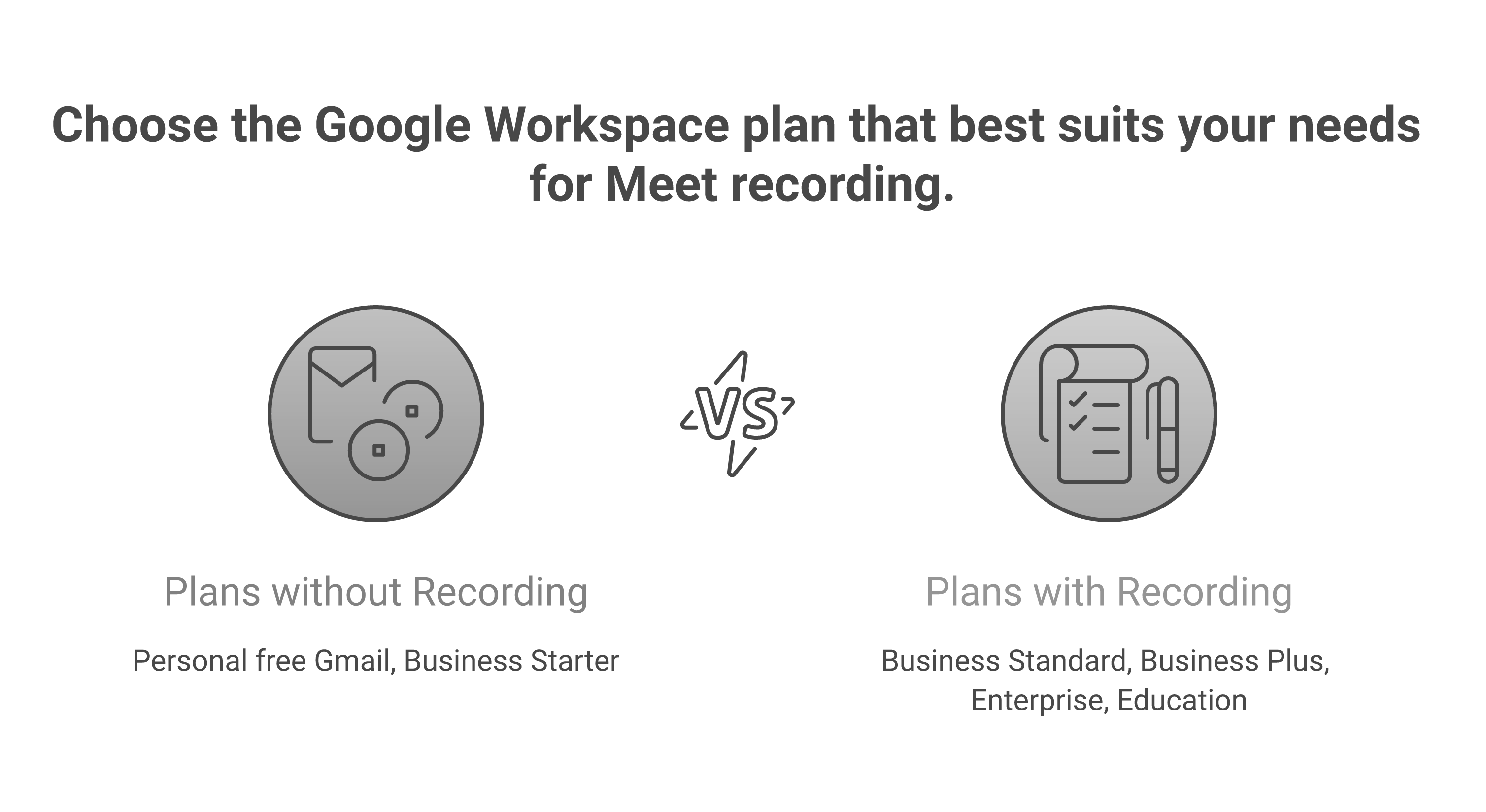
Once your plan supports it and your admin has switched it on, recording takes about five seconds to start. Recording is only available on a computer using the Meet web app — you can't start one from the phone app.
- Join or start the meeting on your computer at meet.google.com.
- Click the Activities icon in the bottom-right corner (it looks like a triangle, circle, and square). On some layouts, use the three-dot More menu instead.
- Select Recording, then click Start recording.
- A dialog appears letting everyone know the meeting will be recorded. Click Start to confirm.
- A red REC indicator shows in the top-left corner so everyone knows recording is live.
- To finish, open Activities or More again, choose Recording, then Stop recording and confirm. Recording also stops automatically when the last person leaves.
A quick tip from our own experience: give the recording a few seconds after everyone joins before you start, and announce it out loud. It's courteous, and in many regions it's also the legally sound thing to do.

Where Do Google Meet Recordings Go?
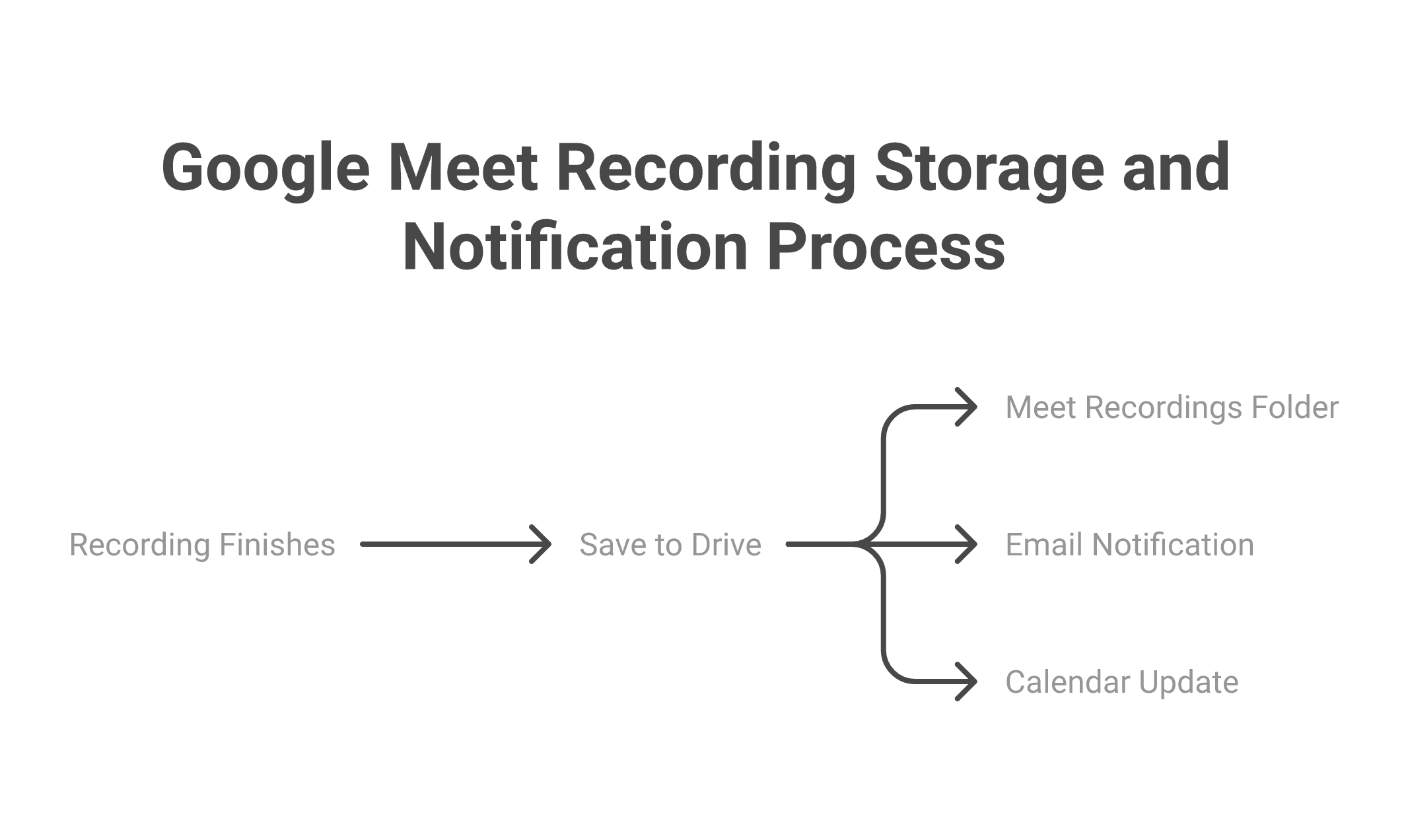
Google Meet recordings are saved automatically to the meeting organizer's Google Drive, inside a folder named "Meet Recordings" in My Drive. The person who scheduled the meeting owns the file, even if someone else clicked record.
When the recording is ready — which can take anywhere from a few minutes to a couple of hours for long calls — Google emails a link to both the meeting organizer and the person who started the recording. If the meeting was scheduled through Google Calendar, the recording link is also attached to that calendar event, which makes it easy to find later. To browse recordings straight from your computer's file explorer instead of the web, set up Google Drive for desktop.
How to Find and Share Your Recording
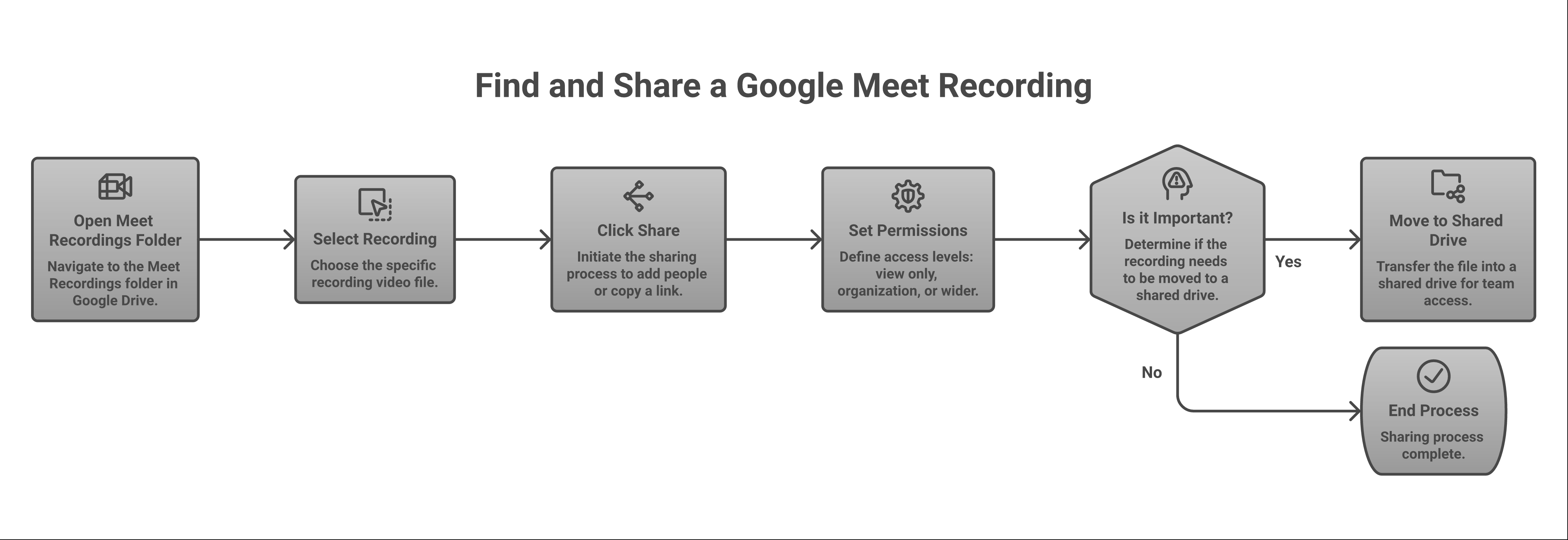
Because every recording is just a video file in Google Drive, sharing it works exactly like sharing any other Drive file. Open the "Meet Recordings" folder, find your video, and click the Share button to add specific people or generate a shareable link.
You can set permissions to view-only, restrict access to your organization, or open it up more broadly — the same controls you'd use for a document. For meetings recorded inside your company, teammates in the same organization often get access to the link automatically, depending on your admin's sharing settings. If you need a permanent, tidier home for important recordings, move the file out of the auto-generated folder into a shared drive so it doesn't get lost.
How to Turn On Meet Recording for Your Organization
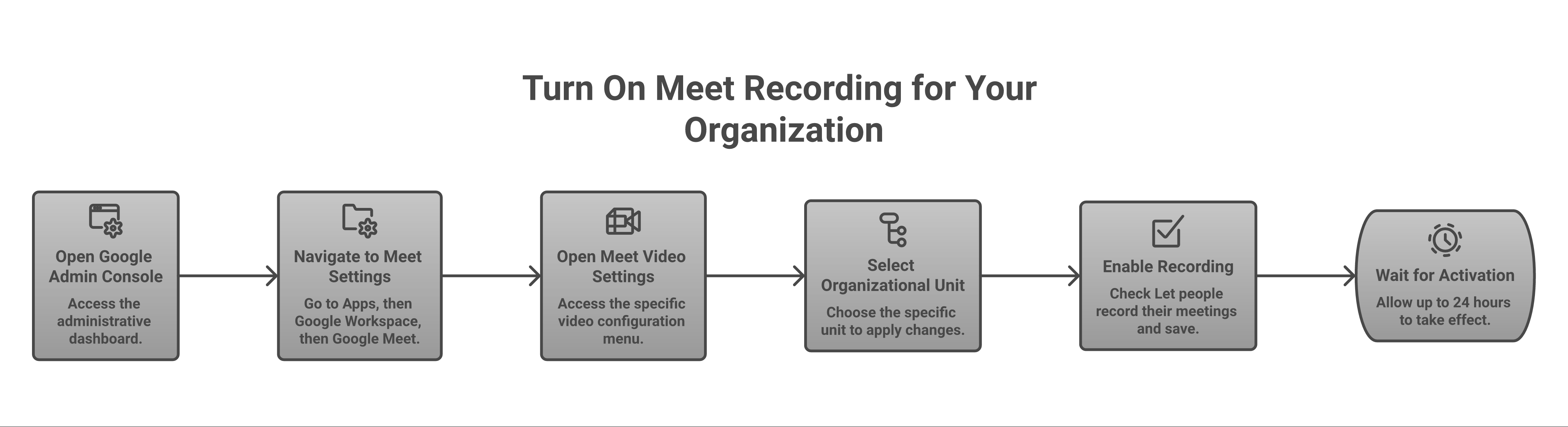
If recording is missing for everyone on your team, an admin needs to enable it in the Google Admin Console. This is an organization-wide setting, not something individual users can flip on themselves.
From the Admin Console, go to Apps → Google Workspace → Google Meet → Meet video settings. Choose the organizational unit you want to change, open the Recording section, tick Let people record their meetings, and save. Changes can take up to 24 hours to reach everyone. If you're not sure who has that level of access in your account, here's how the Google Workspace super admin role works and what it can control.
Recording Extras: Transcripts and Gemini Notes
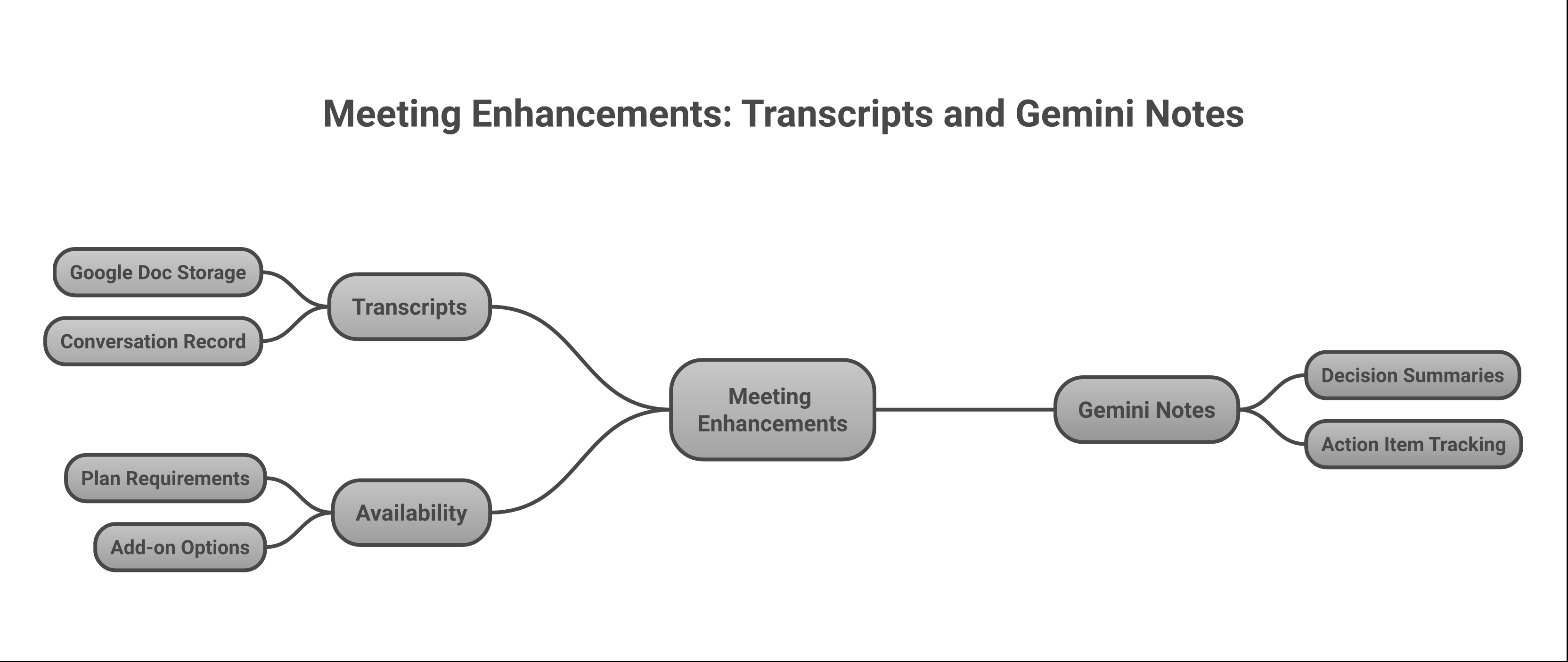
Beyond video, Google Meet can also capture a transcript of the conversation and, on plans with Gemini, generate written meeting notes automatically. Transcripts save as a Google Doc in the same "Meet Recordings" area, giving you a searchable text version of everything that was said.
If your edition includes Gemini, the "take notes for me" feature summarizes decisions and action items without anyone typing a word — a genuine time-saver for client calls and team standups. Whether that's part of your subscription depends on your plan and add-ons; we explain what's bundled in our breakdown of whether Gemini is included in Google Workspace.
Why Can't I Record a Google Meet?
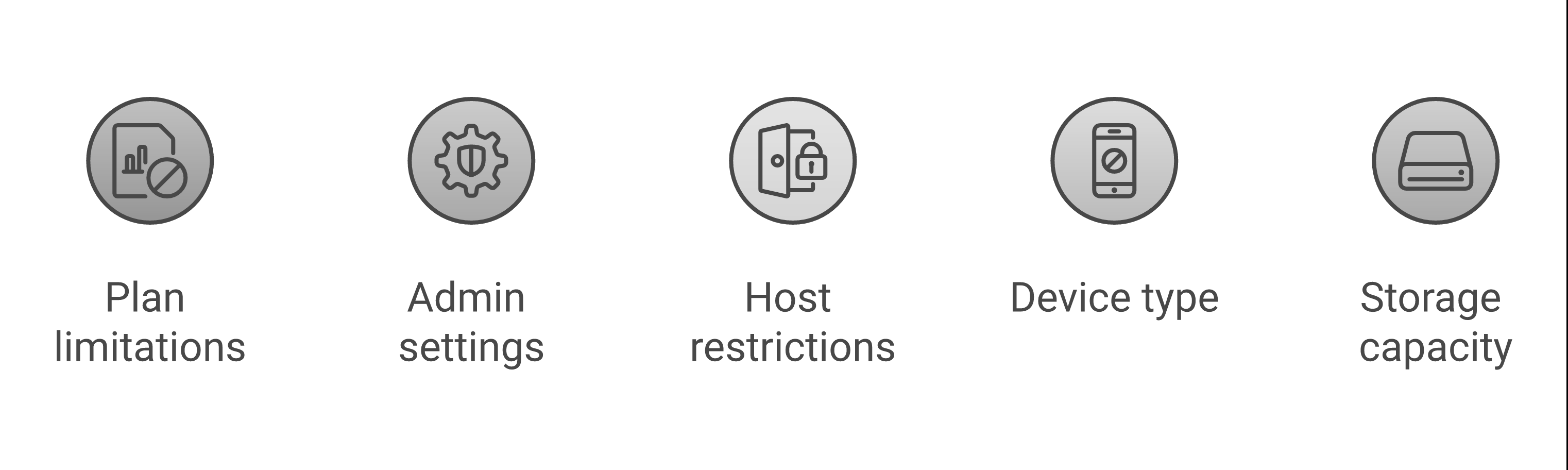
If the record option is greyed out or missing entirely, it's almost always one of five reasons. Recording is a permission-and-plan feature, so the fix depends on which piece is missing.
- Your plan doesn't include it — free personal Meet and Business Starter have no native recording.
- Your admin hasn't enabled it for your organization or your specific organizational unit.
- You're not the host or a co-host, and you're joining from outside the host's organization.
- You're on the mobile app — recording only works from a computer's web browser.
- The organizer is out of Drive storage, so there's nowhere to save the file.
Work through those in order and the button almost always reappears. For a fuller picture of what Google Workspace can do for a growing team, see what Google Workspace is used for, and check Google's official Meet recording help article for platform-specific notes.
Frequently Asked Questions
How do I record a Google Meet if I'm not the host?
You can record as a participant only if you're in the same organization as the host and recording is enabled for your account. If you're joining from an outside company or a personal account, you won't have the option — you'd need the host to record and share the file, or to grant you co-host controls.
Can you record a Google Meet without a paid plan?
Not with the built-in feature. Native recording requires an eligible paid Workspace edition (Business Standard or higher). The free personal version of Google Meet doesn't include it, which is why people on free accounts often turn to third-party screen recorders instead.
Where are Google Meet recordings saved?
They're saved to the meeting organizer's Google Drive in a folder called "Meet Recordings." A link is also emailed to the organizer and whoever started the recording, and attached to the Google Calendar event if the meeting was scheduled there.
Why is my Google Meet recording unavailable or missing?
A recording can be delayed while Google processes it, especially for long meetings — give it up to a couple of hours. If it never arrives, check that the organizer had enough Drive storage and that recording was actually started and stopped correctly rather than ending abruptly.
Can I record a Google Meet on my phone?
No. Recording can only be started from the Google Meet web app on a computer. On mobile you can join and be recorded, but the option to start a recording won't appear.
Recording is one of those Google Workspace features that's genuinely simple once your plan and admin settings are lined up — and confusing until they are. If you're setting up Google Workspace for your team, or you're stuck on a plan that's missing the tools you actually need, talk to the Googally team. We help small businesses get on the right edition and configured correctly, so features like recording just work from day one.
Related Posts
Explore Tips and Guides! Discover expert insights and practical guides for optimizing your Google Workspace experience with our informative resources.














.png)
.png)
.png)
.png)
.png)
.png)
.png)
.png)


.png)
.png)

.png)







.png)
.png)


.png)


