

Migrate Microsoft 365 to Google Workspace: No Lost Email
The first thing every business owner asks me before leaving Microsoft 365 is the same one: "Will we lose any email?" At Googally I've moved dozens of teams onto Google Workspace, and I understand the nerves — Google's migration tools have gotten genuinely good, but the order you do things in still decides whether the switch is invisible or a Monday-morning scramble.
Migrating from Microsoft 365 to Google Workspace means copying your email, calendar, contacts, and OneDrive files into Workspace first, then switching your domain's MX records last. In that order, no mail is lost. Out of order, live email can vanish during the cutover.
That sequence sounds simple, and on a slide it is. What makes real migrations go sideways is everything the tools don't move for you, plus timing that only a super admin sees coming. Here's what actually transfers, what quietly breaks, and how we keep downtime at zero.
What transfers from Microsoft 365 to Google Workspace?
Email, calendar, and contacts move cleanly with Google's built-in Data Migration Service, and OneDrive files now move — with their sharing permissions intact — through Google's newer data import. Everything else needs a plan, or it gets left behind.
Here's the honest mapping of what moves when you migrate Microsoft 365 to Google Workspace:
| Microsoft 365 | Google Workspace | Moves automatically? |
|---|---|---|
| Outlook email | Gmail | Yes — Data Migration Service |
| Outlook calendar | Google Calendar | Yes — Data Migration Service |
| Outlook contacts | Google Contacts | Yes — Data Migration Service |
| OneDrive files | Google Drive | Yes — data import, permissions preserved |
| Word / Excel / PowerPoint | Docs / Sheets / Slides | Files move; convert on open |
| Teams | Chat, Meet, Spaces | No direct migration |
| SharePoint sites | Shared drives / Sites | Manual planning |
| Shared mailboxes | Delegation / Groups | Rebuilt, not copied |
| OneNote | Keep / Docs | Manual |
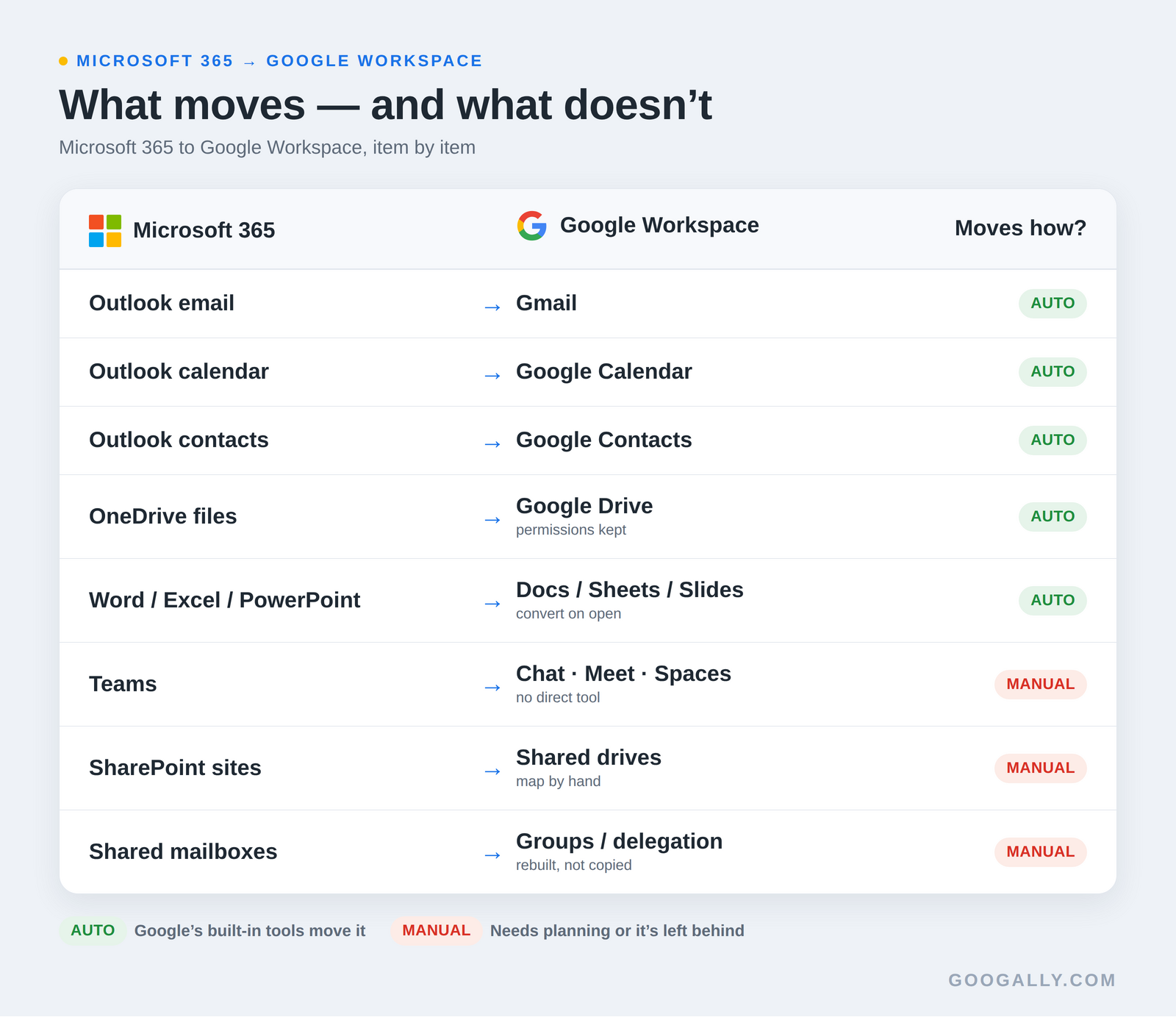
If you're not sure which of these your team even relies on, our rundown of what's included in Google Workspace is a good starting map. The top four rows are why people assume migration is a button-press. The bottom five are why it isn't. A mailbox full of mail is the easy part; the collaboration layer — Teams channels, SharePoint document libraries, the shared info@ mailbox everyone relies on — is where a rushed migration leaves data stranded.
Why what breaks matters more than what moves
The risk in a Microsoft 365 to Google Workspace migration isn't the email that copies over — it's the things that silently don't. These are the five that cost teams data or days when they try it themselves:
- Shared mailboxes. Microsoft 365 shared mailboxes have no one-to-one equivalent; they have to be rebuilt as Google Groups or delegated inboxes, and the old messages don't come along unless you plan for it.
- Teams and SharePoint. There's no clean "migrate Teams" tool. Channels, chats, and SharePoint permissions have to be mapped to Google Chat, Spaces, and Shared drives by hand.
- External file permissions. Files copy, but "shared with a client outside your company" links often don't survive intact — so partners lose access the day you switch.
- Recurring calendar invites. Long-running recurring meetings and their guest lists are a classic breakage point; attendees can get dropped or double-booked.
- Large-mailbox throttling. Microsoft rate-limits big migrations. A 40 GB mailbox that starts copying the night before cutover may still be half-finished at go-live.
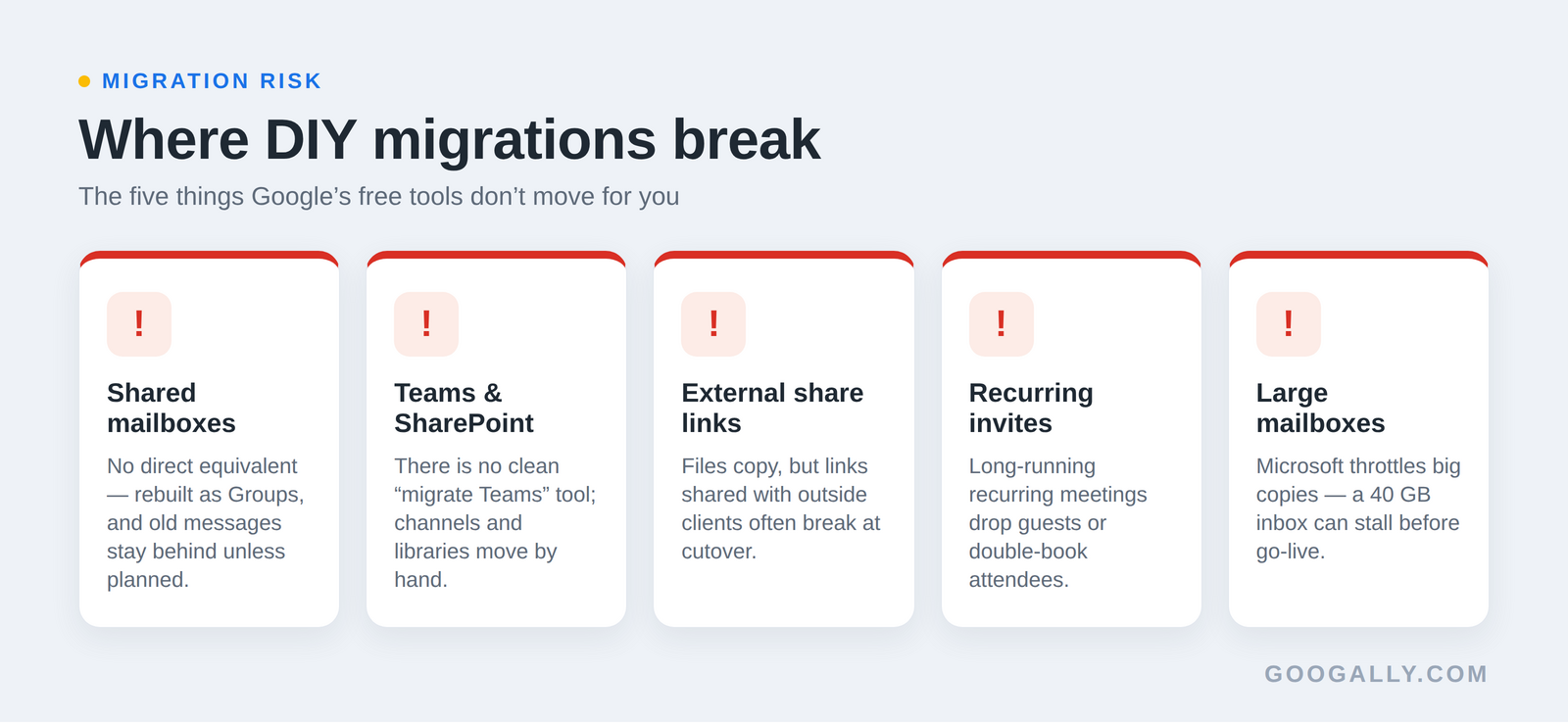
None of these show up in a five-minute demo. They show up three days later, when a client says they can't open a file or a whole department's shared inbox is empty. This is the difference between a tool that can migrate data and a migration that actually lands.
Why the MX cutover is the whole game
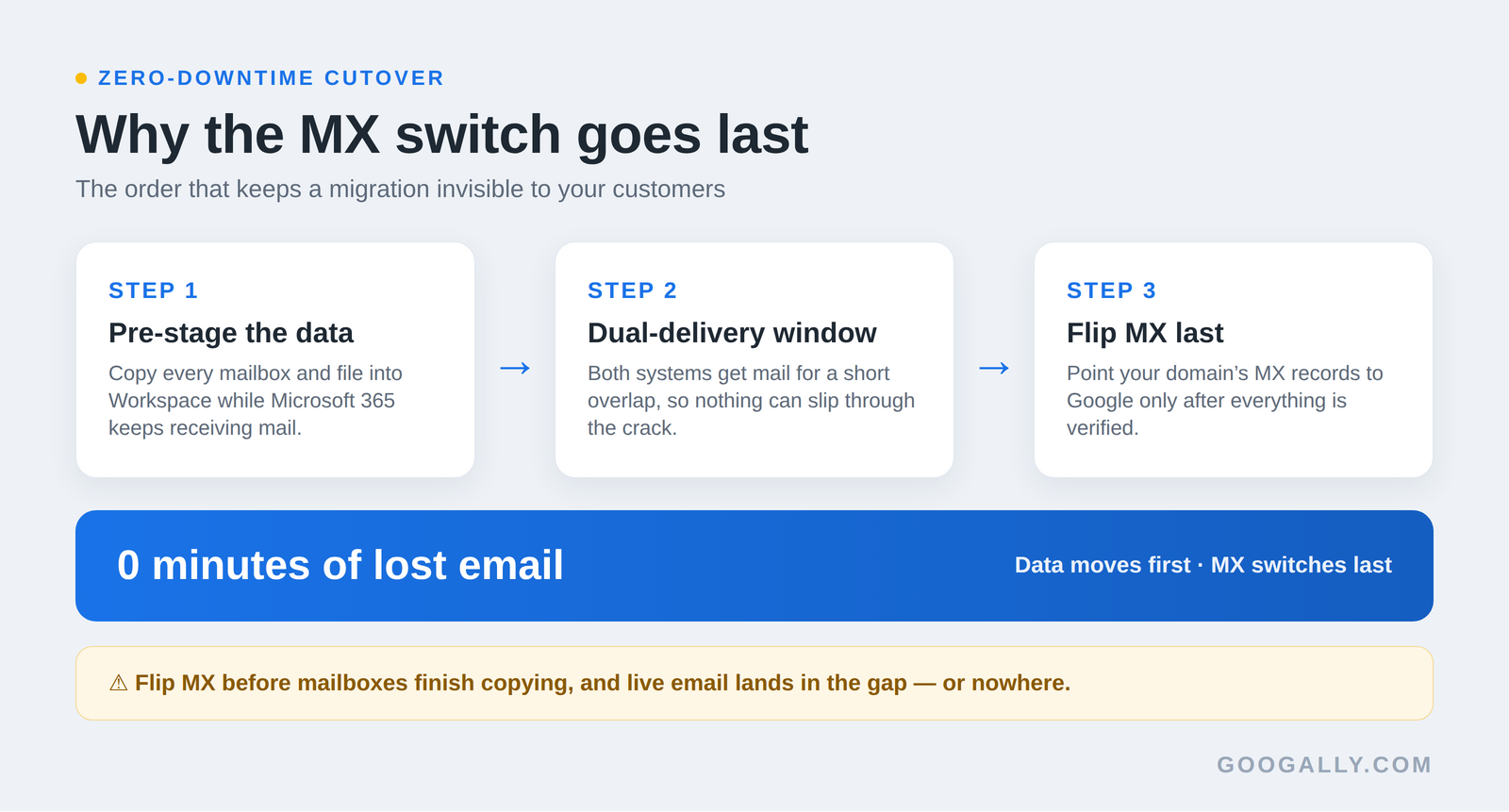
Your MX records are the internet's forwarding address for your email — they tell every sender where to deliver your mail. Switch them to Google before your mailboxes are fully copied, and any message that arrives during that gap lands in the wrong system, or nowhere at all.
That's why the sequence is non-negotiable: pre-stage every mailbox and file into Workspace while Microsoft 365 keeps running and receiving, and only flip the MX records once everything is verified. (That starts with verifying your domain in the Admin console.) We usually open a short dual-delivery window around the switch so mail flows to both systems and nothing can fall through the crack. updating your MX records is the last step, not the first — reversing that order is the fastest way to lose live email.
Which Google tools do the migration — and where they stop
Google gives you three migration tools, all free, and each has a ceiling:
- Data Migration Service (DMS) runs in the Admin console and copies email, calendar, and contacts from Microsoft 365. It's the workhorse for smaller teams, but it assumes you've already sorted domain verification, user accounts, and cutover timing.
- Data import (advanced mode) is Google's newer OneDrive migration, launched in August 2026. It moves OneDrive files at scale, preserves their permissions, and runs cloud-native from the Admin console at no extra cost — but only a super admin can operate it. See Google's data import for Microsoft OneDrive.
- Google Workspace Migrate is the heavy-duty option for large or complex organizations, handling bigger data sets and more content types.
Here's the part the tool pages don't advertise: free is not the same as effortless. These tools do the copying, but they don't decide the order, manage Microsoft's throttling, rebuild your shared mailboxes, or choose the safe moment to flip MX. That judgment — the sequencing that keeps downtime at zero — is the actual work, and it's what you're really paying for when you hand the migration to a partner.
How we migrate Microsoft 365 to Google Workspace with zero downtime
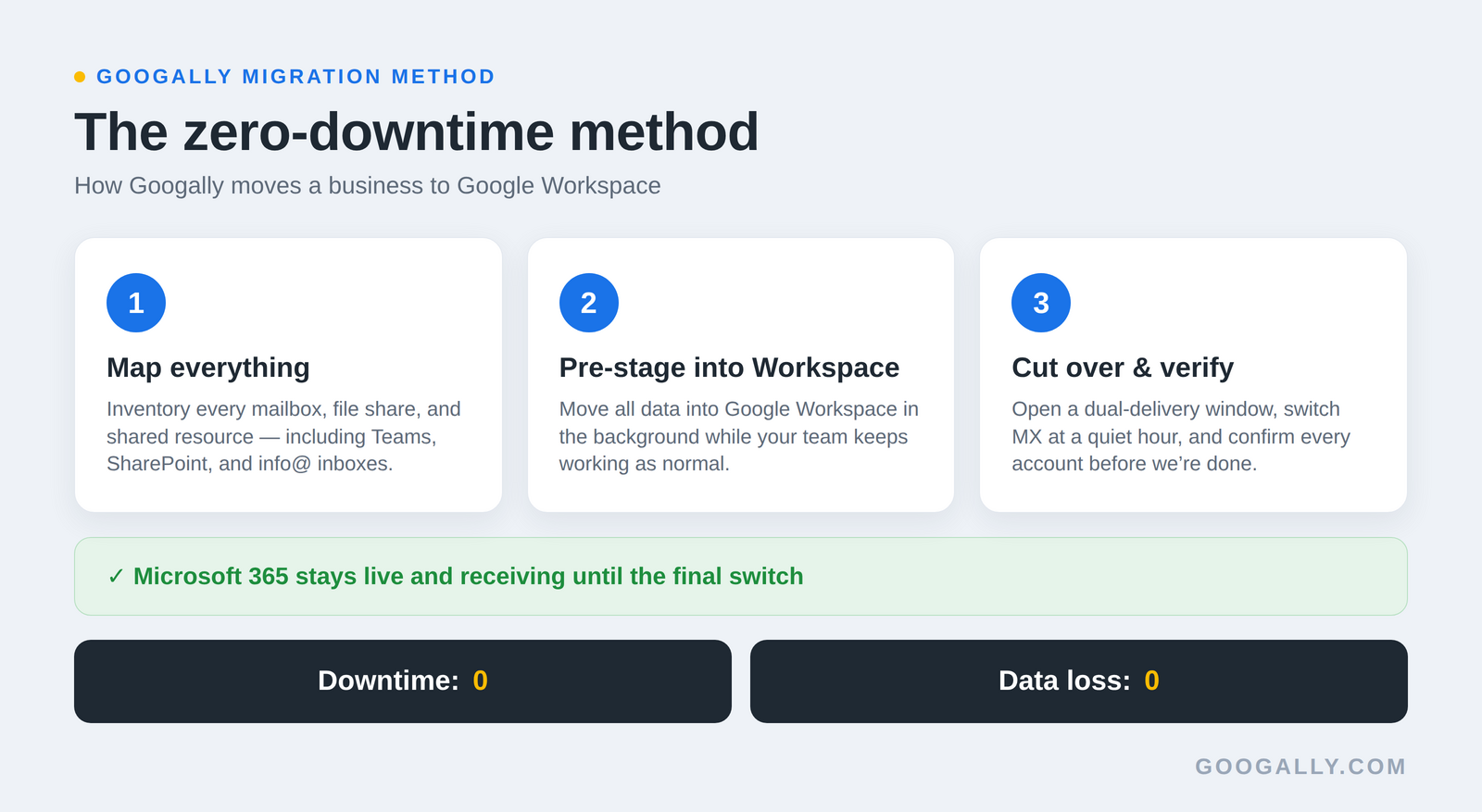
We run every migration the same way, so nothing is left to chance: map first, move second, cut over last.
First we inventory every mailbox, file share, and shared resource — including the Teams, SharePoint, and info@-style mailboxes the tools ignore — and decide exactly where each one lands in Workspace. Then we pre-stage all of that data into Google Workspace while your Microsoft 365 stays fully live, so your team keeps working and no mail stops flowing. Finally, at a low-traffic time, we open a dual-delivery window, switch your MX records, and verify every account before we call it done.
The result is the promise in the title: no lost email, and no day where the business can't send or receive. When a team tries this alone, the failure mode isn't usually a total disaster — it's a slow bleed of missing messages, broken shares, and a week of "can you resend that?" that costs far more than the migration itself. Doing it right the first time is cheaper than doing it twice.
What does it cost to move to Google Workspace?
The migration tools themselves are free; what you pay for is Google Workspace seats and, if you want it done safely, the migration service. Workspace runs $7 per user per month for Business Starter, $14 for Business Standard, and $22 for Business Plus on the annual plan, with Gemini AI now included across the board.
Because Googally is a top-tier Google referral partner, you get 15% off the first 3 months for new customers on any of those plans — you can grab the current Google Workspace promo code before you sign up. If you're still deciding whether the switch is worth it at all, our Microsoft 365 vs Google Workspace breakdown walks through the trade-offs, and you can always start on a free trial first.
Frequently Asked Questions
Can I keep my current email addresses and domain?
Yes. You migrate onto the same domain you already own, so every address stays identical — you@yourcompany.com keeps working exactly as before. Nobody has to learn a new address, and your existing business cards and signatures stay accurate.
Do I have to keep paying for Microsoft 365 during the migration?
Yes, keep your Microsoft 365 subscription active until the cutover is complete and verified. It has to stay live so it keeps receiving mail while your data copies into Workspace; you cancel it only after everything is confirmed on the Google side. Overlapping for a few weeks is normal and worth it.
Will staff who prefer Outlook still be able to use it?
They can. Google Workspace Sync for Microsoft Outlook lets Outlook connect to a Workspace mailbox, so a holdout or two can keep their familiar app during the transition. In practice most teams move to Gmail within a few weeks once they see everything is already there.
Is our data private and secure during the migration?
Yes. The transfer runs entirely through Google's admin-controlled migration tools, files keep their existing permissions, and nothing is ever made public in the process. Access stays limited to your administrators and the accounts the data belongs to.
Moving off Microsoft 365 shouldn't mean gambling with your inbox. Googally handles the full migration — email, calendar, contacts, and files — with zero downtime, so your team switches to Google Workspace without losing a single message. Talk to us about your migration and we'll map it out with you.
Related Posts
Explore Tips and Guides! Discover expert insights and practical guides for optimizing your Google Workspace experience with our informative resources.














.png)
.png)
.png)
.png)
.png)
.png)
.png)
.png)




.png)
.png)

.png)









.png)
.png)


.png)


