
NotebookLM Podcast: How to Make One in Gemini Notebook
The first time I dropped a 40-page onboarding PDF into NotebookLM and got back a 12-minute podcast two hosts actually seemed to enjoy recording, I stopped thinking of it as a gimmick. I've since used it to turn dense policy docs and meeting notes into audio my team will genuinely listen to on a commute. If you searched for it and landed on something called Gemini Notebook, don't worry — you're in the right place.
A NotebookLM podcast is an Audio Overview: two AI hosts hold a natural, spoken conversation about the documents you upload. NotebookLM is now called Gemini Notebook, but the feature is the same — add your sources, click Audio Overview, and you get a shareable audio episode in a few minutes.
Below I'll walk through exactly how to make one, the four conversation formats you can choose, how to steer the hosts, and whether it costs anything now that it lives inside Google's Gemini ecosystem.
What Is a NotebookLM Podcast?
A NotebookLM podcast — officially an Audio Overview — is an AI-generated audio discussion based only on the sources you give it. Two synthetic hosts trade observations, ask each other questions, and summarize the key points of your material as if they were recording an episode about it. The result sounds like a real two-person show, not a robotic text-to-speech readout.
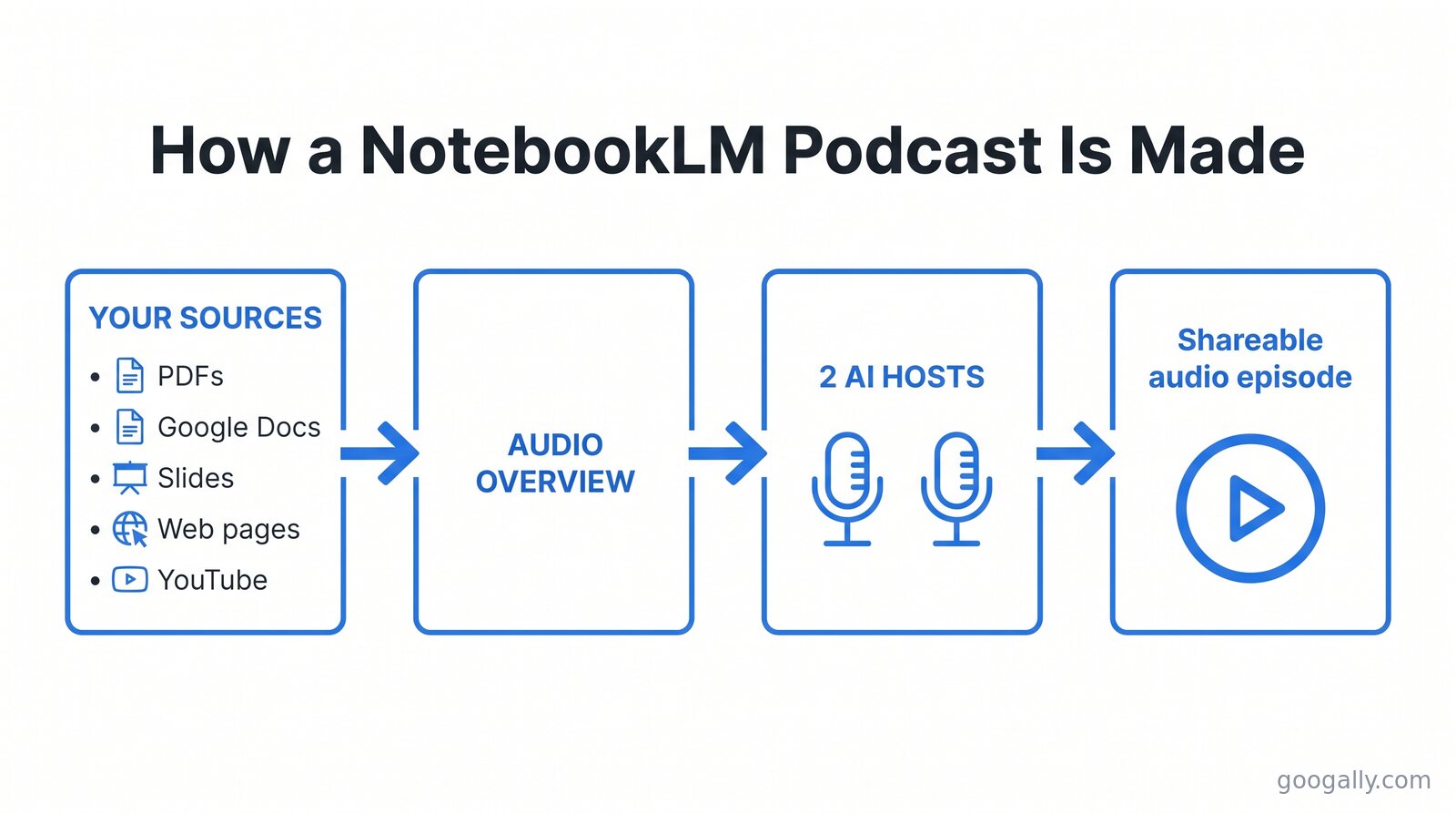
The important thing to understand is that it's grounded in your documents. Unlike a general chatbot, Audio Overview doesn't wander off into the model's world knowledge — it works from the PDFs, Google Docs, slides, web pages, or notes you upload, so the conversation stays on your material. That's what makes it useful for onboarding, study, and turning reports nobody reads into something people will actually play.
As of 2026, Google renamed NotebookLM to Gemini Notebook and moved it under the Gemini brand at notebook.google. The name on the tab changed; the podcast feature you came for did not.
How to Make a NotebookLM Podcast (Step by Step)
Making one takes about five clicks and a few minutes of generation time. Here's the process inside Gemini Notebook, which mirrors Google's official Audio Overview steps:
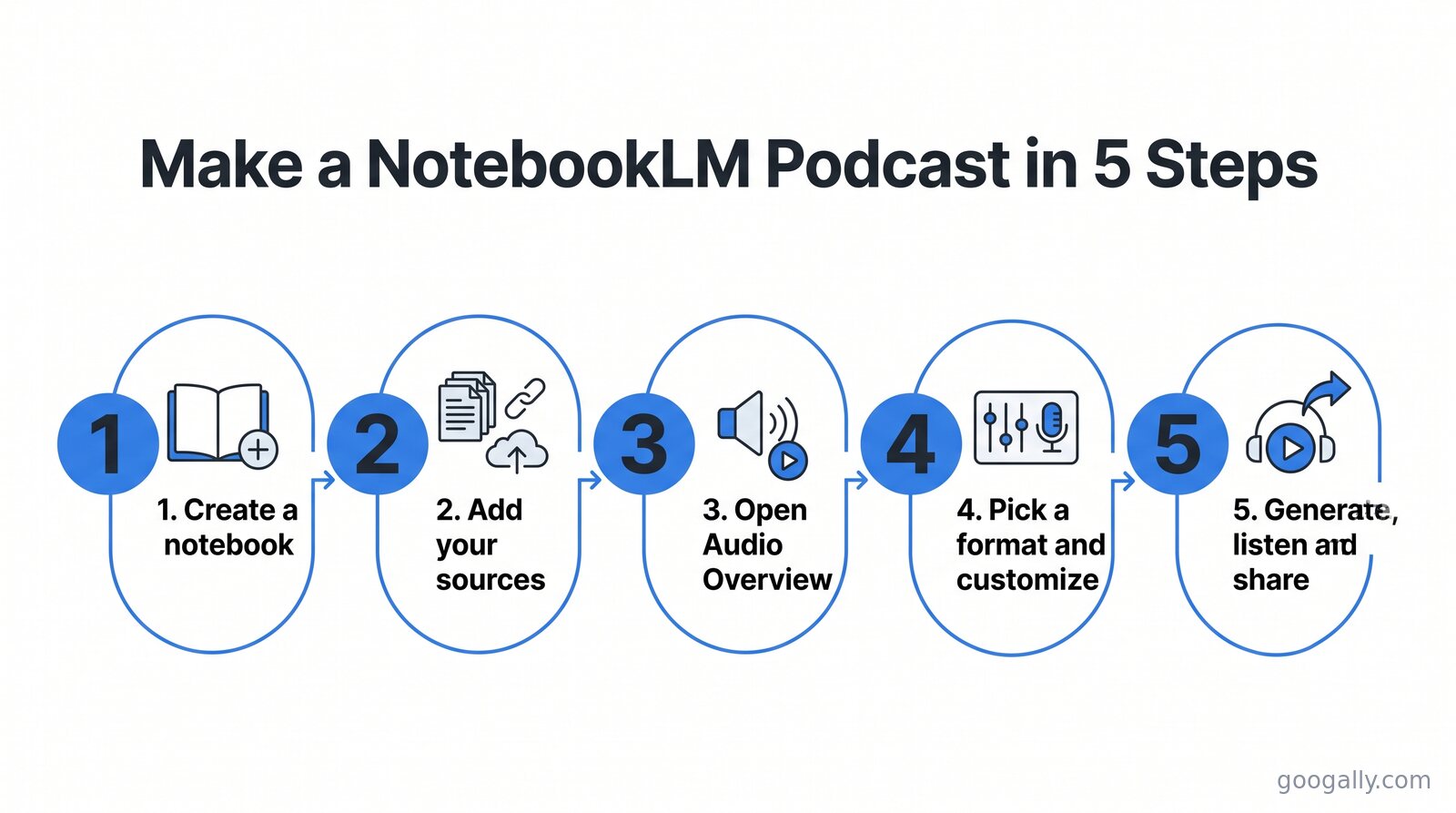
- Create a notebook. Go to notebook.google and start a new notebook. Think of it as one project or topic.
- Add your sources. Upload PDFs, paste text, add Google Docs or Slides, drop in a website URL, or link a YouTube video. Add everything you want the episode to cover.
- Open Audio Overview. In the Studio panel, choose Audio Overview. This is the "podcast" generator.
- Pick a format and customize (optional). Choose one of the four conversation formats below, and optionally tell the hosts what to focus on or who the audience is.
- Generate. Click to create it. A few minutes later you'll have an audio episode you can play, download, or share with a link.
That's the whole loop. The first episode you make will probably surprise you with how conversational it sounds — the hosts pause, react, and build on each other rather than reading bullet points.
The 4 Audio Overview Formats
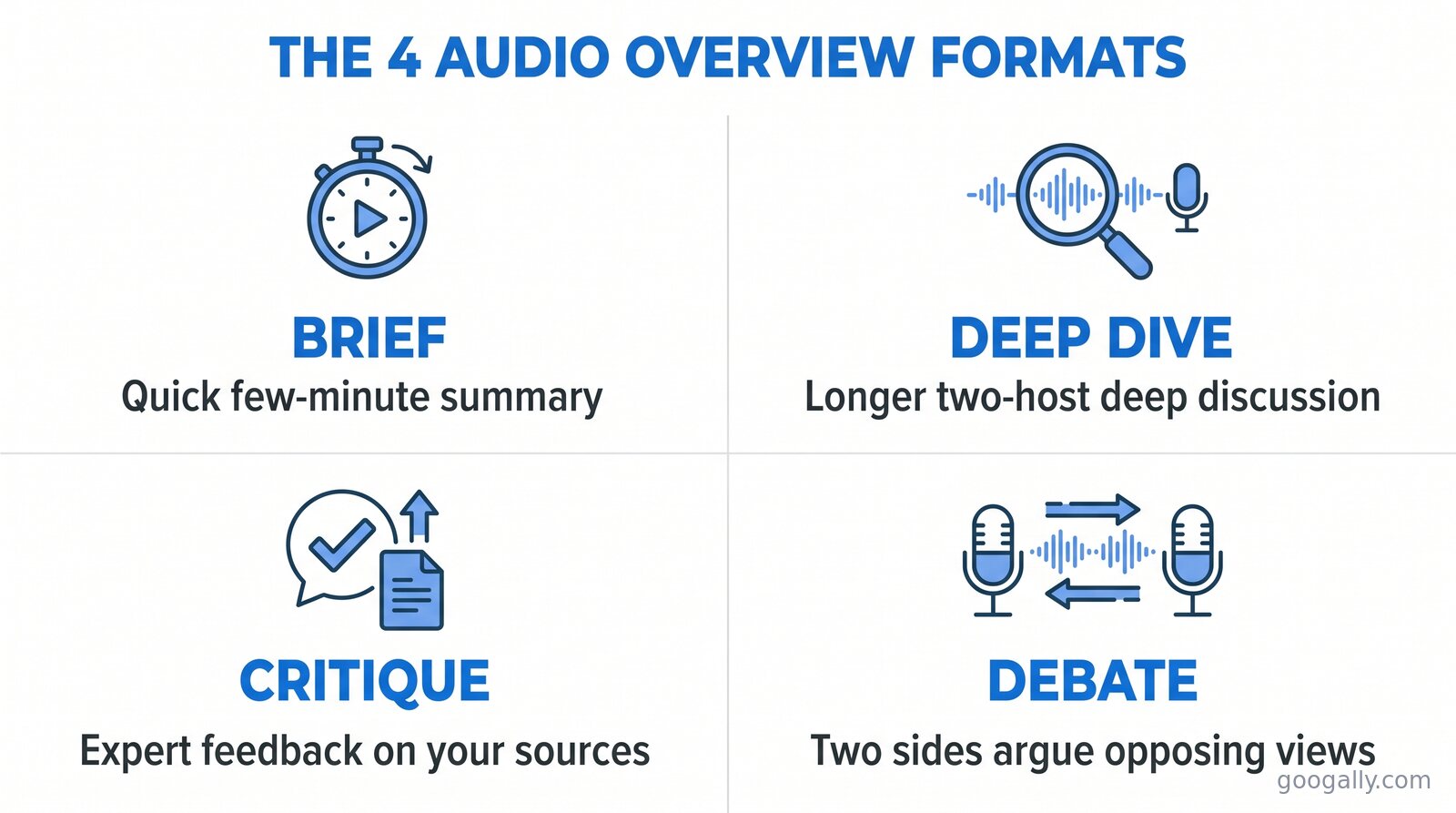
Early on, an Audio Overview was always one long two-host "deep dive." Gemini Notebook now lets you pick the format to match how much time your listener has and what you want out of it:
- Brief — a tight few-minute summary. Best when someone just needs the gist fast.
- Deep Dive — the original format: a longer, thorough two-host conversation that explores the material in depth.
- Critique — the hosts act as expert reviewers and give constructive feedback on your sources, which is useful for pressure-testing a draft or a plan.
- Debate — two sides argue opposing positions drawn from your material, good for weighing a decision or seeing the counterargument.
I reach for Deep Dive for training material, Brief for status updates, and Critique when I want a second opinion on a proposal before it goes out.
How to Customize and Steer the Hosts
You're not stuck with whatever the AI decides to emphasize. Before you generate, you can give the hosts a focus prompt — tell them the target audience ("explain this for new hires with no finance background"), the angle to take, or the specific sections to prioritize. It's the difference between a generic summary and an episode aimed at exactly the people who'll hear it.
There's also an interactive mode: instead of just listening, you can join the conversation and ask the hosts a question out loud, and they'll respond based on your sources. It turns the podcast into something closer to office hours with two well-briefed colleagues.
What Languages Does It Support?
Audio Overviews are available in more than 50 languages, so you can generate the same episode for a multilingual team or an international audience without re-recording anything. The hosts speak naturally in the chosen language rather than sounding like a literal translation, which matters if you're using it for training people across regions.
Is the NotebookLM Podcast Free?
The core Audio Overview feature is free to use — anyone with a Google account can create podcasts from their sources, subject to daily generation caps. Paid plans (Google AI Pro and Ultra, and Google Workspace with Gemini) raise those limits and unlock heavier use, which matters once a team is generating audio regularly rather than trying it once.
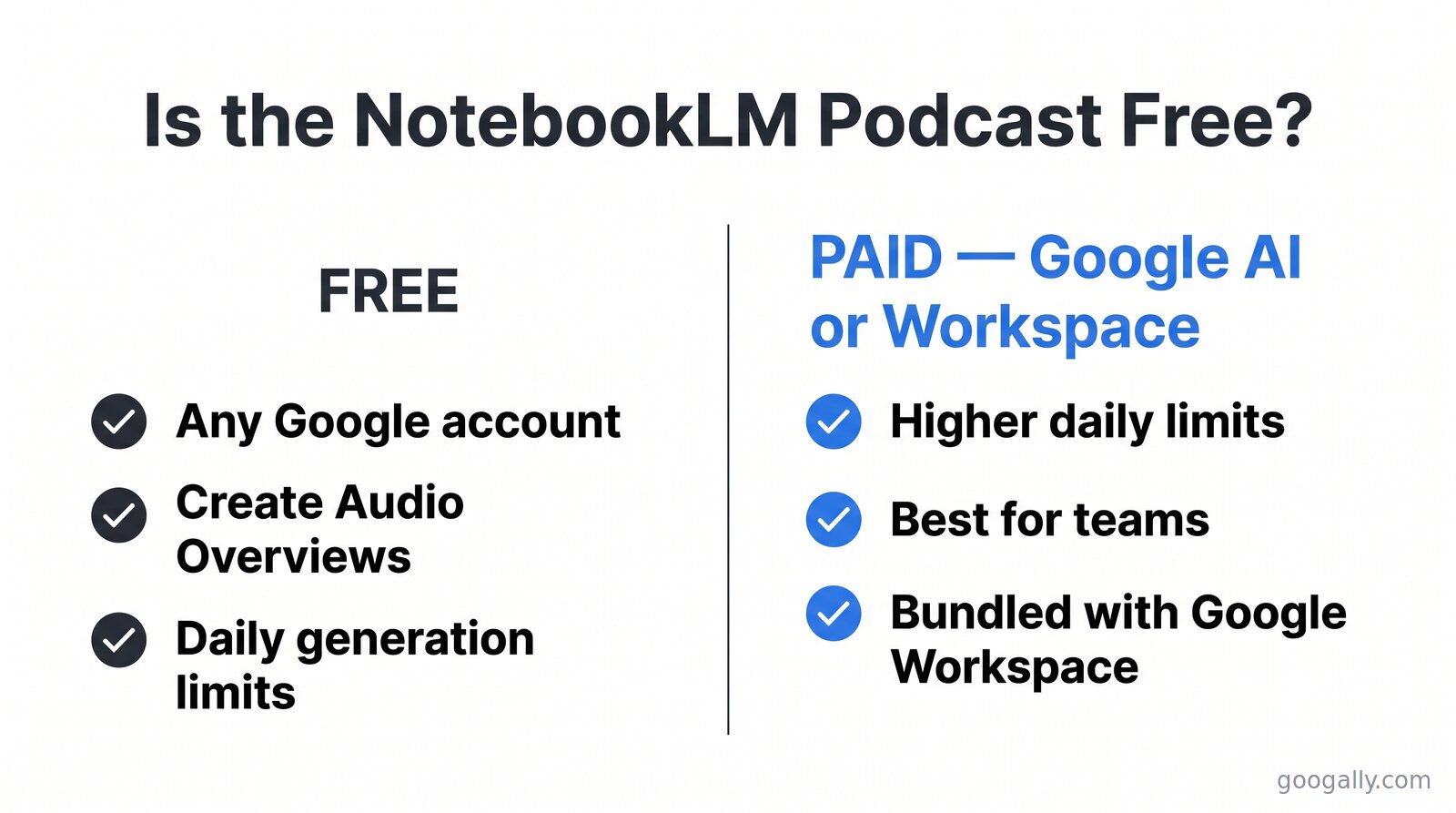
For a business, the practical path is a Google Workspace plan: your whole team gets Gemini Notebook alongside business email, Drive, and the rest of the suite under one bill, with the higher limits that keep Audio Overview usable day to day. If you're comparing what each tier includes, my Google Workspace pricing breakdown lays out the costs, and Gemini's place in Workspace covers what AI features come with each plan.
Because Googally is an authorized Google referral partner, new customers can take 15% off the first 3 months for new customers on top of standard pricing — a bigger discount than the 12% most partners offer. Grab the current Google Workspace promo code and paste it at checkout.
How Business Teams Actually Use It
The podcast feature stops being a novelty the moment you point it at real work. The uses I see land most often with the teams I help at Googally:
- Onboarding. Turn the employee handbook, IT setup guide, and policy docs into a set of episodes new hires listen to in their first week — far more likely to get consumed than a wiki.
- Meeting notes to audio. Feed in the notes and decisions from a long meeting and hand the team a five-minute Brief they can catch up on later.
- Training and enablement. Convert product docs or a new process into a Deep Dive so the field team can learn on the go.
- Client-ready summaries. Use Critique or Debate internally to pressure-test a proposal before it reaches a client.
If your team is already living in Google Docs and Drive, this is one of the easiest AI wins to roll out — the sources are already there. It pairs naturally with the other automation in Google Workspace Studio and the custom assistants you can build with Gemini Gems. And if you're still deciding whether the whole suite earns its keep, here's my honest take on whether Google Workspace is worth it. For the tool itself, start with what Google NotebookLM is and how its pricing works.
Frequently Asked Questions
Is NotebookLM the same as Gemini Notebook?
Yes. Google renamed NotebookLM to Gemini Notebook in 2026 and moved it under the Gemini brand at notebook.google. It's the same tool with the same features, including the Audio Overview podcast generator — only the name changed.
How long is a NotebookLM podcast?
It depends on the format you choose. A Brief runs a few minutes, while a Deep Dive can run 10 to 30-plus minutes depending on how much source material you add. You can steer the length by picking the format and by how many sources you include.
Can I make a NotebookLM podcast in another language?
Yes. Audio Overviews support more than 50 languages. You choose the output language before generating, and the two hosts speak naturally in that language rather than reading a translation.
Is the NotebookLM podcast feature free?
The Audio Overview feature is free with any Google account, subject to daily generation limits. Google AI Pro and Ultra plans, and Google Workspace with Gemini, raise those limits for heavier or team use.
What can I upload as a source?
You can add PDFs, Google Docs and Slides, plain text, website URLs, and YouTube links. The podcast is generated only from the sources you provide, so it stays grounded in your material rather than the model's general knowledge.
Related Posts
Explore Tips and Guides! Discover expert insights and practical guides for optimizing your Google Workspace experience with our informative resources.








.png)
.png)
.png)
.png)
.png)
.png)
.png)
.png)


.png)
.png)

.png)




.png)
.png)


.png)


