

Google Workspace Shared Mailbox: Skip the Paid Add-On
When teams move to Google Workspace, one of the first questions I get at Googally is "where's the shared mailbox?" In Microsoft 365 it's a single checkbox, so people go looking for the same button in Google and come up empty. The good news: Google Workspace does shared mailboxes just fine — it just splits the job across three built-in tools, and you don't need a paid add-on like Hiver or Gmelius to make it work.
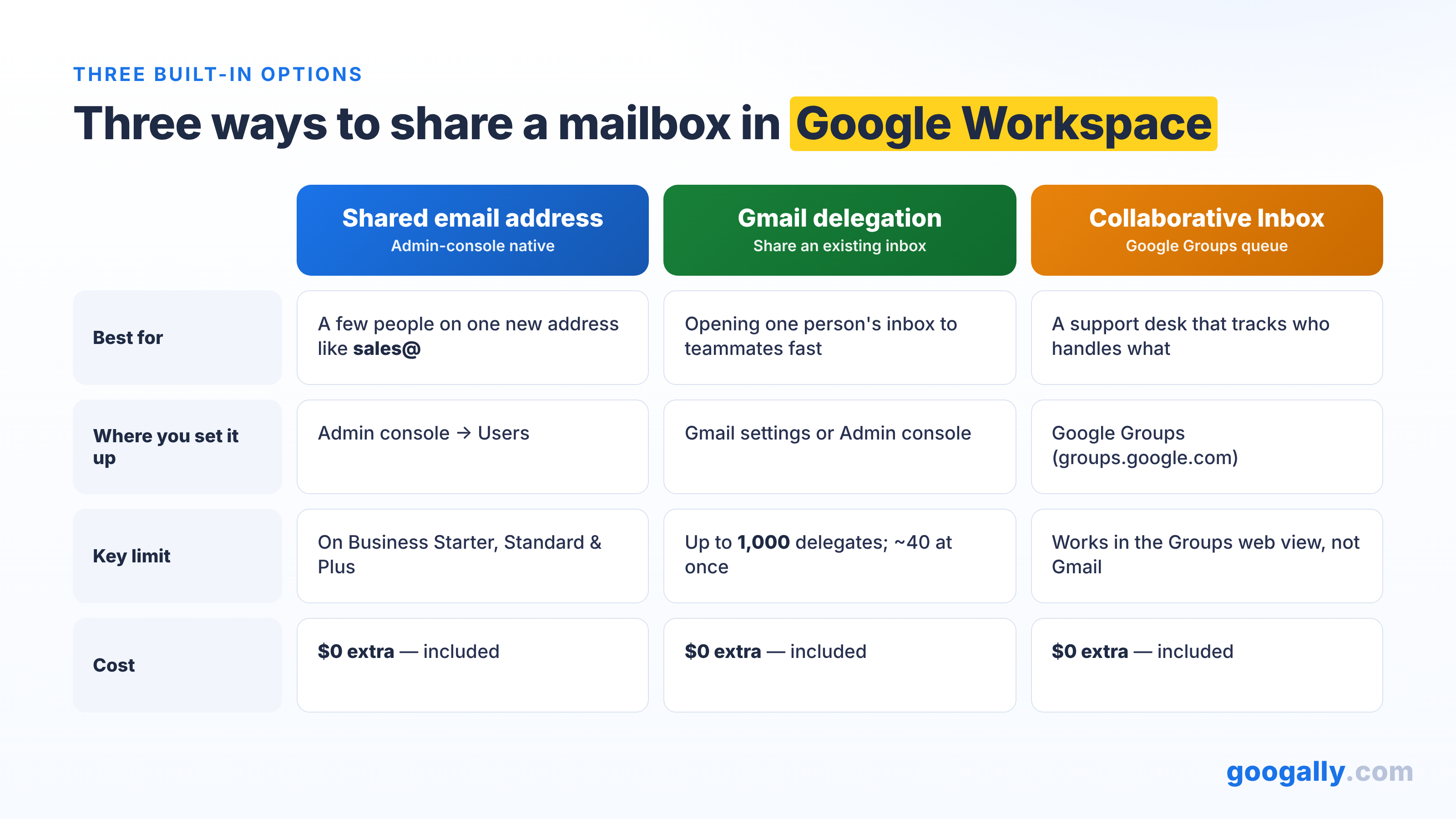
Google Workspace has no single "shared mailbox" object like Microsoft 365. Three built-in tools do the same job: a shared email address set in the Admin console, Gmail delegation (up to 1,000 delegates), and a Google Groups Collaborative Inbox — all included on Business plans, no add-on.
Which one you pick depends on how your team actually works a shared address like sales@ or support@. Below I'll walk through all three, show you the exact setup path, and give you a simple rule for choosing — plus what to do if you're coming from a Microsoft 365 shared mailbox.
What a "shared mailbox" means in Google Workspace
A shared mailbox is one email address — sales@, support@, info@, billing@ — that several people can read and reply from, so a customer always writes to one place and anyone on the team can pick it up. Microsoft 365 ships this as a specific "shared mailbox" object you flip on, with no license attached. Google Workspace doesn't use that exact object, which is why migrants get stuck looking for it.
Instead, Google gives you three native ways to get the same result. One creates a true shared address from the Admin console. One shares an existing person's inbox through delegation. One turns a group into a team queue where conversations get assigned and resolved. None of them costs extra — they're part of the Workspace plan you already pay for.
The trick is matching the tool to the job. A two-person sales alias and a ten-person support desk need different setups, and picking the wrong one is the usual reason a "shared inbox" feels clunky later.
Option 1: Set up a shared email address in the Admin console
This is Google's newest and most direct answer, and for most small teams it's the one to use. A super admin creates a dedicated address like sales@yourcompany.com and adds the people who should work it as delegates. Each delegate reads, sends, and deletes mail from that address right inside their own Gmail, and can view and add the shared contacts too.
Here's the path, which takes about two minutes:
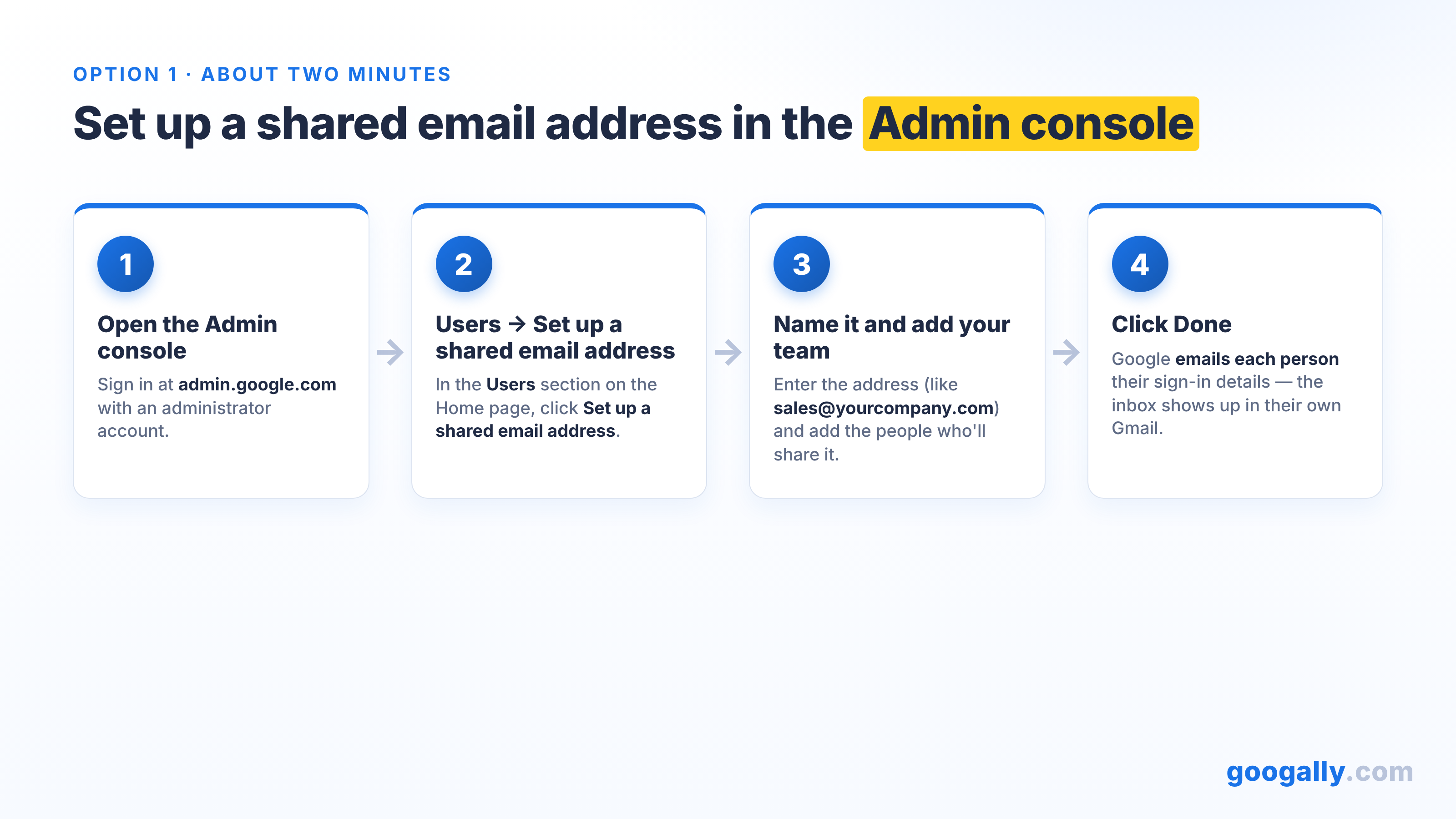
- Sign in to the Google Admin console (admin.google.com) with an administrator account.
- On the Home page, in the Users section, click Set up a shared email address.
- Enter the address you want (for example, sales@yourcompany.com).
- Click Add new users, enter the people who'll share it, then click Continue.
- Click Next, review the list, and click Done — Google emails each person their sign-in instructions automatically.
When a delegate replies, the message shows the shared address in the From line and quietly notes which teammate actually sent it under Sent by — handy for internal accountability, and you can hide that line if you'd rather customers not see it. If the address already exists as a regular account, you can convert it the same way instead of creating a new one.
You'll find this feature on Business Starter, Business Standard, and Business Plus. If you don't see Set up a shared email address in your console yet, it's still rolling out to some accounts — use delegation (Option 2) in the meantime, then convert later.
Option 2: Turn an existing inbox into a shared one with Gmail delegation
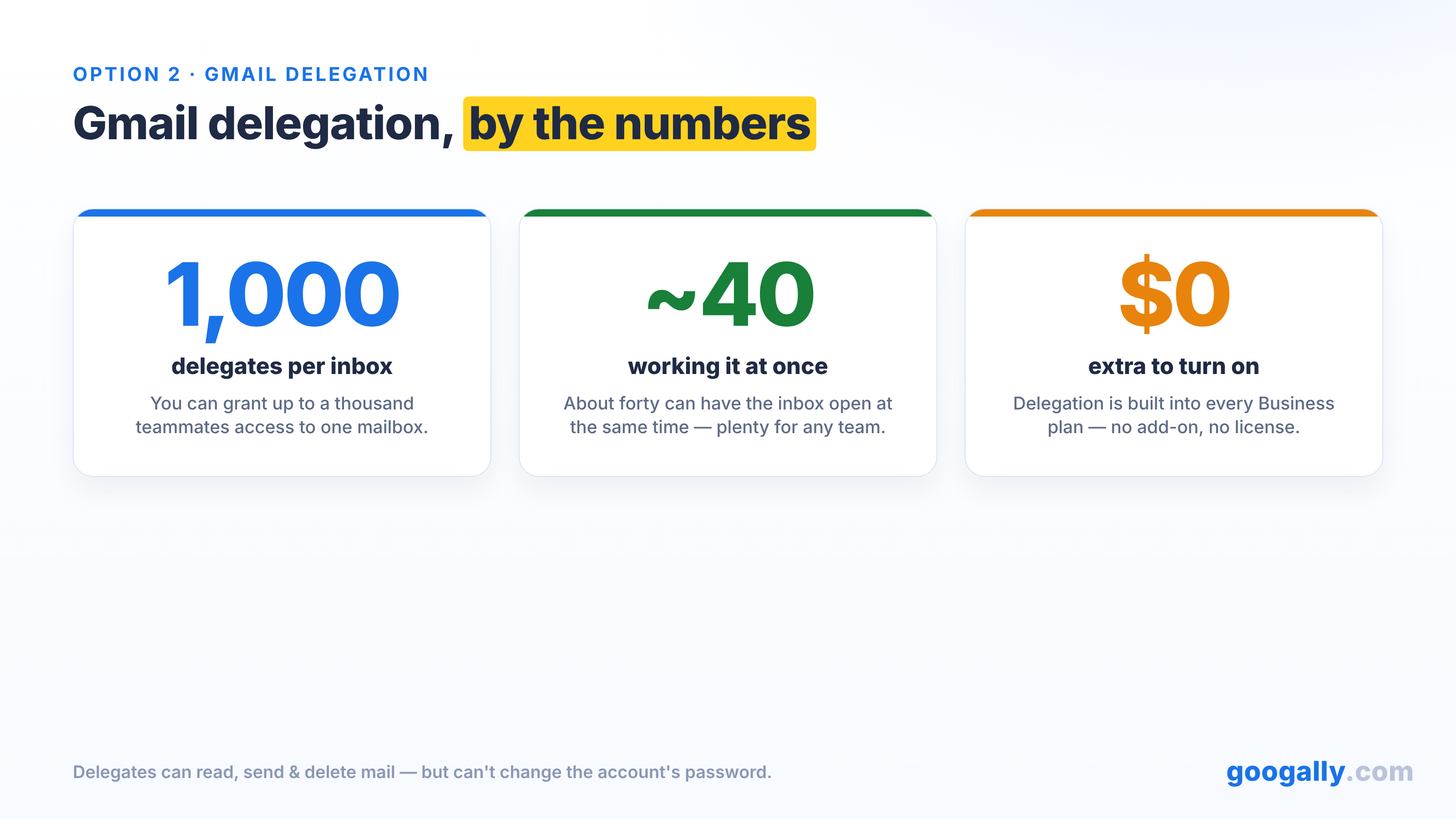
Delegation is the fastest way to share a mailbox that already exists — say the owner of orders@ is going on leave, or you want two teammates covering one person's inbox. The account owner (or an admin, org-wide) grants other people access, and those delegates can read, send, and delete mail and manage the inbox from their own Gmail. They can't change the account's password or sign in as the owner, so it stays safely scoped.
To turn it on for a single inbox, the account owner opens Gmail, goes to Settings → See all settings → Accounts and Import → Grant access to your account, and adds each delegate's address. An admin can enable mail delegation for everyone from the Admin console under Gmail's user settings, so people can delegate without filing a ticket.
Delegation scales further than most people expect: Google raised the limit to up to 1,000 delegates per account, though in practice around 40 can have the mailbox open at the same time before performance dips. For a normal support or sales team that's far more headroom than you'll ever need. It's also the method Google itself points you to while the shared-address feature finishes rolling out.
Option 3: Run a team queue with a Google Groups Collaborative Inbox
If your shared address is really a help desk — tickets coming in, several agents, and you need to know who's handling what — a Google Groups Collaborative Inbox is the better fit. You create a group like support@yourcompany.com, turn on the Collaborative Inbox setting, and the group's web view turns into a lightweight shared queue.
Inside it, members can take a conversation so it's clearly theirs, assign it to a specific teammate, and mark each one Resolved, Duplicate, or No action needed. That status tracking is the difference between "we all kind of watch support@" and an inbox where nothing slips through. It works from the Google Groups web interface rather than Gmail, so it suits a team that's deliberately working a queue together.
Like the others, Collaborative Inbox is included with your Workspace subscription. It's the most structured of the three — a touch more setup, but the payoff is clear ownership on every incoming message.

Which method should you use?
The honest answer is that most teams only need one, and the choice comes down to how the address gets worked:
- A few people replying from one new address, minimal fuss → create a shared email address (Option 1).
- Sharing one person's existing inbox, fast → Gmail delegation (Option 2).
- A real support/intake queue that needs assignment and resolution tracking → Google Groups Collaborative Inbox (Option 3).
If you're torn between a shared address and a group, it helps to understand the difference between a user, an alias, and a group first, since those three building blocks underpin every option here. And if you only need mail to land in one person's box under a second name, you may not need a shared mailbox at all — a plain email alias could be enough.
For a quick gut check: pick the lightest tool that still tracks ownership the way your team needs. You can always start with delegation and graduate to a Collaborative Inbox as the volume grows.
Moving from a Microsoft 365 shared mailbox?
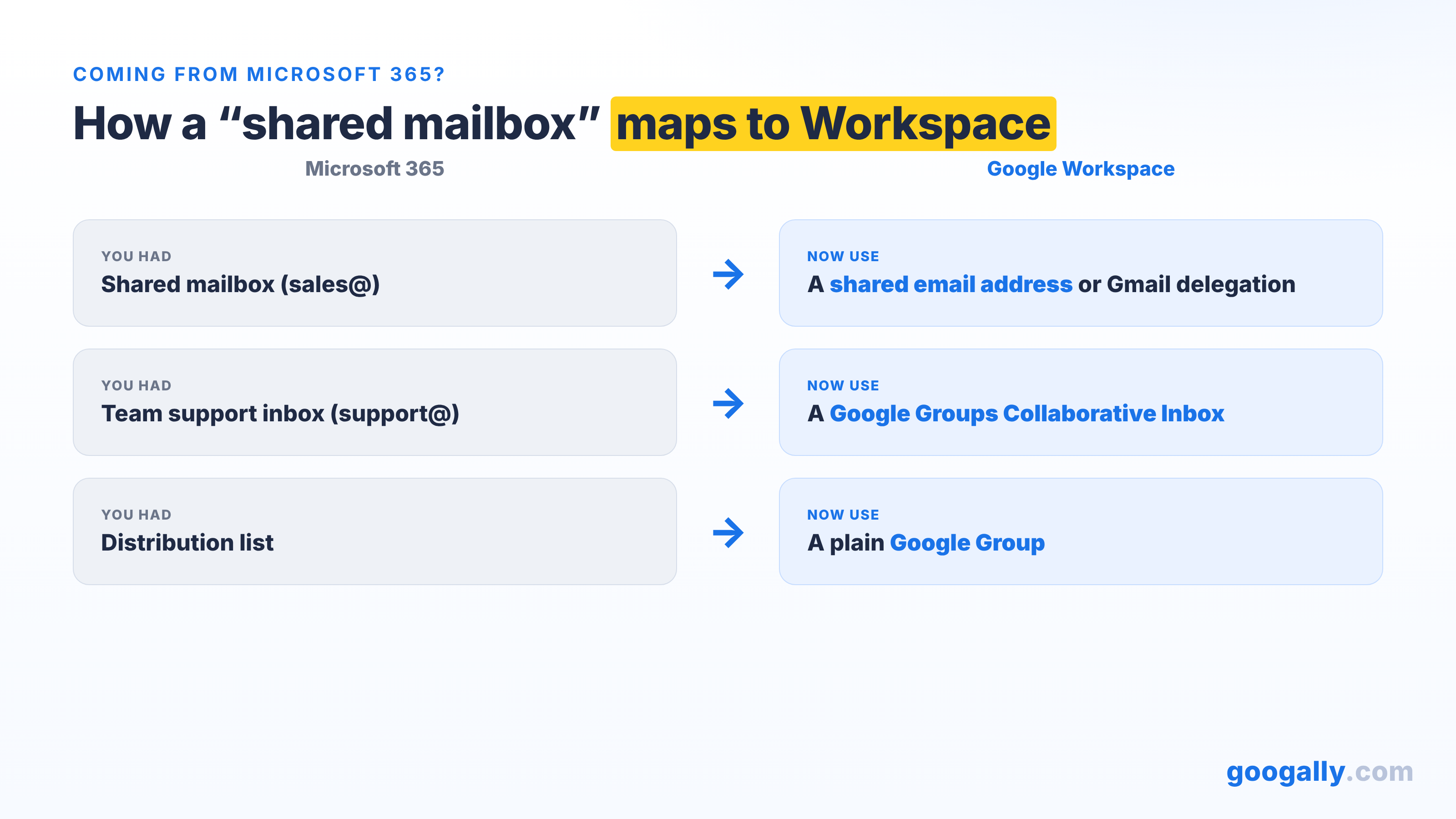
This is where I spend most of my time with new clients. In Microsoft 365, a shared mailbox is a free, unlicensed mailbox of up to 50 GB, and people assume losing that object means losing the capability. It doesn't — it just maps to different tools. A customer-facing address like sales@ becomes a shared email address or a delegated inbox; a team queue like support@ becomes a Collaborative Inbox; and a broadcast list becomes a plain group.
The mail itself comes across too. When we handle a migration at Googally, the messages, contacts, and calendars from those old shared mailboxes move into their new Google homes with no downtime, so day one on Workspace looks like business as usual. If you're weighing the switch, it's worth seeing how Google Workspace compares to Microsoft 365 and what a clean migration from Microsoft 365 to Google Workspace actually involves before you flip anything on.
Setting up the address itself still runs through a super admin, so it's worth knowing who holds that role on your team before you start.
Does a shared mailbox cost extra in Google Workspace?
No. All three methods — the shared email address, Gmail delegation, and the Collaborative Inbox — are built into Business Starter, Business Standard, and Business Plus at no additional charge. That's the real headline against the SERP full of third-party "shared inbox" tools: for most small businesses, Google already does the job, and the paid add-on is optional at best.
If you're setting this up because you're just getting started on Workspace, that's the moment to get your plan right. We're one of Google's top referring partners, so new customers can use our Google Workspace promo code for 15% off the first 3 months for new customers — and if you'd rather we stand up your shared addresses, delegation, and groups for you (and migrate your old mail in), that's exactly what we do. You can see Google's own shared-inbox options in Google's official shared inbox setup guide, and we'll help you pick the right one the first time.
Need a hand choosing a plan? Here's how to decide which Google Workspace plan fits your team, and if you're arriving from Outlook, here's how to say goodbye to Microsoft Outlook for good.
Frequently asked questions
Can people outside my company be added to a shared mailbox?
Delegation and shared-address access are meant for users inside your Google Workspace organization, so everyone with access needs an account on your domain. For outside collaborators, share specific conversations or use a group with external posting turned on instead.
Will replies show my personal name or the shared address?
Replies go out from the shared address in the From line, with a small Sent by note showing which teammate sent it. An admin can hide that Sent by line if you'd prefer customers only ever see the shared address.
What happens to the shared mailbox if the employee who owns it leaves?
If you used a true shared email address or a Collaborative Inbox, nothing — those aren't tied to one person. For a delegated personal inbox, transfer or convert the account before you delete the departing user so the history isn't lost.
Do shared mailboxes count against my user license count?
A dedicated shared email address is its own account, while delegation and Collaborative Inboxes ride on accounts and groups you already have. If you're watching seat counts closely, delegation and groups add shared access without adding a paid user.
Can I use a shared mailbox on my phone?
Delegated and shared addresses work in the Gmail mobile app, so your team can cover sales@ or support@ on the go. A Collaborative Inbox's assign-and-resolve controls, though, are designed for the Google Groups web view rather than the phone.
Related Posts
Explore Tips and Guides! Discover expert insights and practical guides for optimizing your Google Workspace experience with our informative resources.


















.png)
.png)
.png)
.png)
.png)
.png)
.png)
.png)




.png)
.png)

.png)










.png)
.png)


.png)


