

Google Workspace Catch-All Email: Never Lose a Message
When I migrate a small business to Google Workspace, one of the first worries I hear is "what happens to the emails people send to the wrong address?" It's a smart thing to ask. I've set up catch-all routing for dozens of teams, and once you see how it works, you'll wonder how you ever ran email without it.
A catch-all is one mailbox that collects every email sent to a nonexistent address at your domain — typos, misspellings, and former staff. In Google Workspace you set one up with a Default routing rule in the Admin console, so misaddressed mail is never lost.
Below I'll explain exactly what a catch-all does, walk through the setup click by click, help you decide when a catch-all is the right tool (and when an alias or group is better), and cover the one trade-off you need to plan for.
What is a catch-all email address?
A catch-all address is a single mailbox that "catches" any message sent to an address at your domain that doesn't belong to a real user. If someone emails jon@yourbusiness.com when your actual address is john@yourbusiness.com, that message would normally bounce back to the sender with an error. With a catch-all in place, it quietly lands in the mailbox you choose instead.
Think of it as a safety net under your whole domain. Customers guess at email addresses constantly — info@, hello@, sales@, a half-remembered name, a typo on a business card. Without a catch-all, every one of those guesses bounces, and the sender often assumes you're out of business rather than that they fat-fingered the address.
The messages a catch-all picks up usually fall into a few buckets: plain typos, addresses for employees who've left, old addresses from before a rebrand, and generic addresses you never formally created. Instead of all of that email disappearing, it funnels into one place a human can review.

Does Google Workspace have a catch-all?
Yes. Google Workspace supports catch-all behavior through a feature called Default routing, found in the Gmail settings of your Admin console. You don't need a third-party tool or an extra subscription — it's built in, and it's available across Workspace editions, including Business Starter.
Default routing is the modern replacement for the old standalone "catch-all" setting that longtime admins may remember. If you set up a catch-all years ago under G Suite, Google has since folded that into Default routing, so new rules are all created the same way today.
The key advantage of doing this through Default routing is precision. You can tell Google to apply the catch-all only to addresses that don't exist, so your real users keep receiving their own mail normally and only the orphaned, misaddressed messages get rerouted.

How to set up a catch-all in Google Workspace
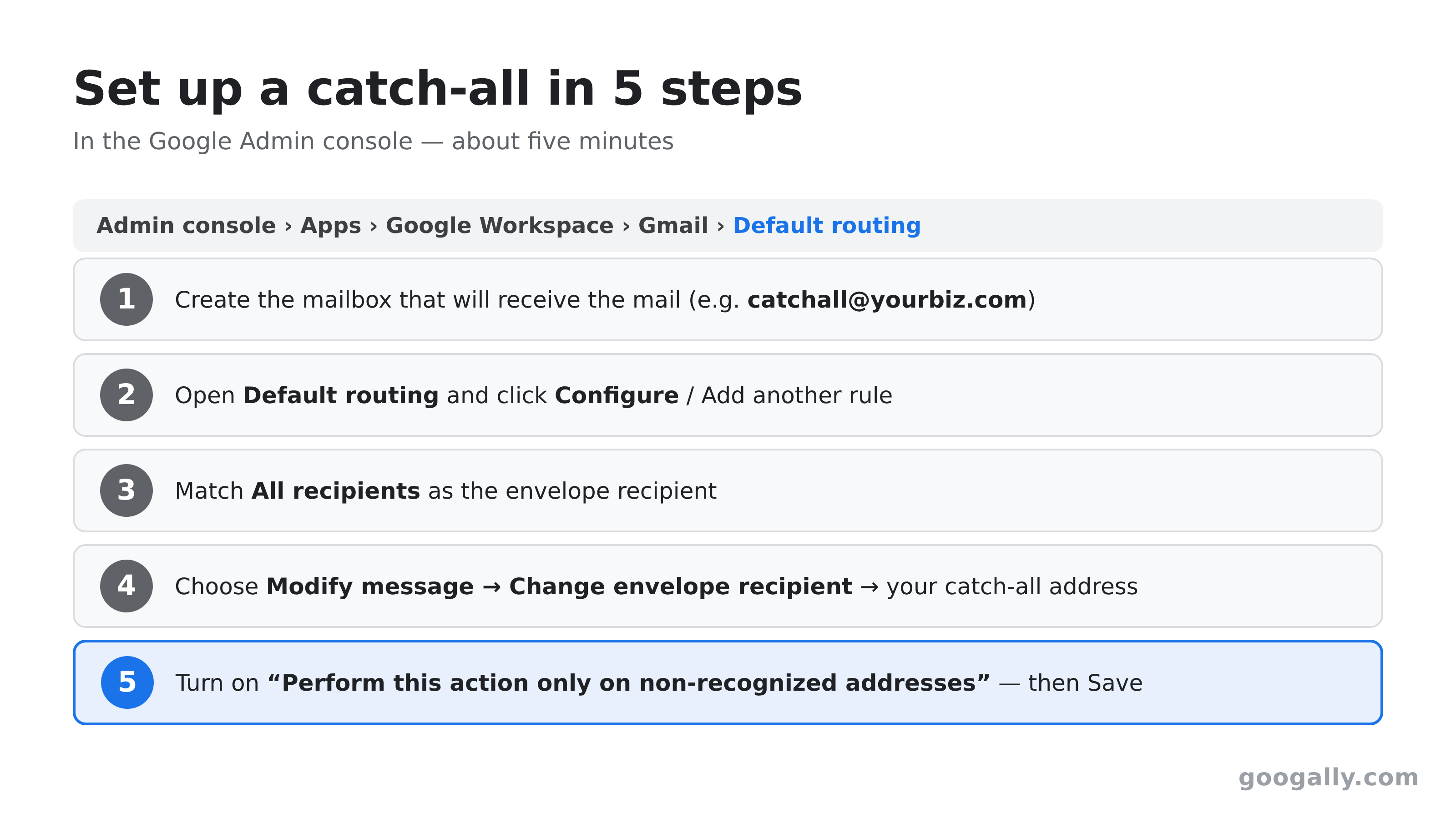
Setting up a catch-all takes about five minutes in the Admin console, and you'll need an account with the Gmail settings administrator privilege (your Google Workspace super admin has this by default). Here's the exact path.
First, decide which mailbox should receive the misaddressed mail. Many teams create a dedicated user like catchall@yourbusiness.com or point it at an address they already monitor. Make sure that mailbox exists before you build the rule.
Then build the routing rule:
- Sign in to the Admin console at admin.google.com, then go to Menu → Apps → Google Workspace → Gmail → Default routing.
- Click Configure (or Add another rule if you already have routing set up).
- Under Specify envelope recipients to match, choose All recipients so the rule evaluates every incoming message.
- Under If the envelope recipient matches the above, do the following, choose Modify message, then check Change envelope recipient and replace the recipient with your catch-all address (for example, catchall@yourbusiness.com).
- This is the important one: under Options, select Perform this action only on non-recognized addresses. Google defines these as addresses for suspended users, users whose Gmail is turned off, or valid-domain addresses not tied to any user. This setting is what protects your real mailboxes — without it, you'd reroute everyone's mail.
- Click Save at the bottom.
That's the whole rule. Changes can take up to 24 hours to apply, though in my experience they usually kick in within a few minutes. You can confirm it's live by sending a test message to a made-up address at your domain and watching it arrive in the catch-all mailbox.
If your routing rule depends on a domain you added recently, double-check that the domain is fully set up first — here's my walkthrough on verifying a domain in Google Workspace so routing has something to match against.
Catch-all vs. alias vs. group: which do you actually need?
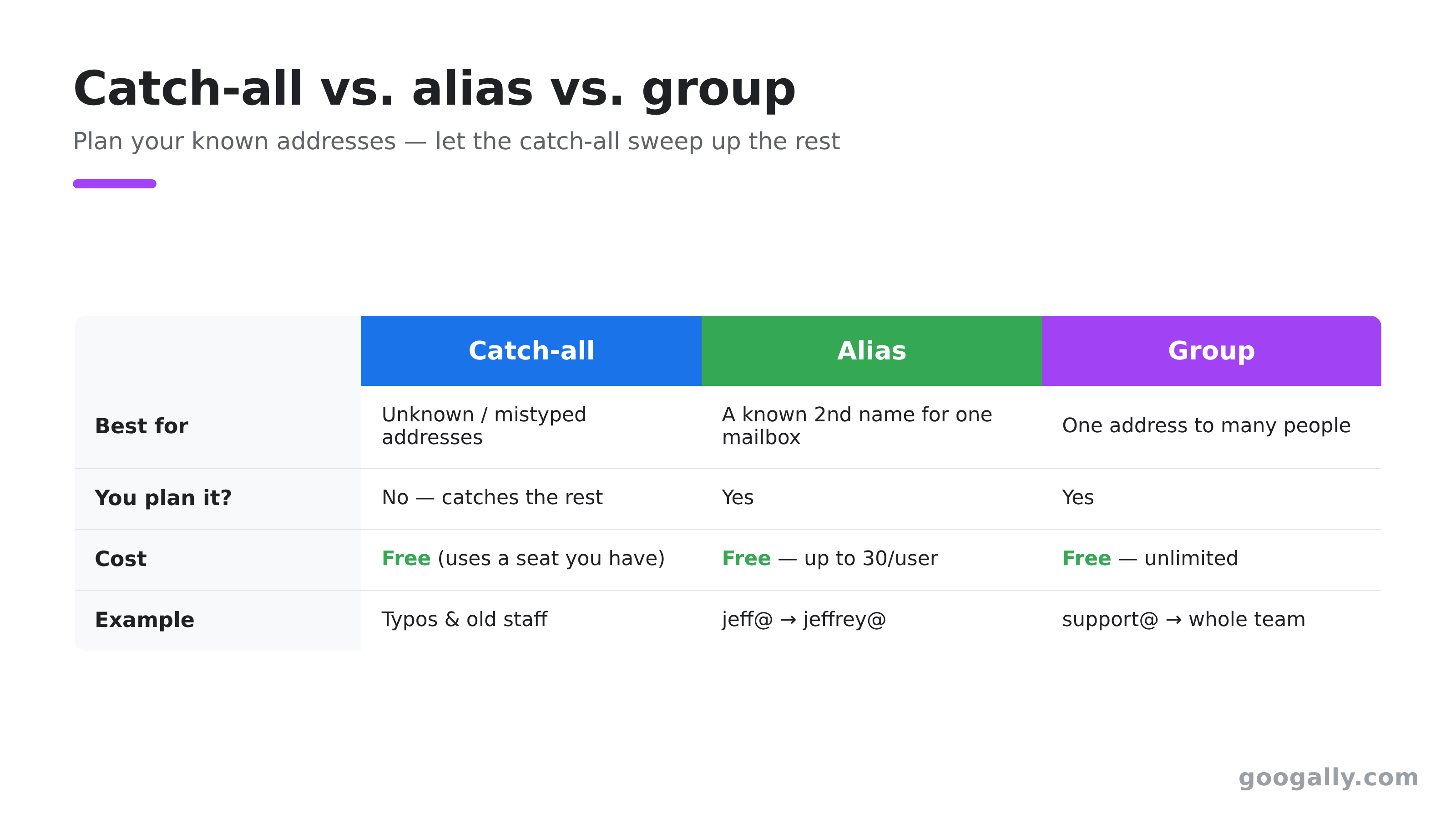
A catch-all is the right tool when you want to capture unknown or mistyped addresses. But it's often confused with two other Google Workspace features that solve different problems, and reaching for the wrong one creates headaches later.
An email alias is a nickname for an existing mailbox — a specific second address you deliberately create, like jeff@ pointing at jeffrey@. You get up to 30 free aliases per user. Use an alias when you know exactly which extra addresses you want. I cover the full setup in how to create an email alias.
A Google Group is best when a known address should fan out to several people, like support@ reaching your whole support team. Groups are free and effectively unlimited. If you're unsure which of the three fits your situation, my guide on users vs. aliases vs. groups breaks down the decision with examples.
Here's the simple rule I give clients: use aliases and groups for the addresses you plan for, and a catch-all for the ones you can't plan for. They work beautifully together — your known addresses route exactly where they should, and the catch-all sweeps up everything else.
The one trade-off: spam, and how to handle it
I'll be straight with you, because planning for this is what separates a clean setup from a messy one: a catch-all accepts mail for every possible address at your domain, so spammers who blast made-up addresses will see some of that land in your catch-all mailbox. This is normal and manageable — it's the price of never bouncing a real customer.
The good news is that Google Workspace gives you strong tools to keep it under control. Workspace's spam and phishing filtering still applies to catch-all mail, so most junk is filtered before you ever see it. For the rest, I recommend pointing the catch-all at a mailbox a person actually monitors (not a black hole), and reviewing it on a schedule rather than treating it like a primary inbox.
For teams, a smart pattern is to route the catch-all into a shared inbox the whole team can triage together — see how I set up a shared mailbox in Google Workspace so misaddressed leads get picked up quickly instead of sitting unseen. If a catch-all ever attracts more noise than it's worth, you can disable the rule in one click, so you're never locked in.
Does a catch-all work across multiple domains?
If you run more than one domain in your account, you can apply catch-all routing to each of them. Default routing lets you match recipients by domain, so a business juggling several brands can send each domain's misaddressed mail to its own catch-all mailbox, or funnel everything into one. If you're managing more than one brand under a single account, my overview of multiple domains in Google Workspace explains how the pieces fit together.
Because the catch-all mailbox is just a regular Workspace user or a shared inbox, it doesn't cost you anything beyond the seats you already have — there's no special "catch-all license."

Getting it set up without the guesswork
A catch-all is one of those settings that's simple once you've done it, but easy to get subtly wrong the first time — most often by forgetting the "non-recognized addresses" option and accidentally rerouting live mail. If you'd rather not experiment in your live mail flow, this is exactly the kind of configuration I handle for businesses every day at Googally, along with aliases, groups, security, and a full understanding of what Google Workspace includes.
And if you haven't signed up for Google Workspace yet, you can start on the right foot: as a top Google partner, we offer an exclusive Google Workspace promo code for 15% off the first 3 months for new customers — more than the 12% most partners offer. Set up your account with the discount, and I'll help you get catch-all routing, aliases, and the rest configured properly from day one.
For Google's own reference on this feature, see their official help article on getting misaddressed email in a catch-all mailbox.
Frequently Asked Questions
How long does a catch-all take to start working?
After you save the Default routing rule, changes can take up to 24 hours to fully propagate, but they usually take effect within a few minutes. The fastest way to confirm it's live is to email a made-up address at your domain and check that the message arrives in your catch-all mailbox. If nothing shows up after a day, re-open the rule and confirm the "non-recognized addresses" option is selected.
Can I have more than one catch-all mailbox?
Yes. Google Workspace allows up to 1,000 Default routing rules, so you can create several catch-all rules — for example, a separate catch-all per domain or per department. Each rule can point to a different mailbox. Just be careful that your rules don't overlap in a way that sends the same message two places unintentionally.
Will a catch-all stop my real users from getting their own email?
No, as long as you select Perform this action only on non-recognized addresses when you build the rule. With that option on, mail to existing users is delivered to them normally, and only messages to addresses that don't belong to anyone get swept into the catch-all. Skipping that option is the one mistake that can reroute live mail, so it's worth double-checking before you save.
Is a catch-all a security risk?
A catch-all itself isn't a vulnerability, but it does accept mail for every possible address, which can increase the spam reaching one inbox. Google's spam and phishing protection still filters that traffic, and you can disable the rule at any time. For sensitive environments, many admins review the catch-all periodically rather than using it as a day-to-day inbox.
Do I need Business Standard or Plus for a catch-all?
No. Default routing — the feature that powers catch-all — is available on Google Workspace business editions, including Business Starter, at no extra cost. You don't need a higher tier just to catch misaddressed mail. If you're weighing which edition fits your team overall, that's a separate decision from catch-all routing.
Related Posts
Explore Tips and Guides! Discover expert insights and practical guides for optimizing your Google Workspace experience with our informative resources.





















.png)
.png)
.png)
.png)
.png)
.png)
.png)
.png)




.png)
.png)

.png)








.png)
.png)


.png)


