Create a Group Email in Google Workspace: No Extra Cost
When I set up Google Workspace for a new team at Googally, one of the first requests is almost always a shared address—something like sales@ or support@ that the whole team can see and answer. The good news is that you can create one in about two minutes, and it won't cost you an extra seat. Here's exactly how I do it.
To create a group email in Google Workspace, open the Admin console, go to Directory > Groups > Create group, enter a name and an address like team@yourdomain.com, choose an access type, and add members. A group needs no license, so it's free and never counts toward your user limit.
Below I'll walk through each step with the settings that actually matter, break down the four access types in plain English, and show you when a group beats an alias or a shared mailbox—plus the small mistakes that trip most people up.
What a group email actually is (and why it's free)
A group email is a single address that automatically forwards every message to everyone inside it. Email reaches sales@yourdomain.com and lands with all the salespeople at once—no shared password, no extra mailbox, no forwarding rules to maintain.
That's the part most small businesses miss: a group is not a user account. It has no inbox of its own and no login, so it doesn't need a license. You can hand the whole team a professional support@ or info@ address without paying for another seat, and groups don't count toward the 300-user limit on Business plans either.
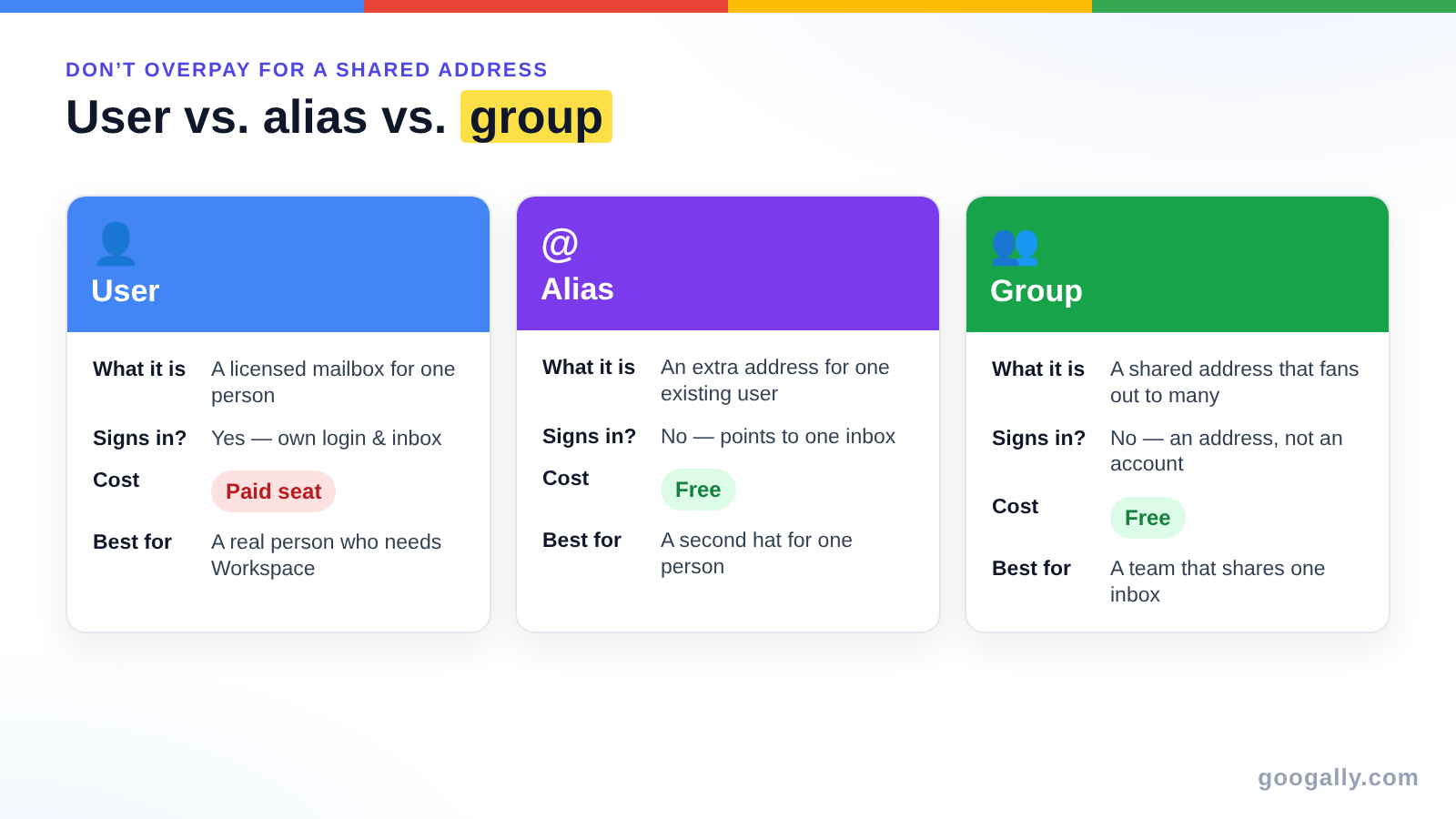
Think of your options as a ladder. A user is a licensed mailbox one person signs into. An email alias is a second address for one existing user. A group is a shared address that fans out to many people. For a team address that several people answer, the group is almost always the right rung—and the cheapest, because it's free.

How to create a group email in Google Workspace (step by step)
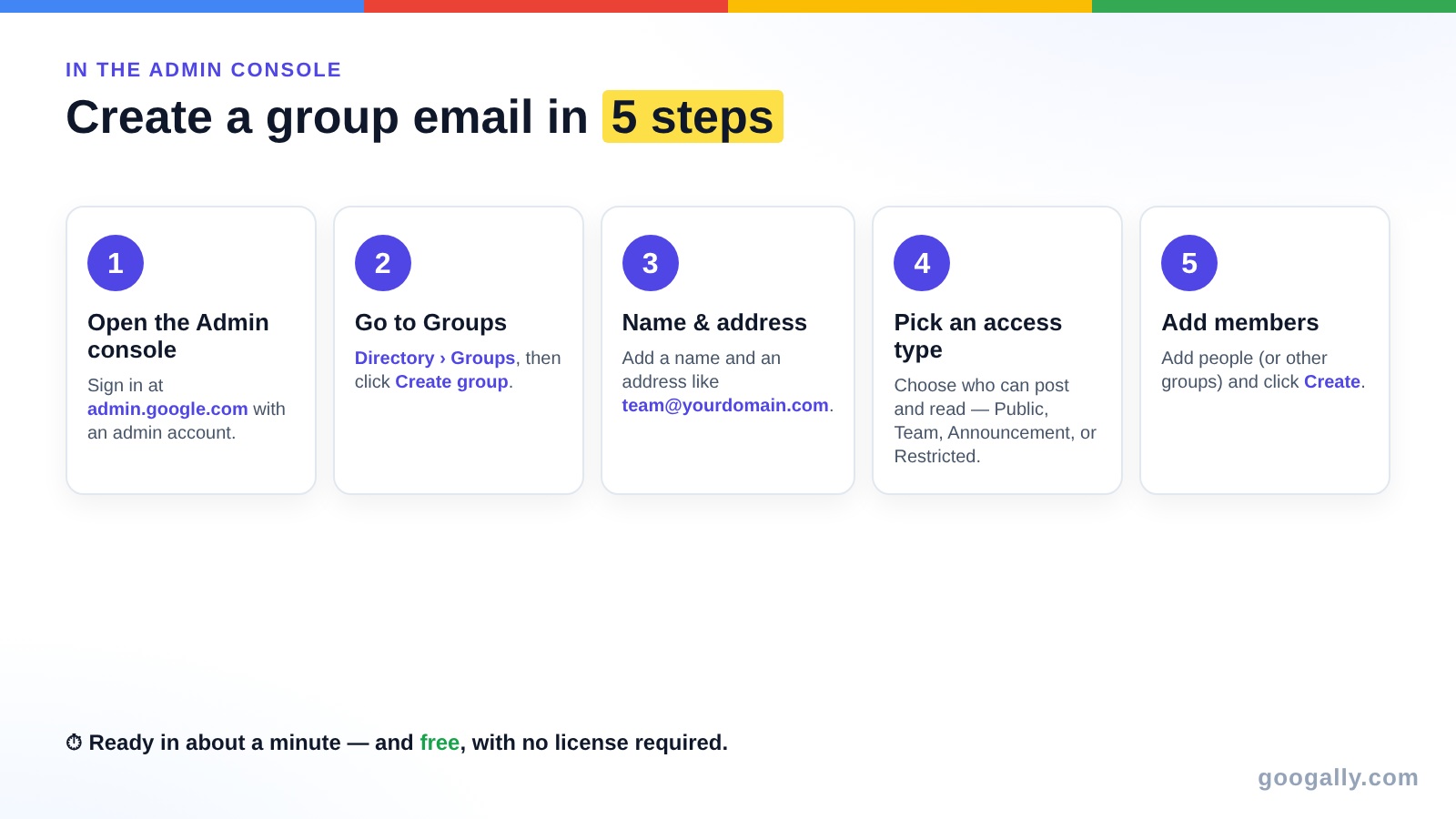
Creating the group takes five short steps in the Admin console. You'll need an administrator account with permission to manage groups—usually a super admin, though a custom admin role with the Groups privilege works too.
Here's the full path:
- Sign in to the Admin console at admin.google.com with your admin account.
- Open Directory > Groups, then click Create group.
- Enter a group name, a group email address (such as team@yourdomain.com), and an optional description. If you run more than one domain, pick the right one from the dropdown on the address.
- Add at least one group owner, then click Next and choose an access type (more on those below).
- Click Create group, then add your members—people, or even other groups.
The group is usually ready within a minute or two. From that moment, anything sent to the address reaches every member. These are the same steps laid out in Google's Admin console help, organized the way I actually use them on client accounts.
Choose the right access type
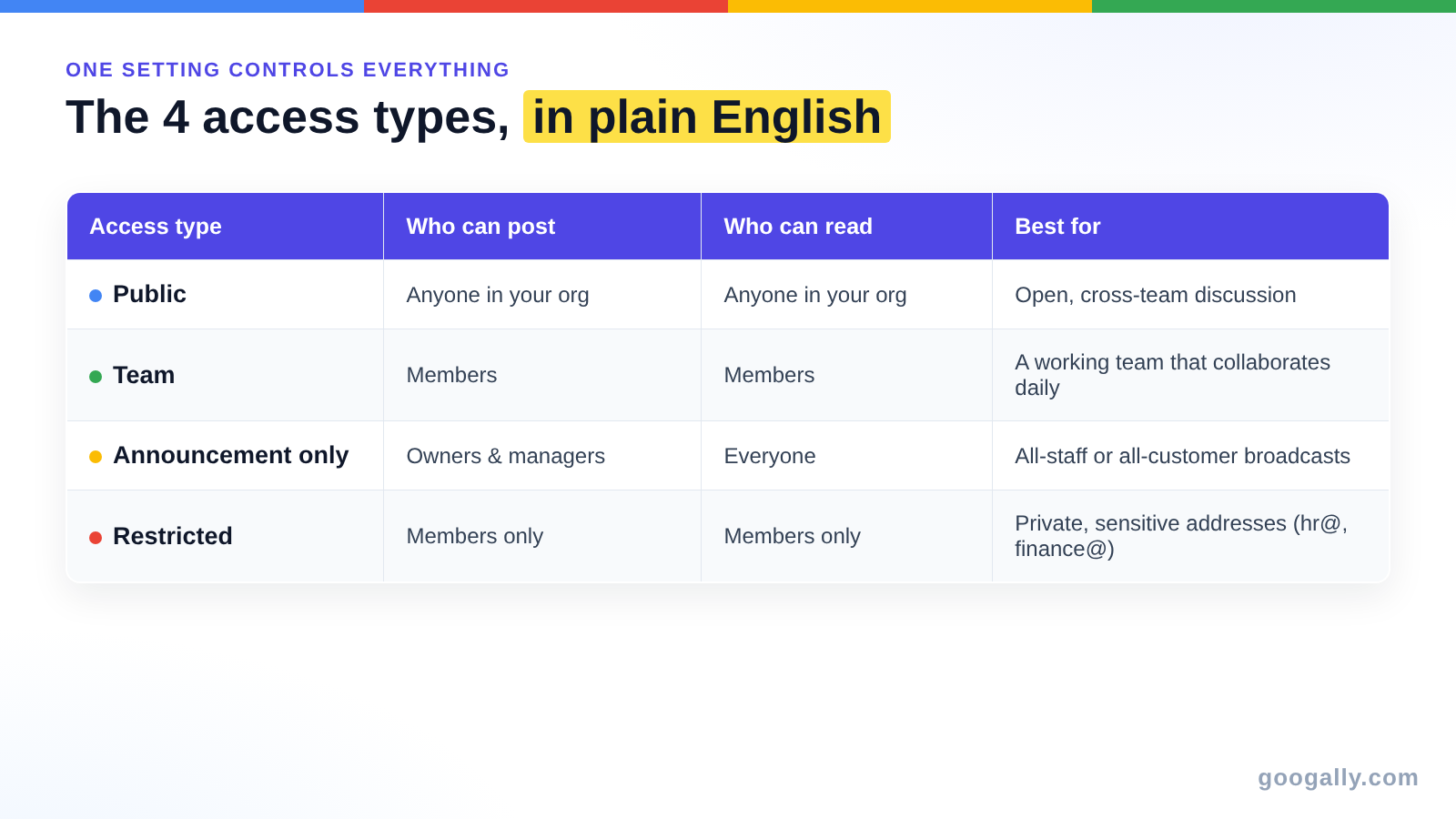
When you create a group, Google asks you to pick an access type. This one setting controls who can post to the group, who can read its conversations, and who can see the member list. Picking the wrong one is the most common group mistake, so it's worth 30 seconds of thought.
Google gives you four ready-made presets, plus a Custom option:
- Public — anyone in your organization can post and read. Good for open, cross-team discussion.
- Team — members post and read; it's built for a working team that collaborates day to day.
- Announcement only — only owners and managers can post, and everyone else reads. Perfect for an all-staff or all-customers broadcast address.
- Restricted — members only, private, and hidden from the wider directory. Use it for anything sensitive, like hr@ or finance@.
If none fits exactly, Custom lets you set each permission by hand. You can always change the access type later from the group's settings, so don't agonize over it—just start close.
Add members, managers, and owners
Every person in a group has one of three roles, and the difference matters. Members receive and (depending on access type) post messages. Managers can add or remove members and change most settings. Owners have full control, including deleting the group and changing who else is an owner.
For a simple team address, make one or two people owners, add everyone else as members, and you're done. You can add individual users or whole groups as members, which is handy when you want all-staff@ to automatically include your sales@ and support@ groups without retyping names.
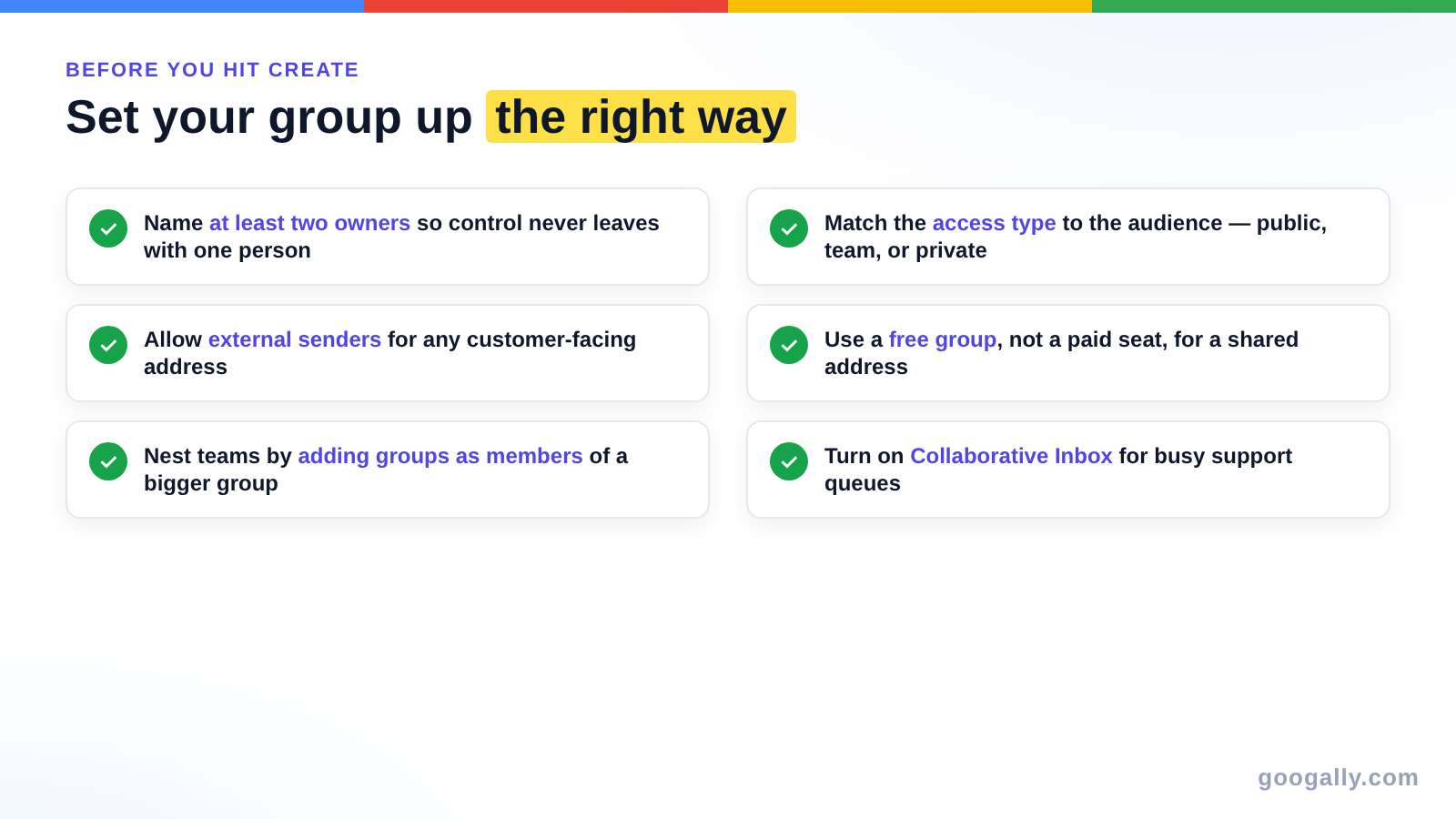
A quick tip from experience: always name at least two owners. If the only owner leaves and you offboard them later with nobody else in control, you'll be opening a support ticket to recover the group.
Turn it into a shared team inbox (Collaborative Inbox)
A plain group forwards mail to everyone, which is great for visibility but can get messy when several people reply to the same customer. If you want your team to assign conversations, mark them resolved, and avoid double-replies, switch the group into a Collaborative Inbox.
You turn this on inside the group's own settings at groups.google.com—open the group, go to Group settings, and enable Collaborative Inbox. From there, members can take ownership of a message, assign it to a teammate, and mark it complete, which turns a simple address into a lightweight help desk. If you need something closer to a true shared mailbox with full inbox features, I compare the approaches in my guide to the shared mailbox.
Group vs alias vs user: which one do you need?
Before you create a group, make sure a group is what you actually want. These three things look similar but bill and behave very differently, and mixing them up is where most small businesses overspend.
- A user is a licensed mailbox for one person. It costs a seat and is what you buy when you add a user for a new hire.
- An email alias is a second address that points at one existing user's inbox—free, but tied to a single person.
- A group is a shared address that delivers to many people—also free, and the right choice when more than one person needs to see the mail.
Rule of thumb: if one person owns the address, use an email alias. If a team shares it, use a group. I break the three apart in more detail in user vs alias vs group. Getting this right means you never pay for a seat just to create a shared sales@ or info@ address.
Let your team create their own groups (optional)
You don't have to be the bottleneck for every new group. In the Admin console under Apps > Google Workspace > Groups for Business, you can let users create and manage their own groups at groups.google.com. It's a nice way to let departments spin up project lists without an admin ticket.
Leave it off if you prefer tight control over which addresses exist on your domain—especially if you've invested in a clean, professional set of addresses. There's no wrong answer; it depends on how much you trust the team to self-serve. Either way, every group they create is still free and still never touches your license count.
Common mistakes to avoid
Most group problems come from a handful of avoidable missteps. I see the same ones on nearly every account I clean up:
- Using a paid user seat as a shared address. Buying a whole Workspace license just to create support@ is money wasted—a free group does the same job.
- Picking the wrong access type. A Public or Team group where outsiders can post invites spam; a Restricted group where customers can't reach you defeats the purpose. Match the type to the audience.
- Naming only one owner. If that person leaves, control goes with them.
- Forgetting external senders. By default many groups only accept mail from inside your organization, so customer emails to support@ can silently bounce. Allow external posting if the address is customer-facing.
- Confusing a group with a login. Nobody can sign in as the group; it's an address, not an account.
Get those five right and your group will quietly do its job for years.
Setting up clean group addresses is one of the first things I handle when I move a team onto Google Workspace at Googally—right alongside the migration and the admin setup. If you're still choosing a plan, our Google Workspace promo code gives 15% off the first 3 months for new customers. And if you'd rather not touch the Admin console at all, I'm happy to set up your users, groups, and shared addresses for you.
Frequently asked questions
Do I need to be a super admin to create a group email?
Not necessarily. A super admin can always create groups, but any custom admin role that includes the Groups privilege can too. If you can see Directory > Groups > Create group in the Admin console, you have the access you need.
Where can I read old messages sent to the group?
Every message to the group is archived in the group itself. Open the group at groups.google.com to browse its full conversation history—handy when a new team member needs to catch up on a customer thread that arrived before they joined.
Can one group include people on two different domains?
Yes. If you run multiple domains under one Workspace account, a single group can include members from any of them, and you can host the group's address on whichever verified domain you choose.
Will group messages also land in each member's normal inbox?
Yes, by default each member receives every message to the group in their regular Gmail inbox. Members can change how they get mail—every message, a daily digest, or no email—from their own subscription settings for that group.
Can a group and a user share the same name or address?
No. Every address on your domain must be unique, so a group can't reuse an address already assigned to a user or alias. If you want an existing personal address to become a shared one, move the person to a new address first, then create the group.
Is there a limit on how many groups I can create?
For practical purposes, no. Groups don't require licenses and don't count toward your plan's 300-user limit, so you can create as many shared addresses as your team needs without raising your bill.
Related Posts
Explore Tips and Guides! Discover expert insights and practical guides for optimizing your Google Workspace experience with our informative resources.