How to Add a User in Google Workspace: 2-Minute Setup
When a new hire starts at a business I’ve helped set up, the first thing their manager asks for is a working email on day one. Adding that person in Google Workspace is one of the quickest admin jobs there is—I’ve done it in under two minutes while sitting on a phone call. The part people actually trip over isn’t the steps; it’s the license the new user gets and how you hand off their sign-in.
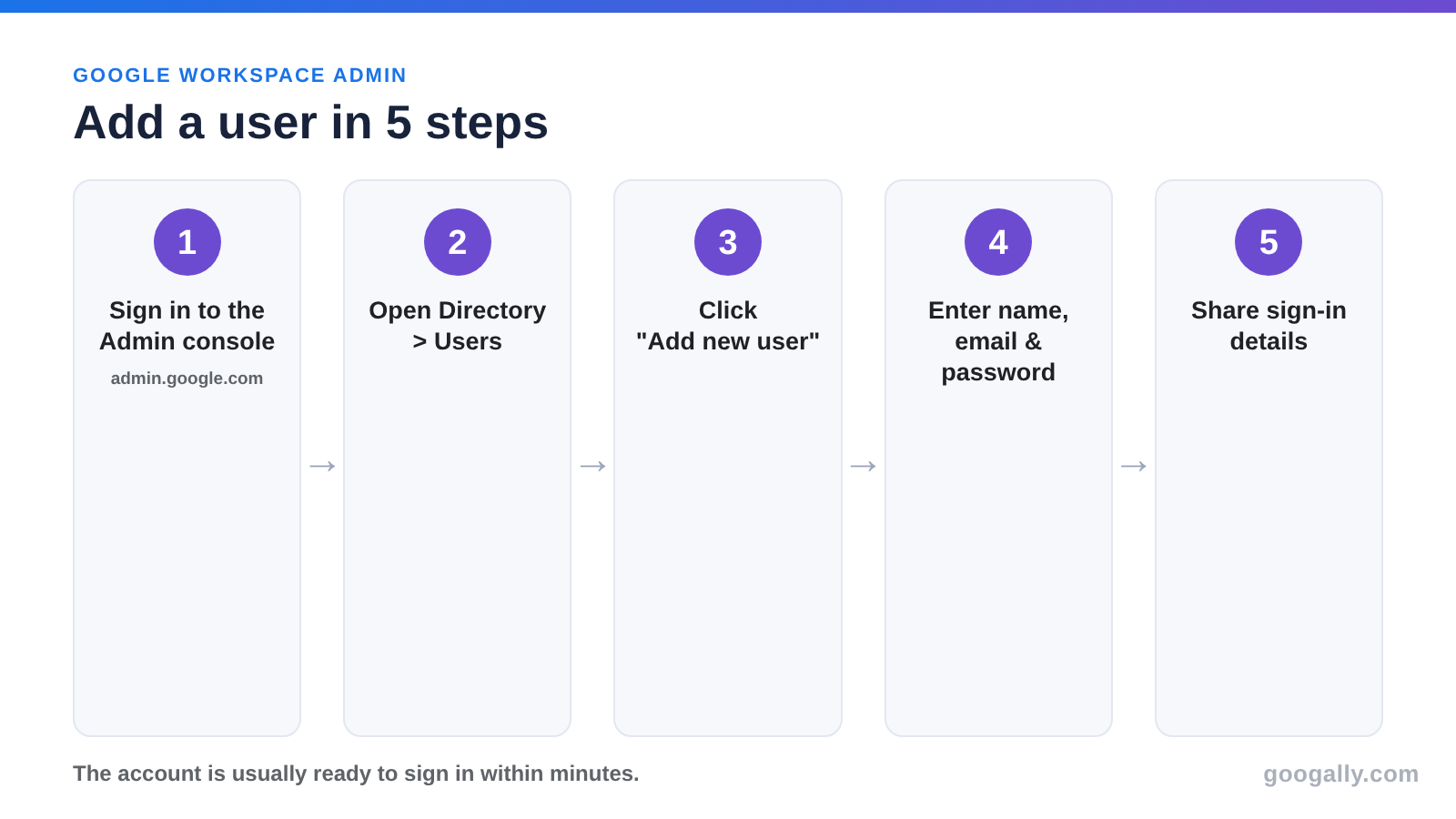
To add a user in Google Workspace, sign in to the Admin console, go to Directory > Users, and click Add new user. Enter the person’s name and email address, set or auto-generate a password, then click Add new user. The account is usually ready to sign in within minutes.
That gets the account created. But a handful of decisions around it—which license the new user receives, what they can open on day one, and how an extra seat changes your bill—are what separate a clean onboarding from a messy one. Here’s exactly how I do it, start to finish.
What “adding a user” actually does
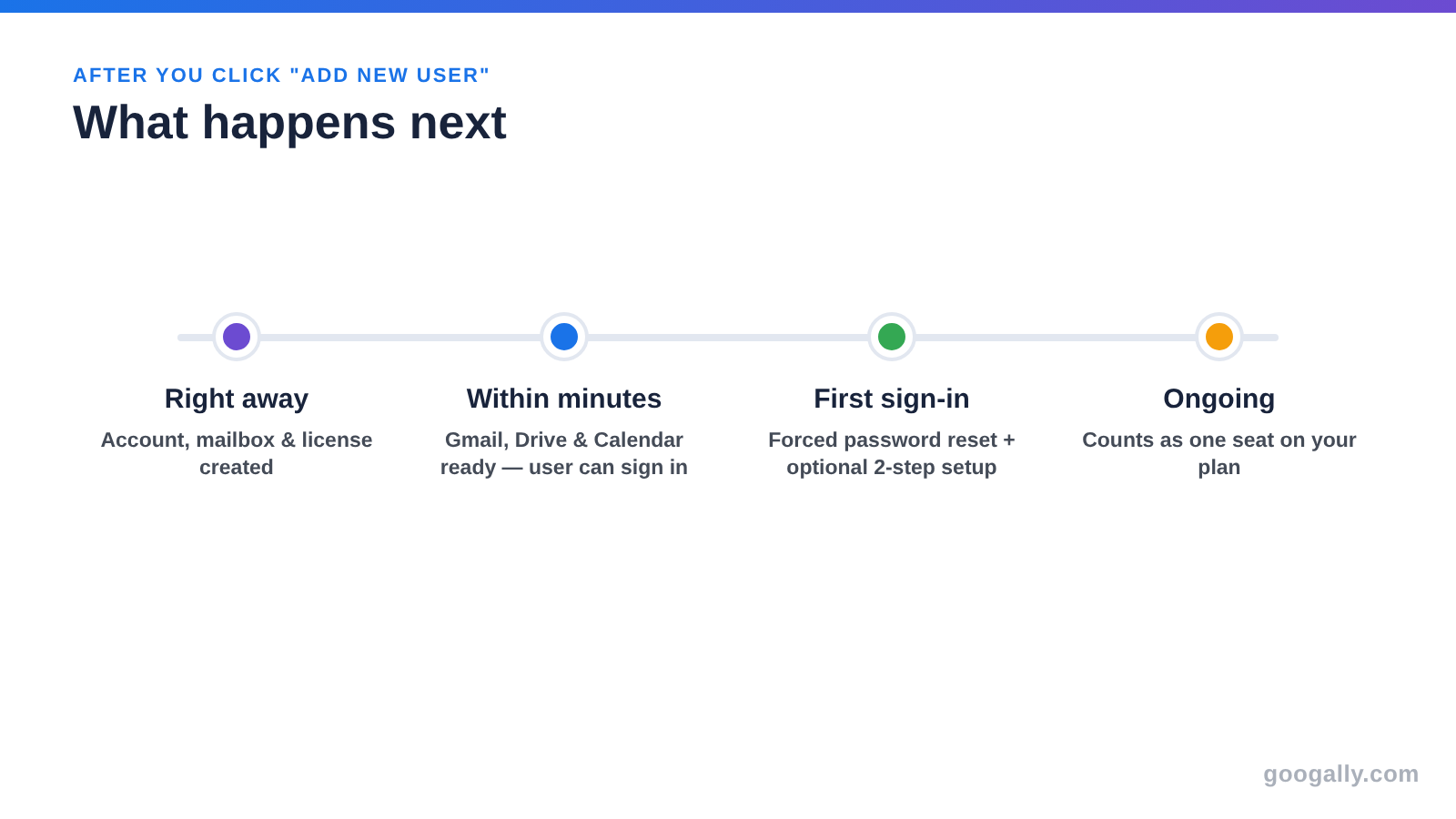
Adding a user creates a brand-new account on your domain: their own mailbox, their own login, and their own space in Drive, Calendar, and Meet. It is not the same as an alias or a shared inbox—it’s a real person with a real seat.
From the moment you add them, they get an email address at your domain (like jordan@yourcompany.com), and they count as one licensed user on your plan. That’s the trade-off worth remembering: every user you add is a mailbox you control, but also a seat you pay for.
If you only need a second address for someone who already works there—say sales@ pointing at an existing inbox—that’s an alias, not a new user, and it doesn’t cost an extra seat.
How to add a user in Google Workspace (step by step)
Here’s the manual add, the one you’ll use most. You need to be signed in as an administrator.
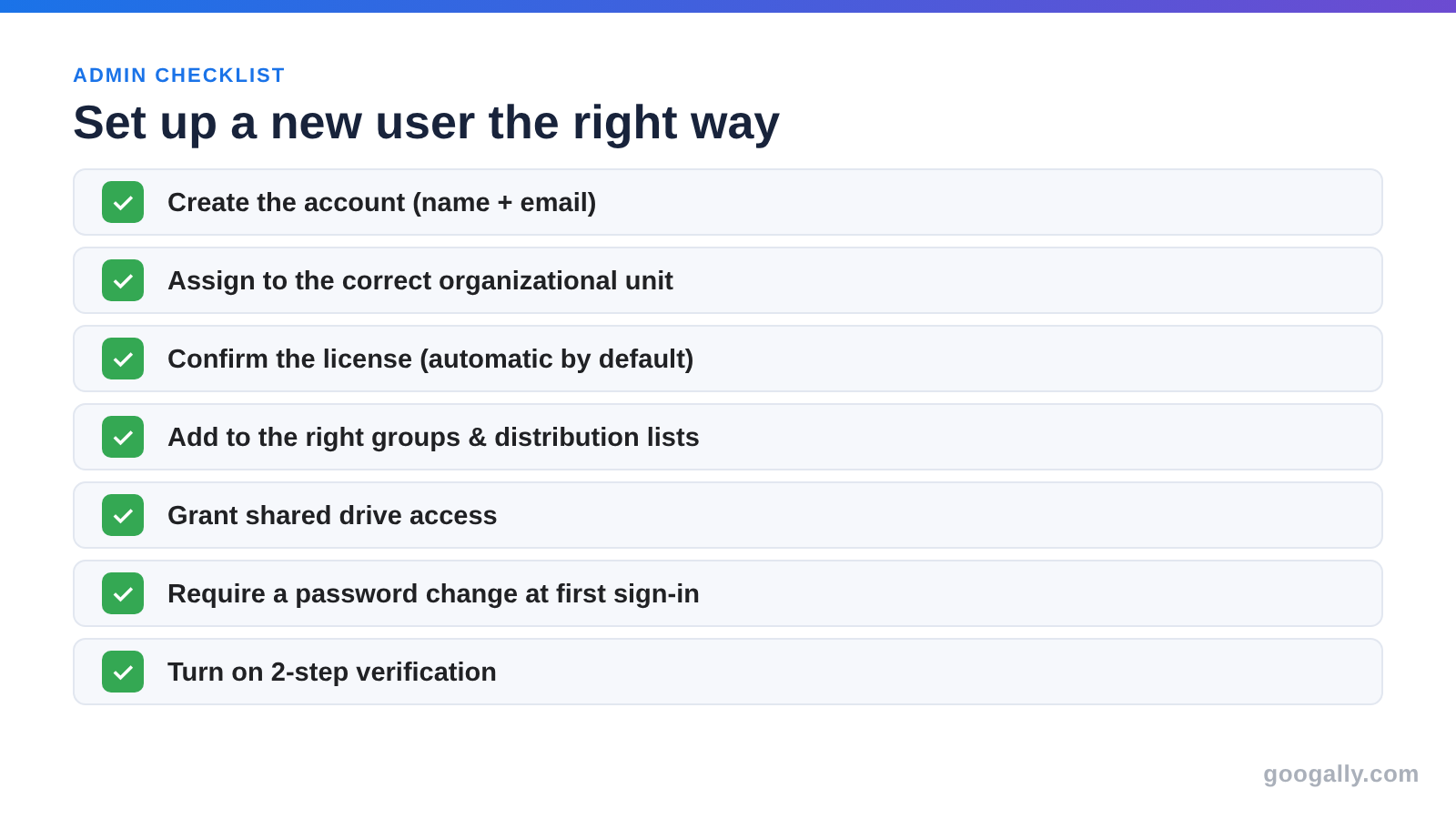
- Sign in to the Google Admin console at admin.google.com with your admin account.
- Go to Menu > Directory > Users.
- Click Add new user.
- Enter the person’s first and last name. Their primary email becomes their username—type the part before the @ and, if you run more than one domain, pick the right domain from the dropdown.
- Set a password. You can let Google generate one automatically or type your own, and I always leave “Ask for a password change at the next sign-in” turned on.
- Click Add new user. Google then lets you email or print the sign-in instructions—send those to the new hire or their manager through a secure channel.
That’s the whole flow. For Google’s exact field-by-field screens, see Google’s official guide to adding a user. The account is normally active within minutes, so the new person can sign in the same day.
Adding a whole team at once (bulk CSV)
If you’re onboarding more than a few people—or setting up Workspace for the first time—don’t add them one by one. In Directory > Users, use the bulk option to download a CSV template, fill in one row per person (name, email, password, organizational unit), and upload it. Google creates every account in one pass.
For larger or fast-growing teams, you can go a step further and sync users automatically from an HR system or directory, so new employees are provisioned the moment they’re added there. Most small businesses never need that—the CSV upload covers a surprising amount of ground.
Which license does the new user get?
By default, Google Workspace uses automatic licensing, which assigns an available license to each new user as you create them—so most of the time you don’t do anything extra. If you run more than one subscription, or you’ve turned automatic licensing off, you pick the license yourself on the user’s page under Licenses.
The thing to check: a user needs a license to actually use Gmail, Drive, and the rest. An account with no license can exist, but the person can’t do much with it. If you’re not sure which plan fits your team, our Google Workspace plan comparison breaks down the options.
What an extra seat does to your bill (Flexible vs Annual)
This is the step people forget until the invoice arrives. What happens depends on your payment plan.
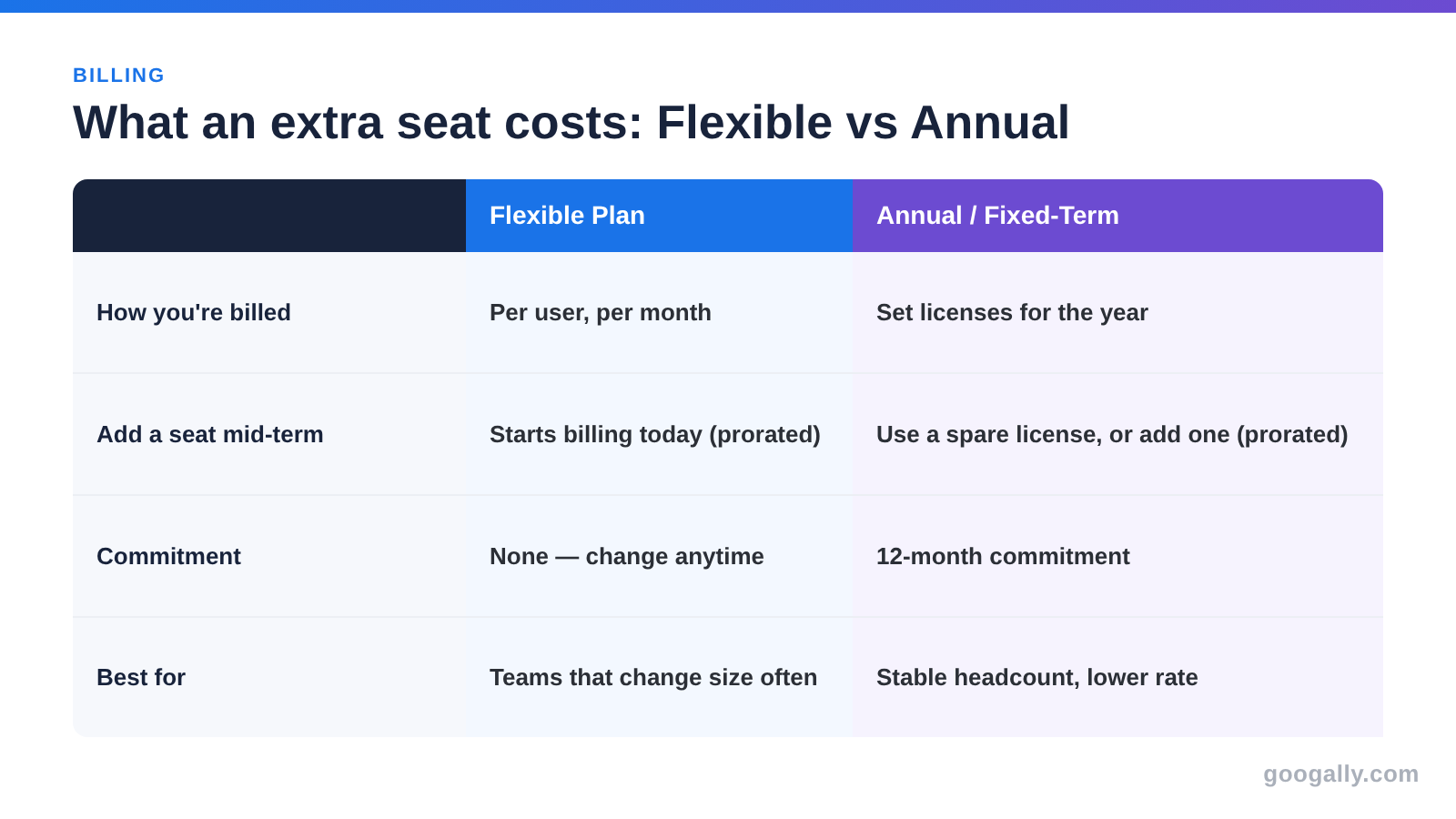
On the Flexible Plan, you’re billed per user, per month. Add a user today and you simply start paying for that seat from today, prorated—there’s no commitment and no upfront purchase. Remove them later and the charge stops.
On the Annual/Fixed-Term Plan, you’ve committed to a set number of licenses for the year. If you have a spare license—say one freed up when someone left and you archived their account instead of deleting it—you can assign it to the new hire at no extra cost. If you’re already at your limit, you add a license, prorated for the rest of your term.
Either way, if you’re just getting started with Workspace, you don’t have to pay full price to begin. New customers can use a Google Workspace promo code for 15% off the first 3 months for new customers while you get your team set up. For a fuller breakdown of per-seat costs, see our guide to Google Workspace business email pricing.
What the new user can access on day one
As soon as the account is live, the new user gets the core of Workspace: Gmail on your domain, Google Drive, Calendar, Meet, and the Docs, Sheets, and Slides editors. They can sign in and start working immediately.
What they can’t see yet is anything that depends on membership. Shared drives, group mailboxes, and team calendars only appear once you’ve placed the user in the right organizational unit and added them to the relevant groups. I set that up at the same time I create the account, so the person isn’t locked out of the files they need on their first morning.
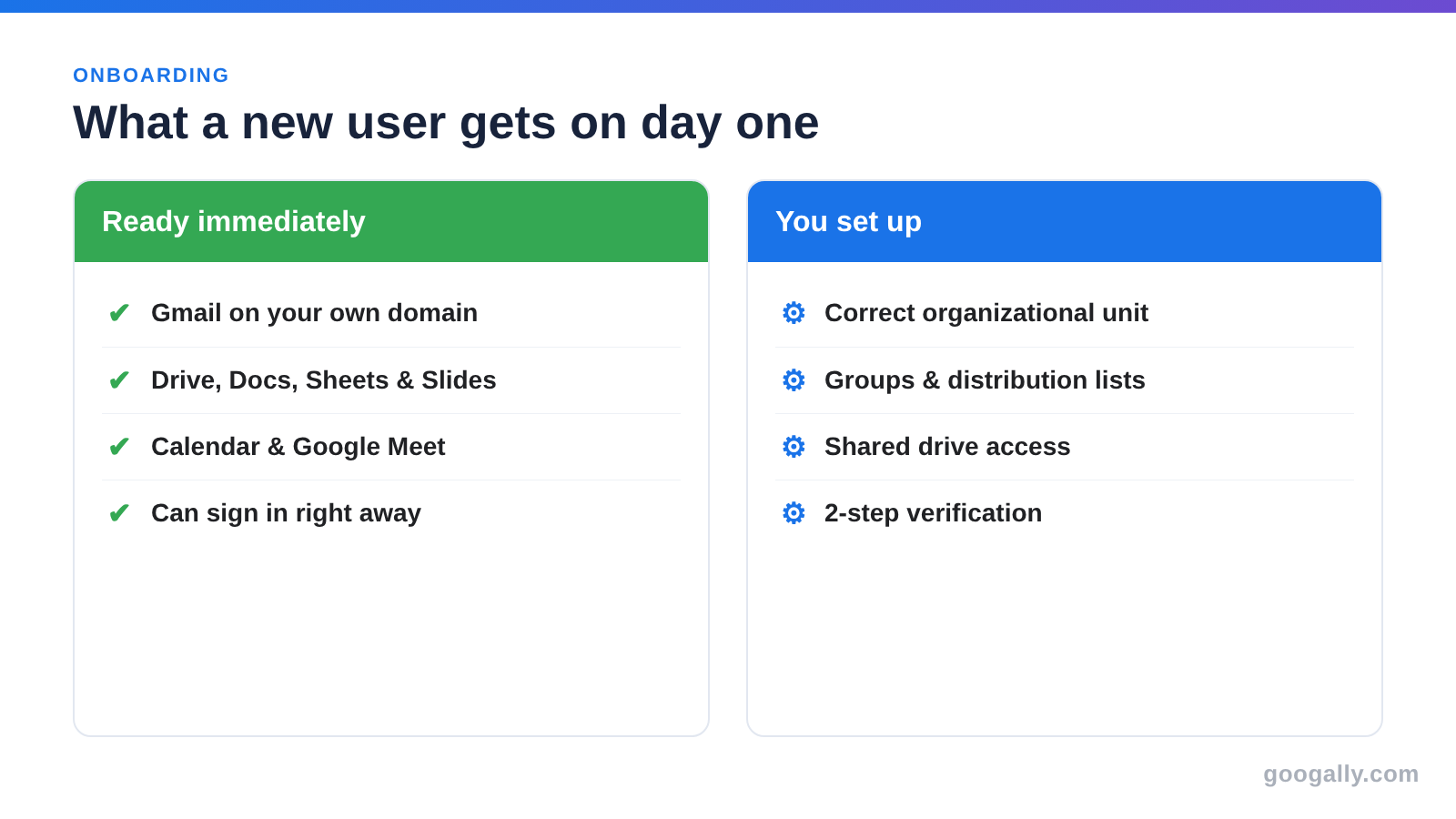
Set them up right: four things to do when you add a user
Creating the account is step one. These four take another minute and save you a support ticket later:
- Put them in the correct organizational unit, so they inherit the right settings and app access from the start.
- Add them to the groups and distribution lists their role needs—sales@, support@, the all-staff list—so email and shared resources reach them automatically. If what they really need is a team address like info@ rather than their own, set up a shared mailbox instead.
- Turn on (or enforce) 2-step verification for the account—this is the single biggest thing you can do to keep a new login from becoming the weak point.
- Hand off the sign-in details securely and keep “require a password change at first sign-in” on, so the temporary password never becomes their real one.
Adding a user on a second domain
If you’ve added and verified a second domain in Workspace, you can create users on it too. On the Add new user screen, type the username and then choose the domain you want from the dropdown next to the @ sign. The user is still part of the same account and billed the same way—only their email address changes.
The mistakes I see most often
- Leaving a new user in the top-level organizational unit when they should inherit a department’s settings.
- Creating a generic shared login (one “frontdesk” account three people share) instead of real users—it breaks security and audit trails.
- Forgetting the 300-user ceiling on Business plans. Business Starter, Standard, and Plus top out at 300 users total; past that you move to Enterprise.
- Deleting an account the moment someone leaves. Delete too fast and their email and files can disappear in 20 days—archive or transfer first.
Frequently asked questions
Can the new user use their personal Gmail address for their work account?
No. A Google Workspace user is always created on your own domain (name@yourcompany.com). A personal @gmail.com address can’t be turned into a Workspace seat—you create a fresh account on your domain instead.
What’s the difference between adding a user and creating an email alias?
Adding a user creates a new person with their own login, mailbox, and seat on your plan. An alias is just an extra email address that points at an existing user—no new login and no extra cost. Here’s how users, aliases, and groups differ.
How do I make a new user an admin?
Add them as a normal user first, then open their account and assign an admin role. Give the lightest role that does the job rather than making everyone a super admin.
Can I add a user before their first day?
Yes—you can create the account ahead of time so everything’s ready. Just remember that on the Flexible plan, billing starts the moment the user exists, so add them close to their start date if cost matters.
How many users can I add on a Business plan?
Business Starter, Standard, and Plus each support up to 300 users. If you expect to grow past that, you’ll need an Enterprise edition—more on the Google Workspace user limit.
What should I do with the account when that employee leaves?
Don’t just delete it. Transfer their important files and either suspend or archive the account when an employee leaves so you keep the data and can free up the seat.
Adding a user is the easy part—getting every new hire into the right organizational unit, groups, and security settings the same way every time is where it pays to have a system. If you’d rather hand that off, I help teams get Google Workspace set up and running cleanly at Googally, from the first user to the hundredth.
Related Posts
Explore Tips and Guides! Discover expert insights and practical guides for optimizing your Google Workspace experience with our informative resources.